


Start from: The Flow Learning Dashboard.
Knowledge Checks
Knowledge Checks, often implemented as quizzes, enhance the learning experience by turning content into short, structured assessments. You can use them to:
- Reinforce understanding of key concepts.
- Check retention at specific points in a learning journey.
- Support more active learning, rather than passive consumption.
Knowledge Checks can be configured with different question types and used both for engagement and for compliance tracking when flagged as compliance items.
Knowledge checks setup
- Select Learning & Development > L&D Settings > Knowledge Checks from the main menu.
- Select Add (+).
Details section
- Enter a title, a description, a thumbnail, and a passmark.
- Use the Answer Assistance toggle.
- When enabled, learners completing the quiz in Mapal One will see immediate feedback after each answer, with indicators showing whether their choice was correct or incorrect.
- When disabled, no feedback is shown until the end of the quiz, keeping it as a summative assessment.
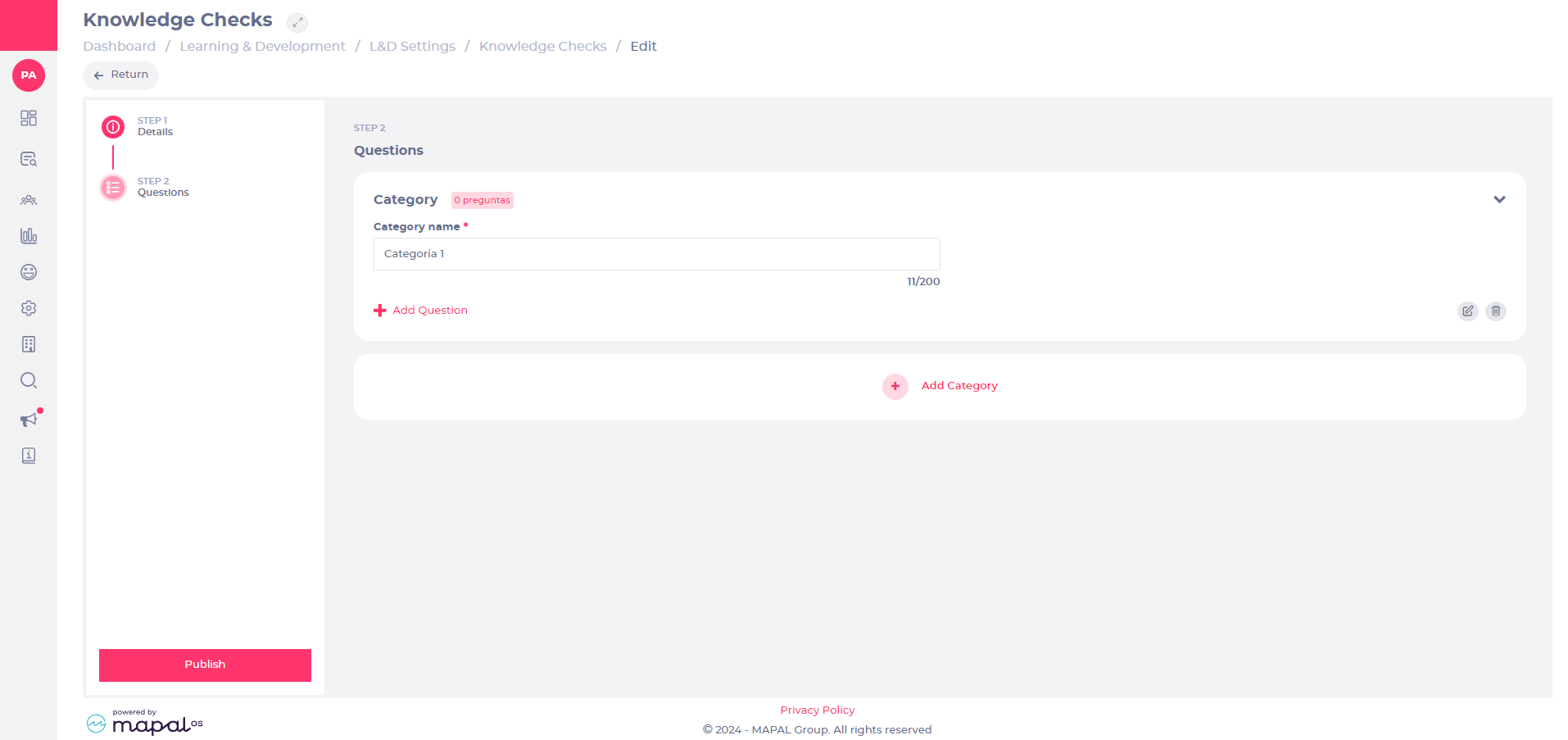
Questions section
- Add a number of categories (to group similar question types).
Note: You can add up to 25 questions.
- Within questions, you can select 2 types of questions:
- Single Select
- Multi Select
Note: Select which answer is correct, so that the system can score the user correctly. Scores will be calculated based on the number of questions in the Knowledge Check and the number of correct answers a user has given.
AI-assisted creation
When adding a new Knowledge Check, you can use AI to generate questions automatically based on a prompt you provide.
- Select Add (+) to start creating a Knowledge Check.
- Configure the Details step manually.
- In the Questions step, you will have an AI assistant.
- Enter a prompt describing the topic, context, or learning content you want the questions to cover.
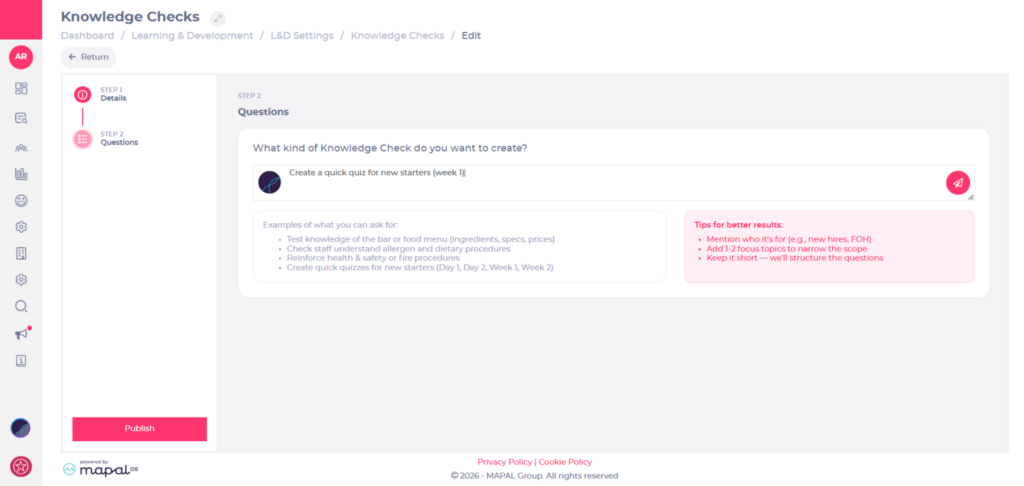
- The AI generates a set of questions based on your input. Supported question types include Single Select and Multi Select. Answers are automatically generated alongside each question.
- Review the generated questions and edit, remove, or reorder them as needed before saving.
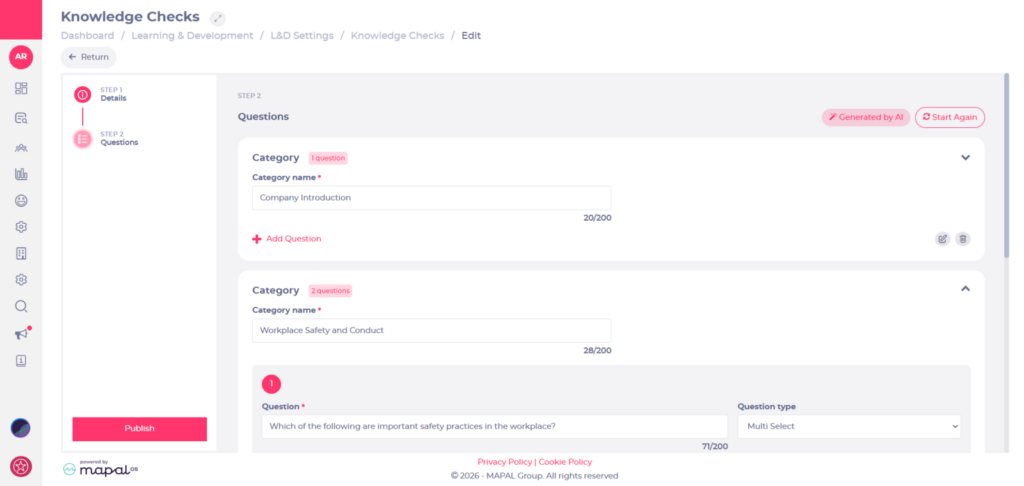
Note: AI-generated questions should always be reviewed before publishing. You remain responsible for the accuracy and appropriateness of the content.
Clone a Knowledge Check
You can duplicate an existing Knowledge Check to reuse its structure and questions without rebuilding it from scratch.
To clone a Knowledge Check:
- Locate the Knowledge Check you want to copy in the list.
- Open the action menu (three dots …) for that item.
- Select Clone.
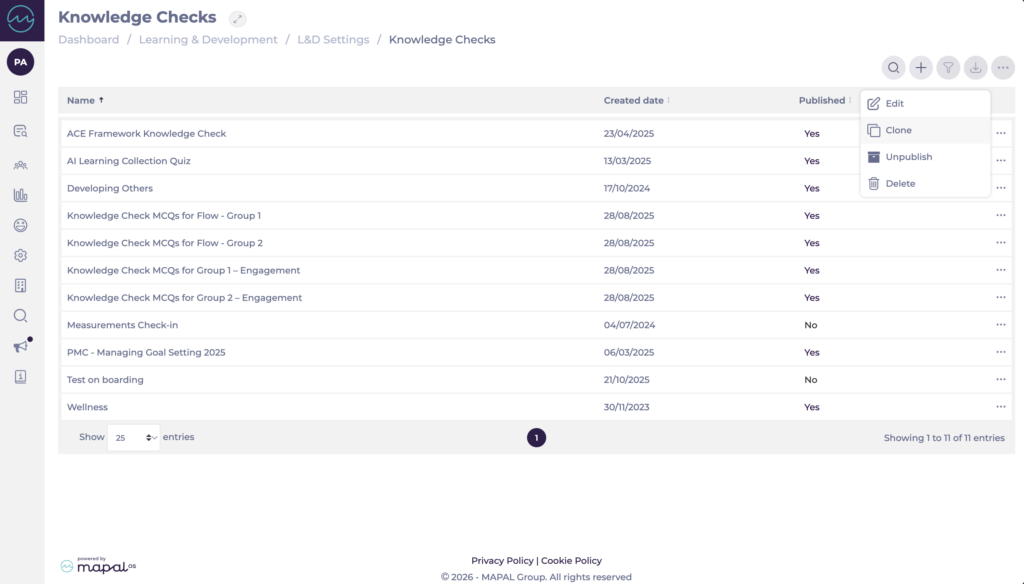
- A new Knowledge Check is created with the same details, categories, questions, and configuration as the original.
- Open the cloned item and update:
- Name* (so it is clearly distinguishable from the original).
- Any Description, Pass mark, or Answer Assistance settings that need to differ.
- Questions or answer options where required.
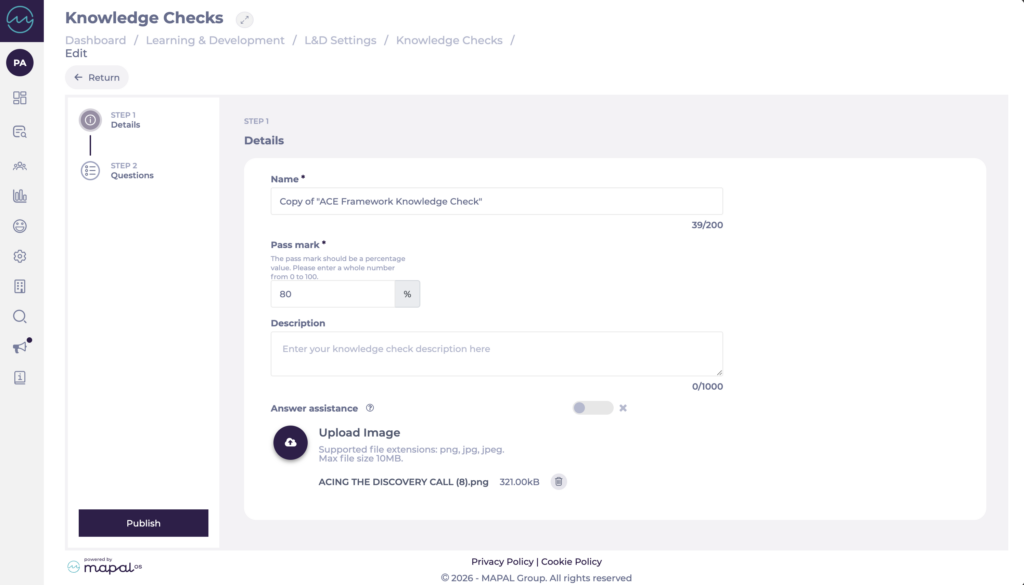
- Select Save.
Note: Cloning copies the configuration and questions, but not any learner completion data. The cloned Knowledge Check behaves like a new item and can be used independently in Training Structures and compliance reporting.
Track completion
The Knowledge Checks Management page (Learning & Development > Knowledge Checks) displays a Completion Date field for each Knowledge Check, showing when a learner completed it.
Use this field to monitor completion progress and support compliance tracking.
Knowledge Checks as compliance items
Knowledge Checks can be flagged as compliance items in your Flow Learning settings. When configured in this way, they:
- Appear in the Compliance Overview report alongside Modules, Workbooks, External Training, Competences, Noticeboard items, and Appraisals.
- Can be filtered by status (for example, Not Started, In Progress, Completed).
- Contribute to overall compliance levels in the same way as other compliance resources.
To know more about how to flag knowledge checks as compliance items, see Build a compliance report.
