


View lesson history
- Open the lesson you want to review.
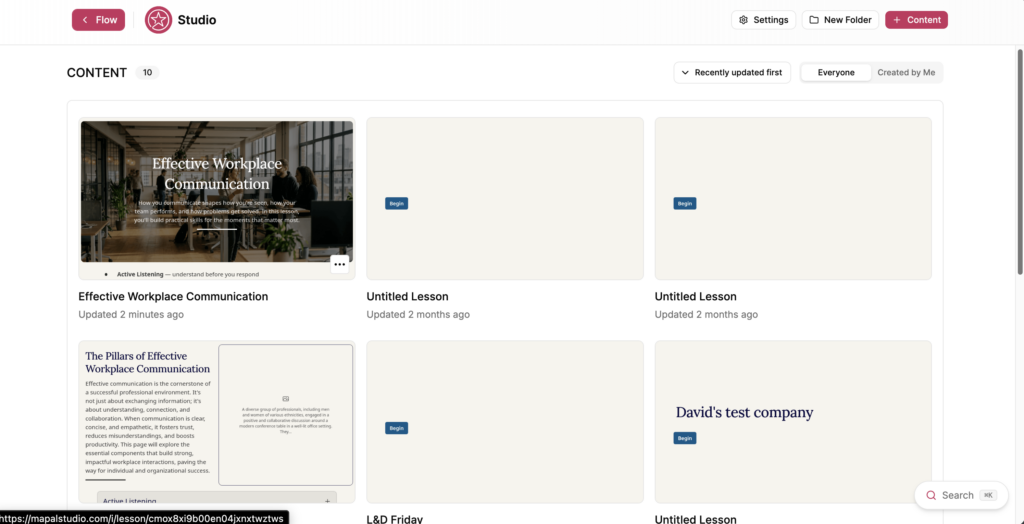
- Select the History icon in the toolbar.
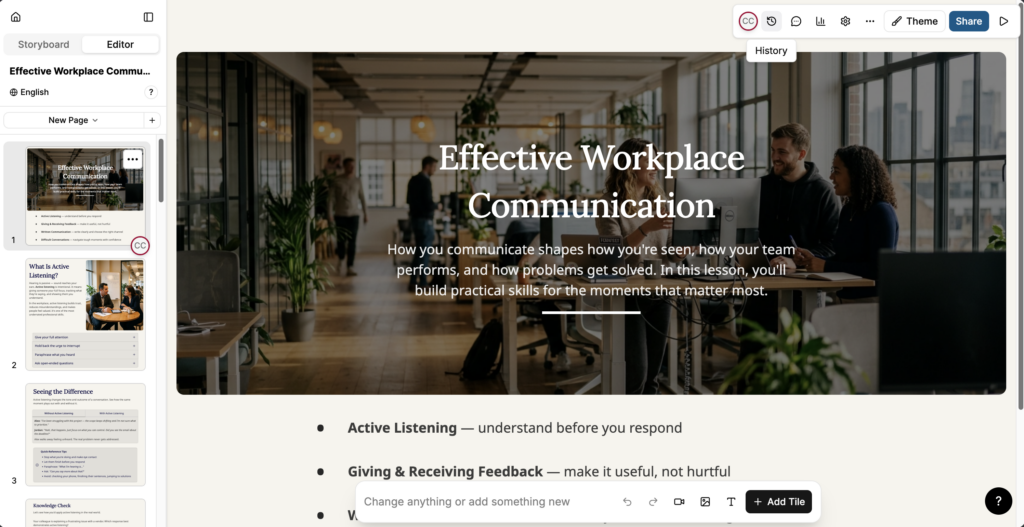
- The History panel opens, showing three sections:
- Current Version: the version you are currently editing. The panel indicates whether there are unsaved changes since the last version.
- Named versions: versions created by a specific action, such as generating a lesson, building a lesson, or a targeted AI interaction. Each entry shows the date, time, a description of the change, and the editor responsible.
- Automatic: versions saved automatically by Studio. Each entry shows the date and time.
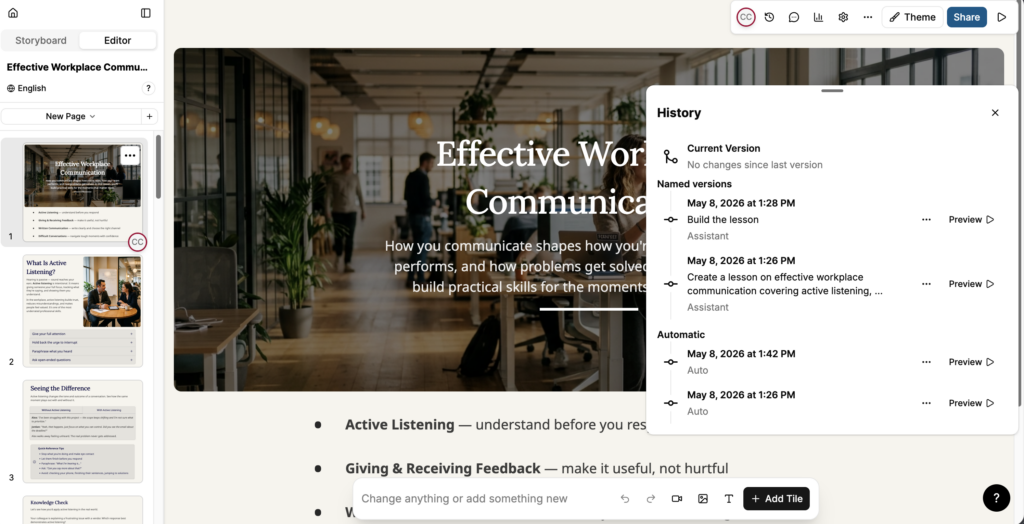
Preview a previous version
- In the History panel, find the version you want to review.
- Select Preview next to the entry to open a read-only preview of that version.
Note: Previewing a version does not change the current lesson. Close the preview to return to the current version.
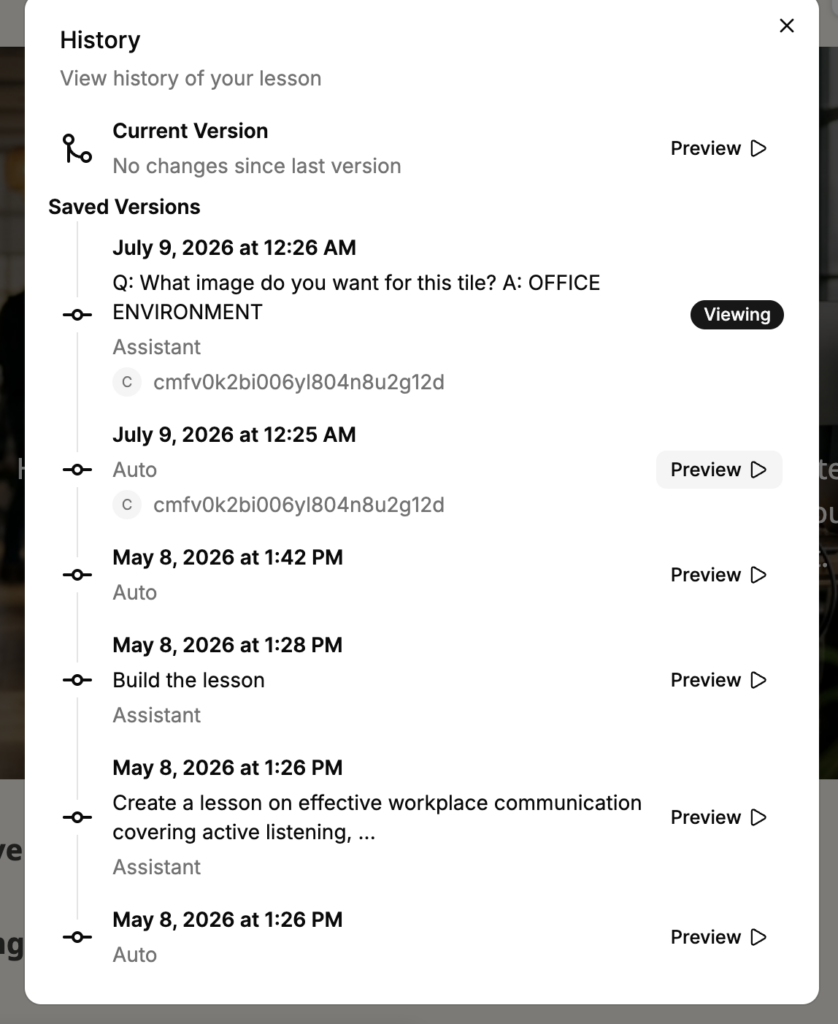
Restore a previous version
- In the History panel, select the action menu (...) next to the version you want to restore.
- Select Restore.
- A verification message appears. Select Restore to confirm.
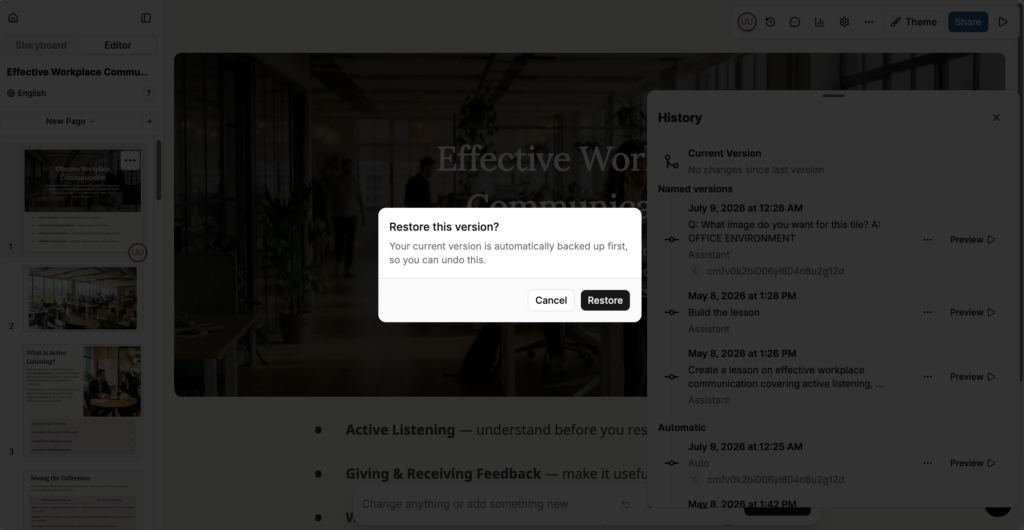
- The lesson content is replaced with the content from the selected version.
Note: Restoring a version replaces the current lesson content with the content from the selected version. Any unsaved changes to the current version are lost. Preview the version first to confirm it is the one you want to restore.
Remove a version
- In the History panel, select the action menu (...) next to the version you want to remove.
- Select Remove.
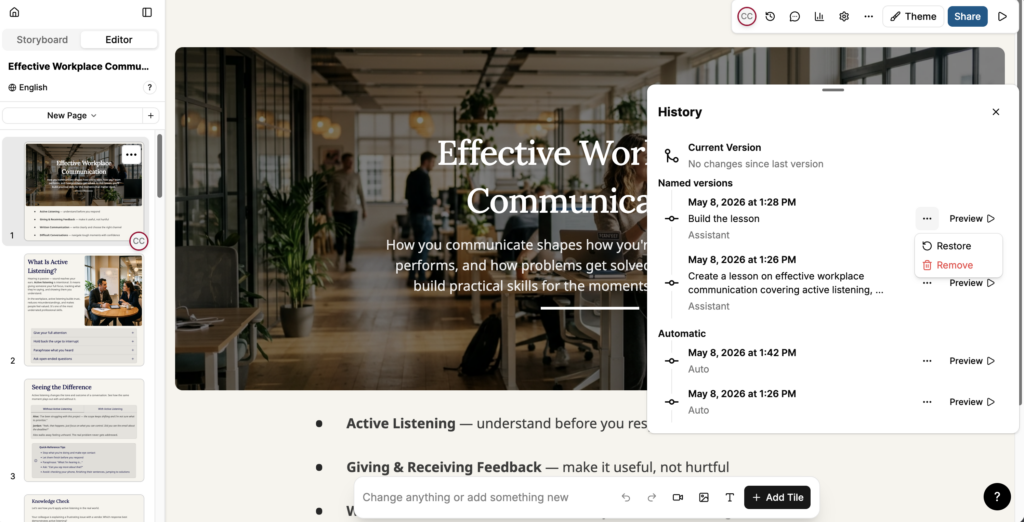
- The selected version is deleted from the history and cannot be recovered.
Note: Removing a version is permanent. If you may want to restore the version later, preview it first before removing.
