


Start from: The Flow Learning Dashboard.
- Select Learning & Development > L&D Settings > SCORM Modules.
- Select the + icon.
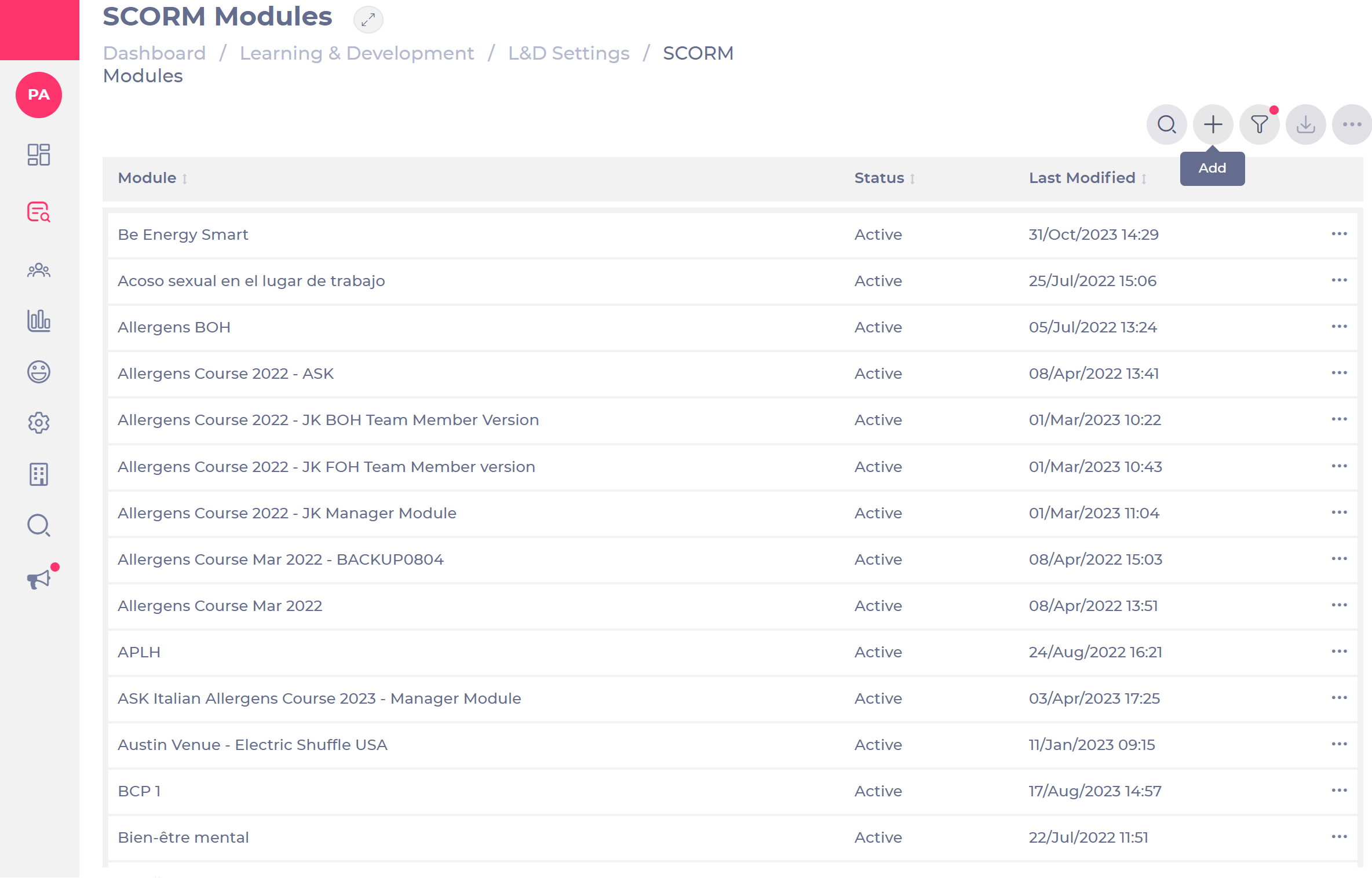
A pop-up window will open:
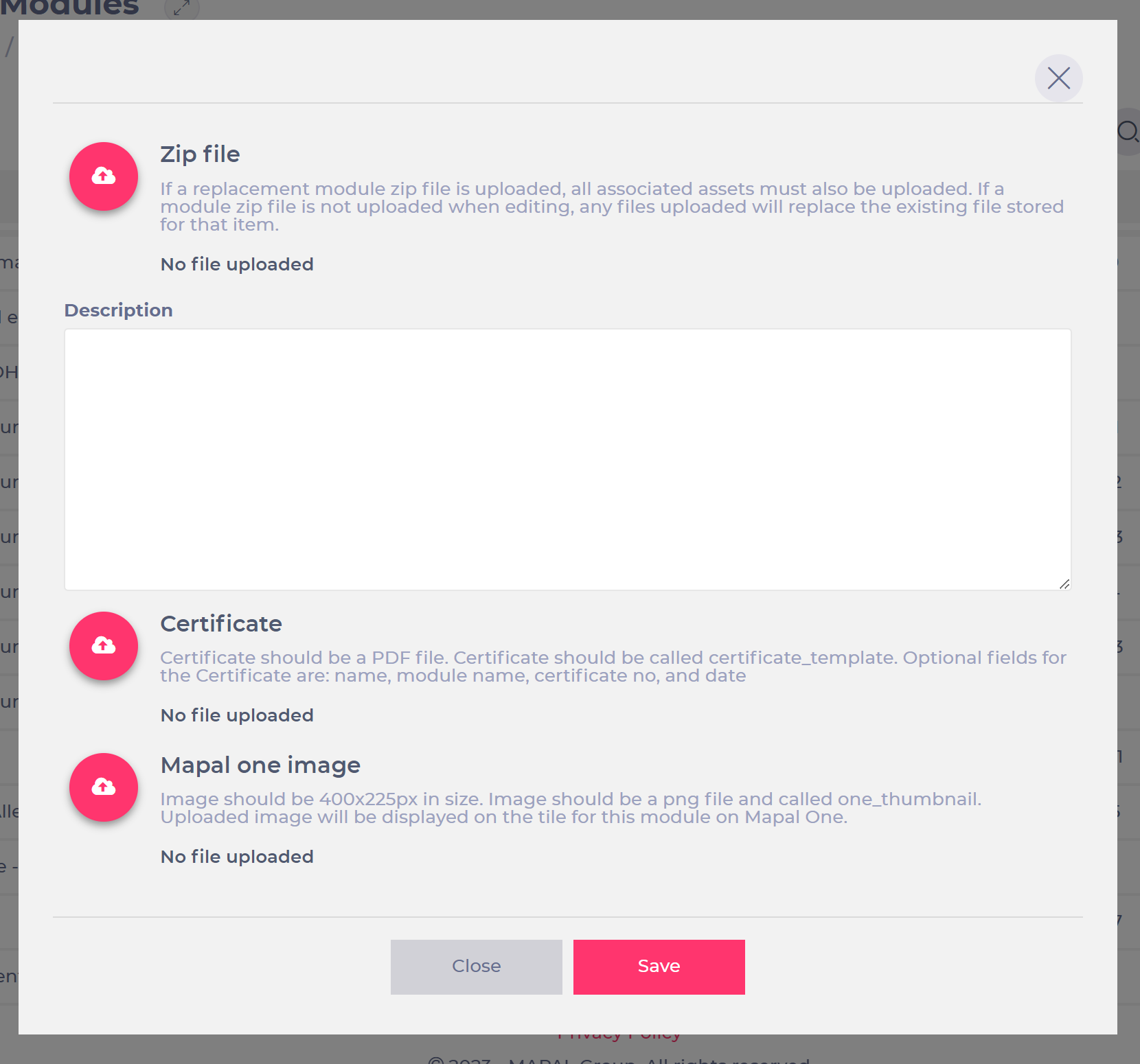
- Upload:
- Your zip file. Note: uploaded files must be SCORM 1.2 and the .zip file must be smaller than 999MB in size.
- A Mapal One image to make the module more visible in Mapal One.
- A certificate as a PDF file.
- Select Save. The upload can take some time depending on the file size- just leave the browser open.
Note: Restricted SCORM modules can be added to a collection only by users with the relevant permission, and collections containing restricted SCORM modules cannot be added to Training Structures. See Create a collection for the full rules.
Updating existing SCORM files
If you need to update your SCORM file with a new version, you can use the Replace feature to replace the current file (no need to create a new version).
These modules will now be available to assign in training structures and assign learning.
Note: If a SCORM file is updated, people who are in progress still keep the old version to complete. Everyone else gets the new version. If they go back into the course, they will also see the old version in the "Completed" section. This ensures that learners’ progress is preserved while enabling system-wide updates to SCORM content.
