


Start from: The Build a Lesson screen, or a lesson open in the Editor.
Apply a saved prompt
- Select Saved Prompts.
- Select the prompt you want to apply.
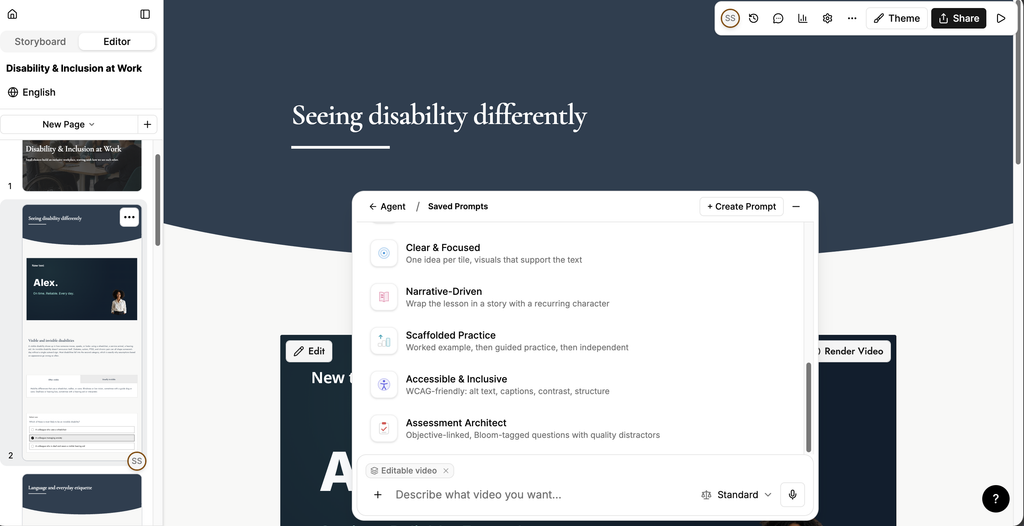
The prompt appears as a coloured tag above the prompt box and stays active for your session.
The prompts available to you are the ones included with Studio, the ones you have created, and the ones published to your organisation.
Some prompts are also available directly beside the prompt box as shortcuts.
See what a prompt does
- Select the preview icon on the prompt you want to look at.
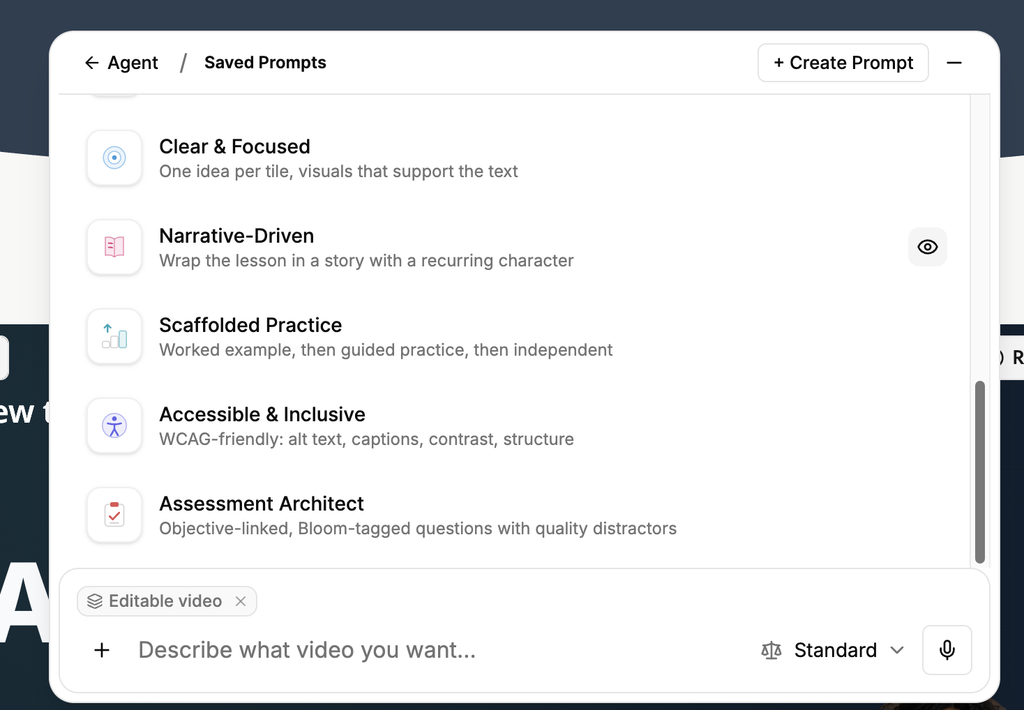
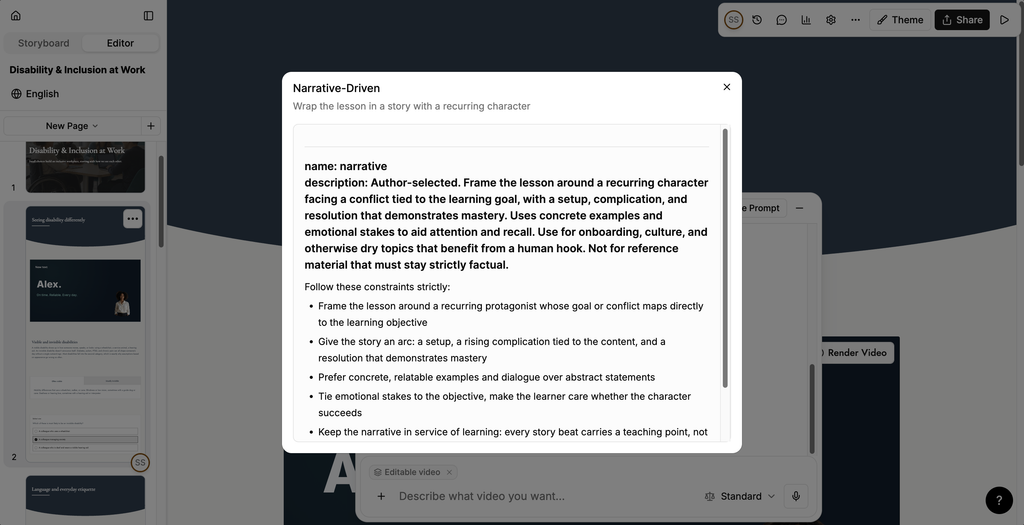
The prompt opens and shows the full instructions the AI follows when you apply it, including what the prompt is for and what it avoids.
The prompts included with Studio
| Prompt | What it does |
|---|---|
| Micro Learning | Short pages, 20 seconds max each. |
| Convert Document | Converts document content into tiles. |
| Verbatim Document | Imports document content verbatim. |
| Humanize | Rewrites AI-sounding content to read like a person. |
| Video Content | Generates a lesson and its content from a video resource. |
| Video Simulation | Converts video into an interactive experience with guided interactions. |
| Needs Analysis | The assistant asks questions before making changes. |
| Clear & Focused | One idea per tile, with visuals that support the text. |
| Narrative-Driven | Wraps the lesson in a story with a recurring character. |
| Scaffolded Practice | A worked example, then guided practice, then independent practice. |
| Accessible & Inclusive | WCAG-friendly output: alt text, captions, contrast, structure. |
| Assessment Architect | Objective-linked, Bloom-tagged questions with quality distractors. |
Notes: If the lesson has no video, Video Simulation offers to generate one with a virtual presenter instead.
Create a saved prompt
- Select Saved Prompts.
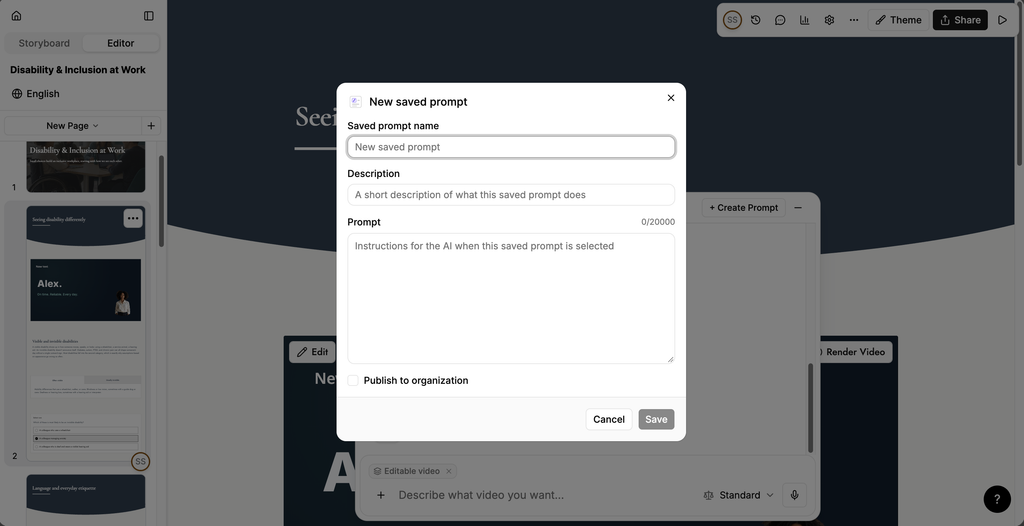
- Select + Create Prompt.
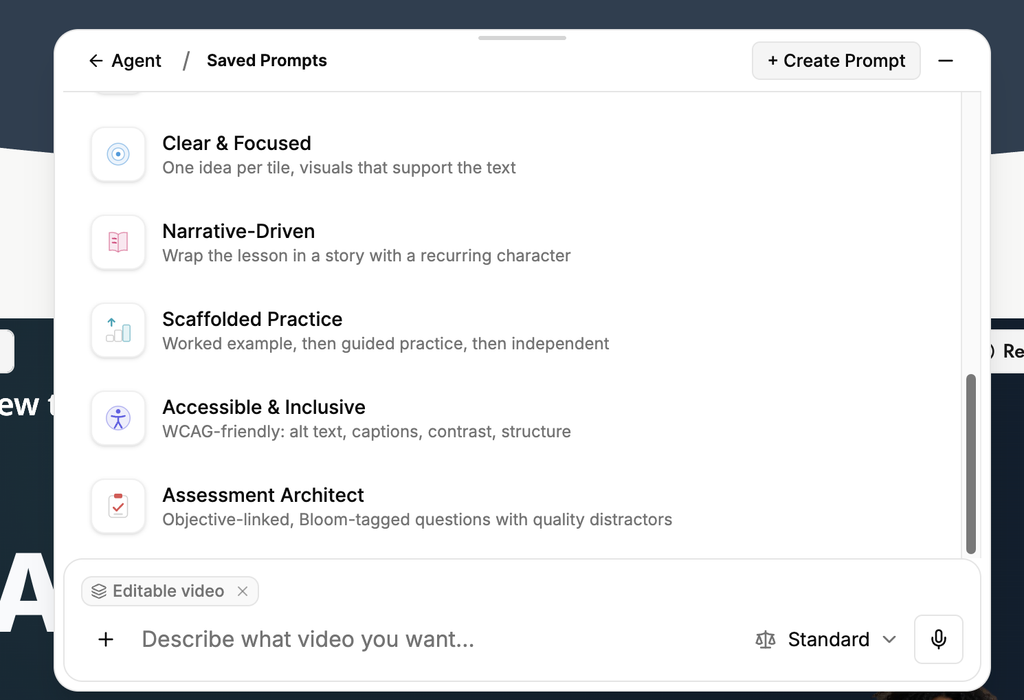
- In Saved prompt name, enter a name for the prompt.
- In Description, write a short description of what the prompt does. This is what you see under the prompt's name in the list.
- In Prompt, write the instructions for the AI to follow when the prompt is selected. You can use up to 20,000 characters.
- To make the prompt available to everyone in your organisation, select Publish to organization.
- Select Save.
Notes: A prompt you create is available only to you unless you select Publish to organization.
