


Start from: A lesson open in the Editor.
Open the video editor
- Select the video tile on the page.
- Select Edit.
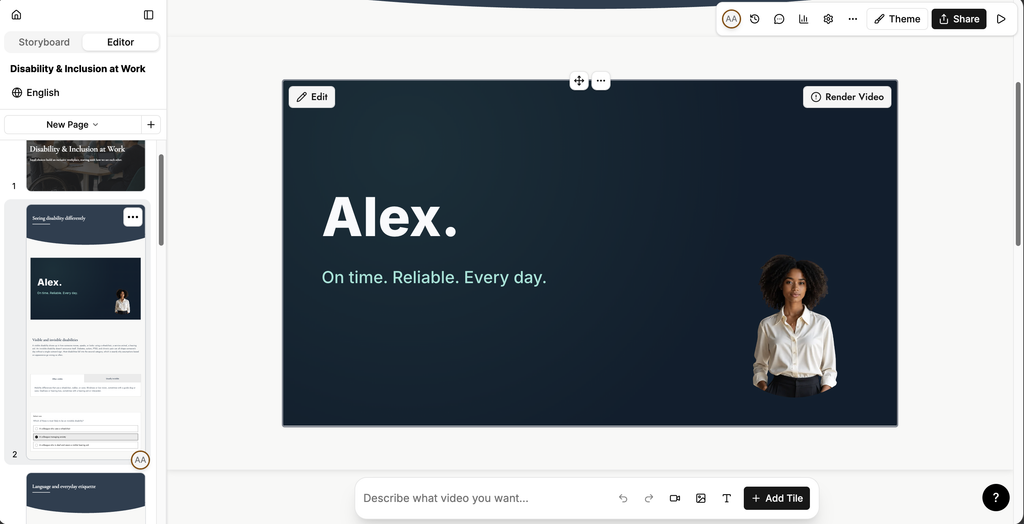
Select Back to lesson to return to the Editor at any point.
Work with scenes
The script is a list of scenes. Each scene shows the presenter who reads it and the text they say.
- Select a scene to edit its text.
- Select Add Scene to add a scene.
- Select the action menu (...) on a scene, then select Duplicate or Delete.
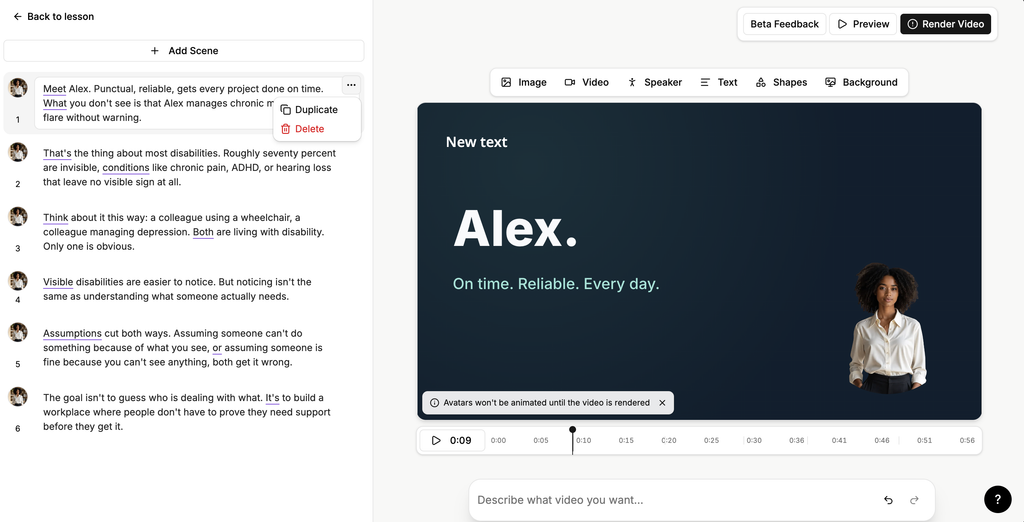
Design a scene
Use the toolbar to build the scene:
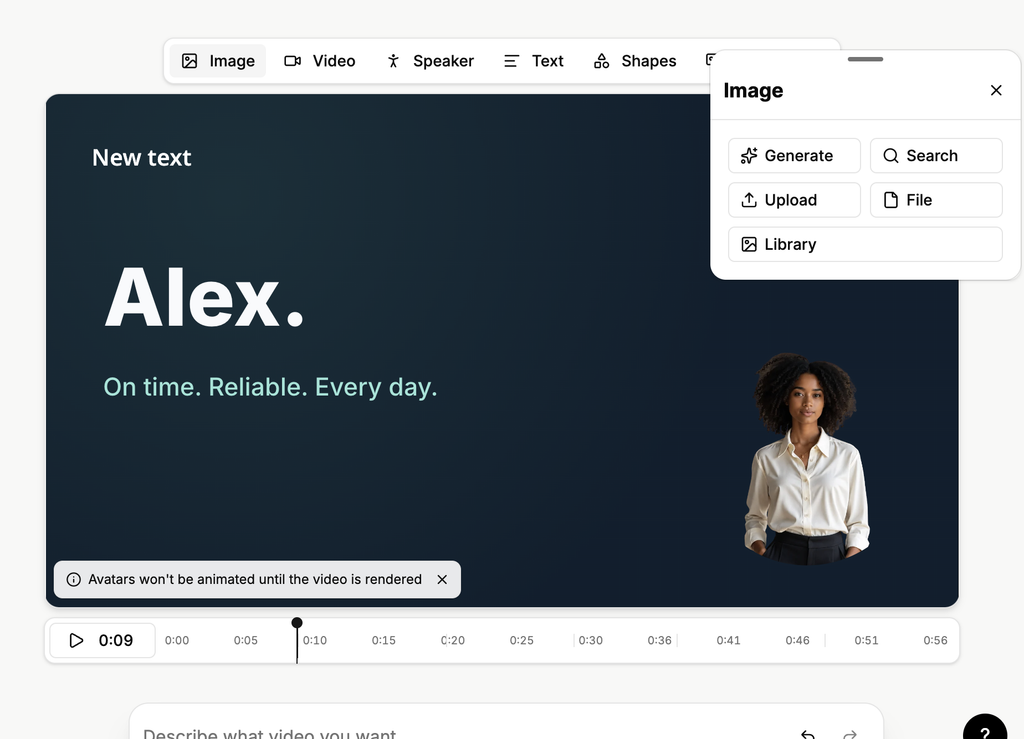
- Image: select Generate to create an image with AI, Search to find a stock image, Upload to add one from your device, File to choose a file, or Library to use an image already in your library.
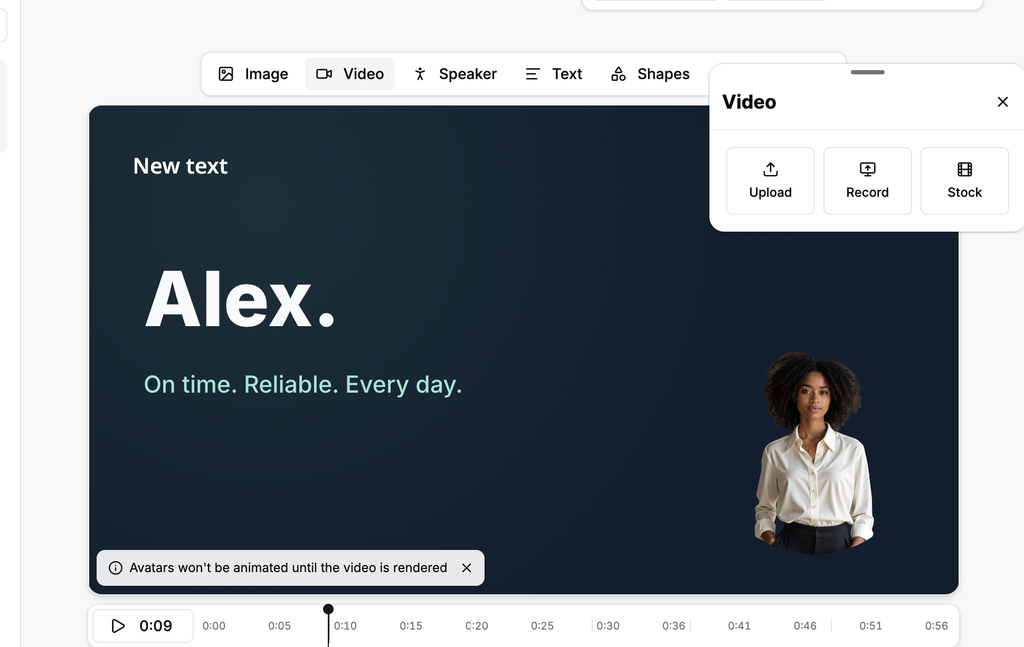
- Video: select Upload, Record to record your screen, or Stock to use a stock video.
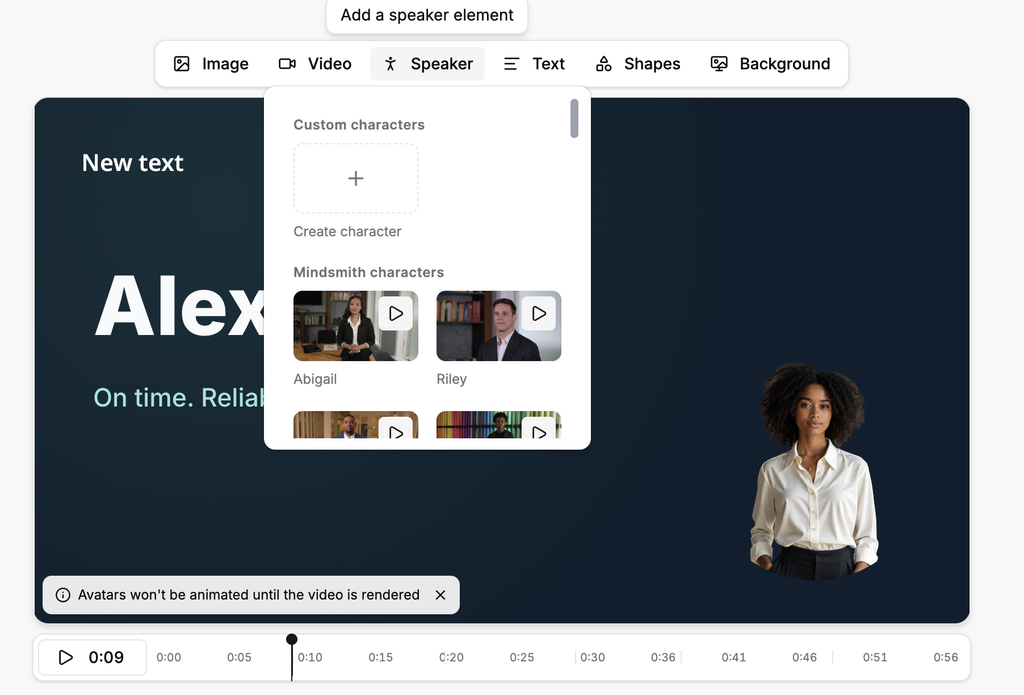
- Speaker: choose the presenter who appears in the scene. Select the play icon on a presenter to see a sample, or select Create character to add your own.
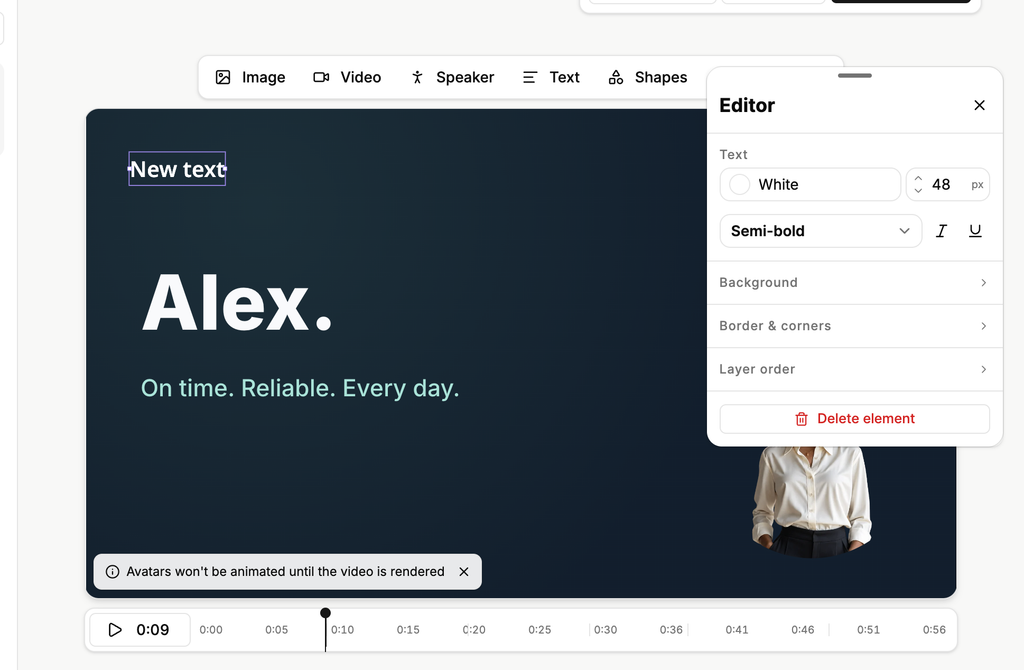
- Text: add text to the scene.
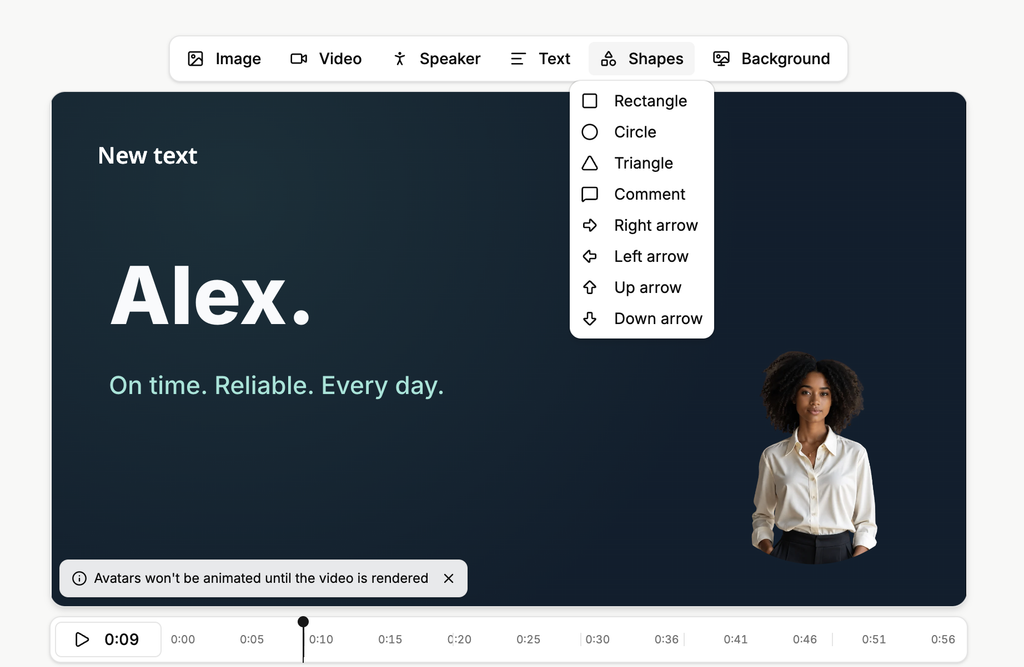
- Shapes: add a Rectangle, Circle, Triangle, Comment or an arrow.
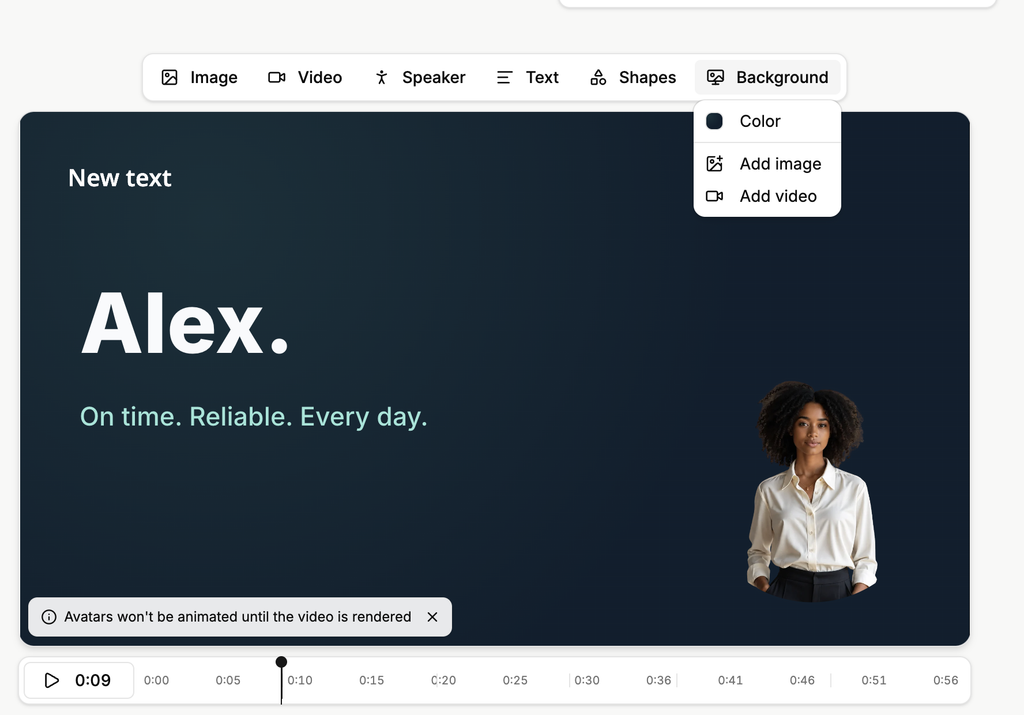
- Background: set the scene background with Color, Add image or Add video.
You can also describe the change you want in Describe what video you want... and let the assistant make it.
Edit an element
- Select the element on the scene. The Editor panel opens.
- For text, set the colour, the size in pixels, the weight, and italic or underline.
- Select Background or Border & corners to style the element.
- Select Layer order to move the element in front of or behind other elements.
- Select Delete element to remove it.
Preview and render
- Select the play icon to play the video on the timeline.
- Select Preview to watch the video as a learner would.
Note: Learners cannot see the video until you render it.
- To render the video:
- Select Start Rendering.
- Select Render Video.
- Under Avatar engine, choose how the presenters are generated:
- Avatar III: standard avatars, and the fastest option.
- Avatar IV: higher fidelity avatars, best where a presenter is prominent on screen.
- Select Start Rendering.
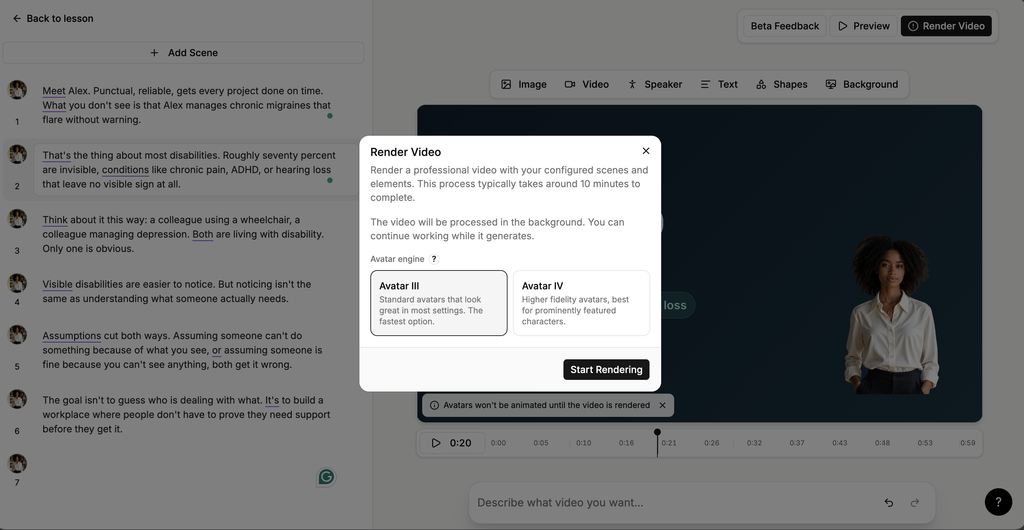
Rendering takes around 10 minutes. The video is processed in the background, so you can carry on working while it generates.
Notes: Presenters appear as a still image until you render the video.
