


Start from: The Studio dashboard.
Move a lesson to the trash
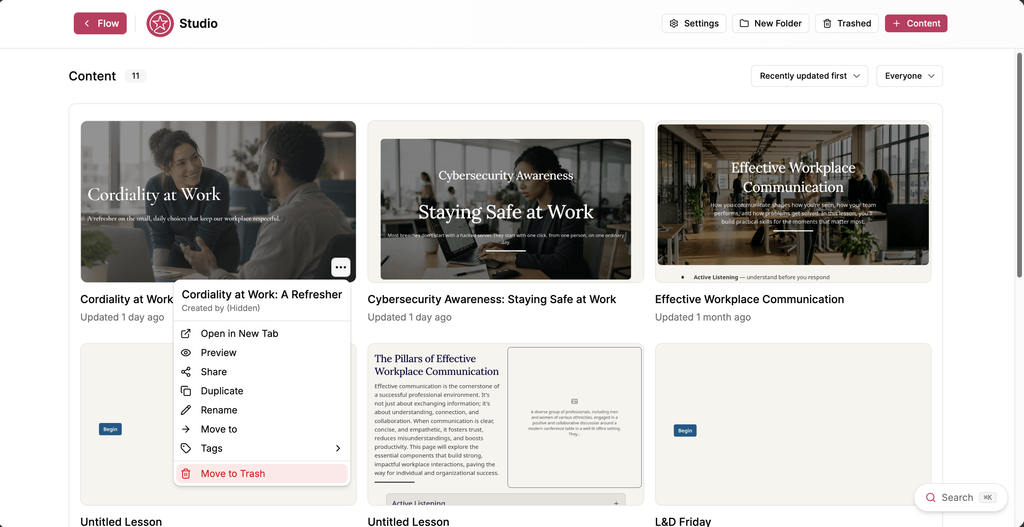
- Select the action menu (...) on the lesson you want to delete.
- Select Move to Trash.
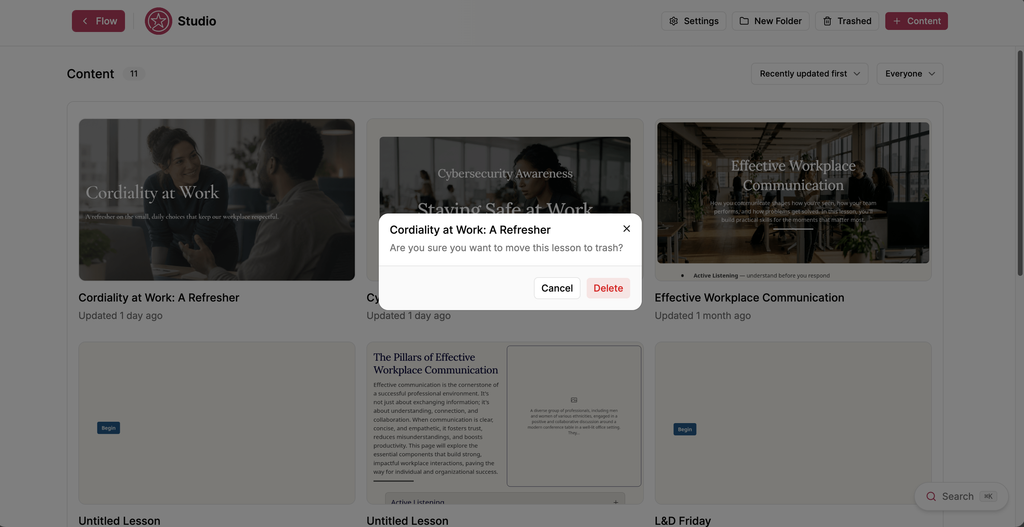
- A confirmation window opens. Select Delete.
The lesson moves to Trashed Lessons and no longer appears in Content.
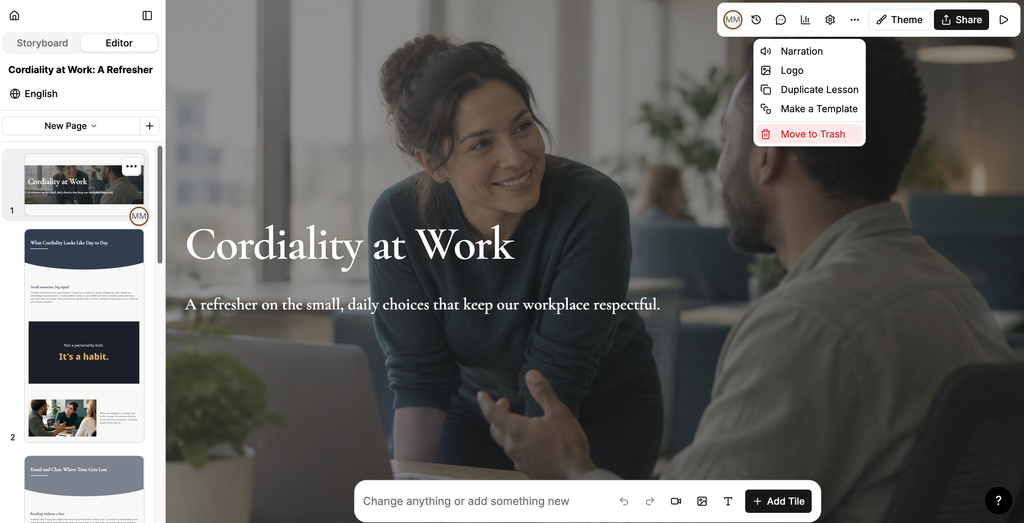
You can also move the lesson you are working on to the trash: in the Editor, select the action menu (...), then select Move to Trash.
Open the trash
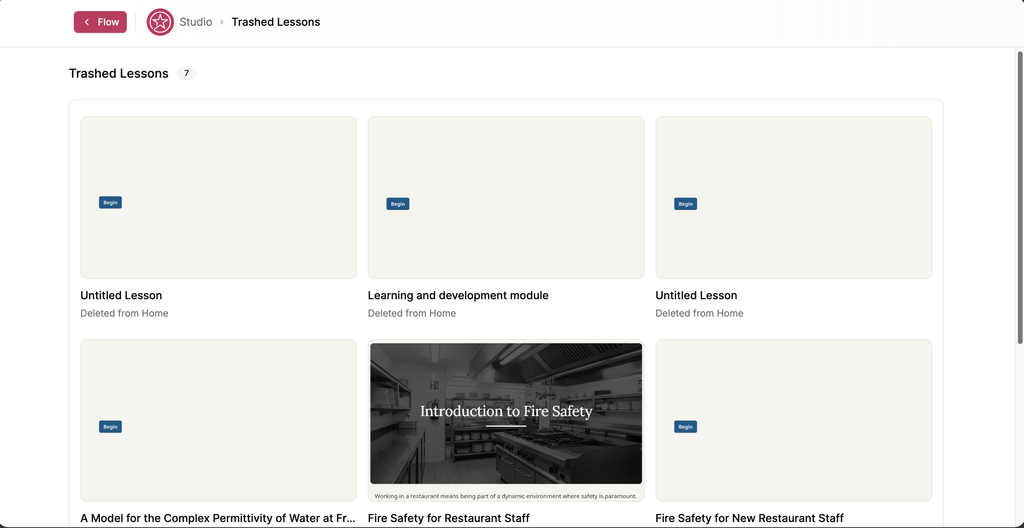
- Select Trashed on the Studio dashboard.
Trashed Lessons opens and shows how many lessons are in the trash. Each lesson shows where it was deleted from.
Restore a lesson
- In Trashed Lessons, select the action menu (...) on the lesson you want to restore.
- Select Restore.
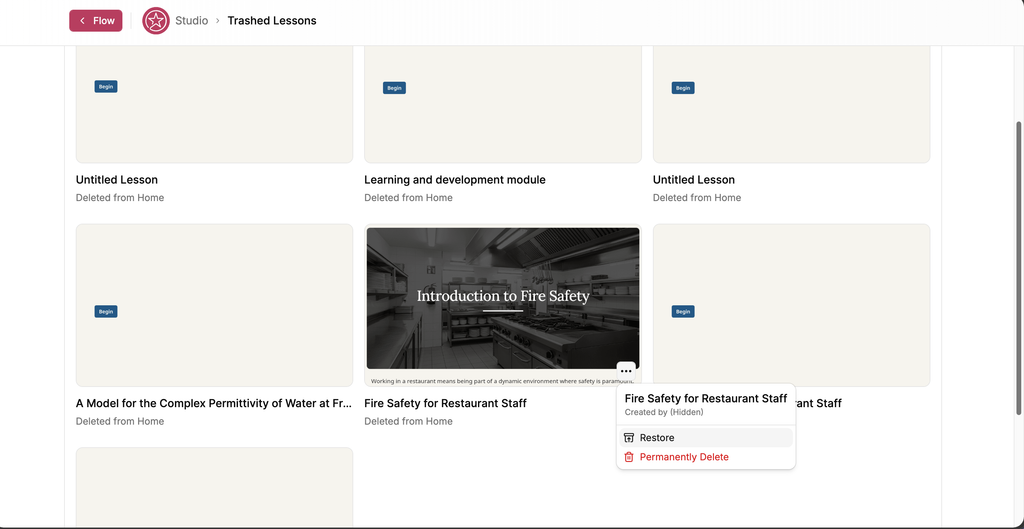
The lesson returns to the location it was deleted from.
Delete a lesson permanently
- In Trashed Lessons, select the action menu (...) on the lesson you want to delete.
- Select Permanently Delete.
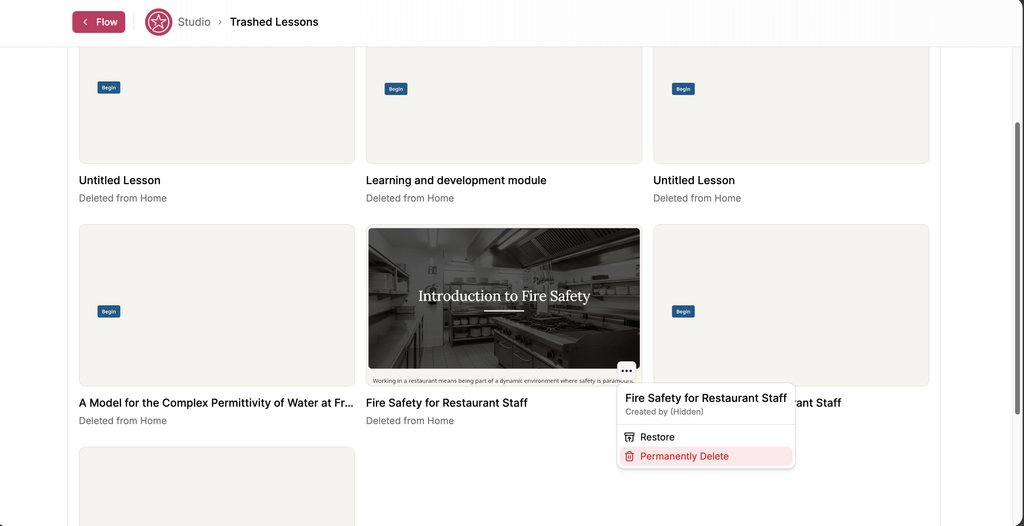
- A confirmation window opens. Select Delete.
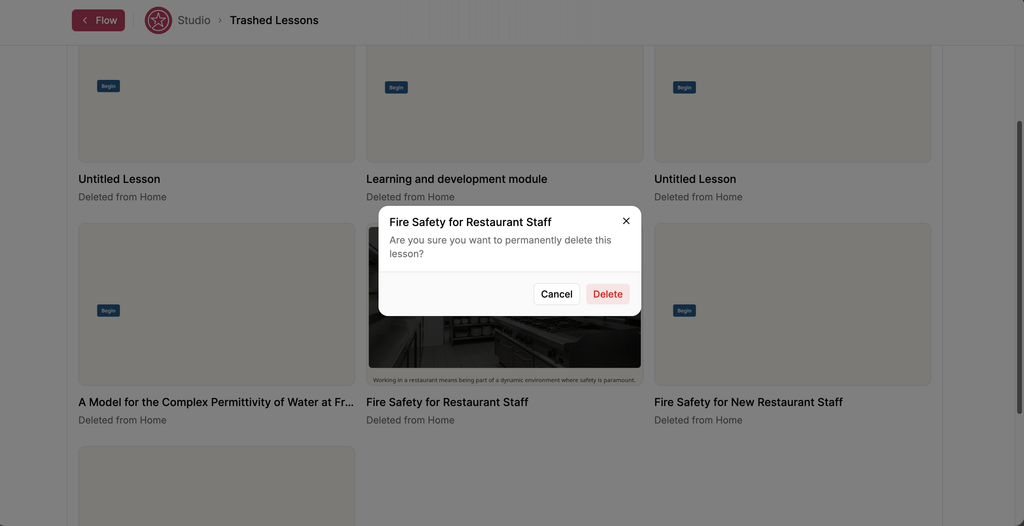
Note: Permanently deleting a lesson cannot be undone.
