Start from: The Flow Learning Dashboard.
- Select Company > Learners from the main menu.
- Select a Learner from the learners list. You can use the Search tool or Filter to make your search easier.
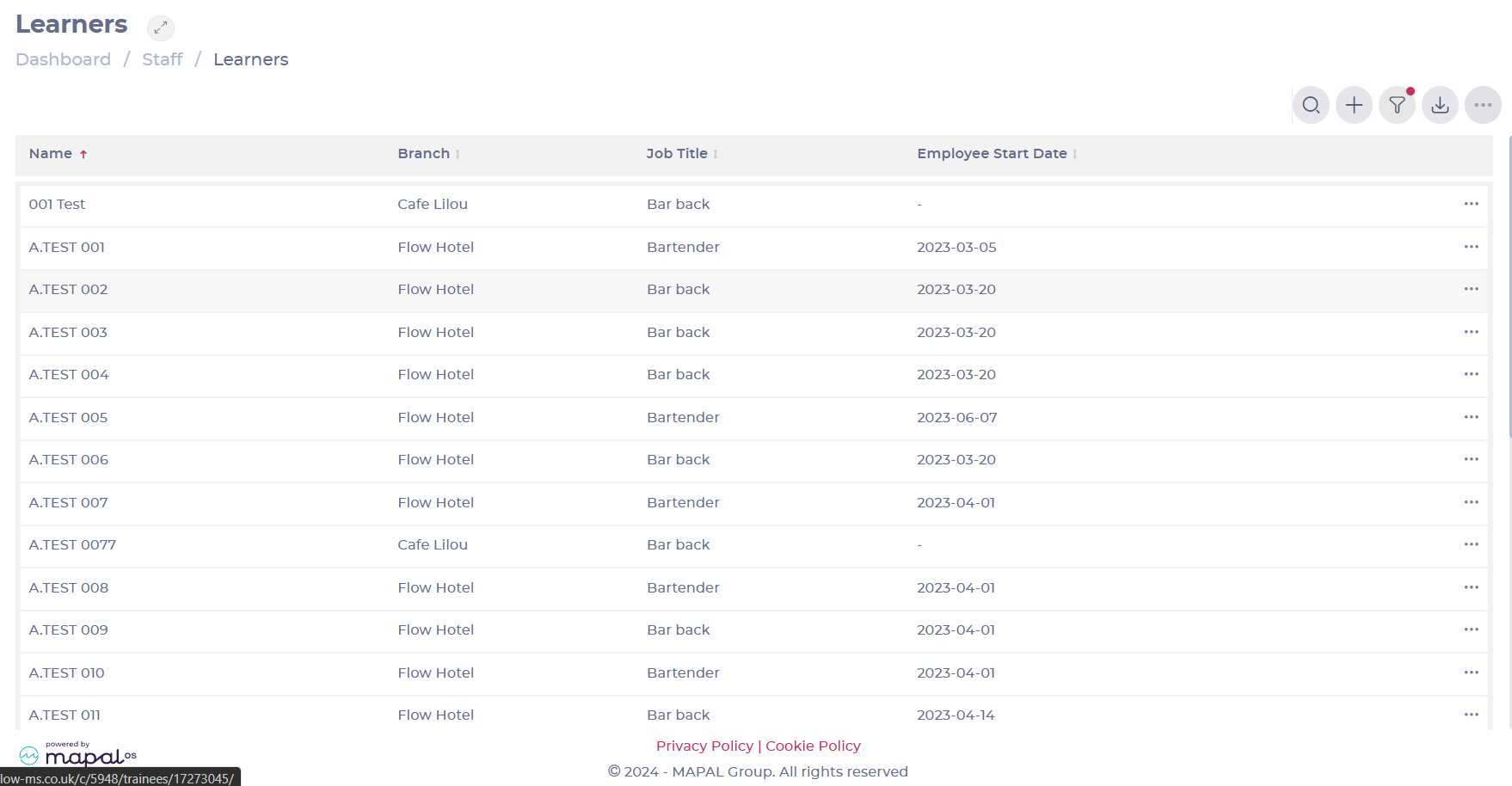
- In the Learner’s profile, you’ll see a side panel with all the content types available.
- Select a content type (e.g. Modules).
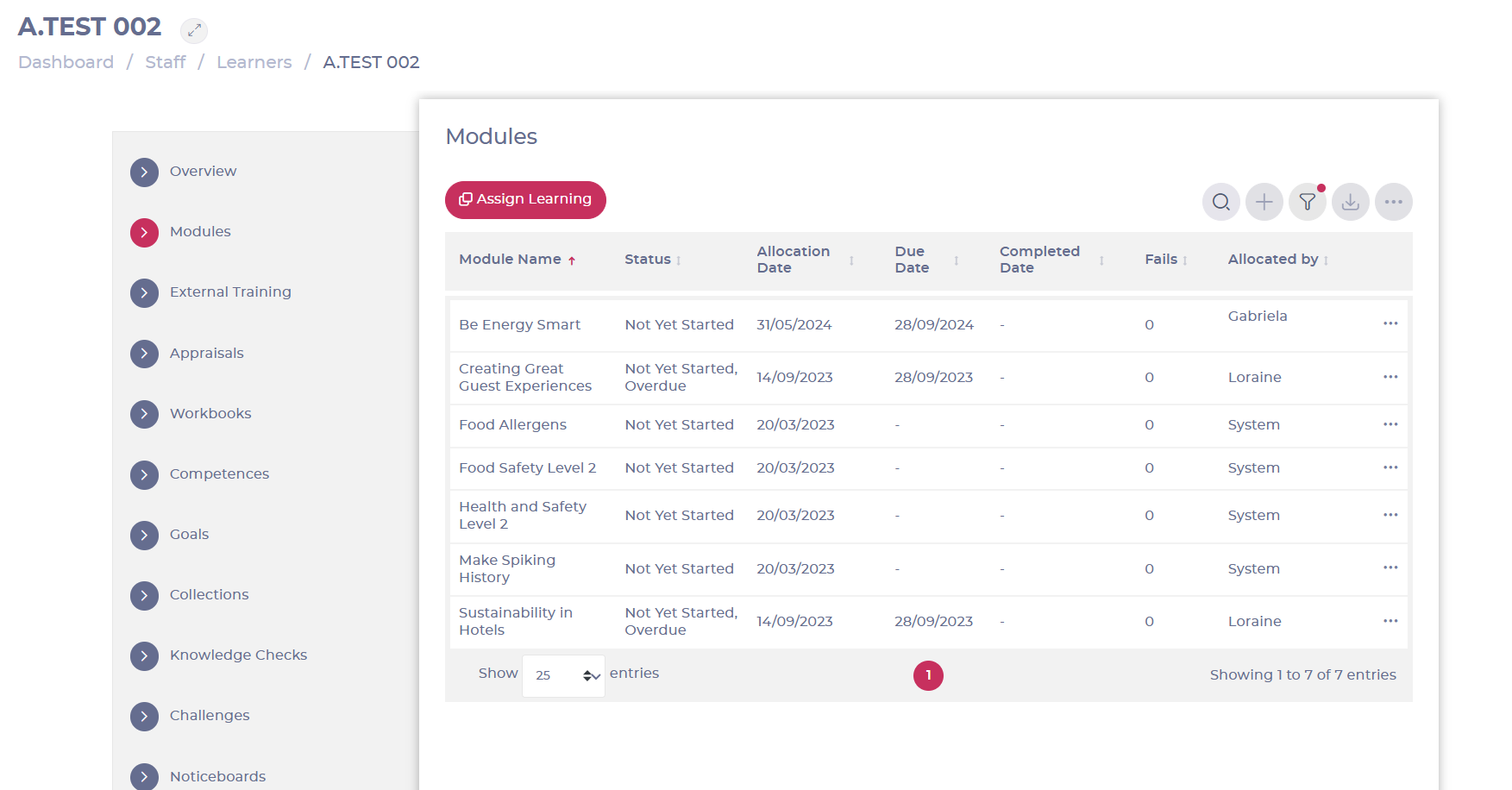
- A grid will appear with all the modules assigned to the learner. Here, you will also be able to see:
- The status of the content
- Allocation date
- Due date
- Completed date
- Fails
- Who assigned the content
Notes: You can use the Search tool or Filter to find specific contents within the grid.
Viewing module results
- From the Modules tab, select the ... and View details.
- The Sitting Information screen provides detailed insights, including:
- Start and End Dates: Displays when the learner began and completed the module.
- Duration: Indicates how much time the learner spent on the module.
Notes: For legacy modules, exam answers may still be available for review. Most modern modules no longer support the reporting of exam answers.
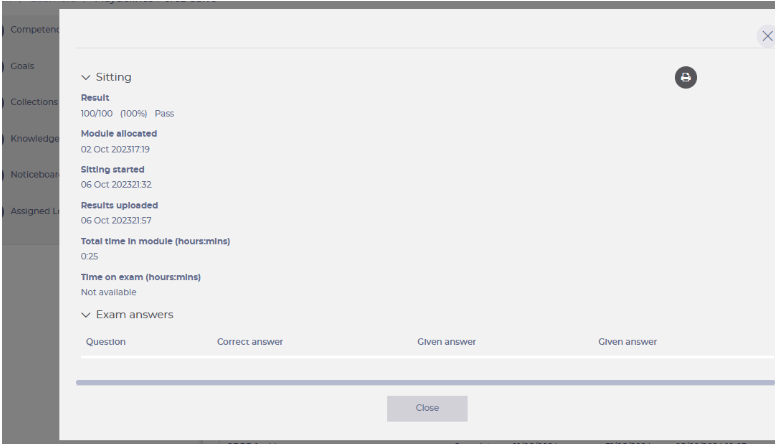
You can export the Sitting Information to a PDF by selecting the Print button at the top of the window.
Tracking module changes
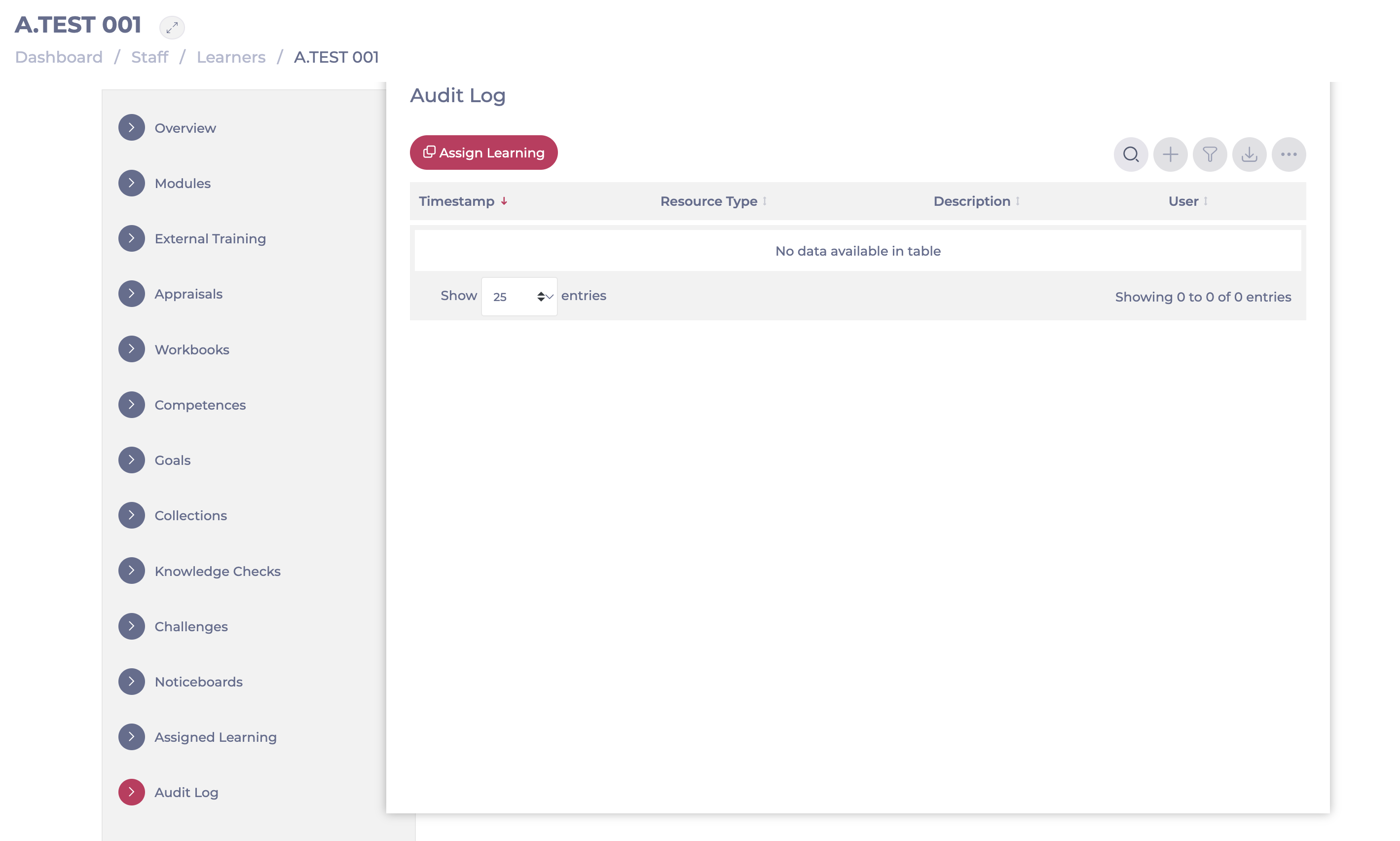
Flow Learning includes an Audit Log in the learner profile, giving managers greater visibility into changes made to modules.
To view the Audit Log:
- Select a Learner to open its profile.
- Scroll down to Audit Log.
- If changes exist, details such as the date of change, the type of change, appraisal name, and who performed the changes will appear.
Tracked actions on the Audit Log
-
Module removals, including who removed them and when
-
System deletions triggered by manual job title changes
-
Due date changes, showing the old and new values, and who made the update
-
Reviewer name changes, showing both the previous and current reviewer