


Start from: The Flow Learning Dashboard.
Using the Succession Planning Screen
- From the main menu, navigate to Company > Succession Planning.
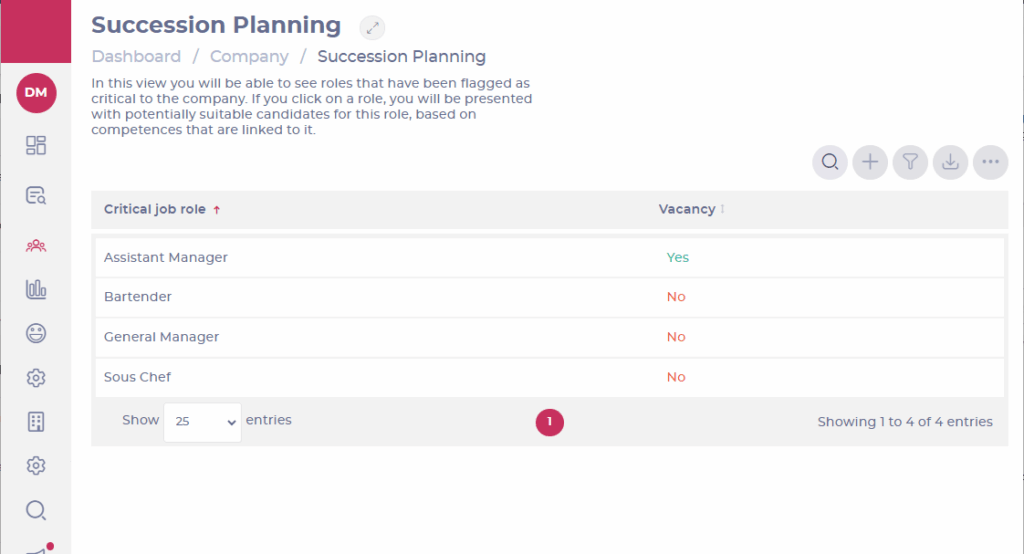
- You'll see a list of roles that have been flagged as critical to the company.
- Select a role from the list to see a list of potentially suitable candidates based on linked competencies. Learners will only show in this list if they have achieved at least one of the competences required by this job role.
- On this role detail screen, you will find Job title, Has favourited, Percentage match, and Branch for each learner.
- You can filter the view by specific branches, departments and job titles.
Current vacancies
The Vacancy column shows whether a role is currently available.
- Look for the Vacancy field next to each role. If a role is vacant, it will be clearly marked as "Yes". If it is not vacant, it will be marked as "No".
- For details on setting up and marking roles as vacant, read our Build a Job Role article.
‘
Exporting candidates for succession planning
When you have found a list of candidates from the succession planning screen, you can create an export file. This will allow you to use the data in other ways.
- Select a job role from the initial list.
- Choose the Export icon to bring up the Export Results drawer.
- Select the file icon to download the file to your device.
Succession planning data can be exported to CSV format.
