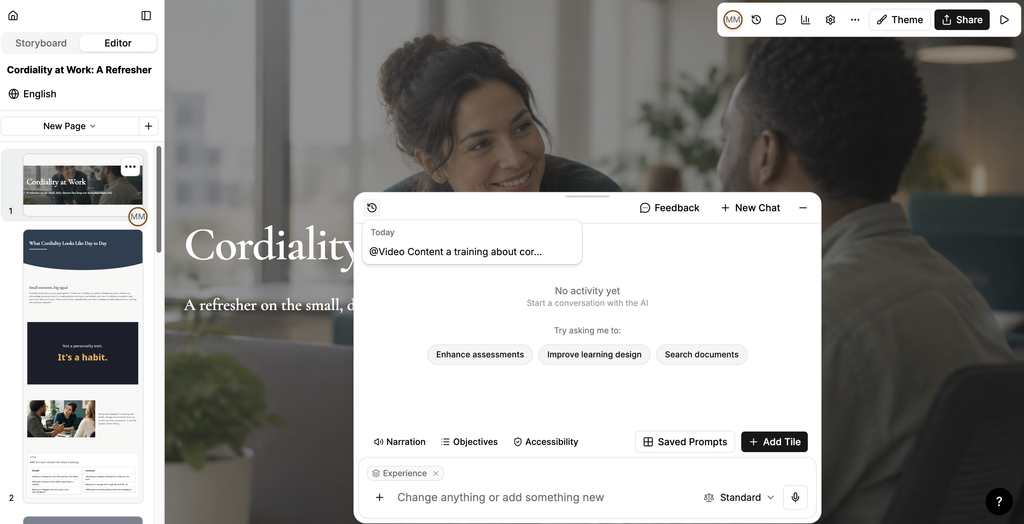
Start from: A lesson open in the Editor.
Ask the assistant for something
- Enter what you want in Change anything or add something new.
- Select the microphone icon to dictate your request instead of typing.
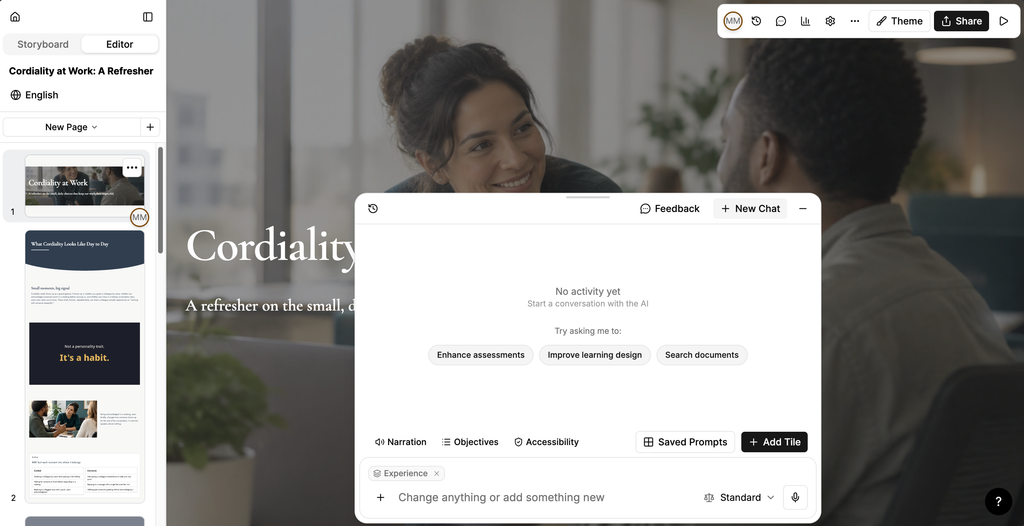
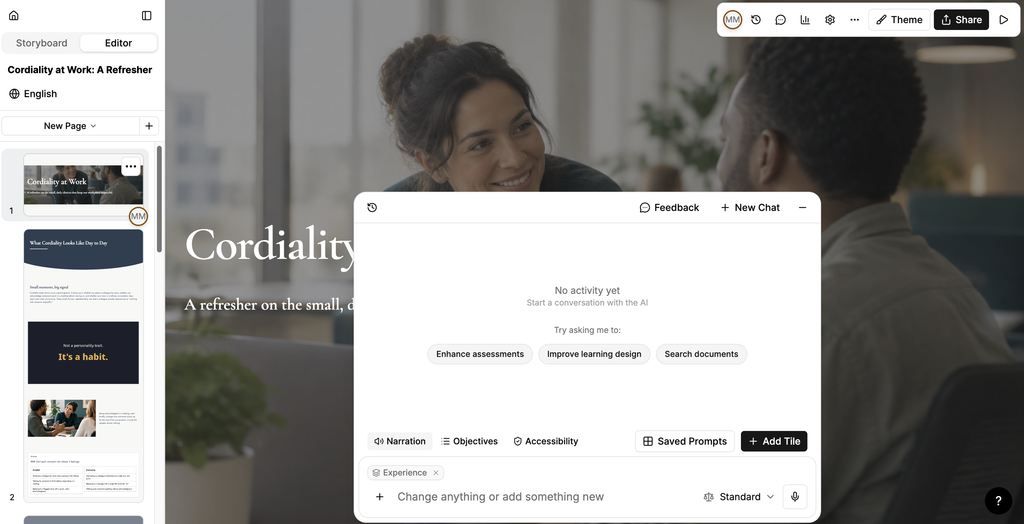
When the conversation is empty, the assistant suggests three starting points: Enhance assessments, Improve learning design and Search documents. Select one to begin.
Choose how the assistant works
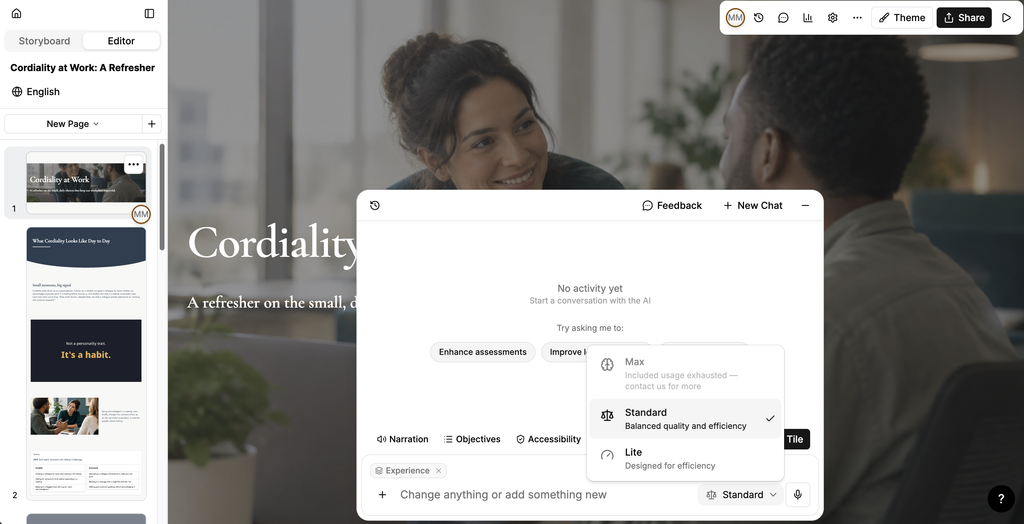
Select the mode beside the prompt to balance quality against speed:
- Max: the highest quality mode.
- Standard: balanced quality and efficiency.
- Lite: designed for efficiency.
Note: Max is limited by the usage included with your plan. When that usage is exhausted, the mode is unavailable until you contact Mapal.
Give the assistant something to work from
You can attach images, videos and documents, then ask the assistant to use them in your prompt.
- Select + beside the prompt.
- Choose where the file comes from:
- Add resource: upload a file from your device.
- Attach from library: choose a file already in your library.
- When you select Attach from library, the From Library window opens. Search by name, or select All, Images, Videos or Documents to narrow the list. Select Upload to add a new file to your library.
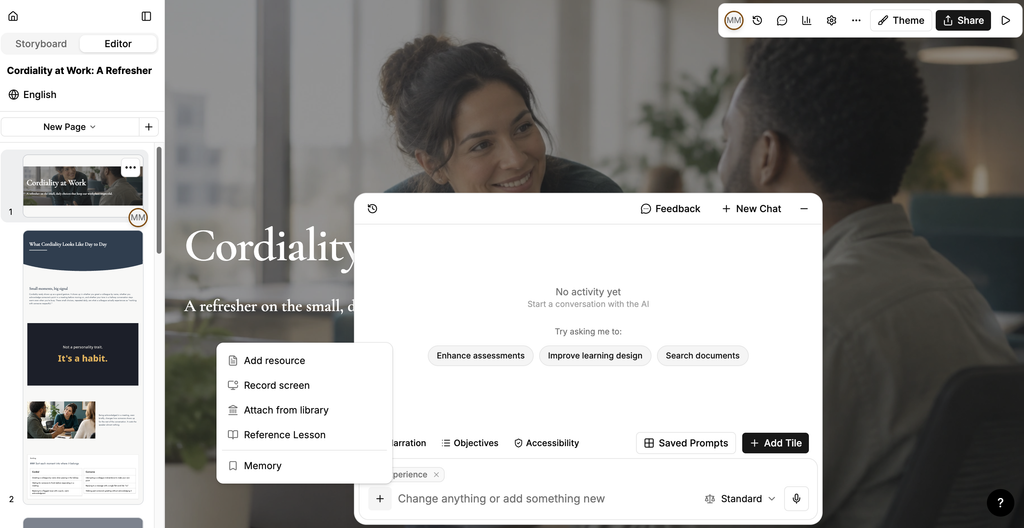
You can also point the assistant at an existing lesson:
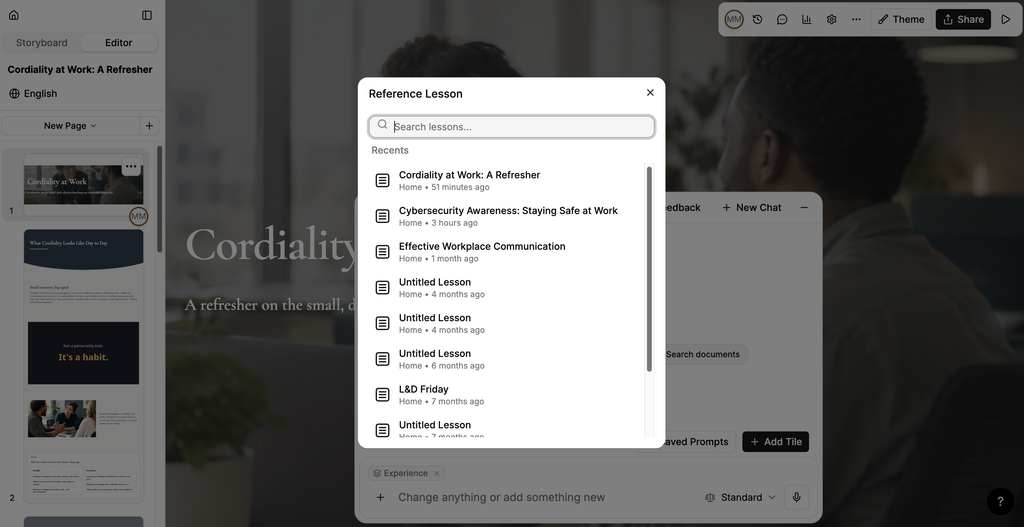
- Select + beside the prompt, then select Reference Lesson.
- Search by name, or choose a lesson from Recents.
Build a lesson by recording your screen
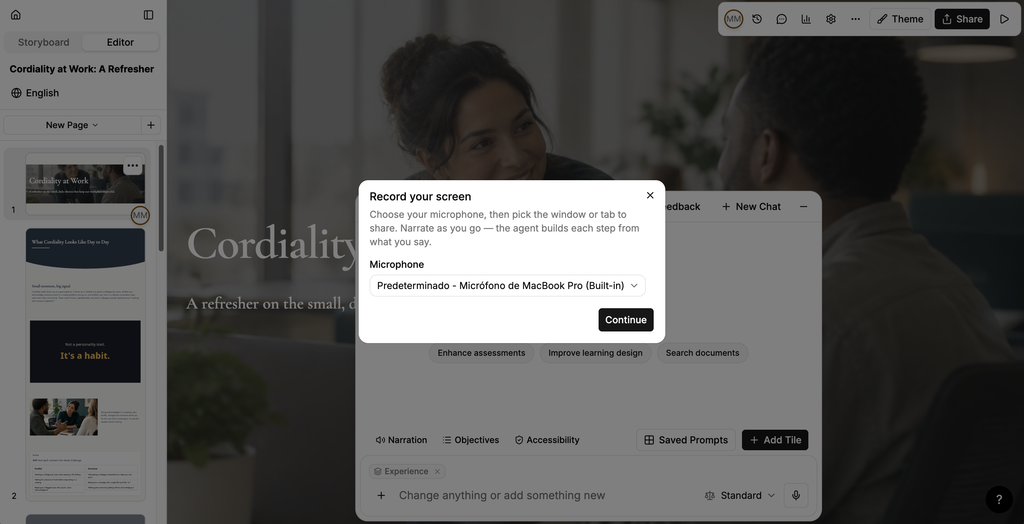
You can narrate your screen and have the assistant build the lesson from what you say.
- Select + beside the prompt, then select Record screen.
- In Record your screen, select your microphone.
- Select Continue, then choose the window or tab to share.
- Narrate as you go. The assistant builds each step from what you say.
Note: Check what the window or tab shows before you start recording.
What the assistant remembers
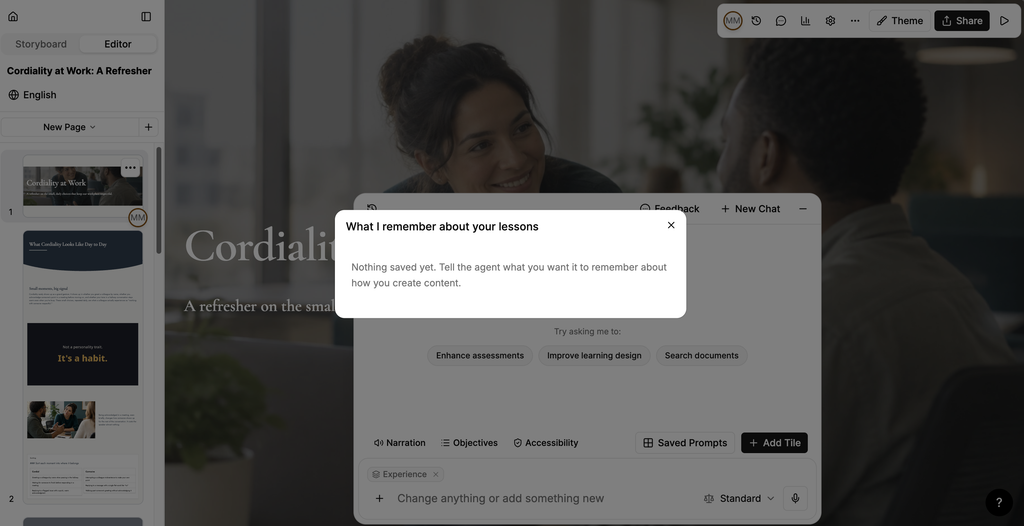
The assistant can remember how you like to create content, and applies it across your lessons.
- Select + beside the prompt, then select Memory.
- What I remember about your lessons opens and shows what has been saved.
To add something, tell the assistant in the prompt what you want it to remember.
Use a saved prompt
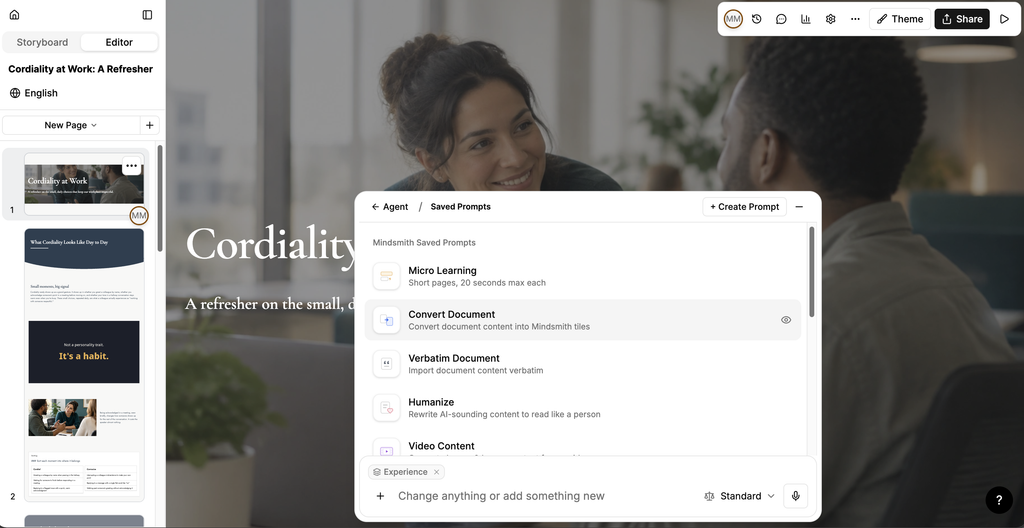
- Select Saved Prompts.
- Select the prompt you want to apply.
Saved prompts shape how the assistant builds your content, and stay active for your session.
Open a tool from the assistant
The assistant bar gives you direct access to the tools you use most while editing:
- Narration: add spoken audio to a page or a lesson.
- Objectives: set the learning objectives for the lesson.
- Accessibility: review the lesson for accessibility.
- + Add Tile: add a content block to the page.
Manage your conversations
- Select New Chat to start a fresh conversation.
- Select the history icon to return to an earlier conversation.
- Select Feedback to send feedback about the assistant.
- Select the minimise icon to collapse the assistant and keep working.
- Where a response offers Rewind, select it to go back to the state before that change.
- Select the thumbs up or thumbs down icon on a response to rate it.