


Start from: The Flow Learning Dashboard.
- Select Reports from the main menu.
- Select Compliance Overview from the list of reports.
You will now be able to view your Compliance data as a chart. Use the Group By dropdown to customise the view.

Resource types included in the compliance report
Compliance reporting covers all the resources you have flagged as compliance items in your settings:
- Modules
- Workbooks
- External Training
- Competences
- Noticeboard items
- Appraisals
- Knowledge Checks
Each of these resources can be filtered by status (e.g., Not Started, In Progress, Completed) so you can see exactly how they contribute to your overall compliance levels.
Note: Only active modules are included in the compliance report. Retired modules are excluded automatically, so compliance scores reflect only currently active content.
Saving filter presets
- Select Filter to configure the data to be shown in the report, such as learner statuses, dates, regions, departments, etc. You can adjust the report as desired.
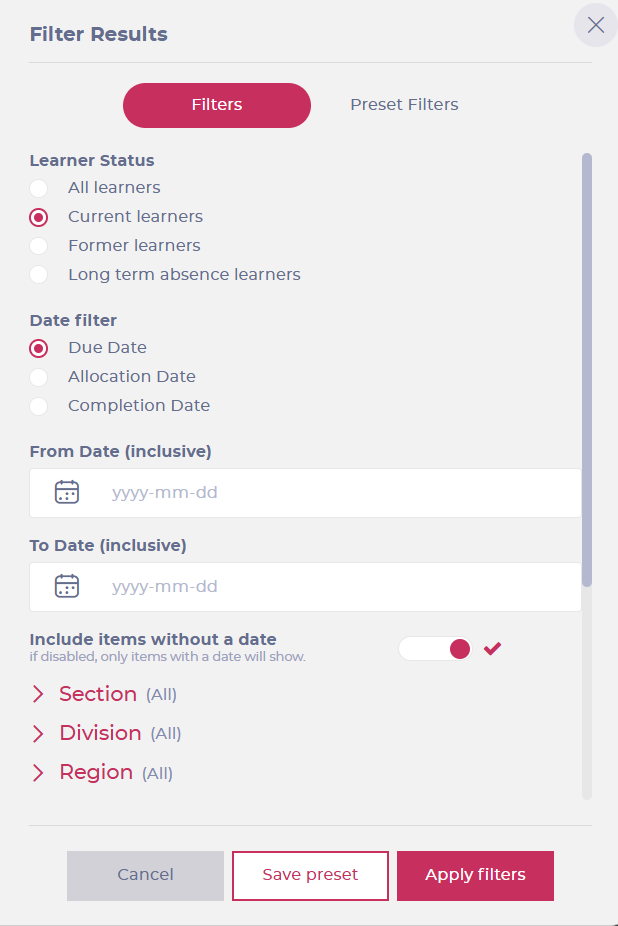
- Once you have adjusted the filters, you can save the configuration by selecting the Save preset button OR moving to the Preset Filters tab.
- Once in the Preset Filters tab, enter a name for the preset in the text field and select the checkmark to save it.

You can delete the presets later if they are no longer needed. To do this, select the Delete button next to the saved preset.

Learners excluded from the compliance report
Not all learners are counted in the compliance figures.
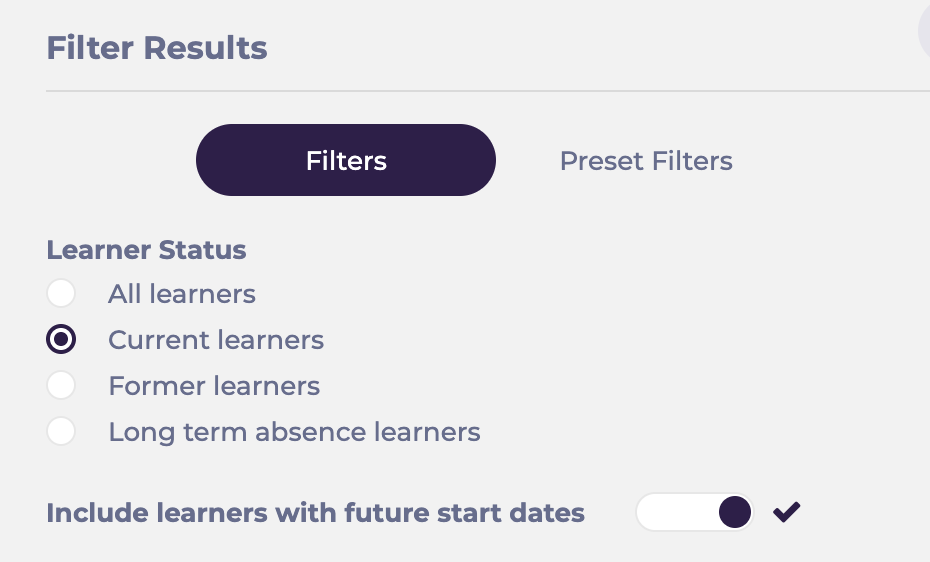
- Learners marked as Long Term Absence are excluded automatically. They cannot be included through the Filter menu.
- Learners with a future start date are included by default. To exclude them, turn off Include learners with future start date in the Learner Status section of the Filter menu.
The same exclusions apply to the compliance percentages shown in insights emails.
Note: Retired modules are also excluded automatically. Only active modules are included in the compliance report.
Exporting the compliance report
Select the Export icon and choose from the following export options:
- Export Data to CSV
- Export Chart to CSV
- Export Chart to PDF
- Export Chart to JPEG
Once the export is initiated, the CSV file is downloaded to your local device.
The three "Export Chart to..." options show the overview data, while the "Export Data to CSV" option details the progress of every learner (depending on how you've set up the report).
