


Start from: A lesson open in the Editor.
Open the narration settings
- Select the action menu (...).
- Select Narration.
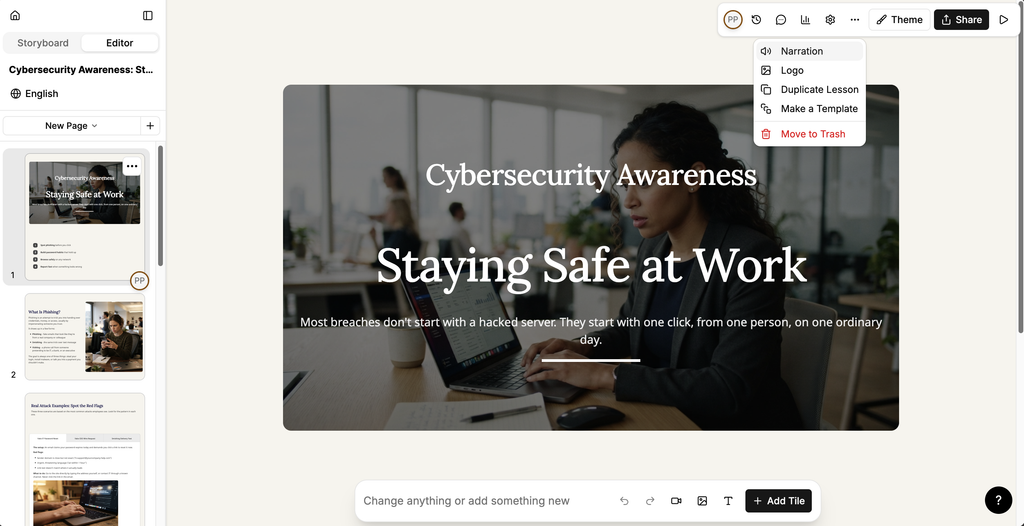
The Narration panel opens on Page.
Narrate a single page
- Select the page you want to narrate.
- Select Page.
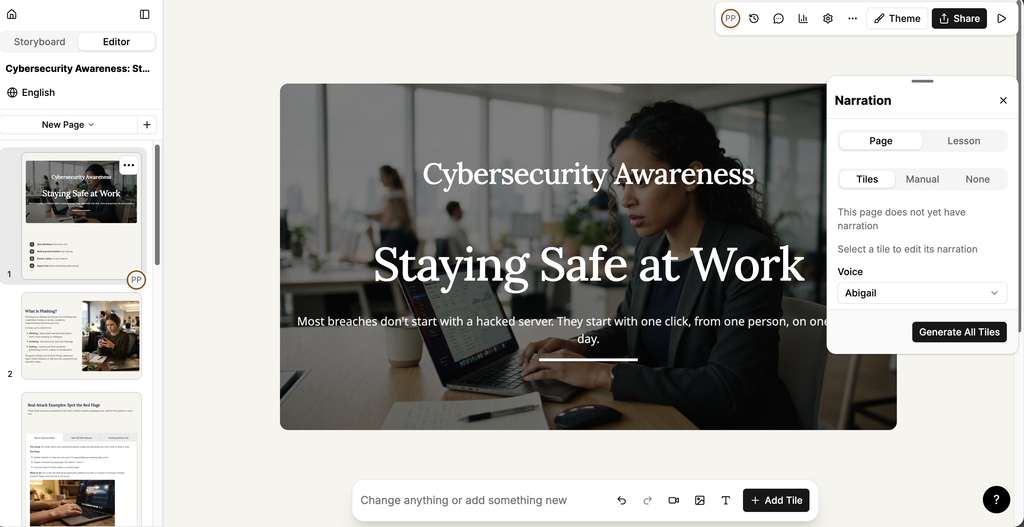
- Choose how the narration text is set:
- Tiles: Studio generates the narration from the content of each tile on the page. Select a tile to edit its narration.
- Manual: write the narration yourself in Text. Studio fills this with the text already on the page, which you can then edit.
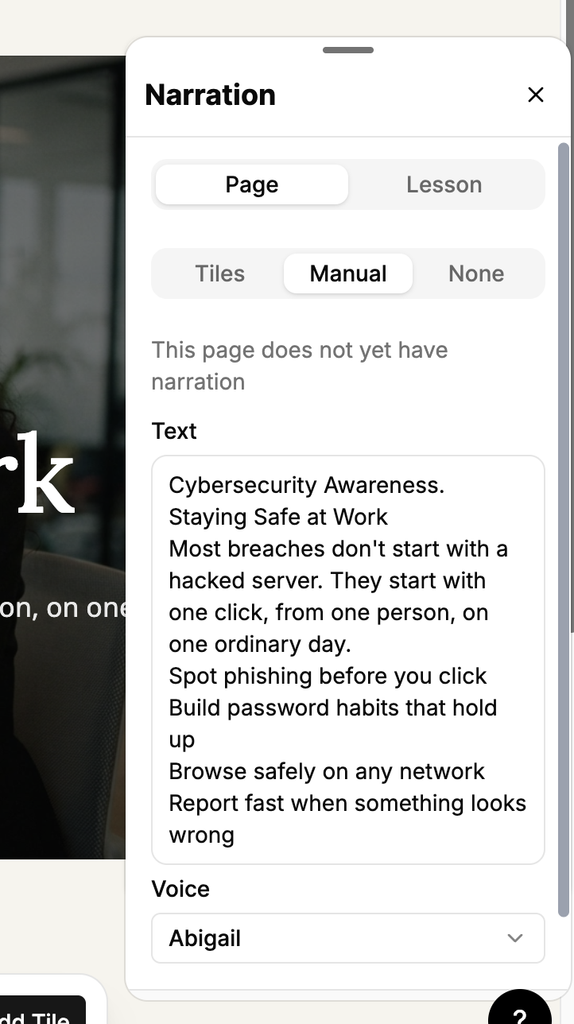
- None: the page has no narration.
- Under Voice, select the voice that reads the narration.
- Select Generate to generate the narration.
The panel tells you whether the page already has narration.
Narrate a whole lesson
- Select Lesson.
- Check Lesson Language. The narration is generated in the language of the lesson.
- Under Voice, select the voice that reads the narration.
- Select Generate.
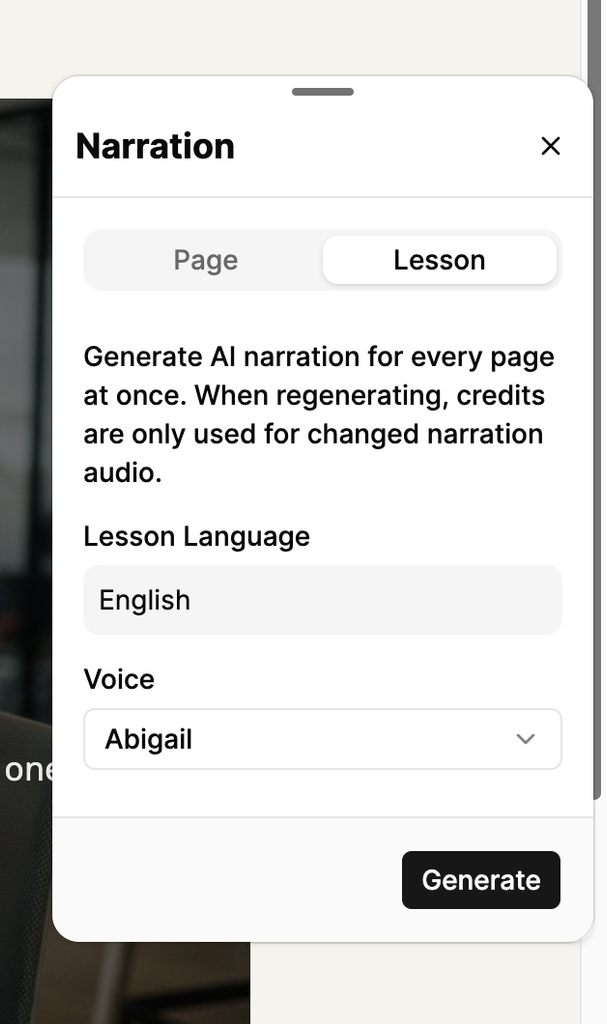
Studio generates the narration for every page at once.
Note: When you regenerate narration, credits are only used for the narration audio that has changed.
Choose a voice
- Select the Voice list.
- Select the language at the top of the list to filter the voices by language.
- Enter a name in Search voices to find a specific voice.
- Select the play icon beside a voice to hear a sample.
- Select the voice to apply it.
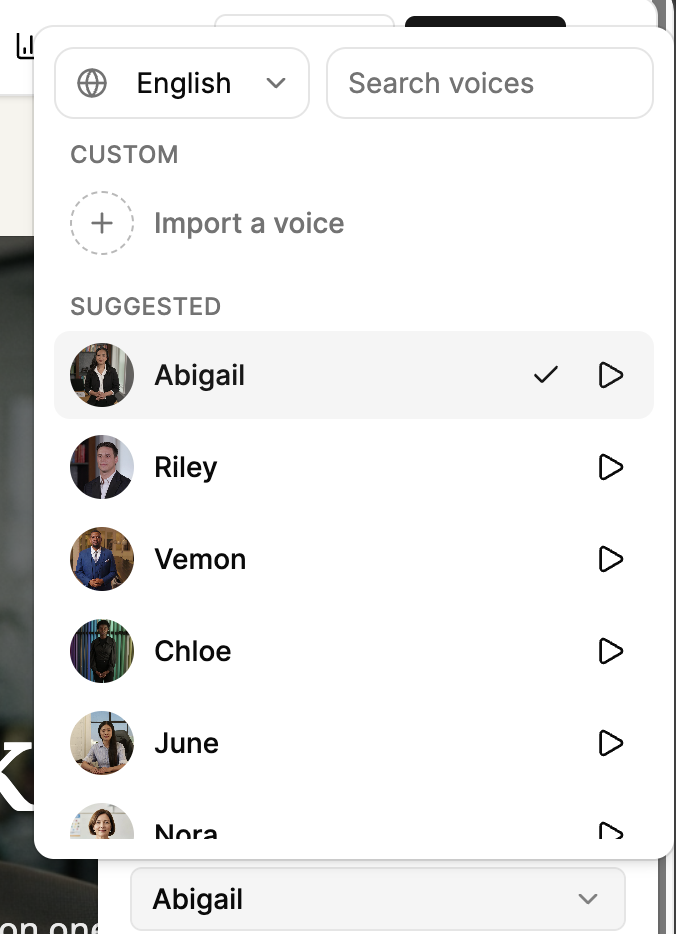
Select Import a voice under Custom to add your own voice.
