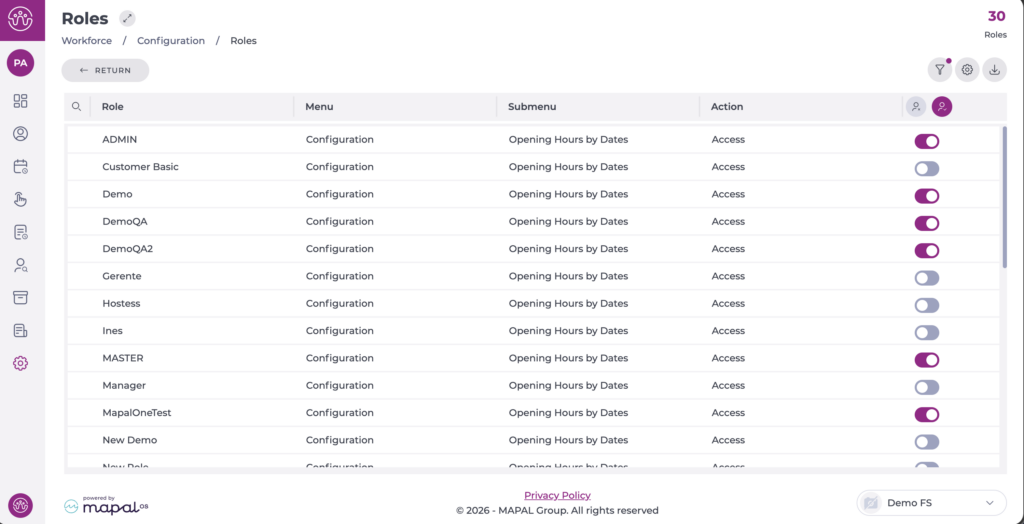
The Opening Hours by Date screen only has one available permission: Access.
This means that if the role has this permission active, it will be able to perform all available actions on the screen:
Assign Opening hours by date.
Create new schedules.
Edit / Delete schedules by date.
Edit Opening Hours
Start from: The Workforce module.
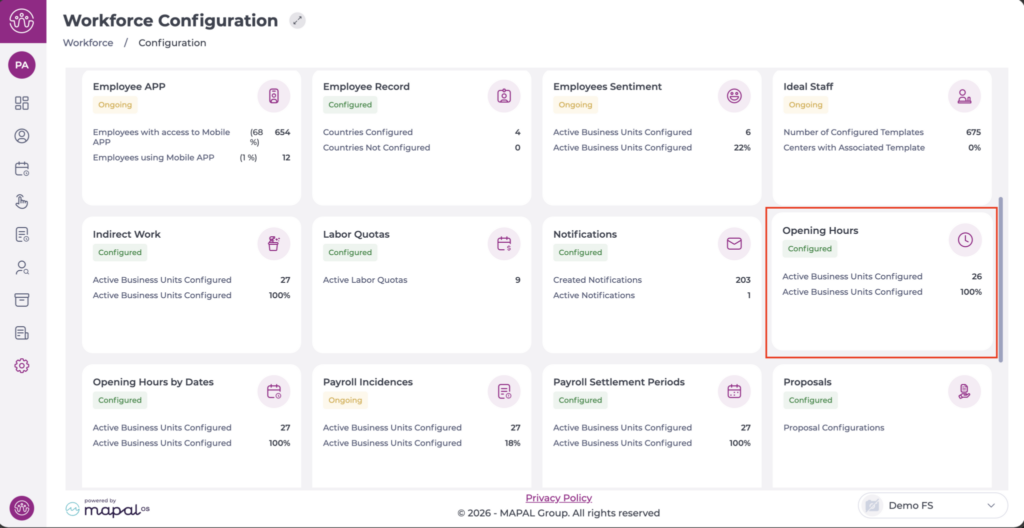
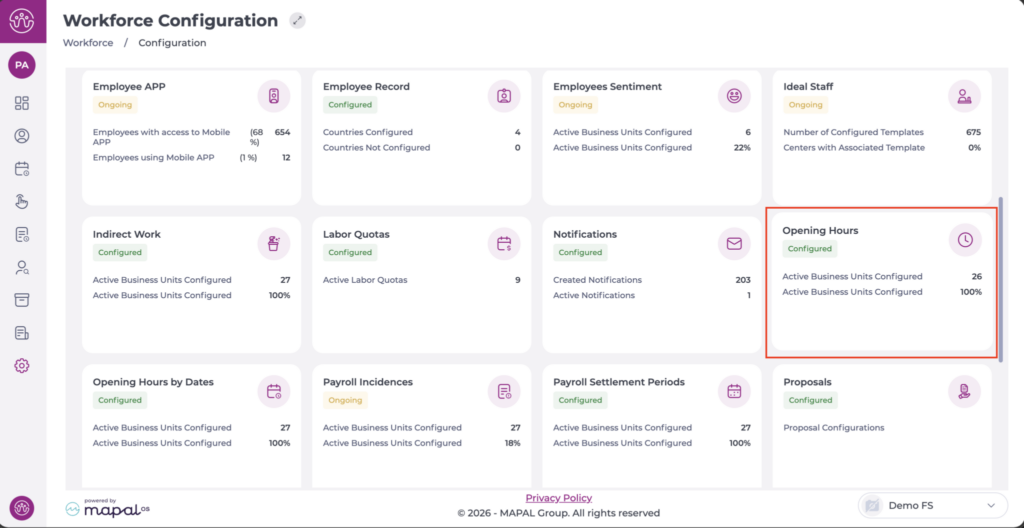
From the main menu, go to Configuration > Opening Hours.
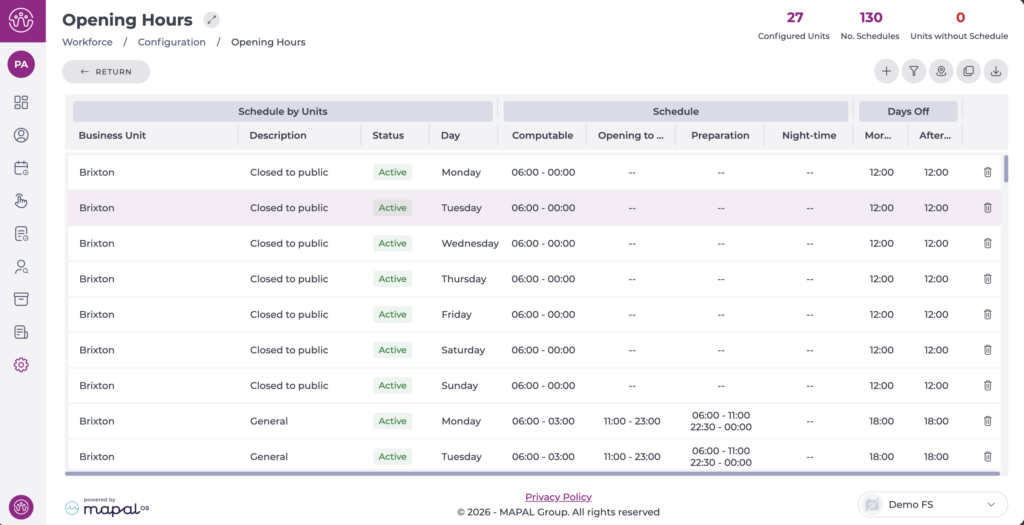
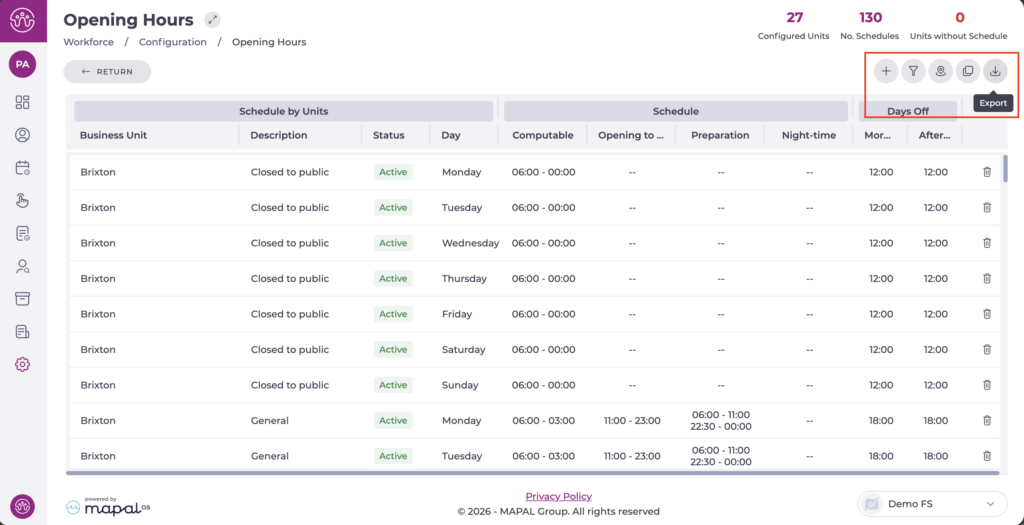
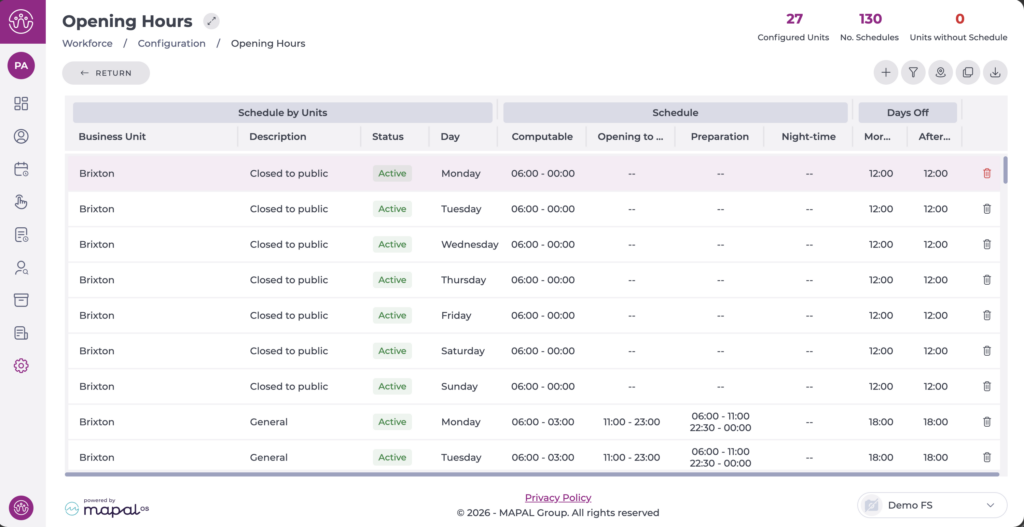
On entry, all configured schedules are displayed in the table.
Select the schedule you want to edit.
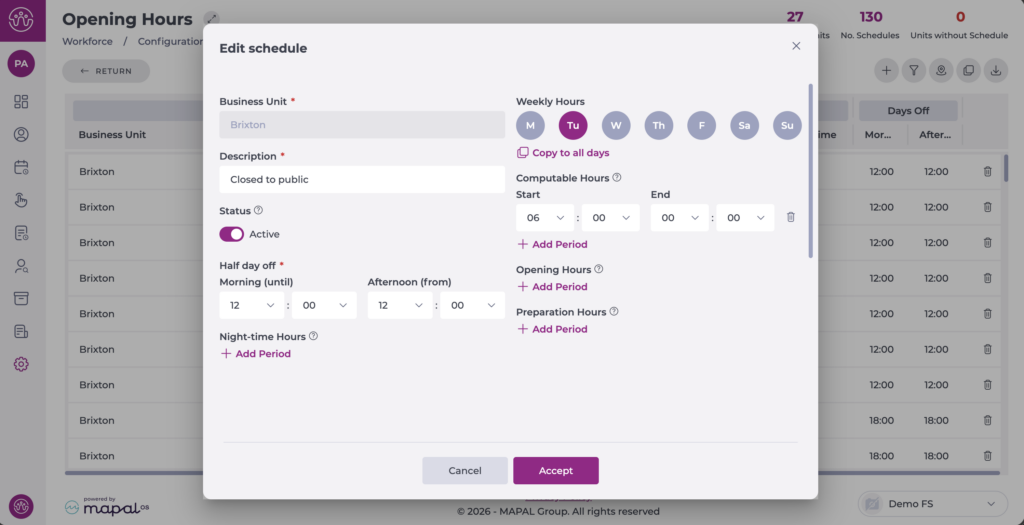
The configuration window will open to edit the data.
Once the changes are complete, select Accept to save them or Cancel to discard them.
Note: Editing Opening Hours is recommended if there has been an error during the initial creation. Otherwise, for traceability purposes, it is better to create new schedules and assign them to the corresponding business units.
Additionally, you can use the Filter to narrow down the view of the business units - schedules displayed and Export the selection or the full list to Excel. Both options are located at the top of the screen.
Manage Opening Hours
Start from: The Workforce module.
From the main menu, go to Configuration > Opening Hours.
Display the schedule you want to delete on the screen.
Select the bin icon at the end of the line.
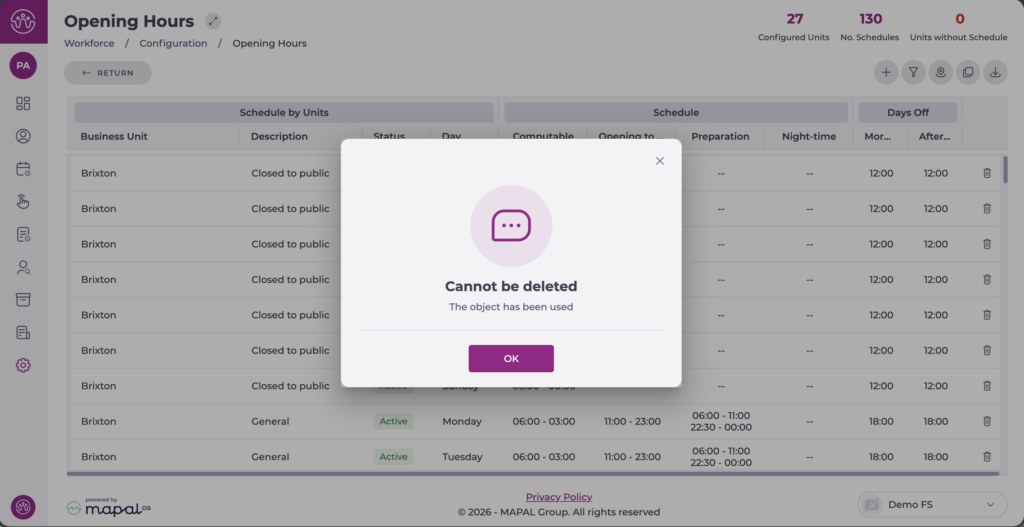
Note: You can only delete schedules that have not been used in any business unit. If you try to delete a schedule that is in use, a pop-up will appear with a message indicating that deletion is not possible.
Deactivate schedules
If the schedules have already been used, they cannot be deleted, but it is possible to deactivate them.
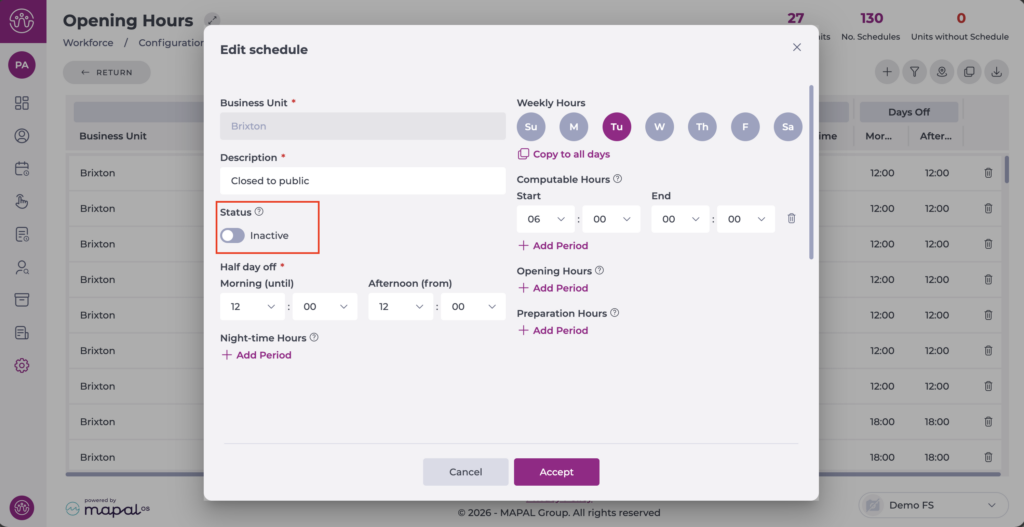
Select the schedule to deactivate.
Change the toggle switch from Active to Inactive.
Select Accept to save the changes or Cancel to discard them.
The status is visible in the general list. An inactive schedule can be reactivated by reversing the previous action.
Permissions and actions: Opening Hours
Start from: The Workforce module.
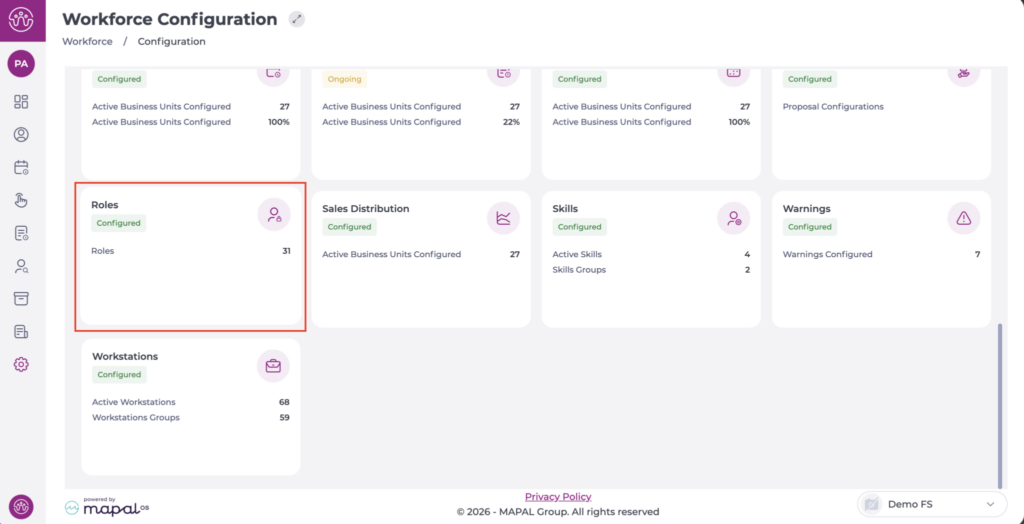
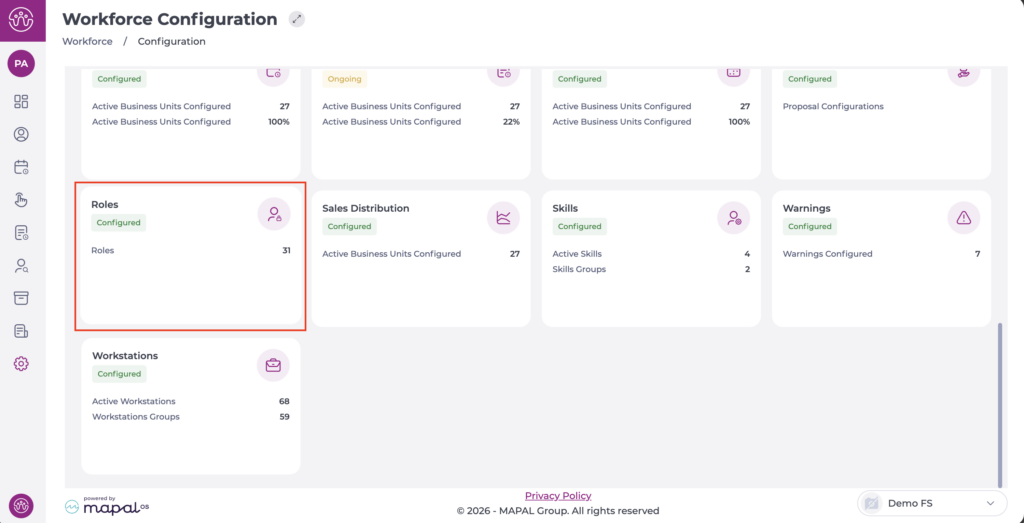
Navigate to Configuration > Roles.
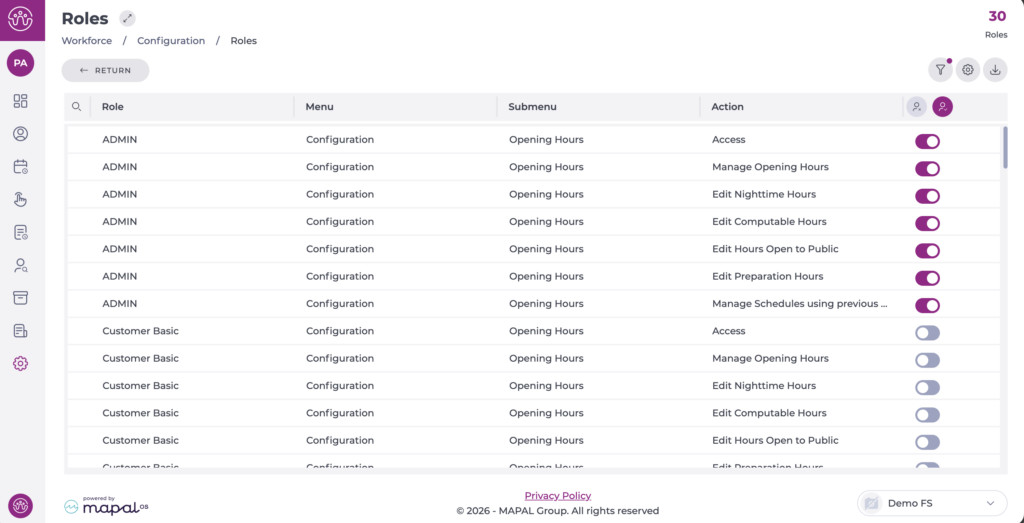
The Opening Hours screen has several available permissions:
Access: The user can access the "Opening Hours" screen with viewing, filtering, and exporting permissions.
Manage Opening Hours: The user can create and edit schedules, but only editing the following fields:
Description (only at creation).
Activate/Deactivate schedule change.
Half day off adjustment.
Edit Nighttime Hours: Permissions to edit night hours.
Edit Computable Hours: Permissions to edit computable hours.
Edit Hours Open to Public: Permissions to edit opening hours (open to the public).
Edit Preparation Hours: Permissions to edit preparation hours.
Manage Schedules using previous Computable and Night-time hours: In case you want a user to create an opening schedule without permissions to edit the "Nighttime Hours" and "Computable Hours", enabling this toggle will automatically fill in the "Nighttime Hours" and "Computable Hours" from the last created schedule that is active and has all fields completed.