


Start from: The Workforce module.
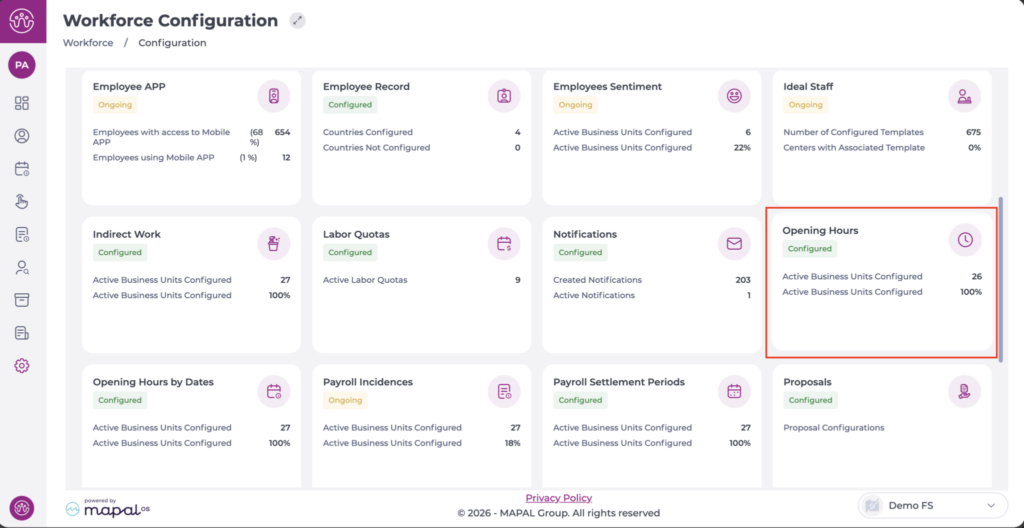
- From the main menu, go to Configuration > Opening Hours.
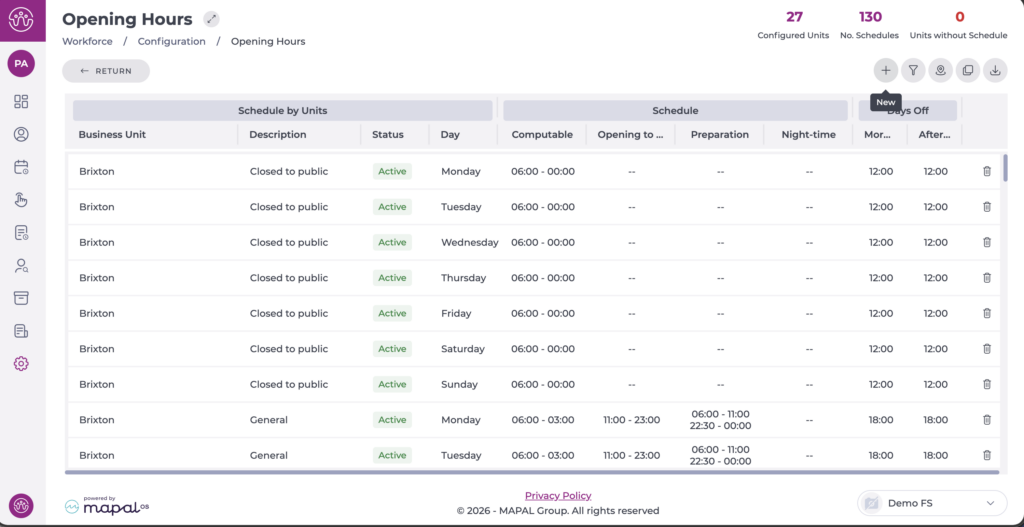
On entry, the counters shown at the top right display:
- Number of business units with configured schedules.
- Number of schedules created.
- Number of business units without configured schedules: this indicator is key to speed up management when new business units are created.

Create a new schedule
- Select the New + button.
A new configuration window will open:
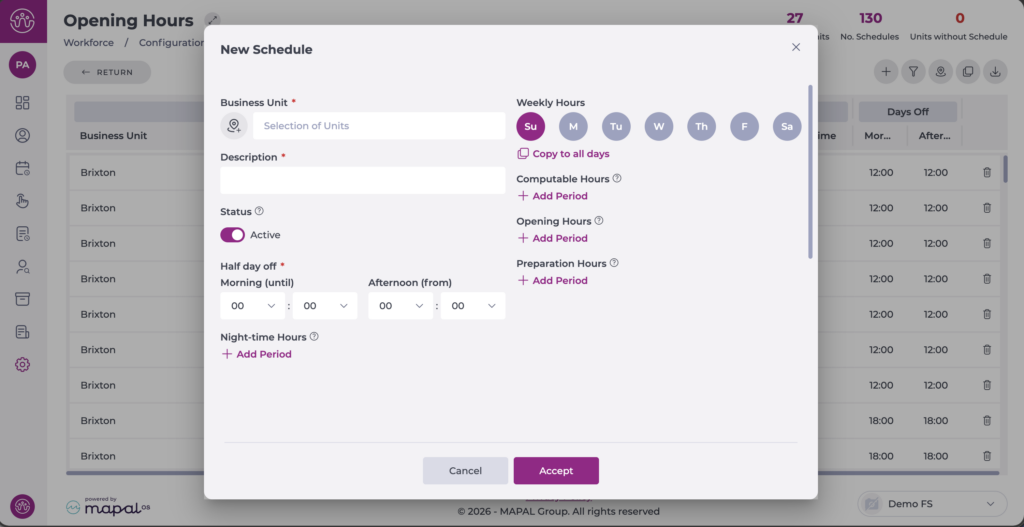
- Business Unit: select the business unit where the schedule will be applied. You can select more than one.
- Description: enter the name of the schedule.
- Indicate the Status, whether it is active or not.
- In Half Day Off, specify until what time or from what time a half day off is considered (morning or afternoon).
- Night-time Hours: define a night ROTA period that will be valid and common for all days of the week. This data indicates the hours within a day that are classified as night hours. You can add more than one night period.
- Indicate the Computable Hours for each day of the week. This data indicates the period of the day during which the Employee's working hours will be counted.
Note: Outside the Computable Time period, the hours worked by the Employee will not be taken into account for computation purposes.
- In Opening Hours, specify the schedule during which the business unit will be accessible to customers.
- Preparation Hours: you can define a preparation period for each day of the week. This period does not have to coincide with the public opening hours, but must be within the defined computable time.
- Define the schedule for each day or select Copy to all days to apply one day's schedule to the whole week.

Note: If the preparation period coincides with the public opening, the time spent will not be taken into account to estimate the optimal number of workers per half hour calculated by the system. This preparation time is linked to the productivity of the business unit, as it is time invested in preparing the product or service offered.
- Once all data is complete, select Accept to save the new schedule or Cancel to discard it.
Once the schedules are created, they must be assigned to a business unit. Managers can decide to assign the same schedules throughout the year or set specific schedules for certain seasons, such as winter and summer schedules.
To learn how to assign schedules correctly, see Assign opening hours by date.
