


Start from: The Workforce module.
- Select Reports from the main menu.
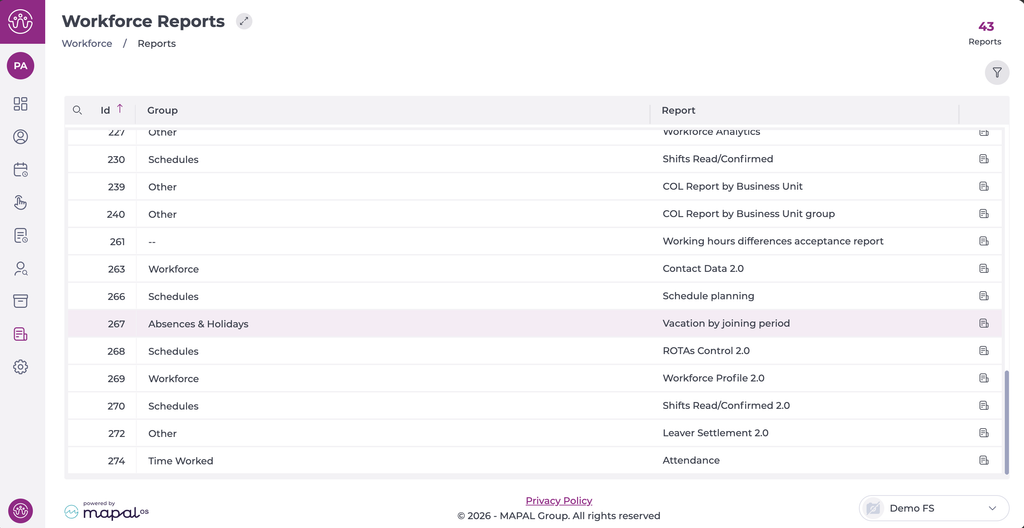
- Select the magnifying glass icon to search for the report, or locate 267 - Absences & Holidays - Vacation by joining period in the list.
- The Vacation by joining period screen opens.
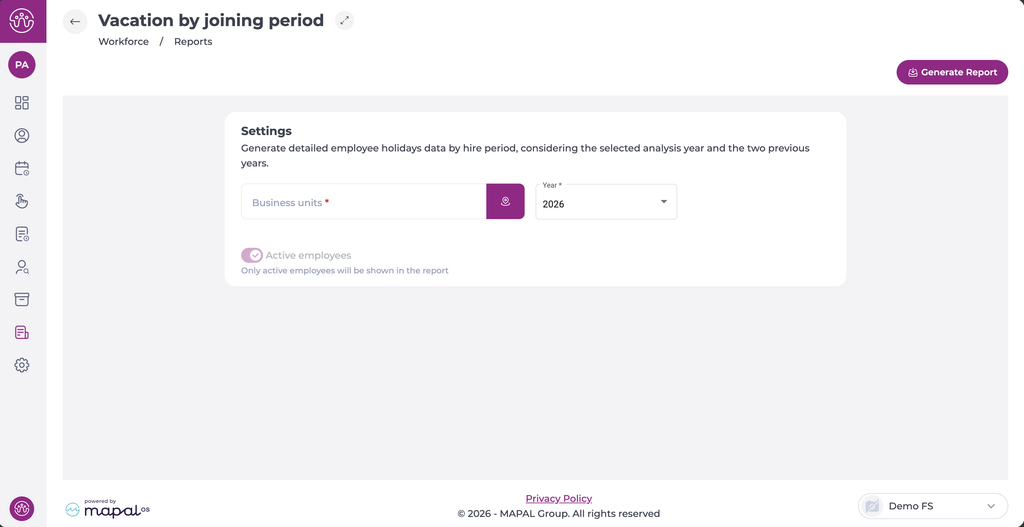
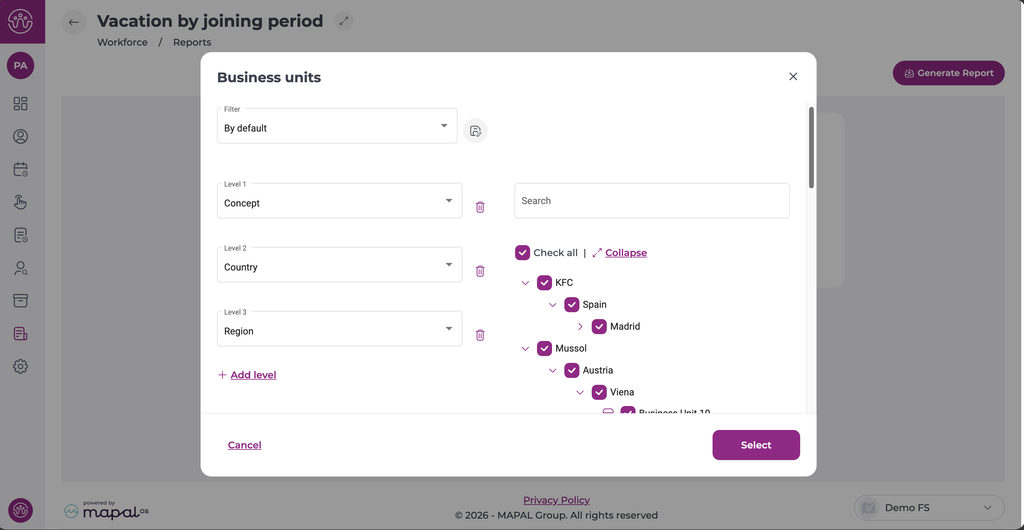
- Select the business unit icon next to Business units. The Business units window opens.
- Select the checkbox for each business unit to include. Use Search to find a business unit by name, or Check all to select all business units.
- (Optional) Change how business units are grouped using the Level fields, for example Concept, Country and Region. Select Add level to add a grouping level, or the bin icon to remove one.
- Select Select to confirm your selection.
- In Year, select the analysis year.
- (Optional) Use the Active employees toggle. It is on by default, so only active employees are shown in the report.
- Select Generate Report.
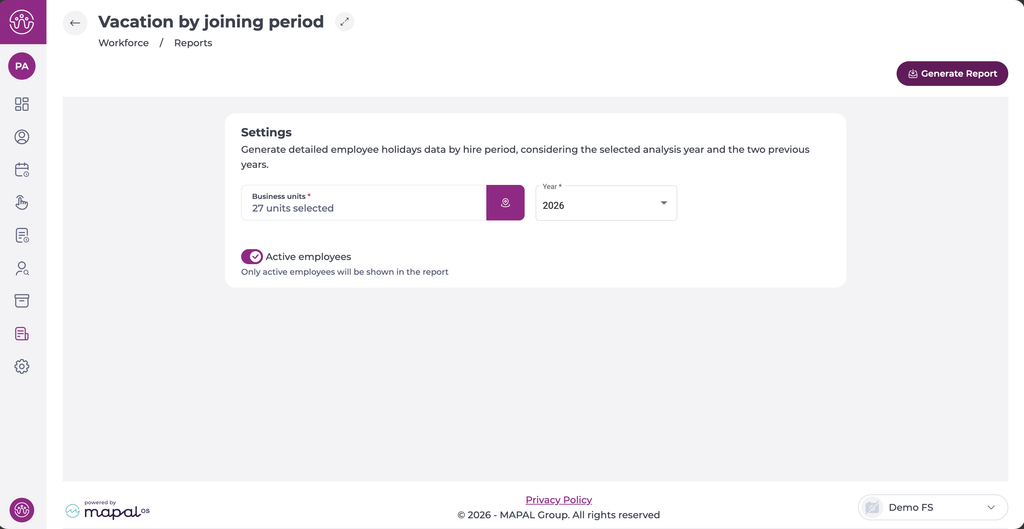
Note: All fields are required. If Business units is empty, the message This field is required. appears and the report is not generated.
Understand the vacation days
The report calculates Remaining Days as:
Granted Days ? Enjoyed Days ? Expired Days
For example, an employee with 30 granted days, 12 enjoyed days and 3 expired days has 15 remaining days.
Vacation compensations add to or subtract from Enjoyed Days, according to their value. They do not change Granted Days or Expired Days directly. Each compensation is assigned to the anniversary period its date falls in, so the balance for each period reflects the compensations made during it.
When an employee has vacation information for a year, Enjoyed Days, Remaining Days and Expired Days show 0 if there is no value. If the employee has no vacation calculations for that year yet, these fields may be blank.
