


Start from: The Workforce module.
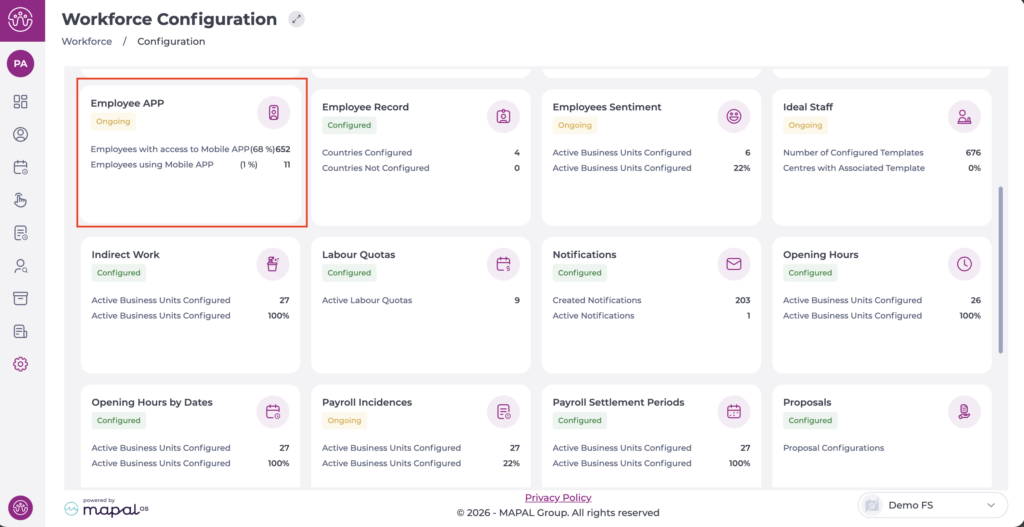
- Select Configuration > Employee App from the main menu.
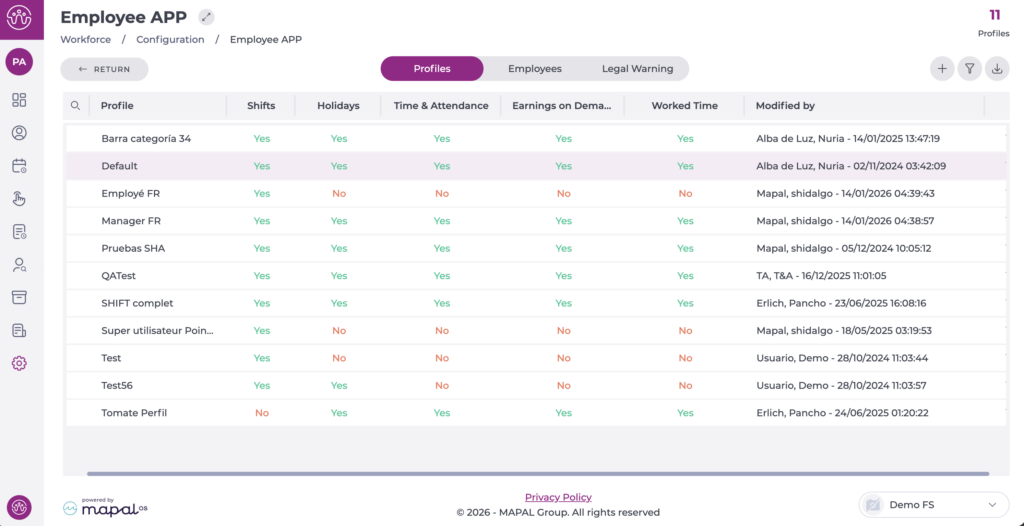
On the Profiles tab, you can see the list of profiles already created.
- Select the profile you want to edit.
In the pop-up window, begin editing the Shifts section by enabling the corresponding checkbox.
Schedule visibility
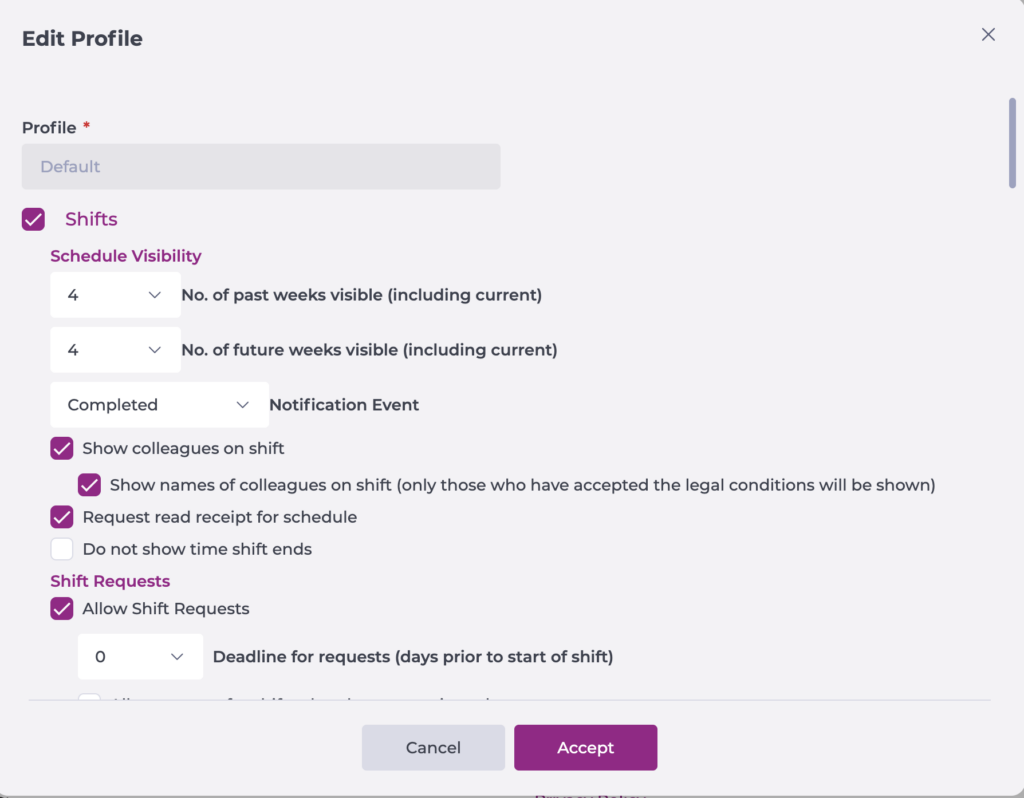
- Set the number of past and future weeks (including the current one) that are visible.
- Configure the event that will trigger the notification for employees. This can be when the shift is marked as Completed, Reviewed or Closed.
- Select Show colleagues on shift if you want the employee to be able to see who will be on shift.
- It is possible to enable the option to display the names of colleagues on shift, subject to prior legal acceptance from the colleagues.
- Select Request read receipt fot schedule if you want to receive updates on who has seen the shift.
- Select Do not show time shift ends to hide this information.
Shift requests
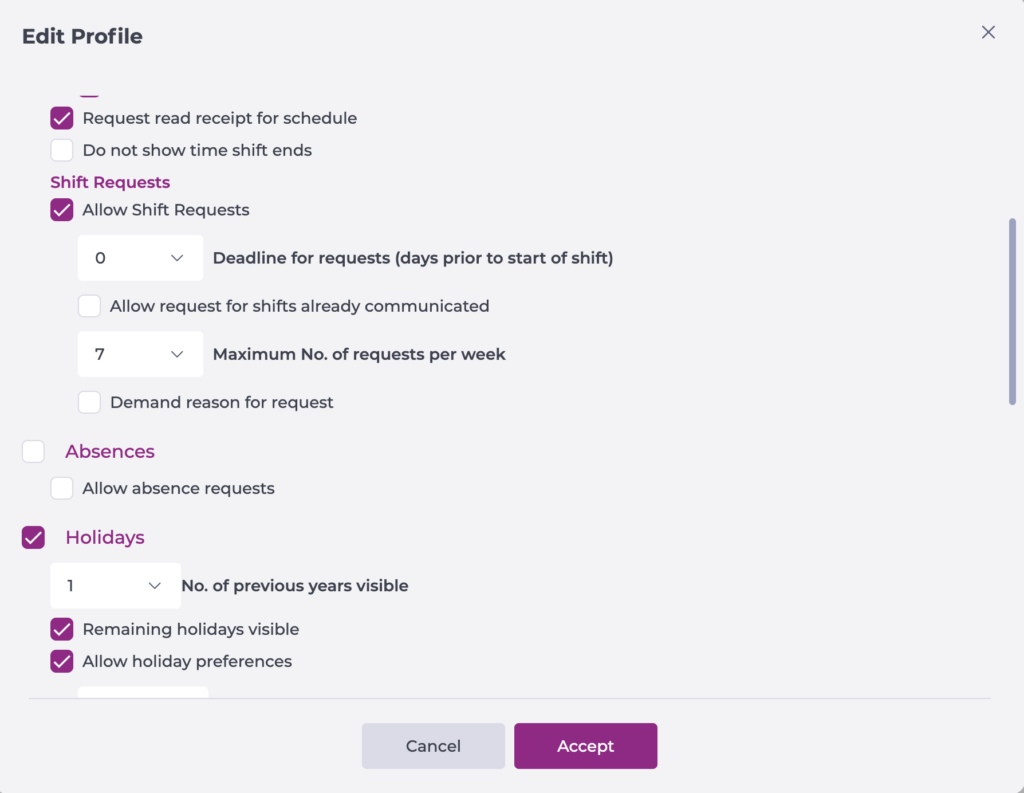
Enable the functionality and then configure:
- Maximum request deadline (days in advance of the shift start).
- Select Allow requests for shifts already comunicated if you want employees to be able to make requests on shifts already marked as Completed, Reviewed or Closed.
- Set the maximum number of requests per week.
- Select Demand reason for request if you want employees to add a comment justifying the request.
Select Accept to save the configuration you have defined OR Cancel to discard the changes.
