


Start from: The Workforce module.
- Select Scheduling > Weekly ROTAs from the main menu.
From the Weekly ROTAs screen
- Select the Work Center where the shift you wish to delete and restart is located.
- Select Restart on the line of the shift you want to delete.
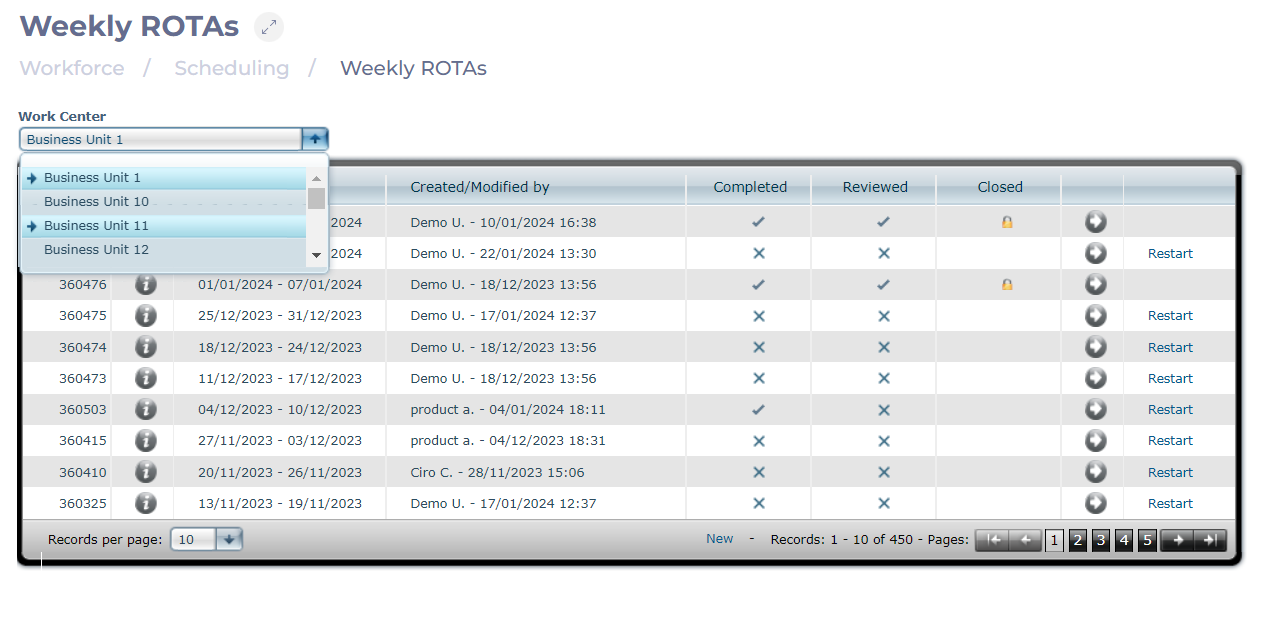
- A confirmation pop-up window will appear. Select OK to proceed with the shift deletion OR Cancel to discard the process.

From the Projected Shift screen
- Select the Work Center where the shift you wish to delete and restart is located.
- Select the Arrow icon to view shift details.
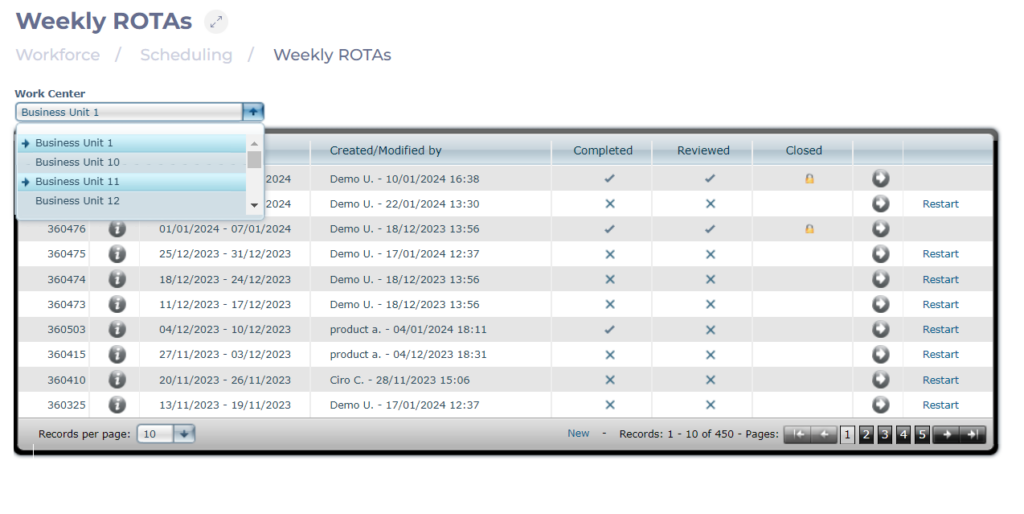
Note: If the arrow icon is blue, it means that there is already data saved in that week.
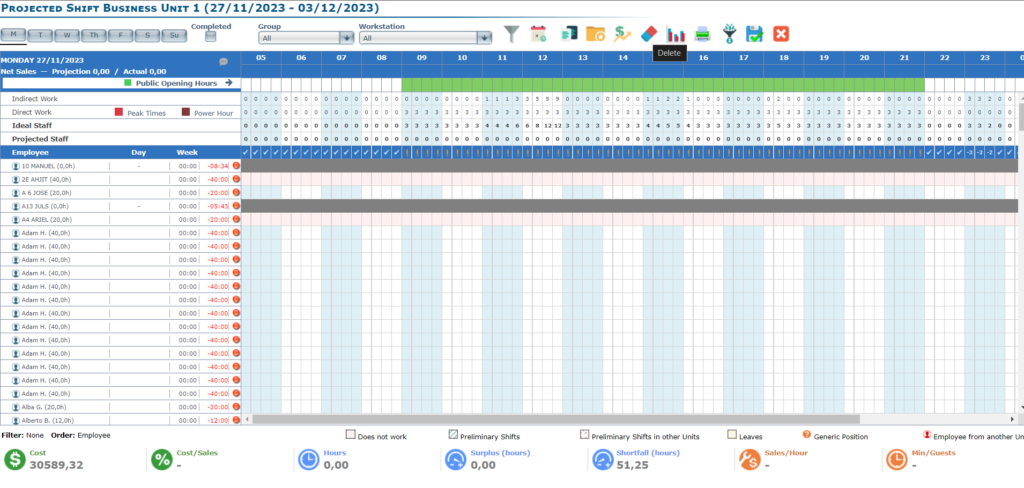
- On the Projected Shift screen, select the Delete option.
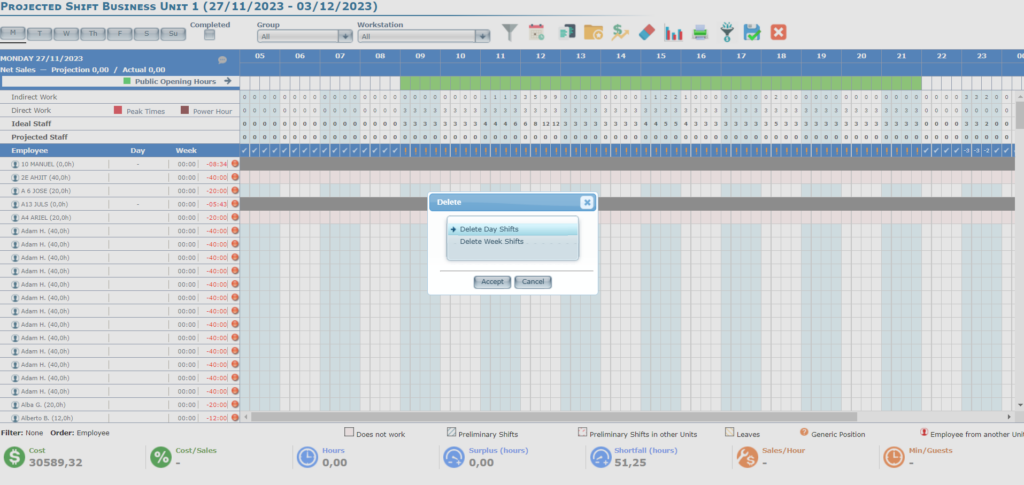
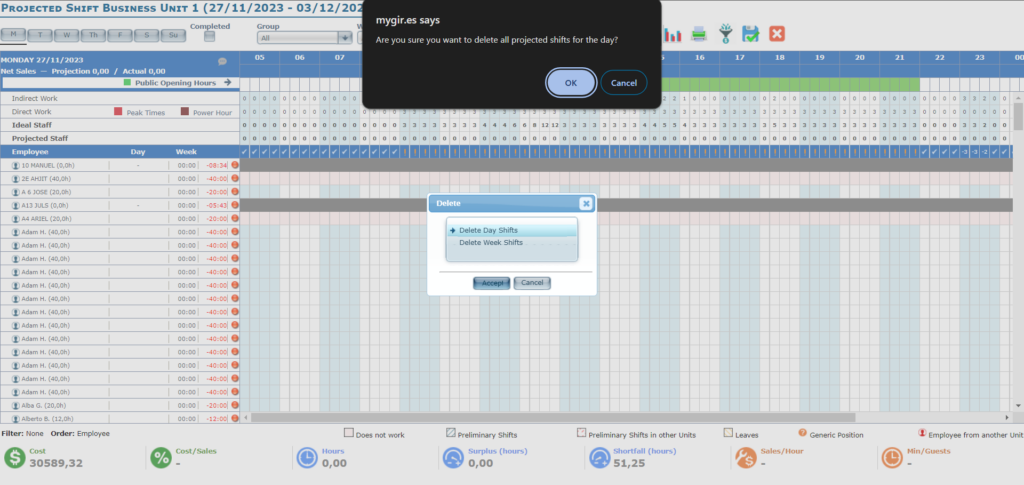
- In the Delete pop-up window, you will have two options:
- Select Delete Day Shifts to eliminate and restart the projected shifts for a specific day of the week.
- Select Delete Week Shifts to eliminate and restart the projected shifts of the selected week.
- Select OK to proceed with the deletion OR Cancel to exit the Delete window.
- When you continue, a couple of confirmation pop-up windows will be displayed. Select OK to confirm the shift deletion OR Cancel to discard the action.
Note: Deleting the shift will result in the removal of time off for workers with shifts projected in other centers.
