


Start from: The Workforce module.
Note: To edit templates, your role needs the Access Templates and Create/Edit/Delete Templates permissions. An administrator assigns these permissions in Configuration > Roles. For more information, see Permissions and actions: Document templates.
- Select Documentation from the main menu.
- Select the Templates tab.
- Select the template. The Edit template window opens.
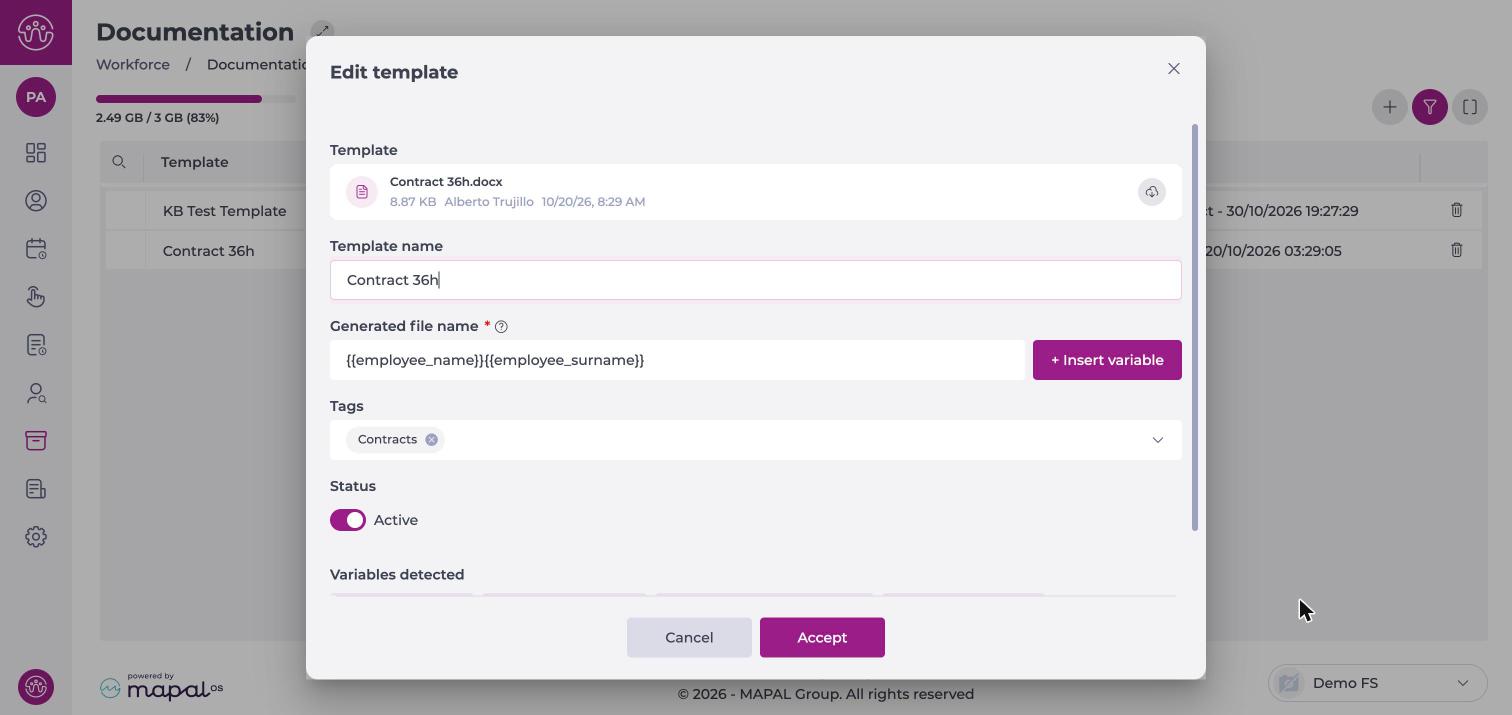
- Update the fields you need:
- Template name.
- Generated file name. To add a variable, select + Insert variable. For the rules, see Create a document template.
- Tags.
- Status. Select the toggle to make the template Active or Inactive. Inactive templates do not appear in the Template list when you assign documents.
- Select Accept.
Note: You cannot replace the Word file in a template. To change its content, create a new template and delete the old one.
The Edit template window also shows the Word file and its Variables detected. To download the file, select the download icon next to it.
To find a template, select the filter icon and filter by Status, Tags or Modified by.
