


Start from: The Workforce module.
- Navigate to Configuration > Categories.
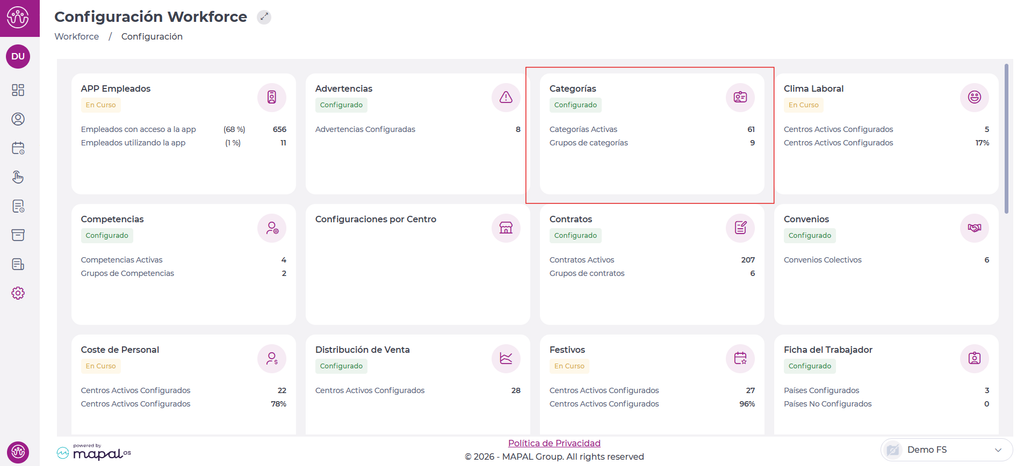
The categories panel shows a grid with seven columns by default:
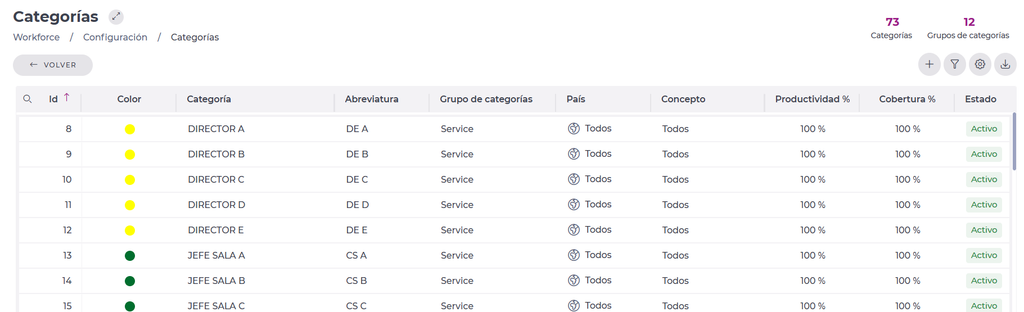
- ID: the number assigned as an identifier.
- Colour: the colour defined for that specific category.
- Category: the name of the category.
- Abbreviation: a short name for the category, visible on some screens such as shifts.
- Category group: the group the category belongs to. For example, you can have a Dining room or Kitchen group.
- Country: the country where the category can be used. This corresponds to the country set in the business unit settings.
- Brand: the brand where the category can be used. This corresponds to the client brand set in the business unit settings.
- Productivity %: the percentage of worked time spent on activities directly related to running the business.
- Coverage %: the percentage of worked time that counts towards covering optimal staffing needs.
- Status: a category can be active or inactive.
The top of the categories panel also shows counters for Categories and Category Groups, and a set of buttons:
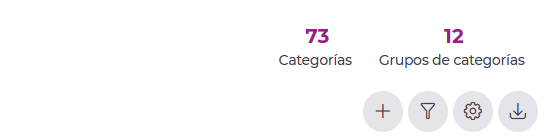
- New (+): adds new categories. For more information, see Create new category.
- Filter: applies a set of criteria to make searching easier.
- Configuration: shows all category groups and lets you add new ones. For more information, see Group categories.
- Export: exports the data visible in the panel in .XLS or .CSV format.
