Start from: the Workforce dashboard.
- Navigate to Workforce management > Proposals from the menu.
The proposals grid
Each row in the list corresponds to a proposal and displays the most relevant information to identify and work with it. The grid includes the following columns:
- ID: the unique identifier for the proposal within the system.
- Date: the date associated with the proposal, indicating when it was generated or when it takes effect.
- Type: the type of proposal: Hire, Termination, Labour conditions, or Employee data.
- Employee: the name of the employee the proposal relates to.
- State: the current status of the proposal. Possible states are:
- Pending: not yet reviewed or completed.
- Accepted: validated.
- Rejected: not approved.
- Accepted with changes: accepted after one or more values were modified from the original proposal.
- Required information: additional data or actions have been requested before a decision can be made.
- Supervised: indicates whether the proposal has already been through an additional review.
- Created/Modified by: the user who last created or modified the proposal.

Actions available on each proposal
To the right of each row you will find two options:
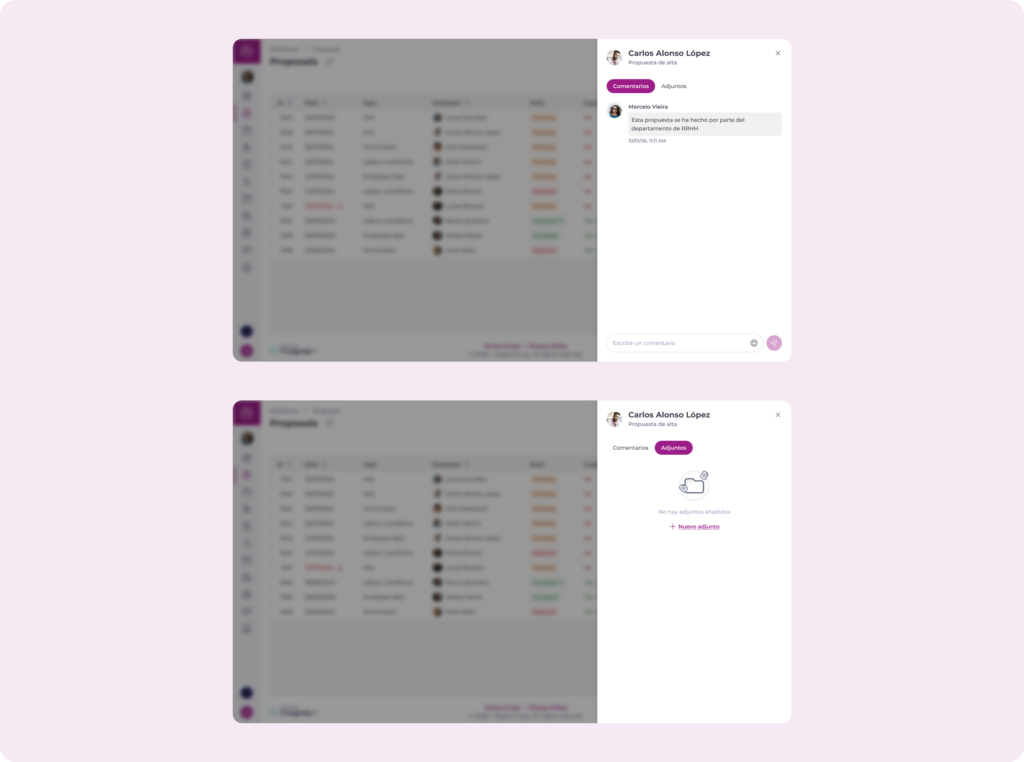
- Comments: view or add comments on the proposal. Useful for leaving notes, clarifications, or tracking progress.
- Attachments: add or consult documents associated with the proposal, such as supporting files or additional information.
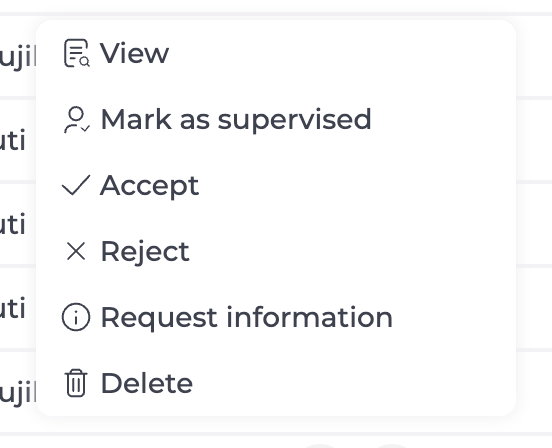
- Select the three-dot menu (...) on any proposal to access further actions depending on its current state:
- View: consult the content of the proposal.
- Mark as supervised: indicate that the proposal has been reviewed.
- Accept: validate the proposal.
- Reject: discard the proposal.
- Request information: send the proposal back to request more data before making a decision.
- Delete: remove the proposal.
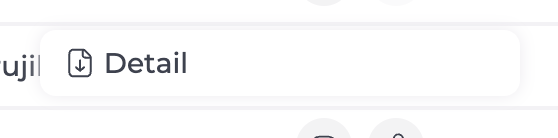
Note: Once a proposal has been accepted or rejected, the actions above are replaced by Detail, which allows you to download a document with the full proposal information.
Search for a proposal
To find a specific proposal quickly, select the Search icon at the top right of the screen.
- A search field appears where you can type a proposal ID or an employee name.

- The list updates automatically to show matching results. Select the close icon (?) to exit search mode and return to the full list.
Filter proposals
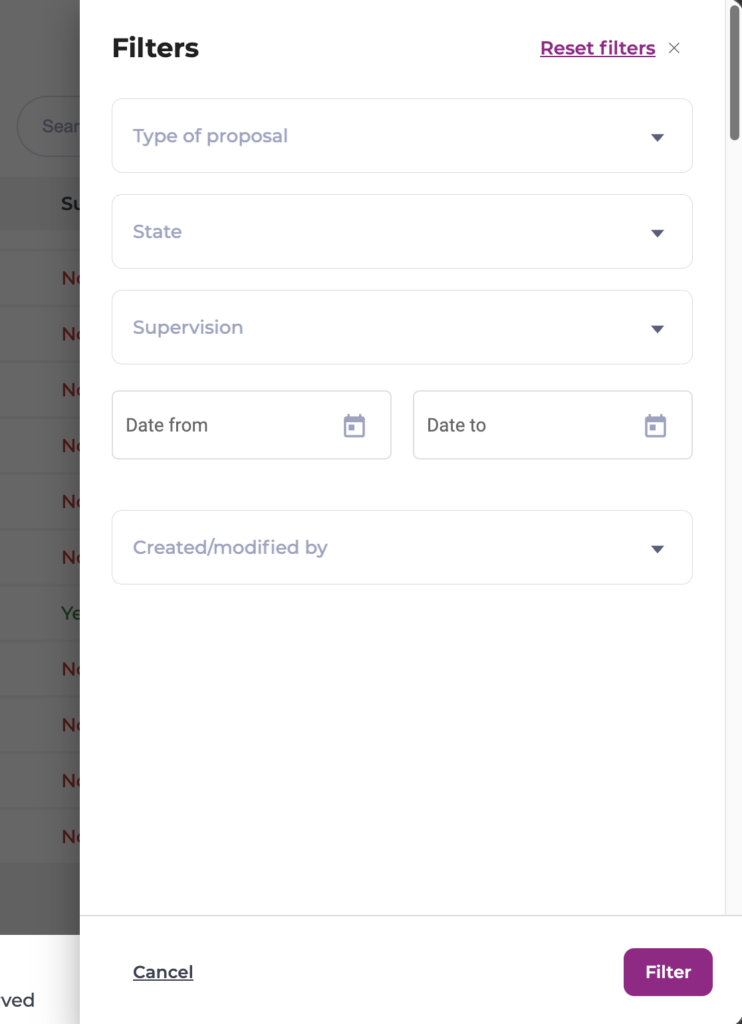
To narrow the list by specific criteria, select the filter icon to open the Filters panel. You can combine the following filters:
- Type: filter by proposal type: Hire, Termination, Labour conditions, or Employee data.
- State: show only proposals with a specific status, such as Pending, Accepted, or Rejected.
- Supervision: filter by whether proposals have been supervised or not.
- Date range: use Date from and Date to to define a specific period.
- Created/Modified by: filter by the user who created or last modified the proposal.
Select Filter to apply, Cancel to close the panel without changes, or Reset filters to clear all active filters.
Filter by Business Unit
To view proposals from specific business units only, select the Business unit filter icon.
- A panel opens where you can define up to three hierarchy levels, such as concept, country, or region, and select the units you want to include.
- Use Look for to find a specific unit, Select all to include all visible units, or Collapse to simplify navigation.
- Select Filter to apply or Cancel to close without changes.
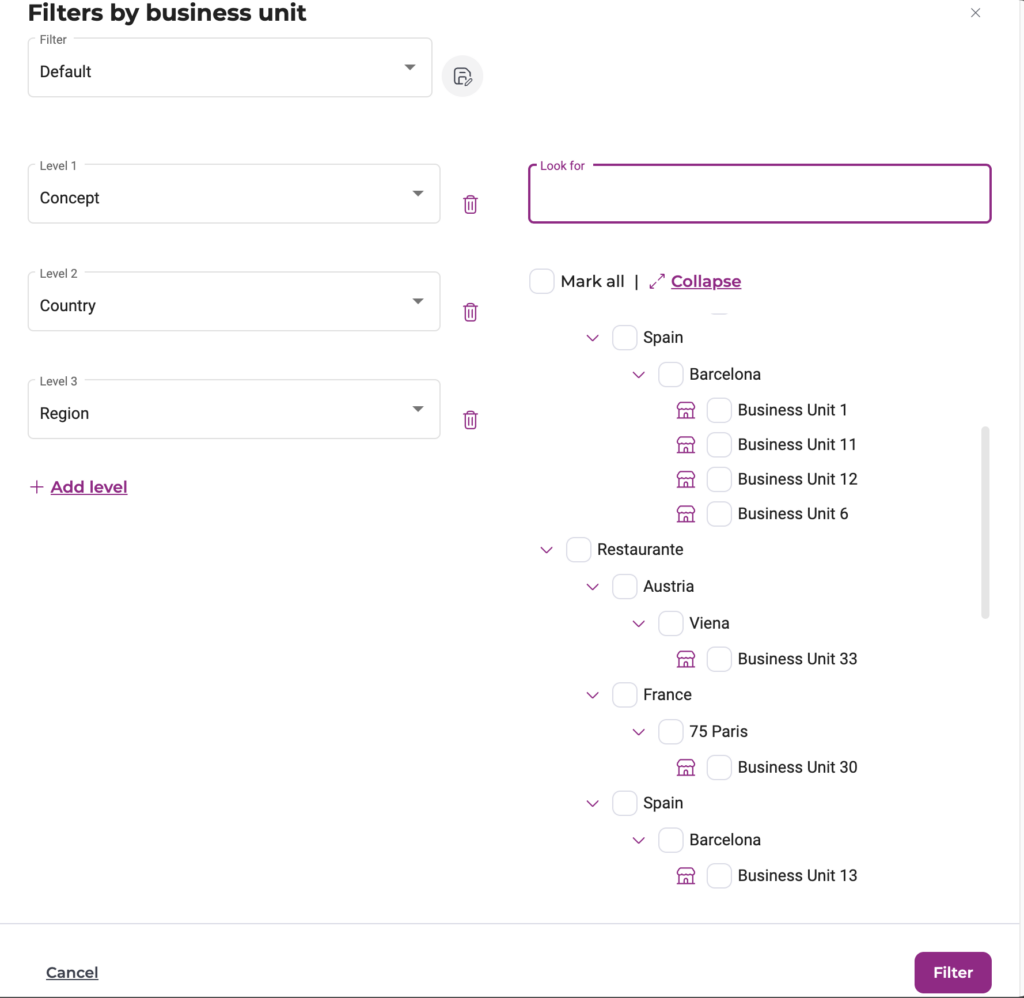
Note: Only business units you have permission to access will be visible in this panel.
Customise the columns displayed
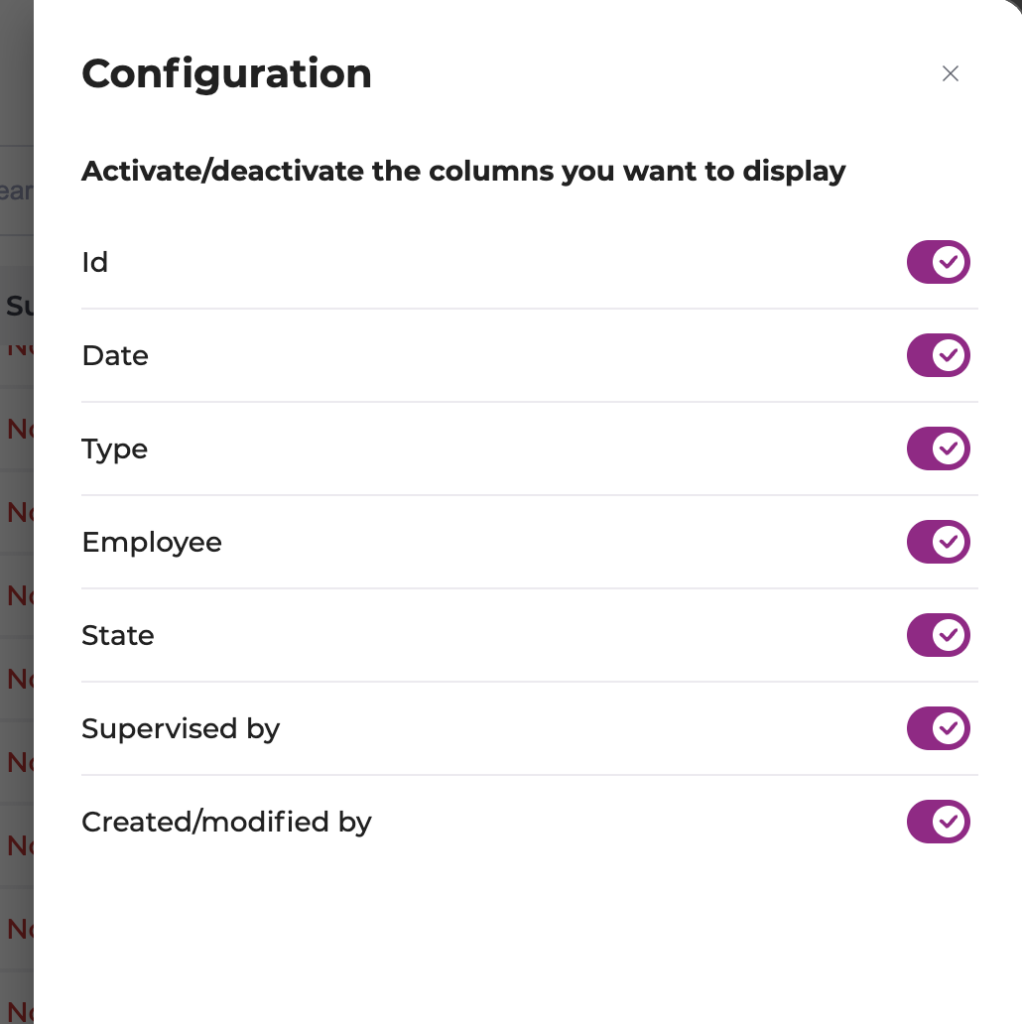
To choose which columns to show in the list, select the Configuration icon at the top right of the screen.
- A panel opens showing all available columns: ID, Date, Type, Employee, State, Supervised by, and Created/Modified by.
- Toggle each column on or off as needed. Changes apply to the list immediately.
Create a new proposal
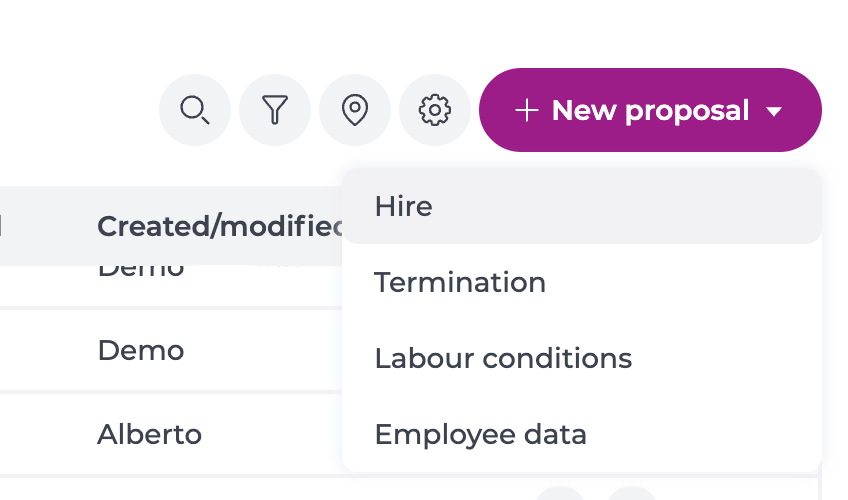
- Select + New proposal at the top right of the screen and choose the type of proposal you want to create:
- Hire
- Termination
- Labour conditions
- Employee data.