


Start from: The Workforce module.
- Select Scheduling > Scheduler 2.0 from the main menu.
- Configure the scheduler to access the main grid.
Employee list
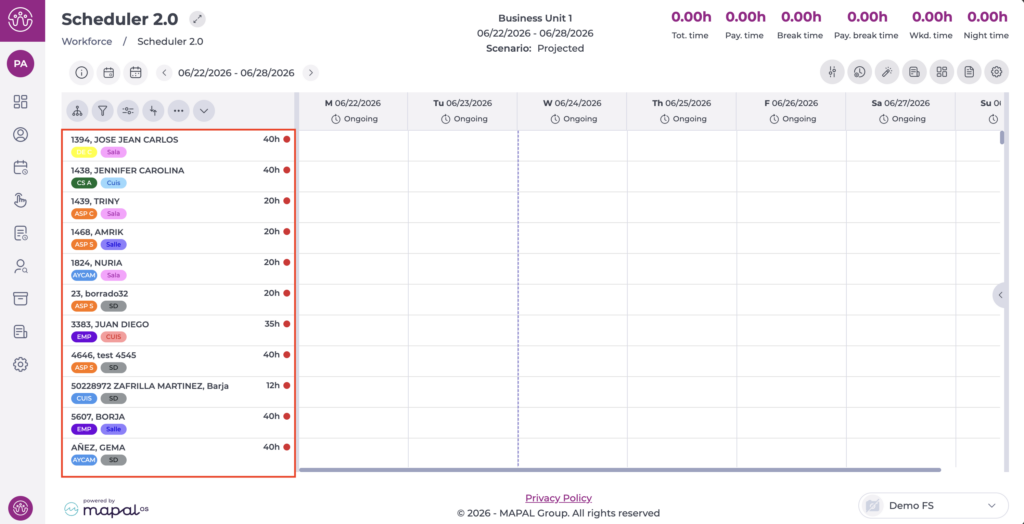
The planner displays a list of employees and key information to support decision-making. The employees shown in the list may vary. The following employees will always be displayed:
- Employees active at the selected site.
- Employees with a shift planned at the selected site, even if they are registered at another site.
Note: If an employee has an expected leave date recorded in their profile, this may affect whether they appear on this screen.
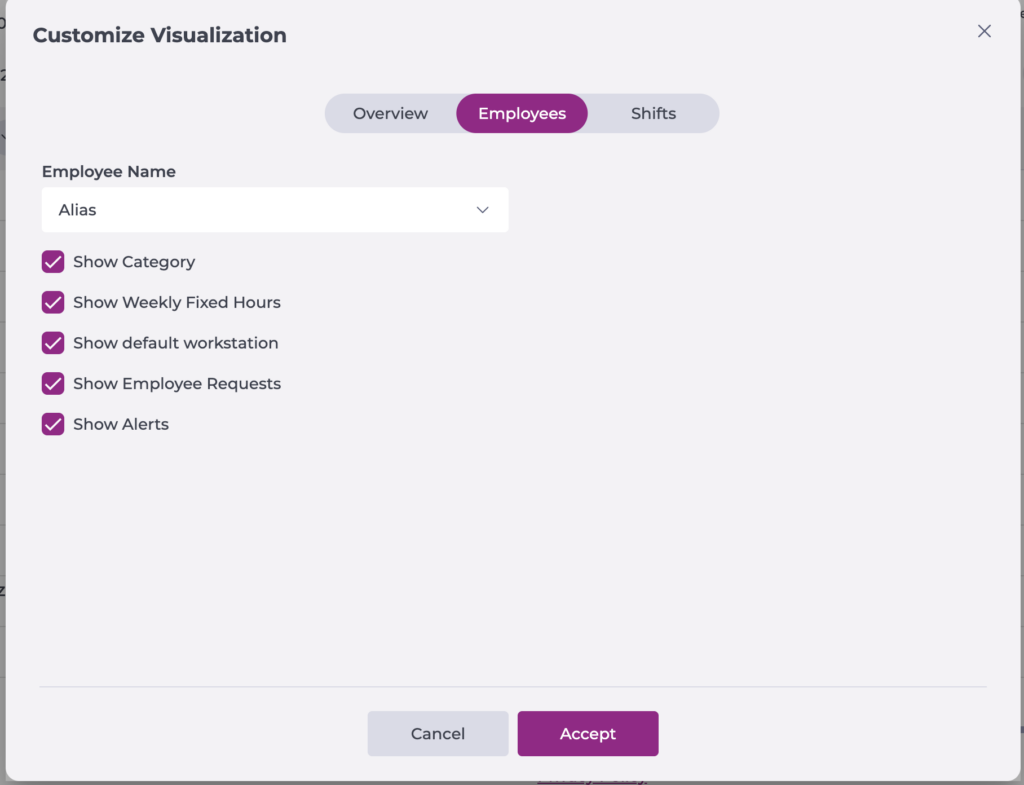
The information shown on each employee card depends on the configuration set in Scheduling > Scheduler 2.0, under Settings > Customise Display.
Available data:
- Name: The employee's full name or nickname for quick identification.
- Category: Displays the category assigned to the employee.
- Fixed weekly hours: Total fixed hours as per the employee's contract.
- Default workstation: Displays the assigned default workstation.
- Shift preferences: Shift preferences requested by the employee.
- Employee alerts: Notifications about schedule restrictions, conflicts, or non-compliance.
- Employee counters / KPIs: Key performance indicators related to working hours and productivity.
Employee actions
From the employee list, you can carry out various management actions. To do so, right-select the employee you want to manage.
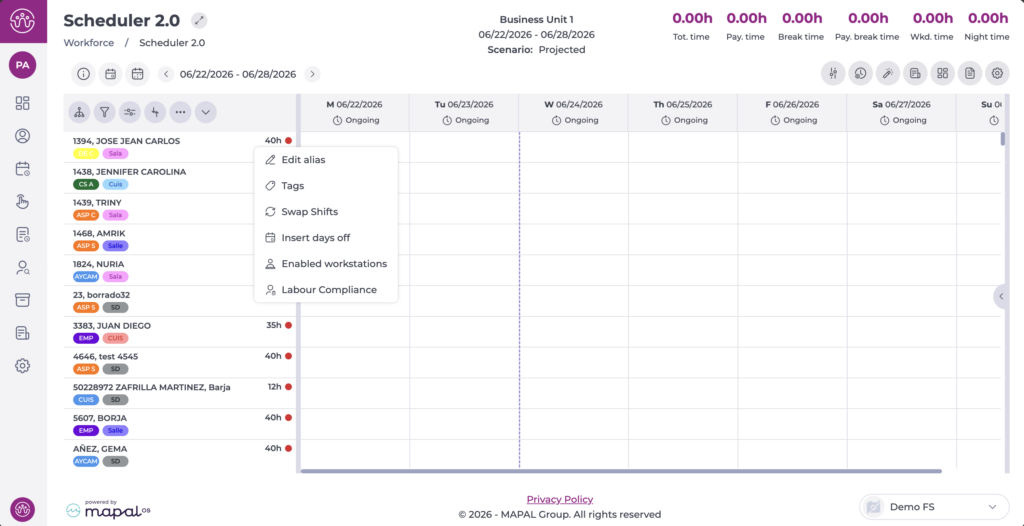
The available actions are:
Edit alias
Allows you to assign a nickname to the employee for easier identification in the list. In the window that opens, enter the desired nickname and select Save to apply the changes or Cancel to discard them.
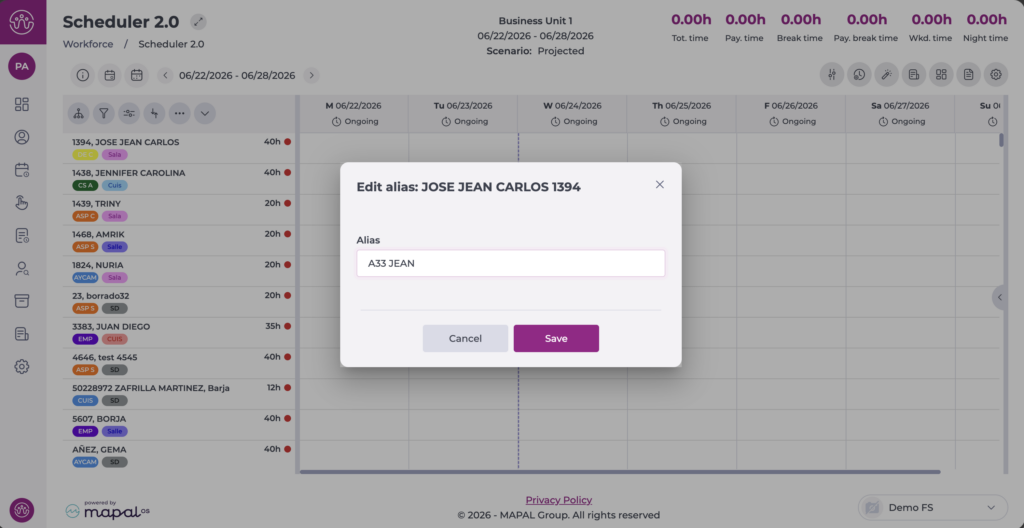
Note: To display employees by nickname, this must be enabled in Settings > Customise Display > Employees.
Tags
Tags allow you to segment and filter employees to create more personalised groupings. You can define the group name, create the tags you need, and assign them to the relevant employees. Once applied, you can use them to group, segment, or filter employees quickly.
Swap shifts
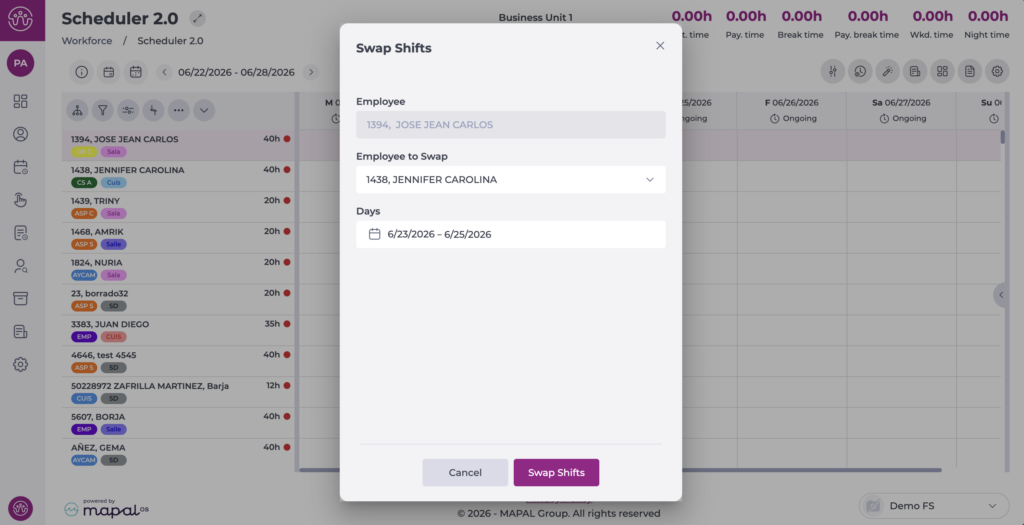
Managers can swap shifts and days off between employees to balance workloads, ensure regulatory compliance, and adjust operational planning when needed. Swaps are subject to permission restrictions and schedule status, ensuring they only take place during active periods and within assigned sites.
To do so, right-select the employee you want to manage. In the window that opens, select the employee and date you want to swap shifts with. Select Swap to apply the changes or Cancel to discard them.
Insert days off
The insert days off option allows you to manage employee days off more efficiently. The action applies to full weeks within the selected period.
For more information, see Add days off in the scheduler.
Enabled workstations
Each employee has a default workstation but may perform other roles depending on their skill level. Workforce allows you to assign additional workstations and classify them by the employee's level of experience, helping to prioritise the most qualified staff for critical tasks.
Labour compliance
Managers can review key metrics on each employee's labour compliance, such as paid time, differences between assigned and worked hours, and any over- or under-hours. This helps ensure that shift planning aligns with current labour regulations.
