


Start from: The Workforce module.
- Select Workforce Management > Workforce 2.0 from the main menu.
- Use the filters at the top of the screen to refine the list of employees. To see all filtering options, see Filter the employee list.

- Select the specific employee from the grid.
- Select Employment information in the left-hand menu. This screen displays:
- The employee’s current labour situation
- A list of employment situations within the labour periods: each one represents a defined period with employment details (contract, category, work centre, hours, etc.) (grey boxes).
Terminate an employee
If what you want is to add a termination date for an employee or additional information to a termination, you can review Terminate an employee. This action sets an end date on the work period.
Note: If you modify work periods, remember that all reports and calculations are based exclusively on the dates within those periods. The system will warn you about this when editing.
Create or edit a labour situation (employment change)
Use this when employment conditions change, such as contract modifications, workplace transfer, job category update, or working-hours adjustments.
- Select + New employment situation.

- Complete the fields in the New employment situation window:
- Effective date*: the date the change takes effect.
- Work center*: new workplace if changing location.
- Category*: the updated job category or role.
- Contract: contract type, if changed.
- Expected end date: used for temporary contracts.
- Working hours: define weekly hours or distribution.
- Work restrictions: set rules such as continuous shift, day restrictions, or holiday restrictions.
- Add any contractual documentation if needed.
- Select Accept to save. A new labour situation will be added to the list and marked as Current from the effective date.
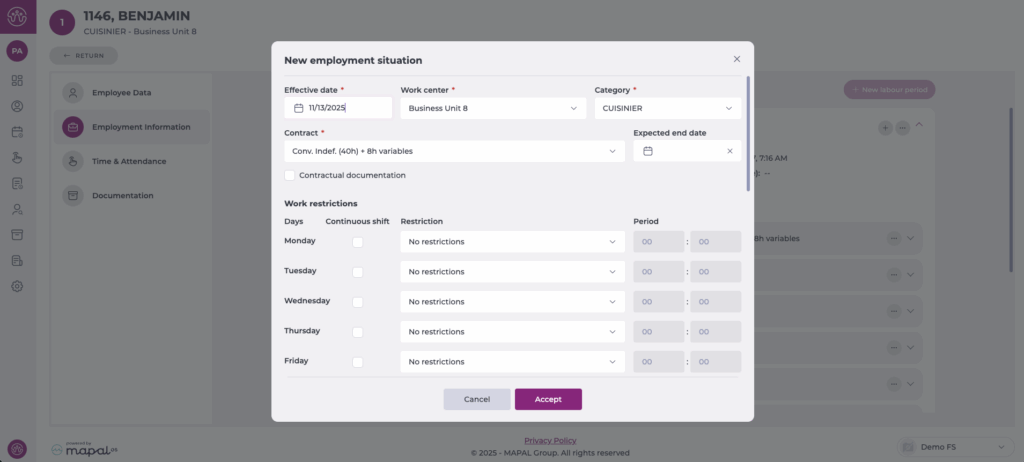
Edit an employment situation
You can also edit the current employment status, but in this case only work restrictions can be modified. If you need to update any other details, you should create a New labour period instead. This ensures that historical records remain accurate and that reports and calculations reflect the correct employment timeline.
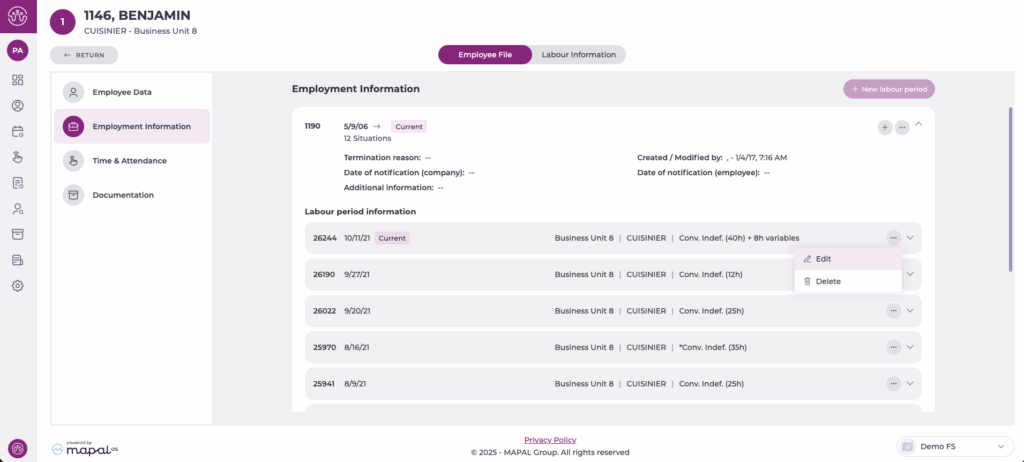

Change dates or terminate a period
- Locate the current labor period.
- Select the three-dot menu (…) next to the labour period.
- Choose Edit.

- Here, you can update:
- Hire date
- Termination date
- Termination reason
- Notification dates
- Additional information
- Select Accept to save.

Note: If you modify labour periods, remember that all reports and calculations rely exclusively on the dates within these periods. The system will warn you of this when editing.
Delete an employment situation
- Open the (…) menu on the labour period or employment situation.
- Select Delete.
- A confirmation window appears. Select Delete to complete the removal.

The selected situation is automatically deleted. Bear in mind that once deleted, it is not possible to recover the information.
