


Start from: The Workforce module.
- Select Workforce Management > Workforce 2.0.
On the Workforce 2.0 screen, select the employee whose information you want to manage from the list.
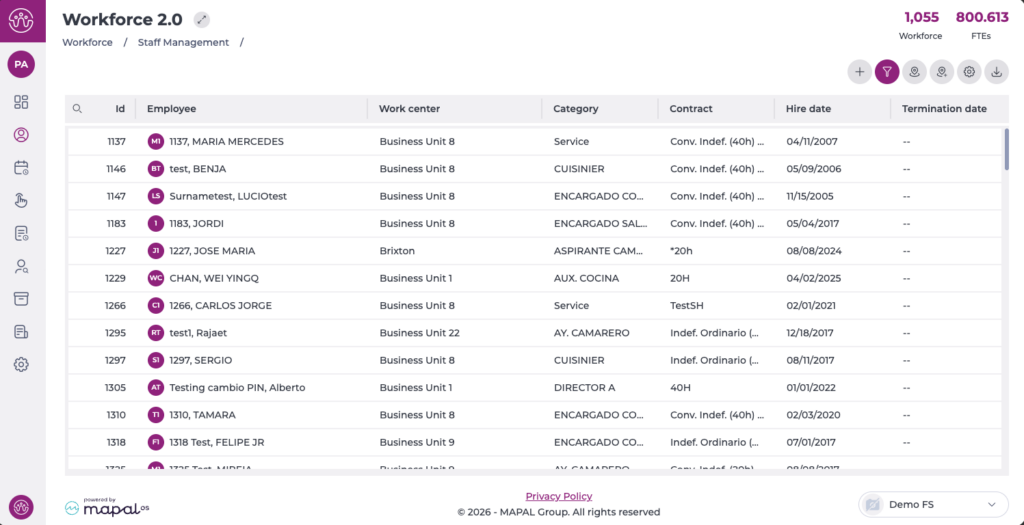
The screen will open on the Employee Record tab. This tab has four sections:
Employee data
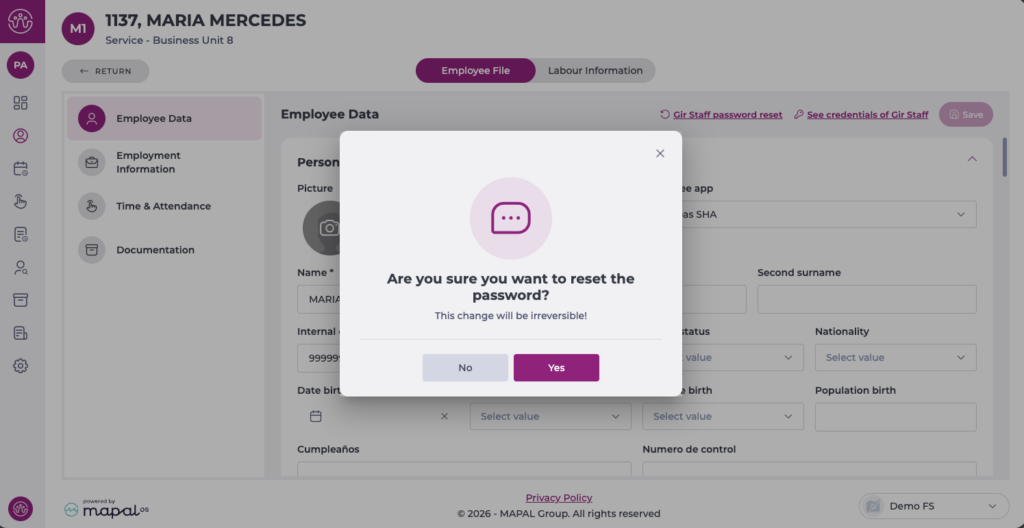
In this section, you can change any data related to the employee's record, such as personal details, add a photo, add emergency contacts, medical reviews, among others.
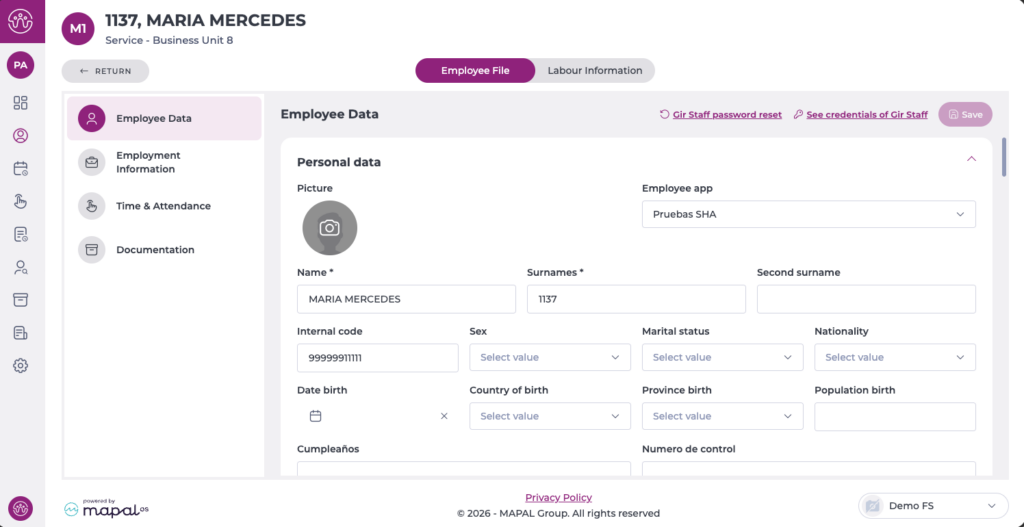
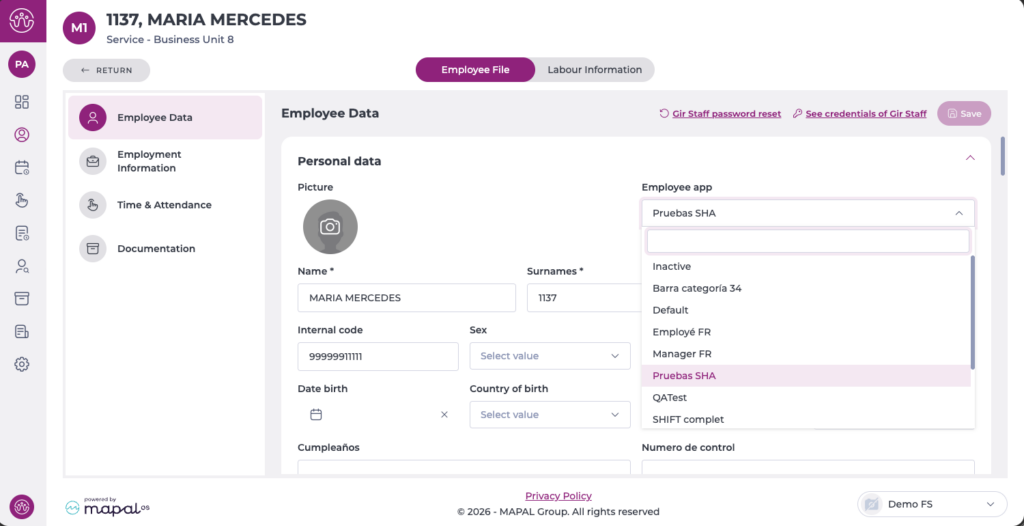
Here you can also activate, deactivate or change the profile related to the Employee App.
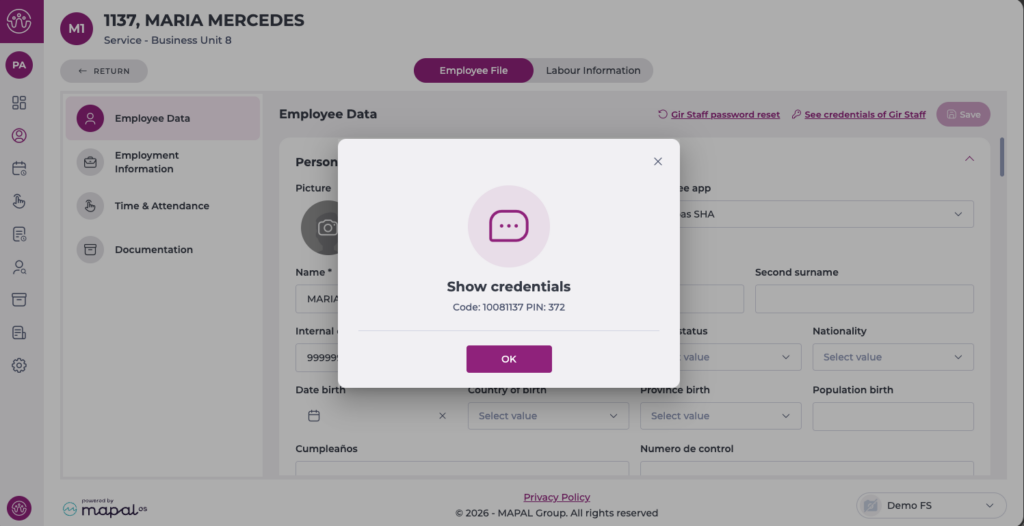
Note: For those using the GIR Staff app, it is possible to view their credentials, change their profile and reset the password.
Employment information
In this section, you can manage the employee's different work periods and, within them, the employment situations. These correspond to changes in contract type, different shift restrictions or transfers to other work centres.
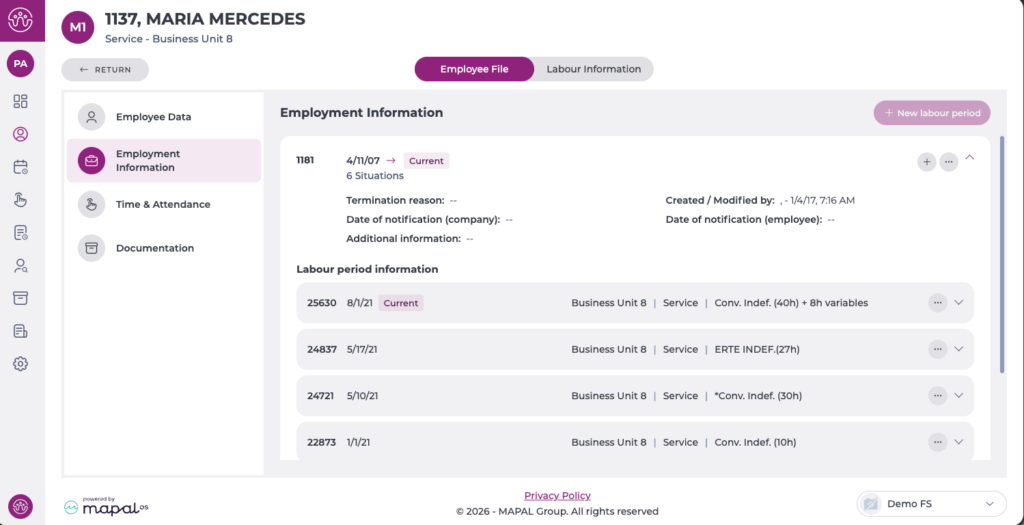
To learn more about managing employee information, see Manage employee "employment conditions".
Time and attendance
In this section, you can configure the codes for clocking in and out on the T&A applications, either via PIN code or magnetic and NFC cards.
You can also select the centres where the employee is entitled to clock in using the Business Units selection tree.
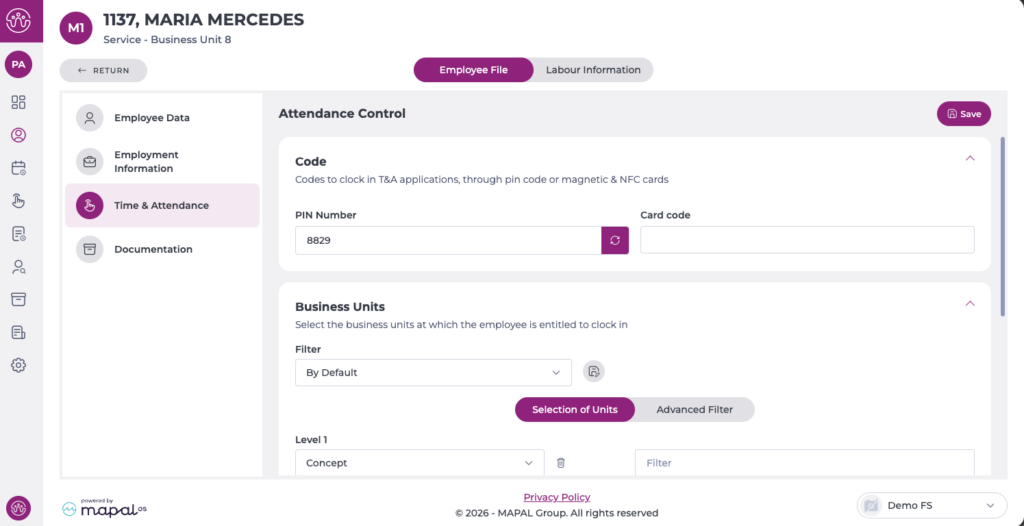
Find out more about how to manage time and attendance codes in Assign or change the punch-in code.
Documentation
In the documentation section, you can only view the documents assigned to the employee you are viewing, provided you have the necessary permissions to see them.
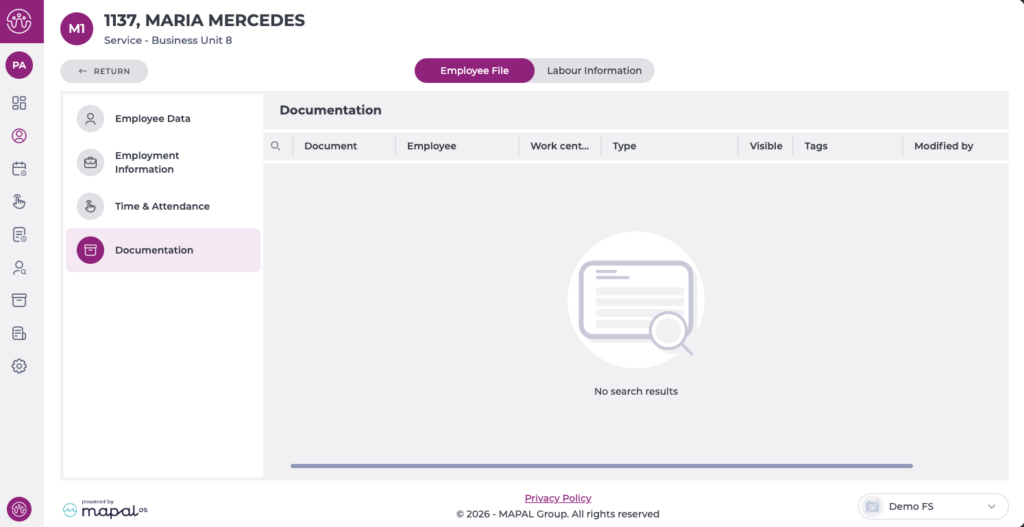
If you want to add more documentation and send it, you must do so from the Documentation section of Workforce.
To learn more about managing documentation in Workforce, see the articles in the Documentation category.
