


Start from: The Workforce module.
- Select Reports from the main menu.
- Select the magnifying glass icon to search for the report, or locate 274 - Time Worked - Attendance in the list.
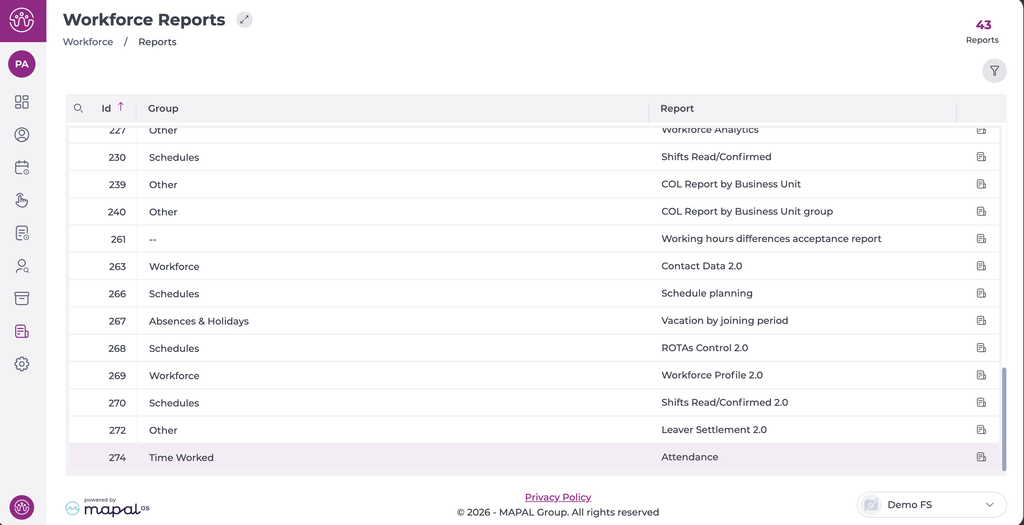
- The Attendance Report screen opens.
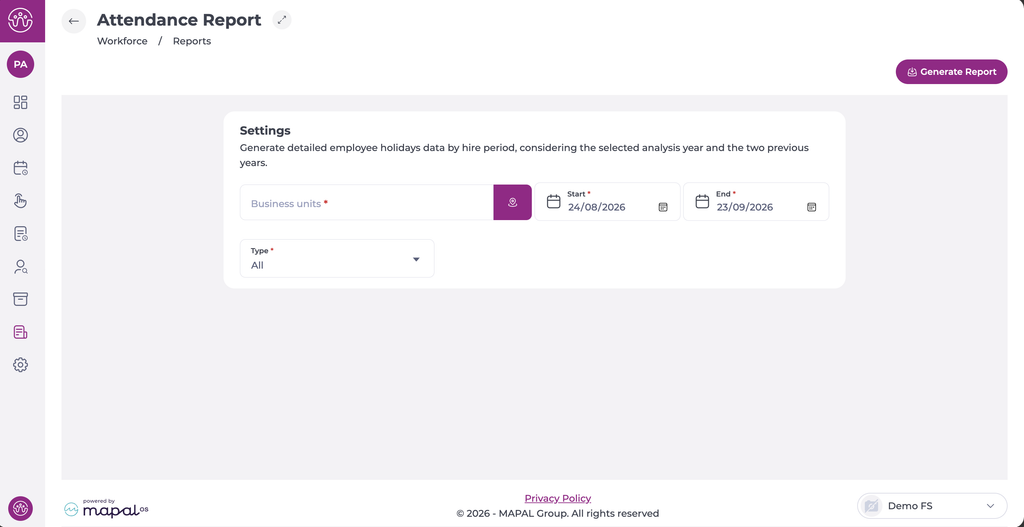
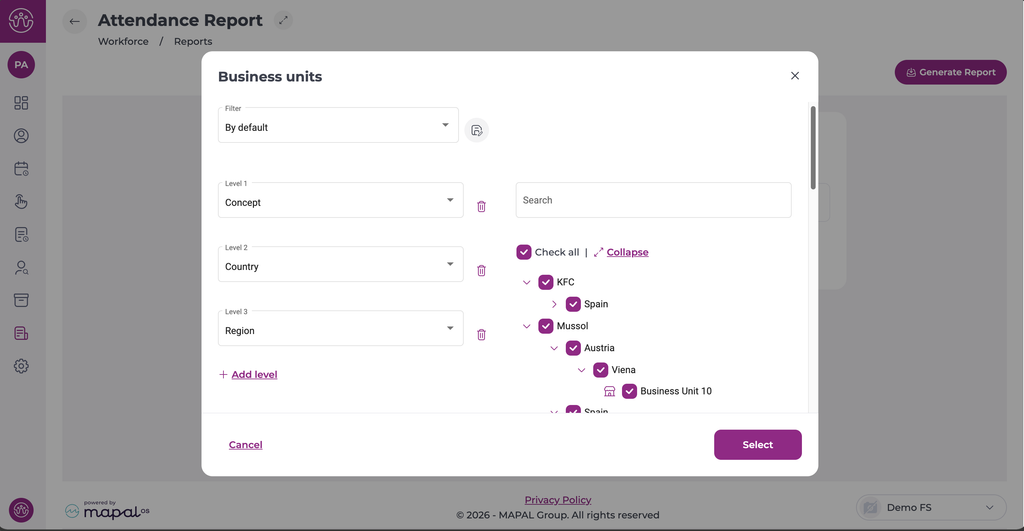
- Select the business unit icon next to Business units. The Business units window opens.
- Select the checkbox for each business unit to include. Use Search to find a business unit by name, or Check all to select all business units.
- (Optional) Change how business units are grouped using the Level fields, for example Concept, Country and Region. Select Add level to add a grouping level, or the bin icon to remove one.
- Select Select to confirm your selection.
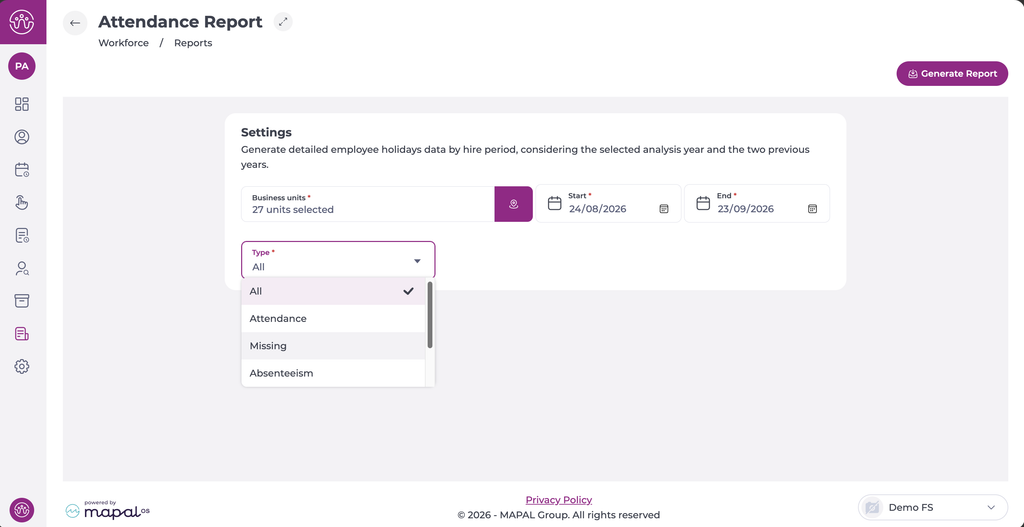
- Set the Start and End dates you want to consult.
- In Type, select the incident type to include:
- All: shows every incident type.
- Attendance
- Missing
- Absenteeism
- Break
- NLAB
- Select Generate Report.
Note: All fields are required. If Business units is empty, the message This field is required. appears and the report is not generated.
