Start from: The Workforce module.
- Select Scheduler > Scheduler 2.0 from the main menu.

- Configure the planner to access the main grid.
To perform the configuration, see Access the scheduler.
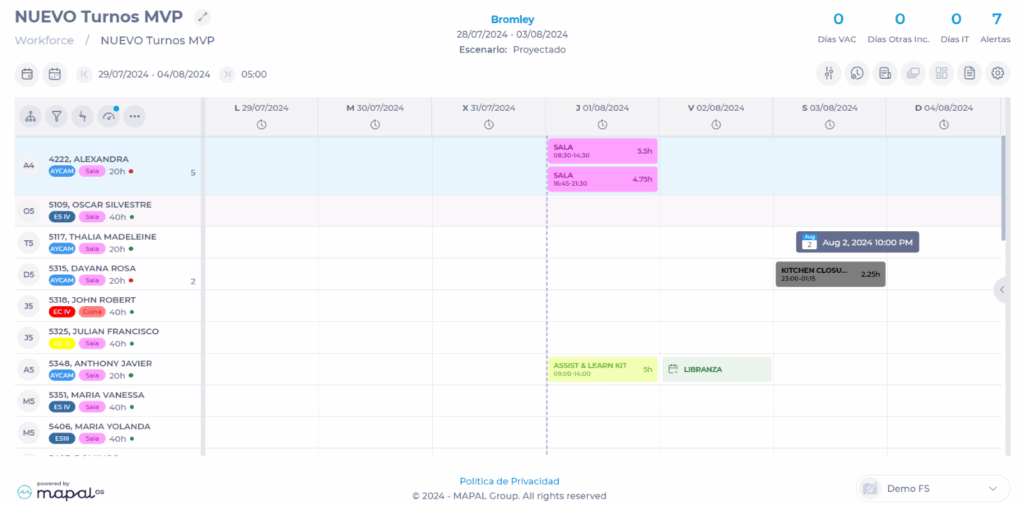
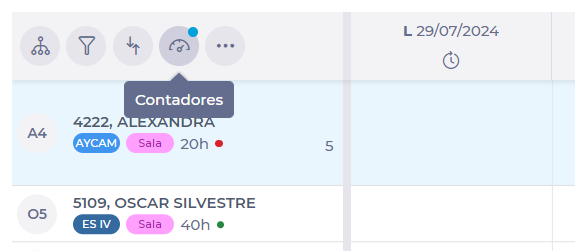
- Once you see the planner grid, select the Counters button, located in the employee column header.
- In the Counters pop-up window, you can configure up to two KPIs. Select the field to display the list of KPIs, where you will find a variety of indicators in the areas of:
- Alerts
- Days Worked
- Absenteeism Incidents
- Shift Requests
- Time Worked
- Shifts
- Select from the list the KPI you wish to display in the grid.
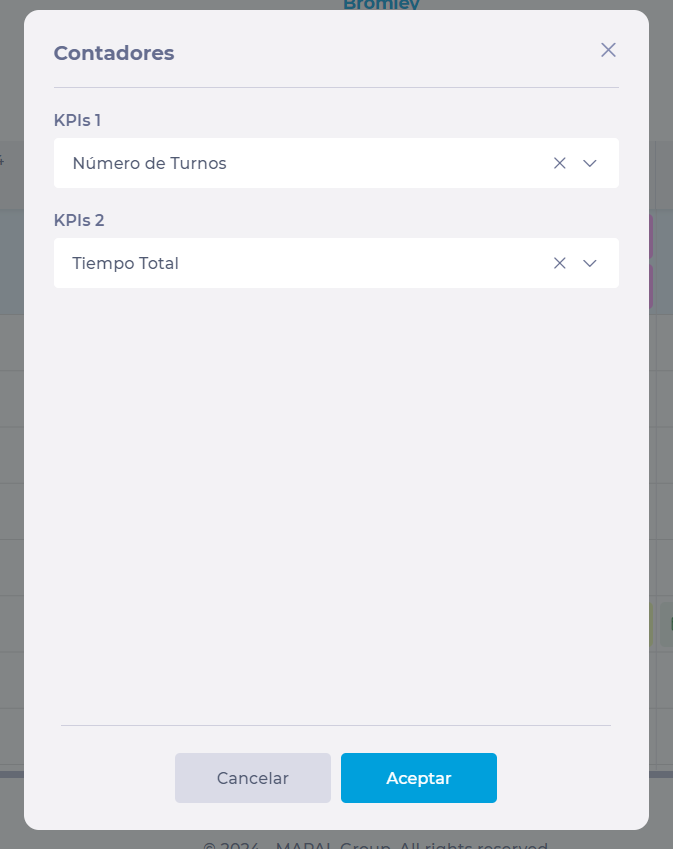
- Select Accept to save the KPI selection Or Cancel to discard it.
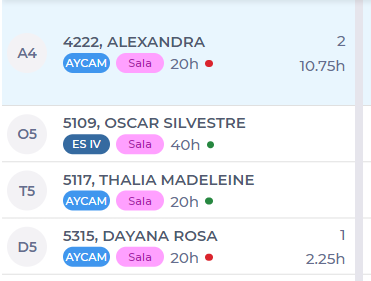
Once you have saved the KPI selection, you can view the counters on the far right of the employee boxes.