


Start from: The Workforce module.
- Select Workforce Management > Holidays from the main menu.
To manage holidays, select the business unit and year to find the workforce you are looking for.
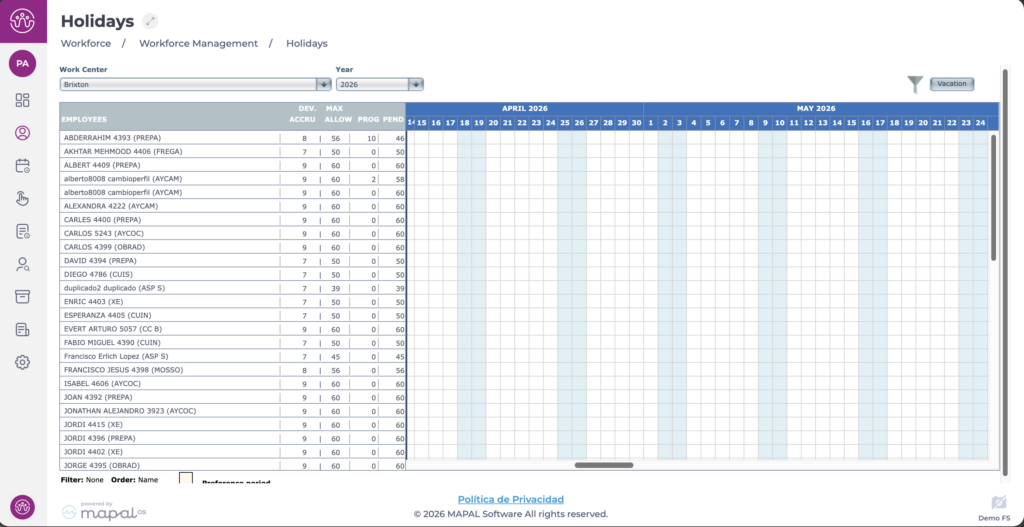
The Holidays screen displays a list of active employees for the selected business unit. For each employee, several columns show different data:
- Accrued today: the number of holiday days the employee has generated as of the current date, based on their start date and configurations.
- Maximum accrual: the maximum number of holiday days for the employee in the selected period, previously configured in the contract and/or collective agreement.
- Scheduled: the holiday days already scheduled for the employee in the selected period.
- Pending: the holiday days yet to be scheduled for the employee in the selected period. This is the result of subtracting the already scheduled days from the maximum number of schedulable days.
The screen also displays a timeline where each square represents a day in a given month:
- Light blue days are weekends.
- Blue days are public holidays previously configured for that business unit and period.
- Light grey days are periods previously configured as non-holiday periods.
If the employee has another absence incident recorded, it will appear on the planner with the days marked with grey stripes. This makes holiday management easier, as two incidents cannot be assigned to the same period.
Filter and order employees
The screen allows you to filter or sort employees to display only those you need.
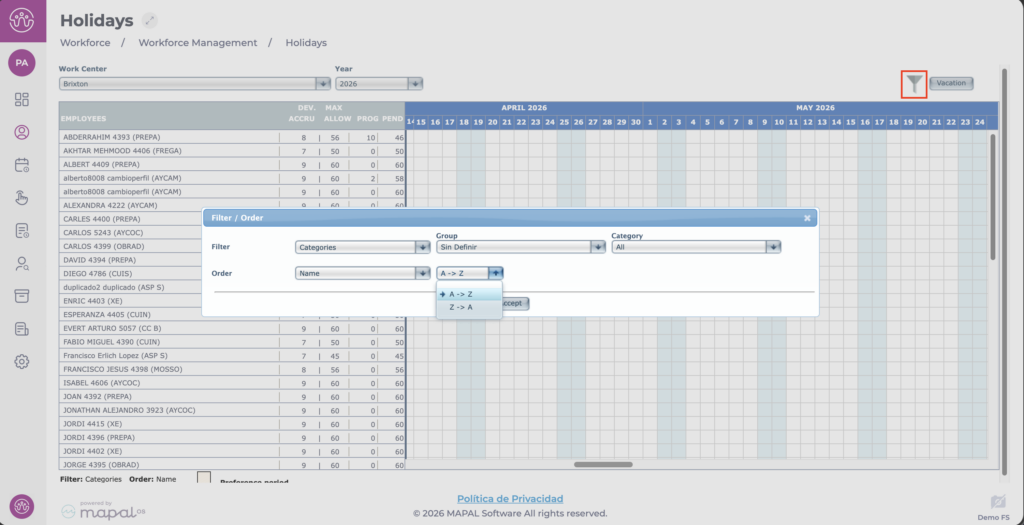
- Select the funnel icon.
- A pop-up window appears with the available filter and sort options.
- Select Accept to save the changes based on your selection.
Note: If you want to cancel, select the cross at the top of the Filter/Order window.
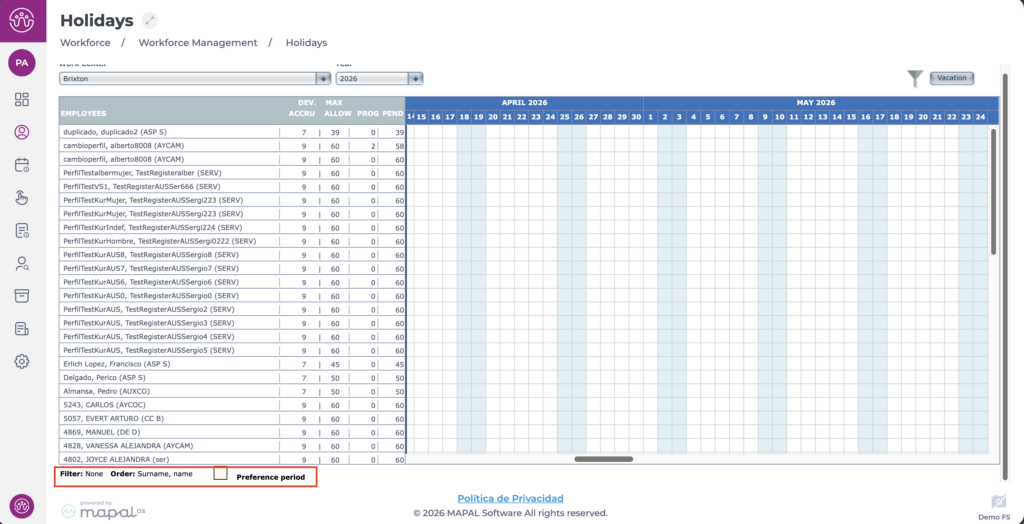
The selected filter and sort options will be indicated at the bottom of the planner.
Download the holiday planner
You can download the holiday plan for the selected business unit and year.
- Select the Vacation button.
- Choose the download type in the pop-up window: Screen (PDF) or Excel.
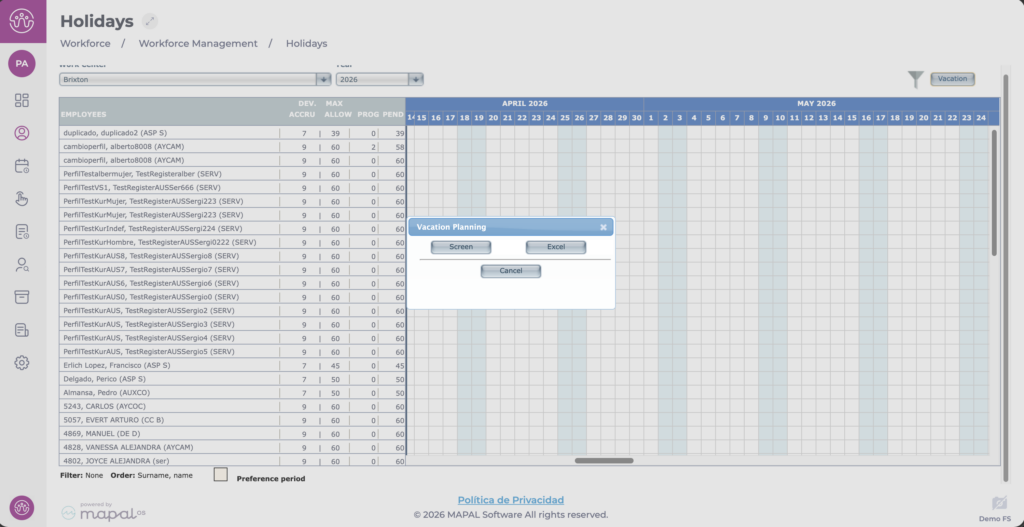
You can also choose whether or not to include the employee's worked public holidays in the downloaded plan.
Holiday preference period
Employees can request holiday preference periods from the Mapal One application, provided their profile has been previously configured.
If an employee requests a preference period, it will appear on the planner with the selected days marked with orange stripes.

