


Start from: The Workforce module.
- Select Configuration > Opening Hours by Date.
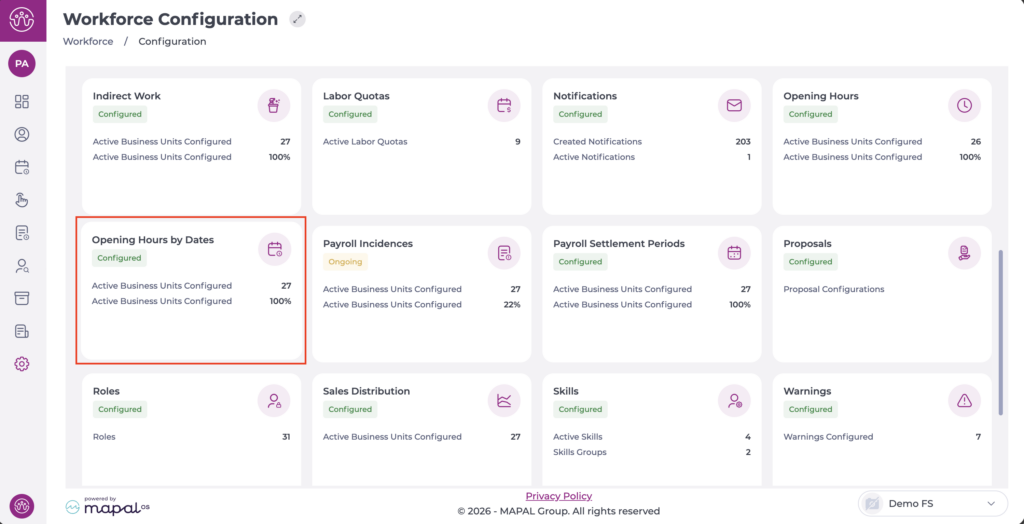
Two different types of schedules by date can be established: general or by years.
Note that, to assign opening hours by date in either of the two ways, you must have created one or more Opening Hours for the business unit.
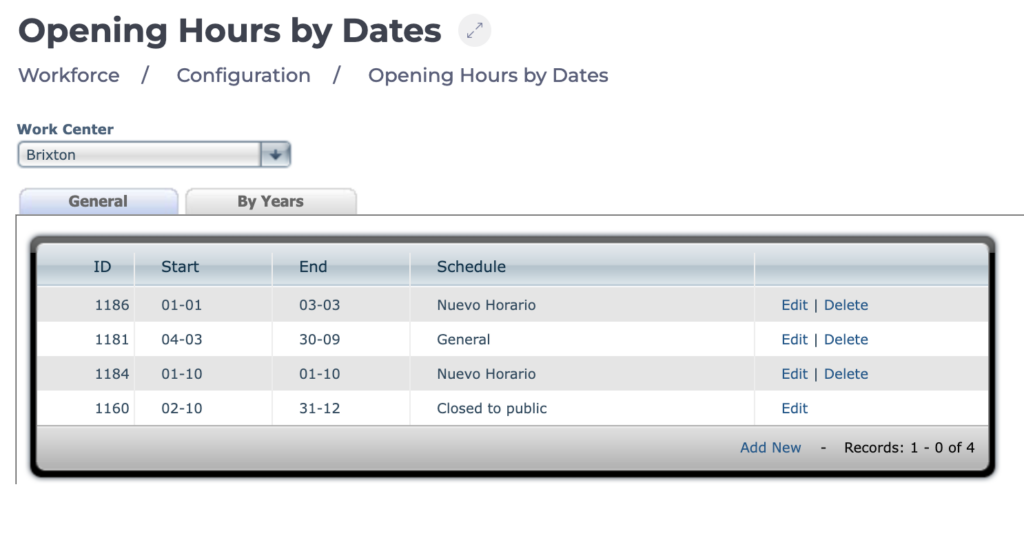
Schedules by dates – General
- On the Opening Hours by Dates screen, select the General tab.
- Select the Work Center you want to work on.
- Select Edit if you want to modify an existing type of schedule by dates.
- Select Delete if you want to remove a registered type of schedule by dates.
- Select Add New to create a schedule by dates.
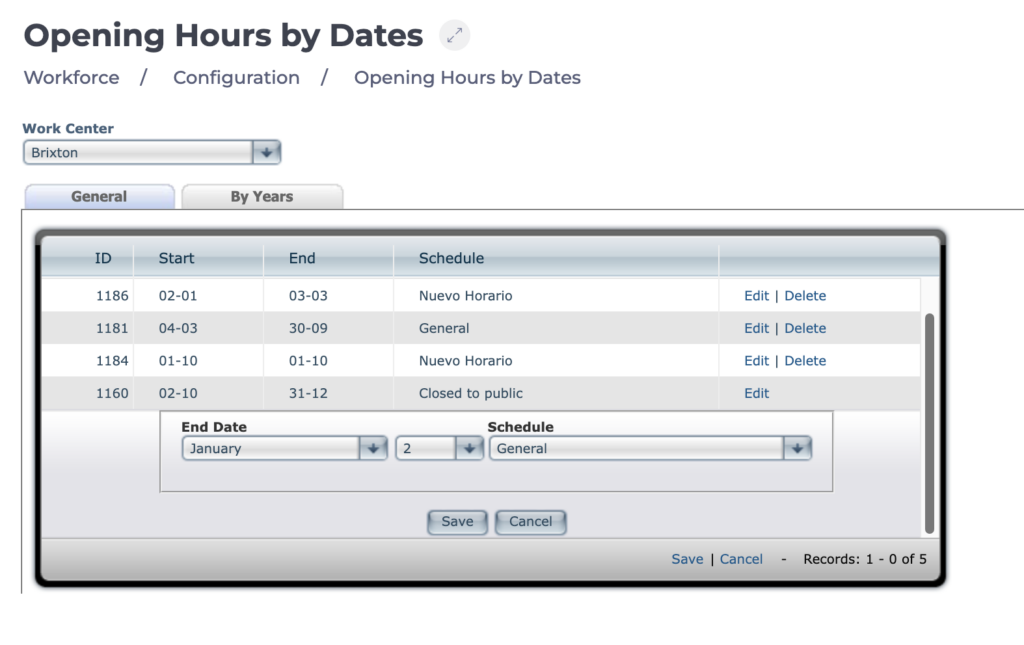
When you create a new schedule, you must generate the periods according to calendar segments and assign a previously created opening schedule to each period. To do so:
- Indicate the end date of the last calendar segment and assign an opening schedule from the list.
- Indicate the end date of the next calendar segment with its corresponding schedule type.
- Repeat this action until all segments and schedule types covering the complete calendar of a year are completed.
Note: The general schedule will apply by default when no calendar by year has been created.
Schedules by dates – By Years
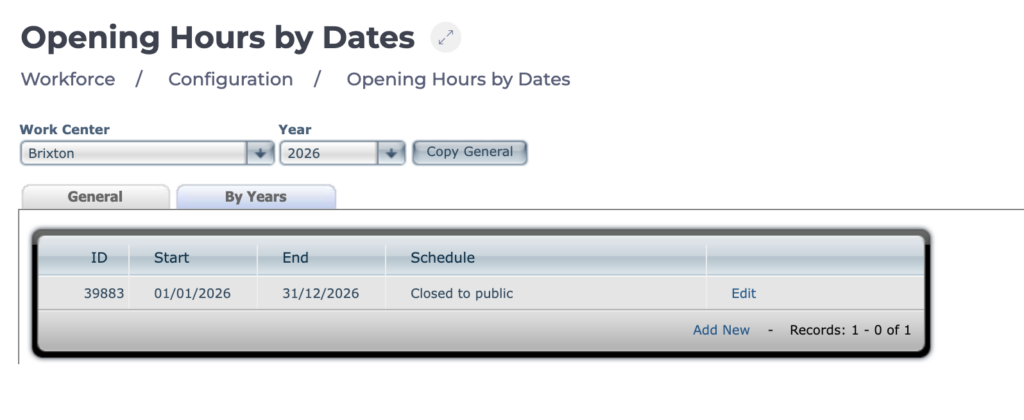
- On the Opening Hours by Dates screen, select the By Years tab.
- Select the business unit and year you want to work on.
- Select Copy General to copy onto the chosen year the calendar segments and linked schedules previously created in the General tab.
- Select Edit if you want to modify an existing type of schedule by dates.
- Select Delete if you want to remove a registered type of schedule by dates.
- Select Add New to create a schedule by dates.
When creating a new schedule by years, you must define the year segment and the schedule you are going to assign to it. The process is the same as when defining the calendar segments of the general schedule.
Note: The Opening schedule by dates is essential for the scheduler to work correctly.
