


Start from: The Workforce module.
How variables work
For example, if a letter contains "Dear {{employee_name}} {{employee_surname}}", each employee receives the letter with their own name and surname in place of the tags.
- Only Word documents (.docx) support variables. Other formats, such as PDF, Excel or images, are sent exactly as uploaded.
- Write the variables in the body of the document.
- A document without variables is sent identically to every employee.
- When a document contains variables, each employee gets their own file.
Find and copy a variable
- Select Documentation from the main menu.
- Select the Available variables icon. The Available variables panel opens.
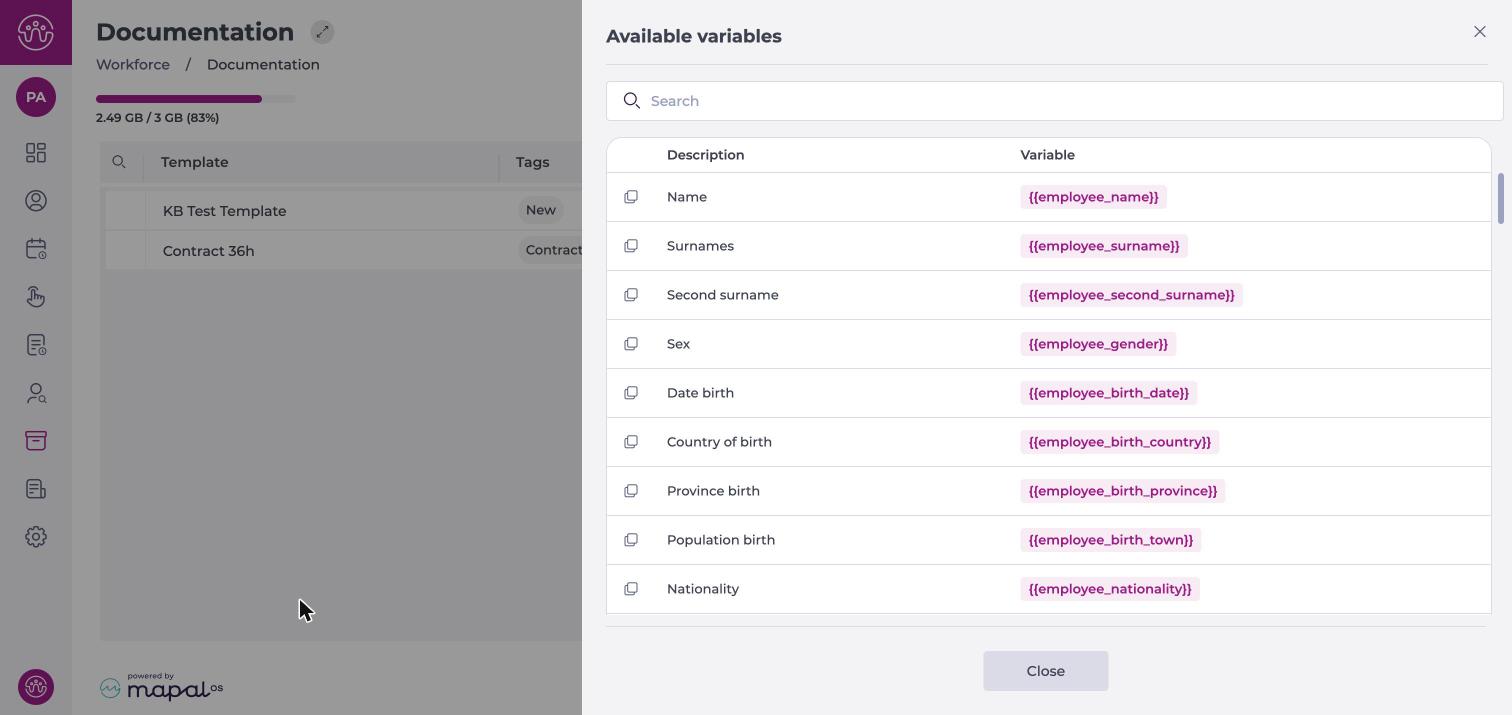
- To find a variable, enter a word in Search.
- Select the copy icon next to the variable.
- Paste the variable into your Word document.
- Select Close.
Note: Copy the variables from the panel instead of typing them. A variable with a typing error is not recognised.
What happens when you upload a document with variables
Workforce analyses the Word document and shows the Variables detected.
- In a document you upload in the assignment wizard, recognised variables appear in Variables detected and are filled in. Unrecognised variables appear in red in a separate section. You can continue, but those variables stay in each employee's document as typed. Correct them in the Word file and upload it again so they are filled in correctly. To assign a document, see Upload and assign a document.
- In a template, every variable must be recognised. If a file contains an unrecognised variable, the file is not added. To create a template, see Create a document template.
If Workforce cannot analyse the document, it treats it as a document without variables.
Empty data and special cases
- If an employee has no data for a variable, that space is left blank in their copy.
- In rare cases, Workforce cannot fill in an employee's copy even after retrying, and the employee receives the original document unfilled.
Note: After a large assignment, open a few copies to check that the variables are filled in correctly.
Available variables
The Available variables panel lists every variable available in your company. It always includes these standard variables:
Personal details
| Description in Workforce | Variable | Replaced with |
|---|---|---|
| Name | {{employee_name}} | The employee's first name. |
| Surnames | {{employee_surname}} | The employee's first surname. |
| Second surname | {{employee_second_surname}} | The employee's second surname. |
| Sex | {{employee_gender}} | The employee's sex. |
| Date birth | {{employee_birth_date}} | Date of birth. |
| Country of birth | {{employee_birth_country}} | Country of birth. |
| Province birth | {{employee_birth_province}} | Province of birth. |
| Population birth | {{employee_birth_town}} | Town of birth. |
| Nationality | {{employee_nationality}} | Nationality. |
| Marital status | {{employee_marital_status}} | Marital status. |
| Level of disability | {{employee_disability_type}} | Level of disability. |
| Academic training | {{employee_education}} | Education level. |
Identity document
| Description in Workforce | Variable | Replaced with |
|---|---|---|
| DNI | {{employee_document_number}} | DNI number. |
| Document type | {{employee_document_type}} | Type of identity document. |
| Document number | {{employee_identity_document_number}} | Identity document number. |
| Document issuing country | {{employee_document_issuing_country}} | Country that issued the document. |
| Valid from | {{employee_document_start_date}} | Document start date. |
| Valid up to | {{employee_document_end_date}} | Document expiry date. |
| Type of authorization | {{employee_authorization_type}} | Type of work authorisation. |
Address and contact
| Description in Workforce | Variable | Replaced with |
|---|---|---|
| Type of road | {{employee_street_type}} | Street type, such as street or avenue. |
| Home | {{employee_address}} | Street name. |
| Number | {{employee_house_number}} | House number. |
| Block | {{employee_block}} | Block. |
| Ladder | {{employee_staircase}} | Staircase. |
| Floor | {{employee_floor}} | Floor. |
| Door | {{employee_door}} | Door. |
| Zip code | {{employee_postal_code}} | Postcode. |
| Population | {{employee_town}} | Town. |
| Province | {{employee_province}} | Province. |
| Country | {{employee_country}} | Country. |
| {{employee_email}} | Email address. | |
| Phone | {{employee_phone}} | Main phone number. |
| First phone | {{employee_phone_line_type}} | Line type of the main phone. |
| Second phone | {{employee_secondary_phone}} | Second phone number. |
| Second phone | {{employee_secondary_phone_line_type}} | Line type of the second phone. |
Employment
| Description in Workforce | Variable | Replaced with |
|---|---|---|
| Employee ID | {{employee_id}} | Employee ID. |
| Time of registration | {{employee_registration_date}} | Registration date. |
| Status | {{employee_status}} | Employee status. |
| Level | {{employee_level}} | Level. |
| Scale | {{employee_scale}} | Scale. |
| Possible cause | {{employee_eventual_cause}} | Reason for a temporary contract. |
| Trial period from | {{employee_trial_period_start}} | Trial period start date. |
| End of trial period | {{employee_trial_period_end}} | Trial period end date. |
| Recruitment source | {{employee_recruitment_source}} | Recruitment source. |
| Additional information | {{employee_additional_information}} | Additional information. |
Company-specific variables
The panel also lists variables for the additional fields your company has set up in the employee record. These variables use the format {{employee_config_field_a}}, and their description is the name of the field. They are different for each company, so check the Available variables panel for the ones available to you.
Note: In a template's Generated file name, you can only use {{employee_name}}, {{employee_surname}} and {{employee_second_surname}}.
