Generate a lesson using AI in Studio

Start from: The Flow Learning dashboard.

Option 1: Generate From Your Instructions

Option 2: Import a Document

Option 3: Upload an Outline

Option 4: Import a Video

Option 5: Import a SCORM Package (Experimental)

Option 6: Generate a Standalone Assessment

Editable Storyboard

No matter which method you choose (Instructions, Document, Outline, etc), Studio always generates an editable Storyboard first.

This lets you check the structure, objectives, and style before building the full lesson. You can make adjustments in the storyboard without starting over. Once you’re satisfied, select Generate Lesson to move into the editor.

To know more about how to edit the lesson, see Edit and customise your lesson in Studio.

Edit and customise your lesson in Studio

Start from: The Flow Learning dashboard.

How the editor fits into the workflow

Edit a lesson

Note: To know more about how to create a new lesson, see Generate a lesson using AI in Studio.

Layout of the editor

The Editor has four main spaces:

1. Left Sidebar – Pages & Sections

Your lesson’s navigation hub.

Here you can:

Tip: Break long lessons into segments with Section Dividers. Learners engage better with “chunked” content.

2. Main Canvas – Page & Tile Editing

The central workspace. Each page is made of tiles — modular content blocks.

To add a tile:

Tip: Keep it simple — 2–3 tiles per page work best, especially for mobile learners.

3. Bottom Toolbar – Quick Tools

Shortcuts for faster building:

Tip: Use the AI Assistant to transform existing content into interactions — e.g., turn a paragraph into a multiple-choice quiz.

4. Top Menu – Global Controls

Lesson-wide settings and tools:

Tip: Preview often. A layout that looks balanced in the Editor may feel crowded in learner view.

Collaboration in the Editor

Studio supports real-time teamwork:

Why it matters: No more version-control chaos. Subject Matter Experts, IDs, and reviewers can all work together in one place.

Print multiple orders

Start from: The Easilys menu.

Note: This method can only be used for supplier orders that have not been sent!

Note: You can check the box at the top of the list to select all orders with the status "Not sent".

An action bar appears at the top of the screen:

The application generates a single document listing all the checked supplier orders in a new browser tab.

You can download or print it directly. The layout respects the different supplier orders. Each supplier order starts at the top of a page.

To send the orders:

Note: If you forget to send the orders, even with the Send manually mode (which allows you to indicate to Easilys that you have sent an order by your own means, for example by phone), Easilys will not be able to generate a receipt.

Manage tags in employee documentation

Start from: The Workforce module.

  • Select Documentation from the main menu.

Add tags

The process of adding tags to documentation can be done by two possible means: during the creation of a new documentation or when editing an existing document.

To learn how to create new documentation, see Upload and assign a document.

To learn how to edit or add tags to an existing document, see Edit details in employee documentation.

Manage tags

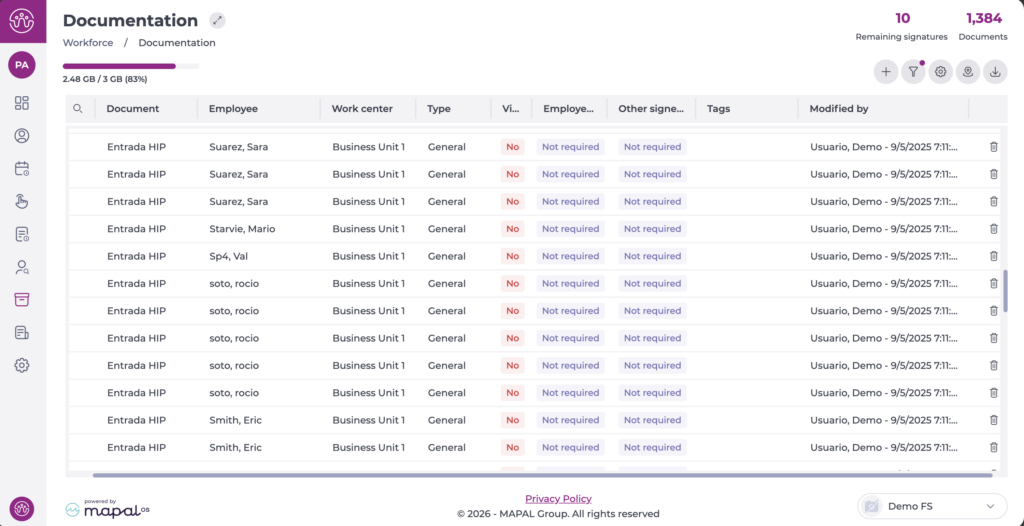
The Documentation screen has a specific tool for managing tags to be used in employee documentation. To access this tool:

  • Select Manage Tags ? in the Documentation screen.

  • To add a new tag, type the name in the New field and press the + button.
  • You can Edit an existing tag by selecting the? pen button in the row of each tag.
  • You can Delete an existing tag by selecting the trash can button  in the row of each tag.

Interfaz de usuario gráfica, Aplicación, Teams<br><br>Descripción generada automáticamente

Sign a document

Start from: Employee's email.

When assigning documents, the digital signature can be configured if necessary. All selected signatories will receive an email with a link to sign through Signaturit.

Interfaz de usuario gráfica, Aplicación, Teams<br><br>Descripción generada automáticamente
Notes: Please note that if the electronic signature has not been contracted, the ability to add signers will be disabled.

Interfaz de usuario gráfica, Texto, Aplicación<br><br>Descripción generada automáticamente
Imagen que contiene Texto<br><br>Descripción generada automáticamente

Find documents within a procedure (app)

Start from: the Compliance App.

  • Select My Location > Procedures.
  • Select a specific procedure (Food Safety, for instance):

Within this procedure, you will find documents under the heading Local/Central documents.

Note: you can also add/remove local attachments via the gear icon. You can only change the local description on the web.

Manage delivery tours

Note: Every action that can be performed in the application is subject to access permissions. If you are unable to perform the recommended actions in the articles you are viewing, it may mean that the necessary rights are not enabled for your user profile. Contact the Support team or your administrator to learn more.

Start from: The Easilys menu.

Managing delivery tours then allows you to obtain allotment reports and delivery notes from the “Packaging and logistics” screen organized by tour. This then makes the work of the preparers and delivery staff easier.

It is possible to manage a tour over different types of periods to adapt it according to calendar changes.

FIRST STEP: CREATE DELIVERY TOURS

A blank "Delivery Tour Sheet" appears on the right side of the screen.

The tour is then created. It is in "Disabled" status.

SECOND STEP: LINK THE RELEVANT SITES TO THE TOURS

The list of sites already linked to the tour appears. At the bottom of this list, the "+ Add" button is available.

The "Tour Site Sheet" appears on the right side of the screen.

Note: Remember to activate the tour once the configuration is complete.

Optional: MANAGE DIFFERENT ORGANIZATIONS OF THE TOUR ACCORDING TO PERIOD TYPES

The principle here is to link your delivery tours to one or more types of periods. For example, the tour may be different during school holidays, with fewer sites to deliver, so it will need to be adapted to this type of period.

Outside of these specific period types, the "Standard" period applies.

Don't have a period type defined yet? To do this, go to the "Calendars" screen in the "Sites" section to create your period types.

For more information, see the article Manage different periods or how to make Easilys adapt to calendar changes.

To indicate that a tour is different for certain periods, you must first add these periods:

Once the different periods have been added to the tour, you can display each period to make the necessary changes for each period: for example, you can remove some of the delivery points from a tour or move them to another tour:

The tours for this period will then be displayed and you can make the necessary changes, for example:

Once the changes are made, select Save now.

Good to know: In the filters, an option allows you to display several periods at once on the screen, giving you a better overview. You can also select the tours to display if you want to lighten the display and make configuration easier.

Find policies and procedures with the AI Assistant

What is the policies and procedures feature?

This feature allows you to upload company documents (such as PDF files) directly to Mapal OS.
Once uploaded, the Mapal Assistant uses these documents to learn and respond to user questions based on your organisation's own policies.

If the Assistant cannot find an answer in your internal content, it will refer to the Mapal Knowledge Base or general hospitality guidance instead.

How to access

Open the Mapal Assistant from the icon in the lower-left corner of your Mapal App's dashboard.

For step-by-step access instructions, see Access the Mapal AI Assistant.

How it works

Note: Only users assigned to the matching segment will receive answers based on that document.

Refer to Manage company documentation on Mapal OS to know more about how to upload documents.

What kind of questions you can ask

How the assistant prioritises answers

  1. Uploaded documents: responses use your internal materials first.
  2. Mapal Knowledge Base: used if no match is found in your documents.
  3. General hospitality knowledge: a fallback when other sources do not apply.

Tips for best results

Upload supporting documents for an External Training

Start from: The Flow Learning platform.

A typical use case is uploading a training certificate after a learner has attended an external workshop.

For example, if an employee attends a Food Safety Level 2 course, the manager can upload the certificate of completion as a supporting document. This ensures the training record is fully documented and provides proof of successful completion, which can then be used for compliance and audit purposes.

Note: To upload supporting documents (including certificates for historical training records), the training manager must have the permission Can upload historical training?. For details on how to assign this permission, see Set permissions for training managers.

Introduction to Communications and Documents

Noticeboards

The Noticeboards feature allows you to disseminate important information across your organisation. This tool is versatile, enabling you to post updates, share documents, and manage company procedures effectively.

  • Information Dissemination: Noticeboards are ideal for keeping your team informed with company updates, new procedures, or critical announcements. You can categorise and organise items into distinct folders, making it easy for employees to find the information they need.

  • Targeted Communication: You can tailor the visibility of noticeboard items to specific branches, roles, or regions. This ensures that only relevant information reaches the intended audience, enhancing the efficiency of your communications.

  • Management and Maintenance: Noticeboards offer flexibility in managing content. You can edit, archive, or delete items to keep the board current. Archiving allows you to retain a record of past notices, which can be reactivated if necessary.

Recipe Cards

Recipe Cards serve as a comprehensive reference tool for employees, particularly useful in the food and beverage industry. This feature allows you to create detailed recipes that include allergen information, preparation steps, and cooking times.

  • Detailed Recipe Information: Each recipe card can include ingredient lists, allergen details, preparation times, and step-by-step cooking instructions. This ensures consistency in food preparation and helps maintain quality standards.

  • Ease of Access: Recipes are stored in the Recipe Book section of the Document Library, making them easily accessible to all relevant employees. This central repository simplifies the process of finding and following recipes.

  • Customisation: You can tailor recipes to meet specific dietary requirements or update them as needed. This flexibility ensures that your team always has access to the most current and relevant information.

News

The News feature is a powerful tool for keeping your team informed and engaged. News items can include text, images, videos, and links, making them a dynamic way to communicate.

  • Dynamic Content: Incorporate videos, images, and external links into your news items to create engaging content that captures your team’s attention. This multimedia approach can make important updates more compelling and easier to understand.

  • Targeted Delivery: News items can be directed to specific audiences based on their role, branch, or other criteria. This ensures that each team member receives news that is relevant to them.

  • Expiration and Archiving: You can set expiration dates for news items, ensuring that outdated information is automatically removed. This keeps the platform clean and current, and archived news can be revisited if necessary.

Certificates

Certificates provide a way to formally recognise the completion of training modules. This feature is essential for tracking employee progress and ensuring compliance with training requirements.

  • Employee Recognition: Certificates serve as a tangible acknowledgement of an employee’s accomplishments, motivating them to continue their learning journey.

  • Record Keeping: Learners can download and print their certificates from the My Library section, providing them with a personal record of their completed training. This is particularly useful if they move to a new employer who also uses Flow Learning.

  • Transferability: Training records and certificates can be transferred to new employers within the Flow Learning ecosystem, ensuring continuity in employee development and compliance.

Emails

The Flow Learning platform sends out automatic notification emails to learners and training managers, which you can customise to suit your company or brand needs. Additionally, Insights Emails provide a snapshot of compliance and learner engagement across your platform.

  • Personalised Communication: Customise email templates to align with your brand's voice and style, making communication more cohesive and professional. You can format text, add images, links, and embed videos in your emails to enhance engagement.

  • Language Customisation: Edit email templates in different languages to cater to a diverse workforce.

  • Insights Emails: Receive an overview of compliance data, a snapshot of the compliance leaderboard, the number of learner logins, and login percentage changes compared to the previous week. These emails help you make informed decisions on training and are sent out every Tuesday.

  • Regular Updates: The insights email is sent out every Tuesday, providing consistent updates on key metrics. Use the "See more" links in the email to navigate directly to detailed reports in Flow Learning.

Next Steps

The Communications and Documents tools in Flow Learning empower training managers to effectively share information and resources with their teams.

To further enhance your use of the Communications and Documents tools in Flow Learning, explore the articles in the Communications and Documents category.

These resources will provide detailed guidance and best practices to help you maximise the effectiveness of these features.