Create and manage a hire proposal
Start from: The Workforce dashboard.
- Navigate to Workforce management > Proposals 2.0.
Create a hire proposal
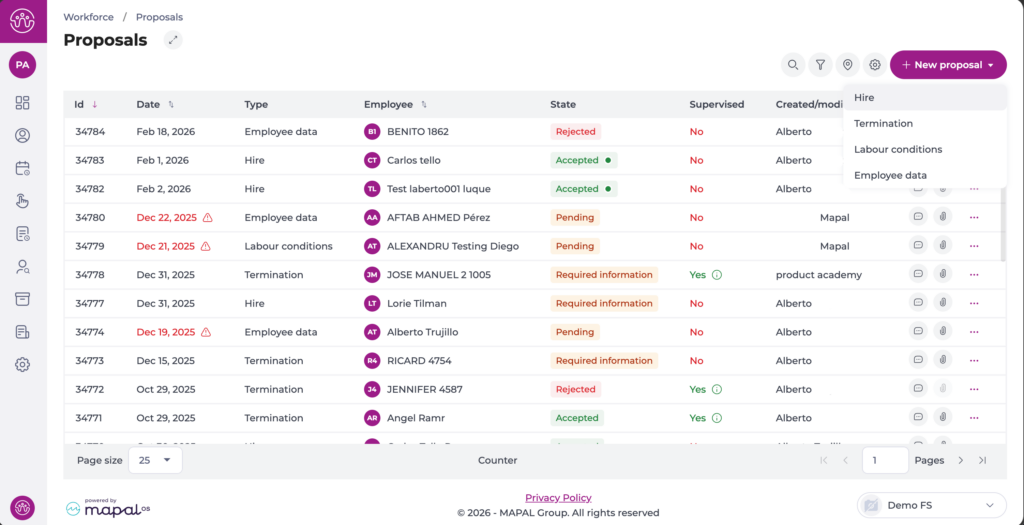
- Select + New proposal.
- Select Hire as the proposal type.
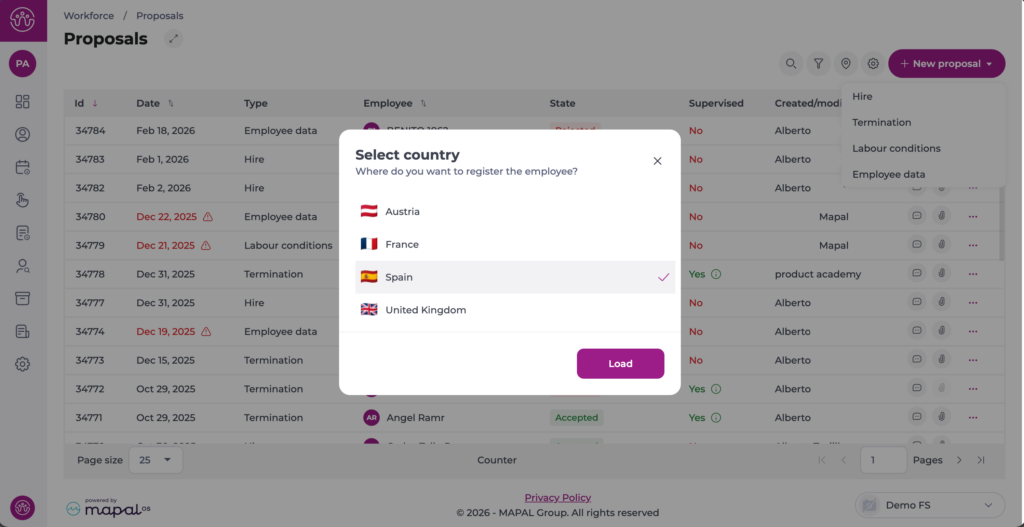
If you manage multiple Business Units in different locations, rhe system opens a pop-up window to select the country of the new hire. Select the specific country and tap Load.
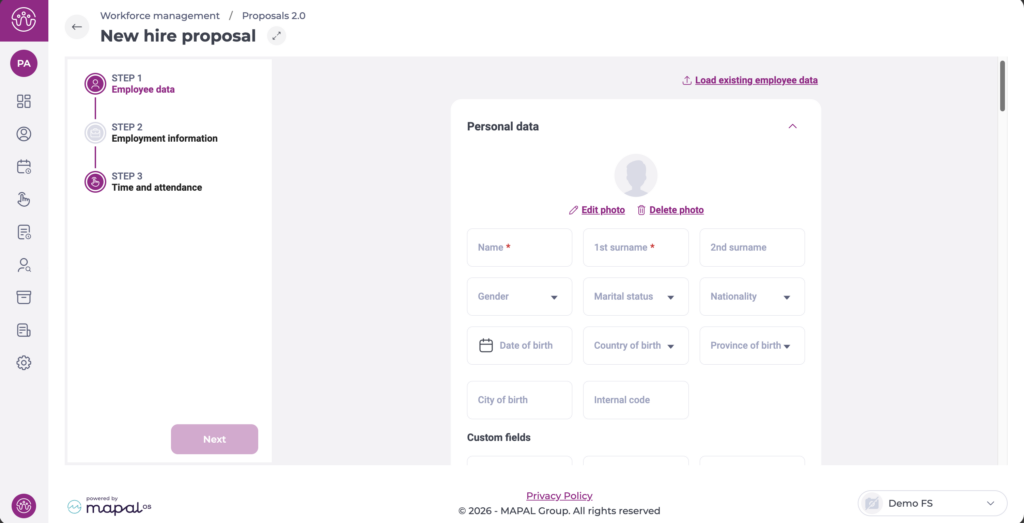
The New hire proposal form opens, divided into three steps: Step 1: Employee data, Step 2: Employment information, and Step 3: Time and attendance. Complete each step and select Next to advance. Required fields are marked with an asterisk (*).
Step 1: Employee data
This step collects the employee's personal and administrative information. The form is organised into collapsible sections.
- Personal data: Enter the employee's basic personal data, such as name, surnames, gender, marital status, nationality, date of birth, etc.
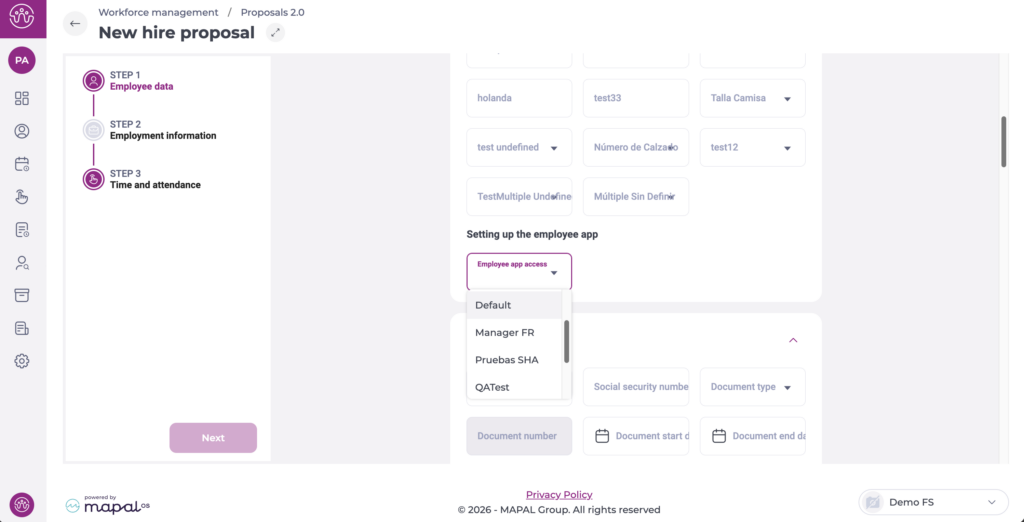
- Setting up the employee app: In the Employee app access field, define whether the new employee will have access to the employee app.
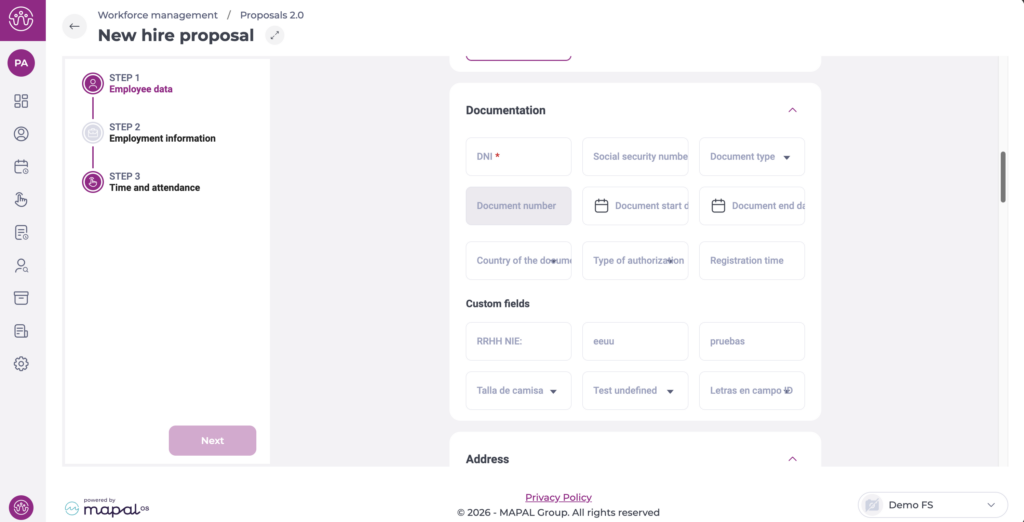
- Documentation: Enter the employee's identity and work-authorisation details:
- Enter the DNI *. This field is required.
- Enter the Social security number if available.
- Select the Document type from the dropdown.
- Enter the Document number, Document start date, and Document end date as applicable.
- Select the Country of the document and the Type of authorisation if required.
- Enter the Registration time if applicable.
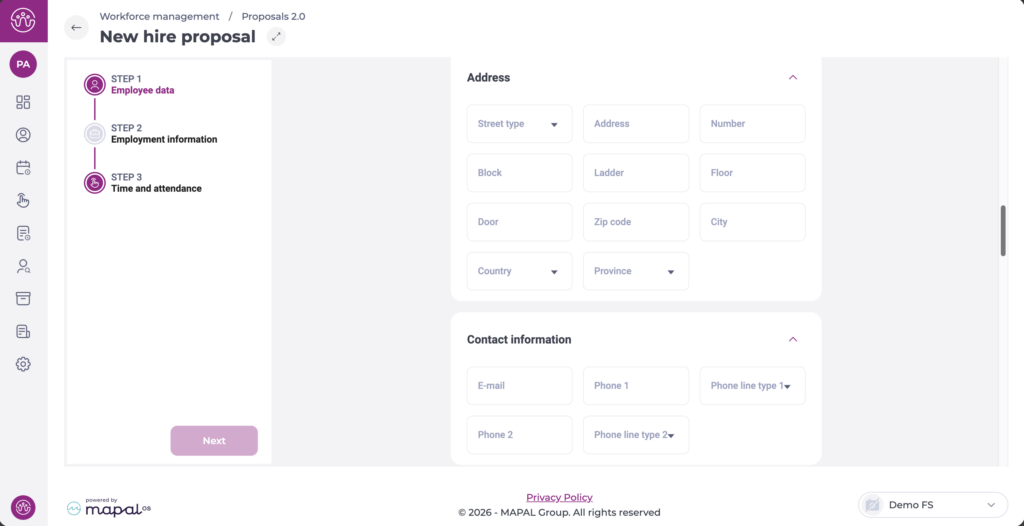
- Address: Enter the employee's residential address, including Street type, Address, Number, Block, Ladder, Floor, Door, Zip code, City, Country, and Province.
- Contact information: Enter the employee's E-mail, Phone 1 with its Phone line type 1, and optionally Phone 2 with Phone line type 2.
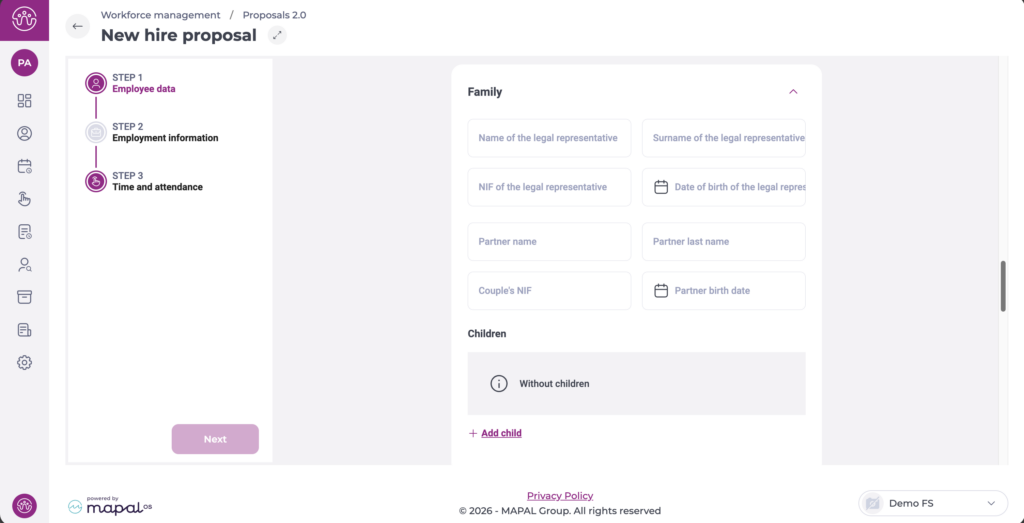
- Family: Enter details of the employee's legal representative (name, surname, NIF, date of birth) and partner information if applicable. The Children section displays Without children by default. To add dependants, select + Add child.
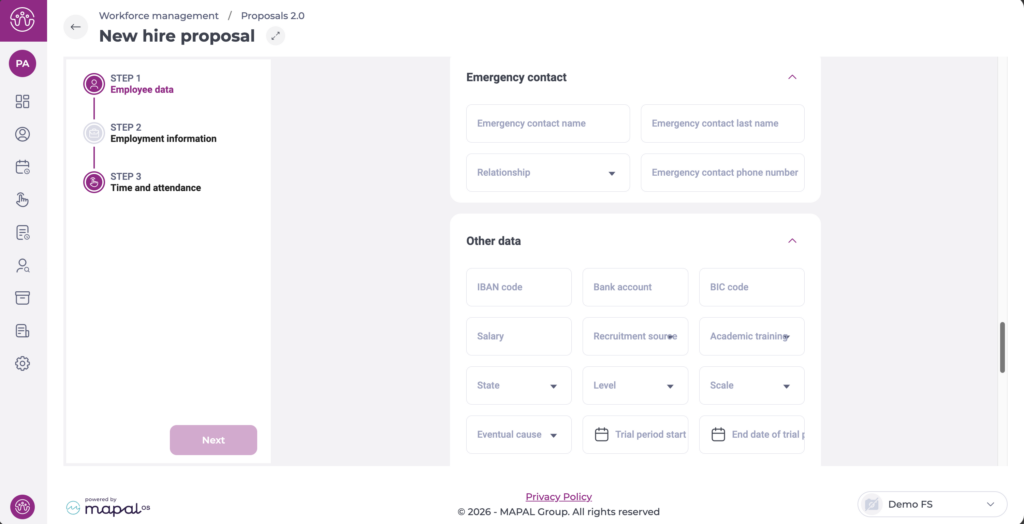
- Emergency contact: Enter the Emergency contact name, Emergency contact last name, Relationship, and Emergency contact phone number.
- Other data: Enter banking details (IBAN code, Bank account, BIC code), Salary, Recruitment source, and Academic training. Select the State, Level, Scale, Eventual cause, and Disability level from the dropdowns. Enter the Trial period start and End date of trial period if applicable.
- Custom fields: If your organisation has configured custom fields, they appear in each section as configured. Fill in any relevant values.
Select Next to move to Step 2.
Step 2: Employment information
This step defines the employee's contractual and scheduling details.
Note: If the employee has previously worked for your organisation, select Load existing employee data to pre-fill certain fields from their existing record.
- Select the Hire date *. This is the date the employee's contract begins.
- Select the Work centre * from the dropdown.
- Select the Expected end date if the contract is temporary.
- Select the Category groups and Category * from the dropdowns.
- Select the Contract groups and Contracts * from the dropdowns.
- Select the Working day type from the dropdown.
- Enter the number of contracted hours for each day of the week (Monday through Sunday). The Total field updates automatically.
Note: If a contract has working hours set per default, once you select it in the dropdown, the contracted hours fields disappear. However, some contracts may have the flexibility to adjust those hours. In those specific cases, the fields still appear and you can edit hours as needed.
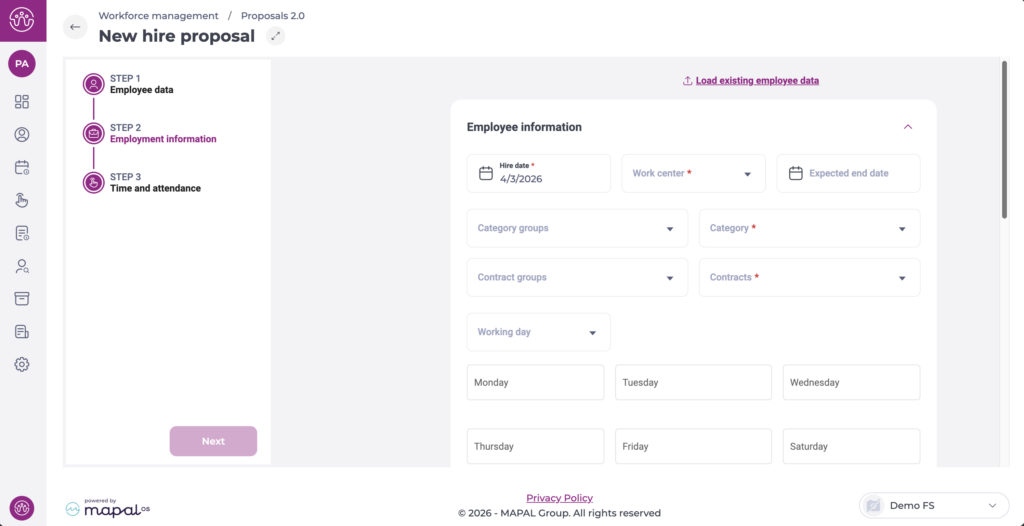
Note: The daily hours fields are highlighted in red until they are completed. Ensure the total matches the expected weekly hours for the selected contract type.
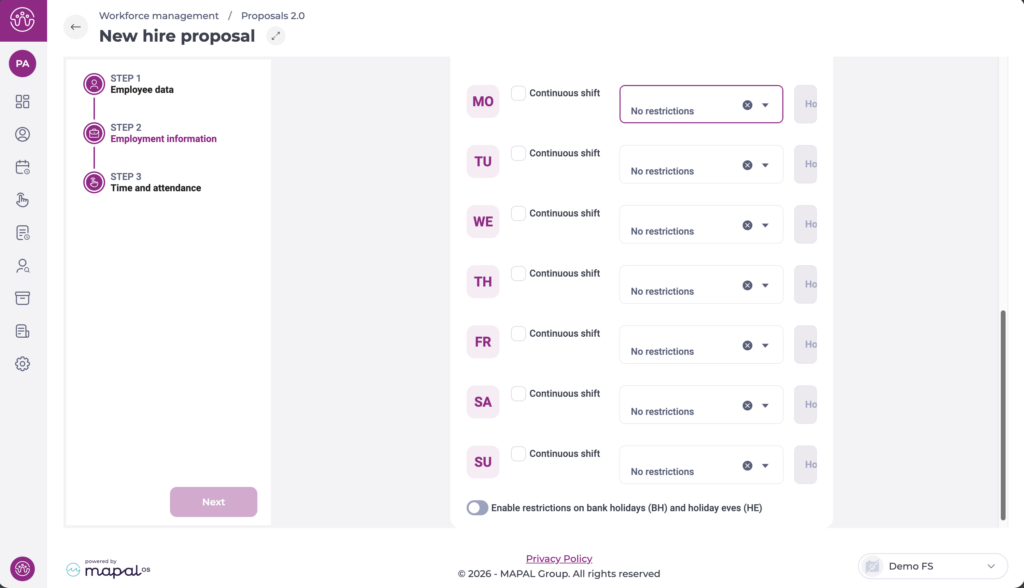
- Configure the Work restrictions for the employee in each day of the week (MO, TU, WE, TH, FR, SA, SU):
- Select the Continuous shift checkbox if the employee works a continuous (non-split) shift on that day.
- Select a restriction from the dropdown. The default value is No restrictions.
- To apply restrictions on non-working days, enable the Enable restrictions on bank holidays (BH) and holiday eves (HE) toggle.
Select Next to move to Step 3.
Step 3: Time and attendance
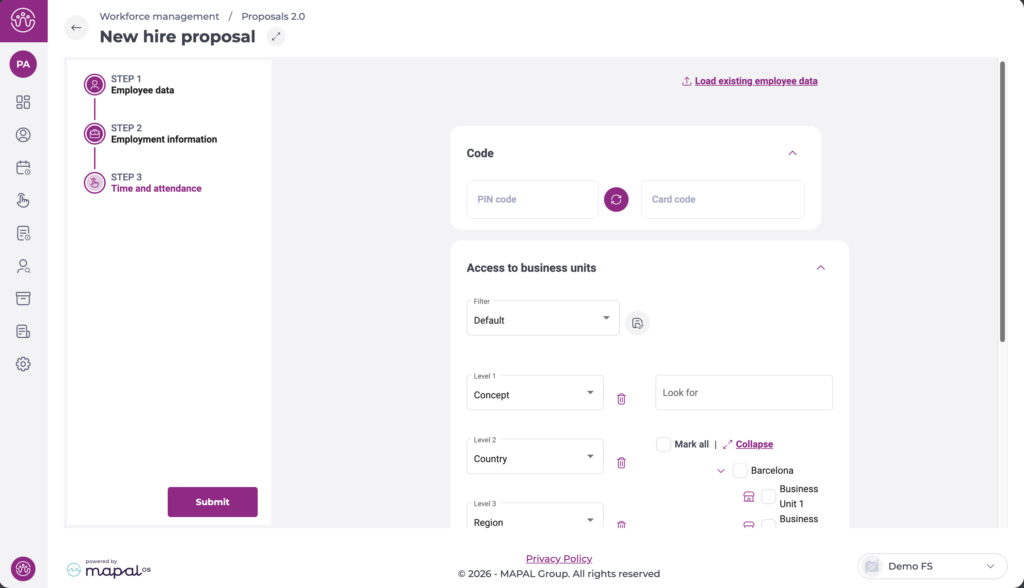
This step allows you to define specific configurations for employee clock-in.
- Define a PIN code for the employee. You can use the circular arrows button to generate a random PIN code.
- Type the Card code for the employee.
- Select the specific business unit(s) the employee will have access to. You can use the business unit tree filter or the search bar to find the units easily.
Select Next to submit the proposal.
Manage a hire proposal
Once submitted, the proposal appears in the Proposals list with the status Pending.
Actions menu
Select the three-dot icon (?) on the right-hand side of the proposal row to open the actions menu. The options available depend on the proposal's current status and your permissions:
- View: Opens the proposal in read-only mode.
- Mark/Unmark as supervised: Flags the proposal as Supervised (Yes/No), useful when an additional validation step is required before acceptance.
- Accept: Approves the proposal. A confirmation dialogue warns that this action is final and cannot be reversed. Select Accept to confirm.
- Reject: Declines the proposal. A confirmation dialogue warns that this action is final and cannot be reversed. Select Reject to confirm.
- Request information: Returns the proposal to the creator for additional data or corrections. The status changes to Required information.
- Delete: Permanently removes the proposal from the system.

Note: Accepting or rejecting a proposal is irreversible. Review the proposal details carefully before confirming either action.
Duplicate check on acceptance
When a hire proposal is accepted, the system checks the employee's DNI and Social security number against existing records. If a match is found, a dialogue presents three options:
- Load existing employee: Reuses the existing record and creates a new employment period. This is recommended for rehires.
- Continue: Creates a new employee record despite the match. Use this only if you are certain the records belong to different people.
- Cancel proposal: Cancels the proposal without making changes.
More actions on the proposal
To know more aboutgeneral navigation and actions in the proposals grid, see Get familiar with the Proposals screen.
Note: The actions available depend on your role and permissions. If you cannot see a specific action, contact your administrator to review your role configuration under Workforce > Configuration > Roles. For more information on role management, see Configure permissions for workforce management.