Create and manage a termination proposal
Start from: The Workforce module.
- Navigate to Workforce management > Proposals 2.0.
Create a termination proposal
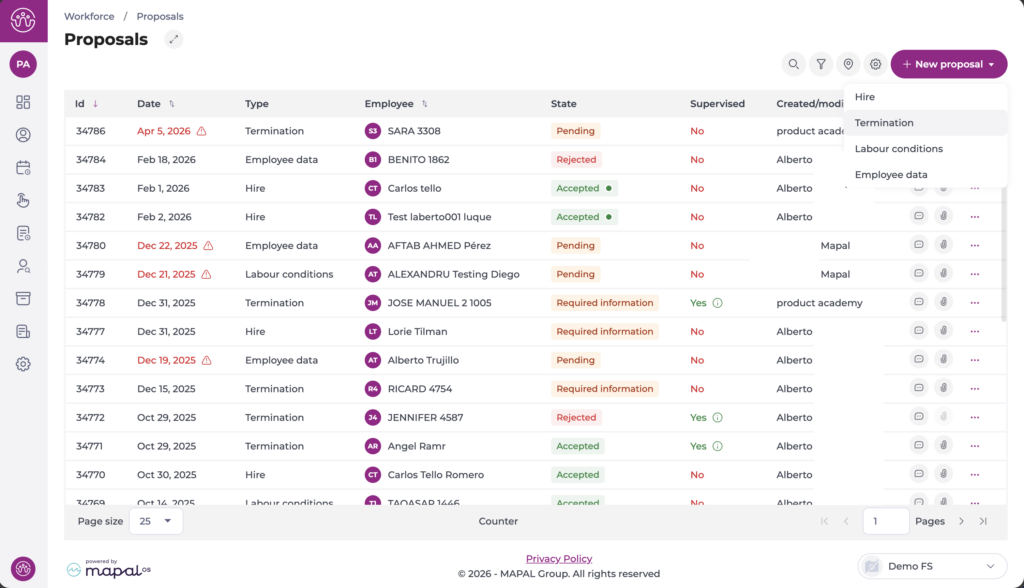
- Select + New proposal.
- Select Termination from the dropdown.
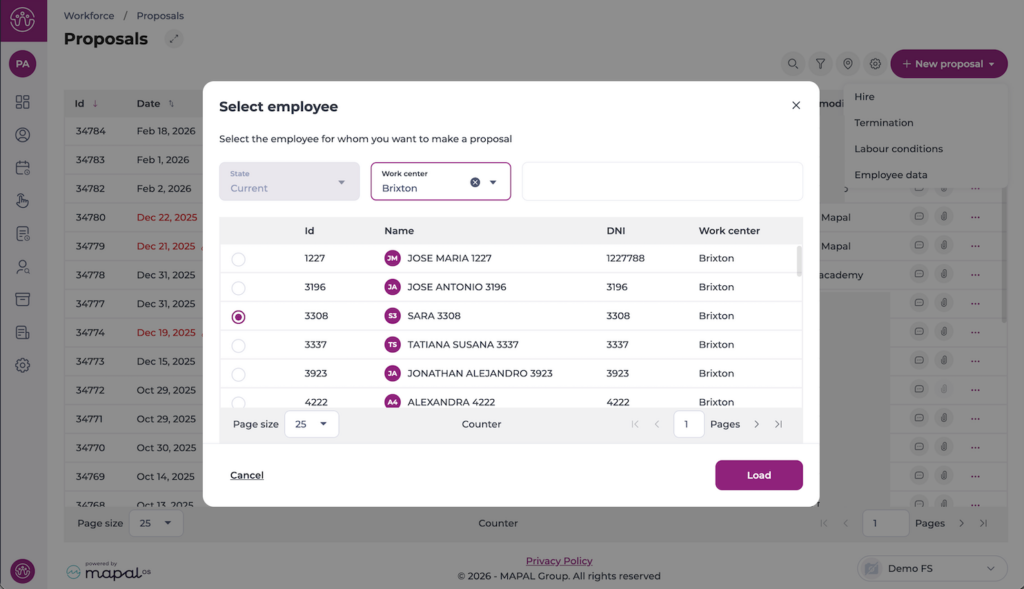
A Select employee dialogue appears. This displays a list of current employees. You can filter the list by State and Work centre to narrow down the results. Select the employee you want to create the termination proposal for, then select Load.
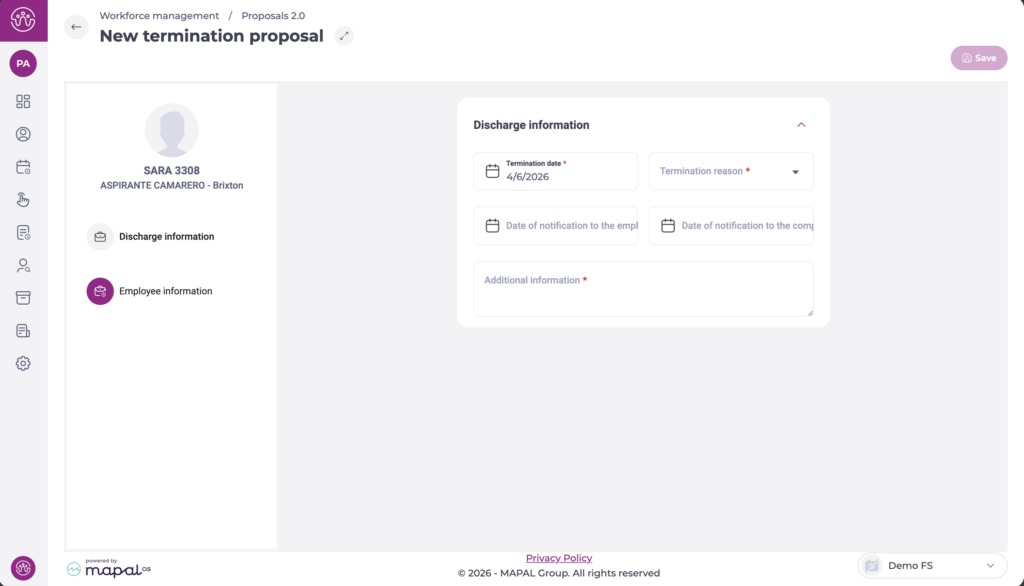
The system opens the New termination proposal form. The left-hand panel displays the employee's name, role, and business unit, along with two navigation sections: Discharge information and Employee information.
Discharge information
Select Discharge information in the left-hand panel to complete the termination details. Required fields are marked with an asterisk (*).
- Select the Termination date *. This is the date the employee's contract ends.
- Select the Termination reason * from the dropdown (for example, "End of the contract by the company").
- Select the Date of notification to the employee if applicable.
- Select the Date of notification to the company if applicable.
- Enter any relevant details in the Additional information * field.
Employee information
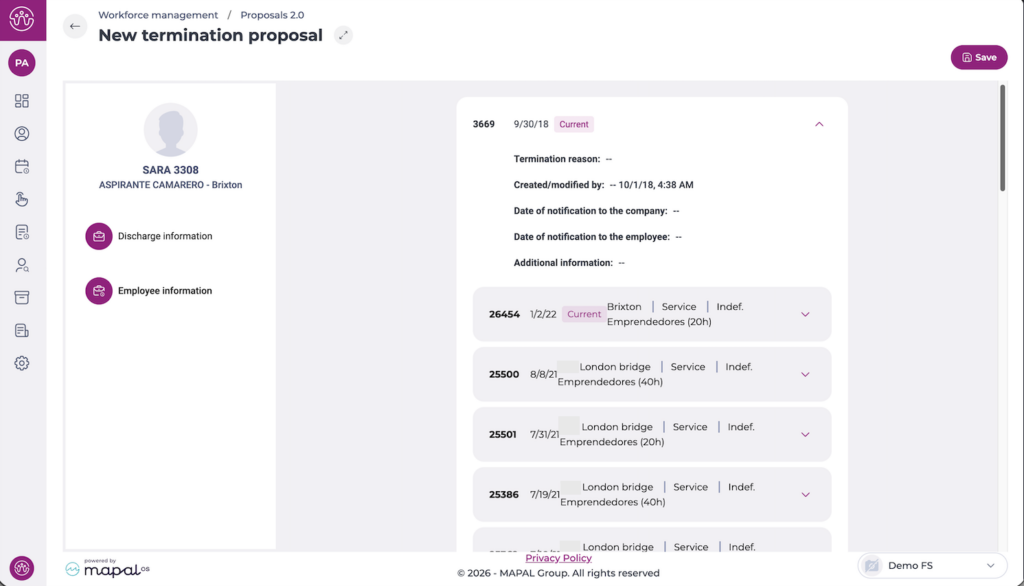
Select Employee information in the left-hand panel to review the employee's current and historical employment records. Each record shows the employee ID, start date, business unit, department, contract type, and contracted hours. Select the expand arrow on any record to view further details such as the termination reason and created/modified information.
This section is read-only and is provided for reference when processing the termination.
Once you have completed the discharge information, select Save to submit the proposal.
Manage a termination proposal
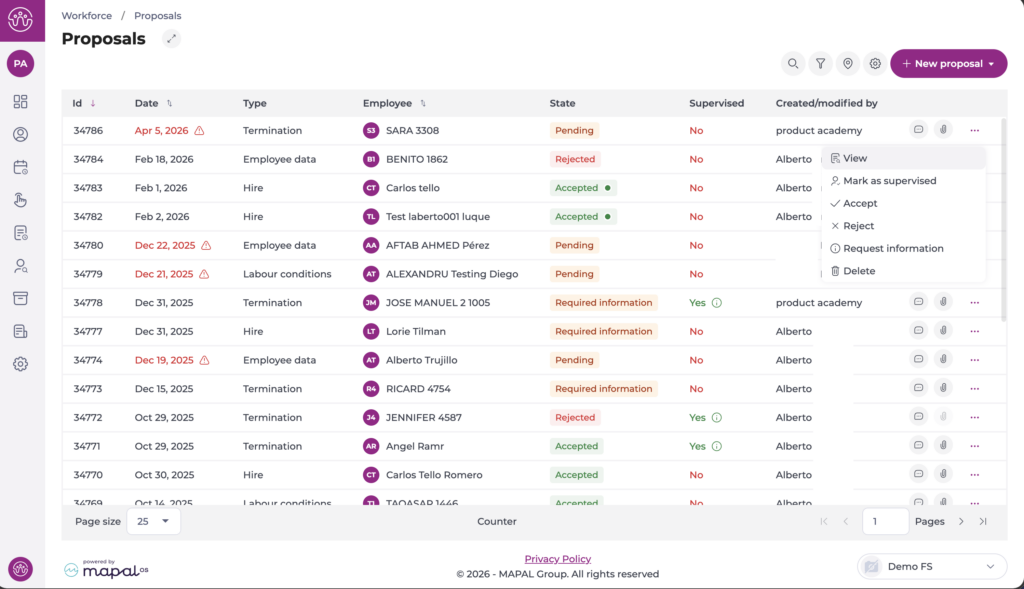
Once submitted, the proposal appears in the Proposals list with the type Termination and the status Pending.
Actions menu
Select the three-dot icon (...) on the proposal row to open the actions menu. The options available depend on the proposal's current status and your permissions:
- View: Opens the proposal in read-only mode.
- Mark/Unmark as supervised: Flags the proposal as reviewed.
- Accept: Approves the termination. A confirmation dialogue warns that this action is final and cannot be reversed. Select Accept to confirm.
- Reject: Declines the termination. A confirmation dialogue warns that this action is final and cannot be reversed. You will also be prompted to leave additional information for context. Select Reject to confirm.
- Request information: Returns the proposal to the creator for additional data or corrections. The status changes to Required information.
- Delete: Permanently removes the proposal from the system.
Note: Accepting or rejecting a proposal is irreversible. Review the proposal details carefully before confirming either action.
Termination validation
When a termination proposal is accepted, the system checks whether the employee already has a termination date registered. If a prior termination exists, the system blocks the action and displays a message indicating the proposal cannot be approved.
Select Accept to close the message. The proposal remains in its current status, and you can reject it from the proposals list if it was created in error.
More actions on the proposal
To know more aboutgeneral navigation and actions in the proposals grid, see Get familiar with the Proposals screen.
Note: The actions available depend on your role and permissions. If you cannot see a specific action, contact your administrator to review your role configuration under Workforce > Configuration > Roles. For more information on role management, see Configure permissions for workforce management.