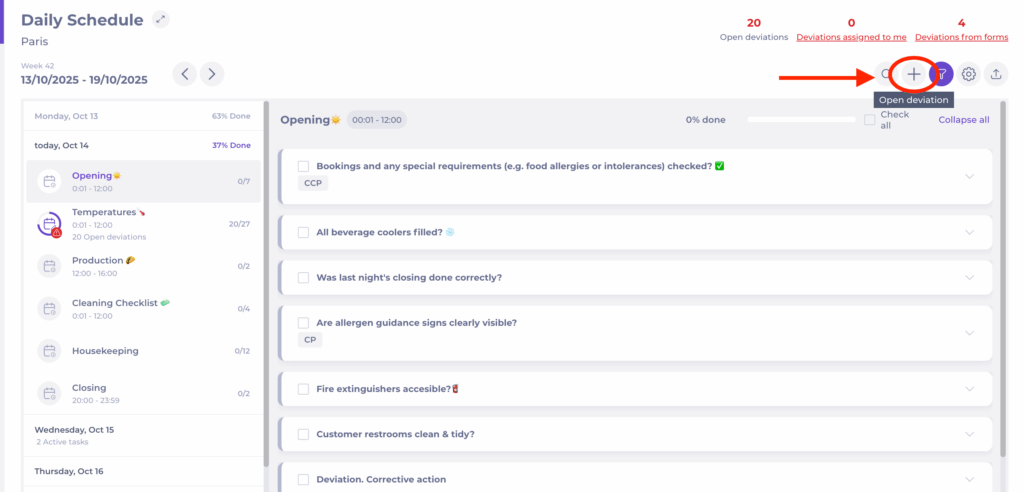
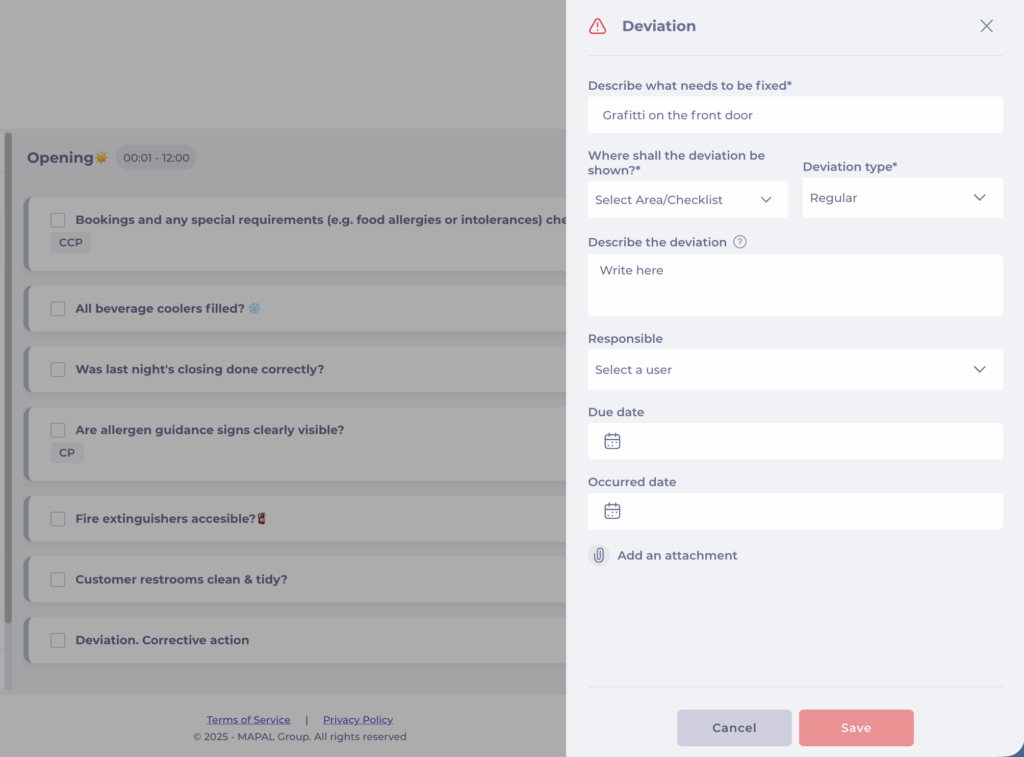
Create an ad hoc deviation

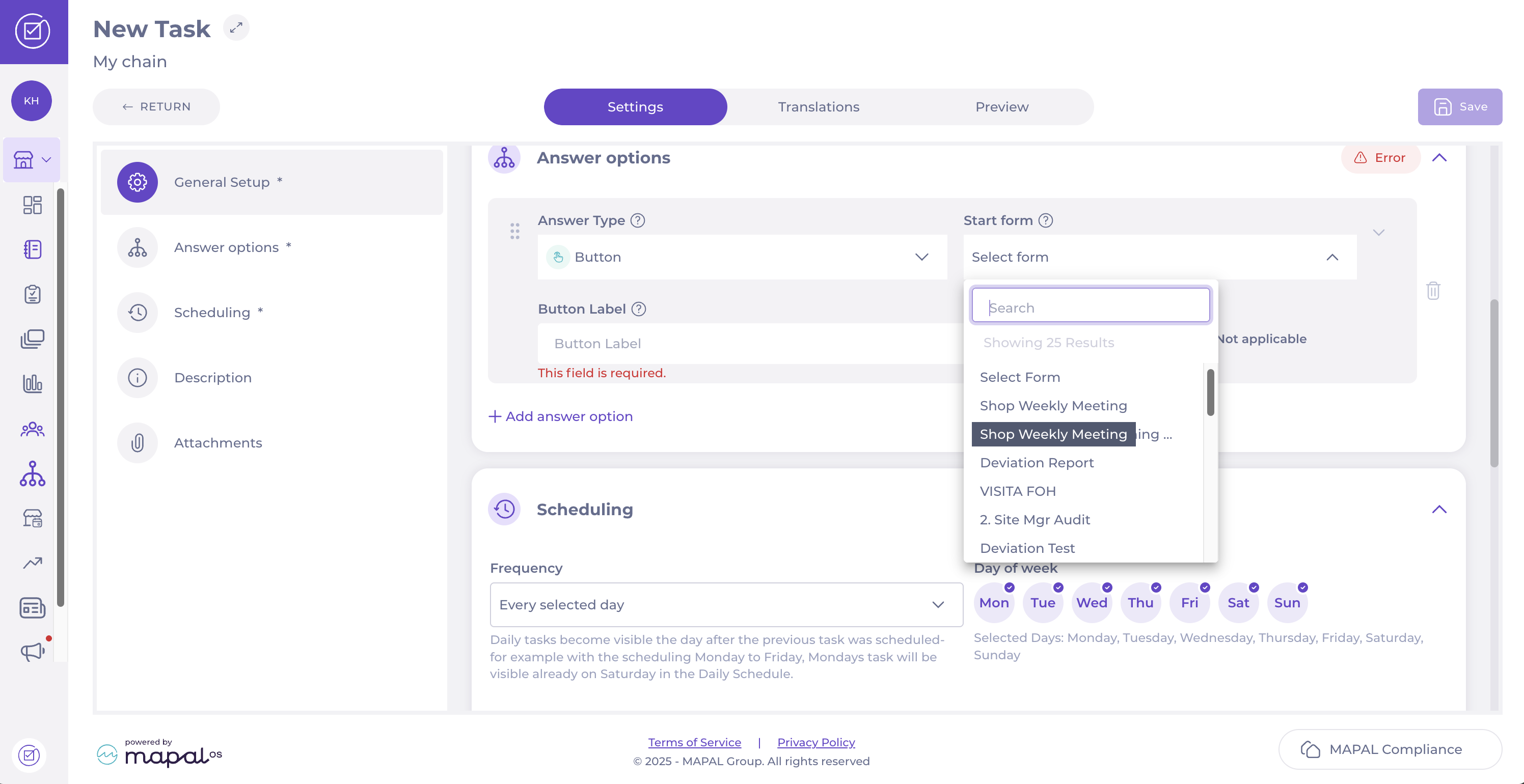
Start from: The Compliance local overview.

The deviation will now appear in the selected checklist and can be managed like any other compliance deviation; tracked, resolved, and closed once the corrective action has been completed. To know more about how to respond to deviations, see Respond to deviation reports.
Define mark-ups to apply by period

Start from: The Easilys menu.

Contact your customer success manager to find out more about this feature.

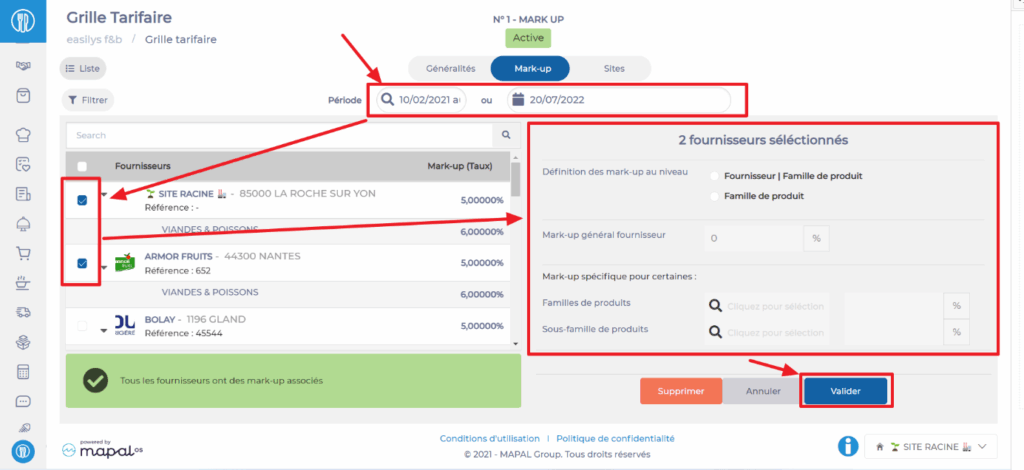
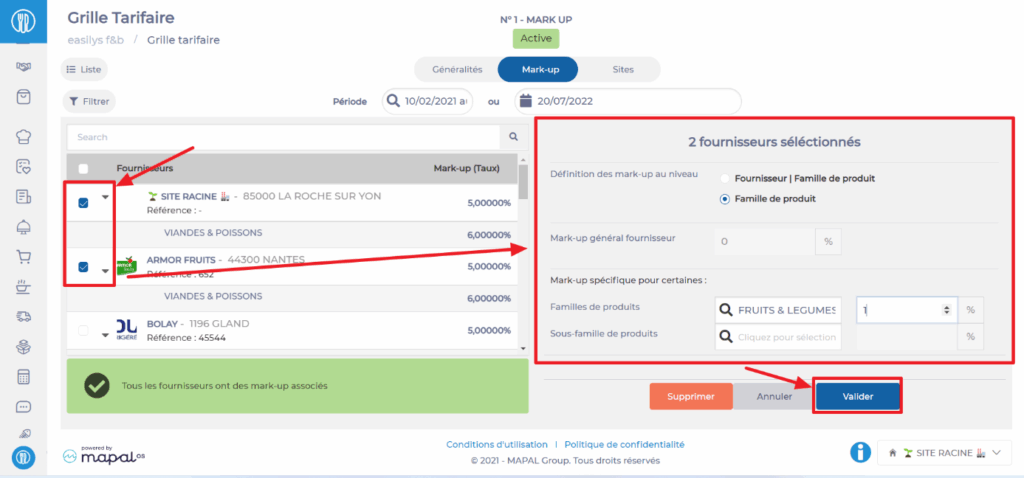
The list of suppliers is displayed on the left of the screen and mark-up management on the right.

It is possible to select multiple suppliers: it will then be possible to define a general mark-up for all selected suppliers then to define mark-ups by product families and product sub-families.

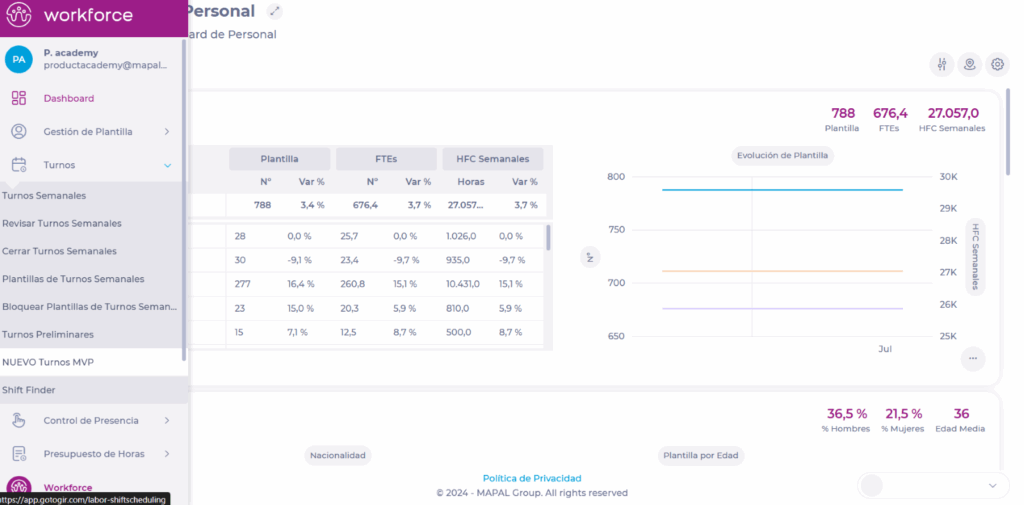
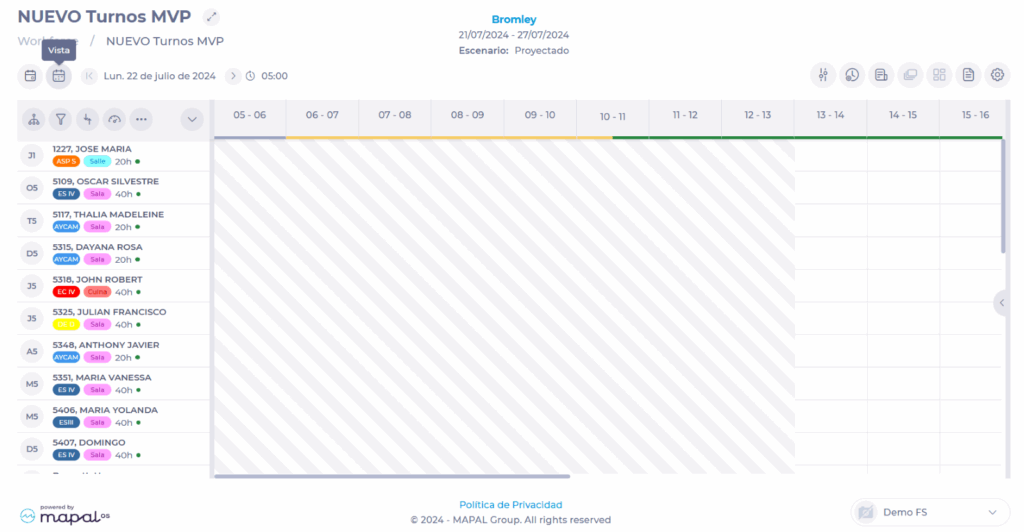
Customize the shift scheduler view by date

Start from: The Workforce module.

To configure, see Access the scheduler.

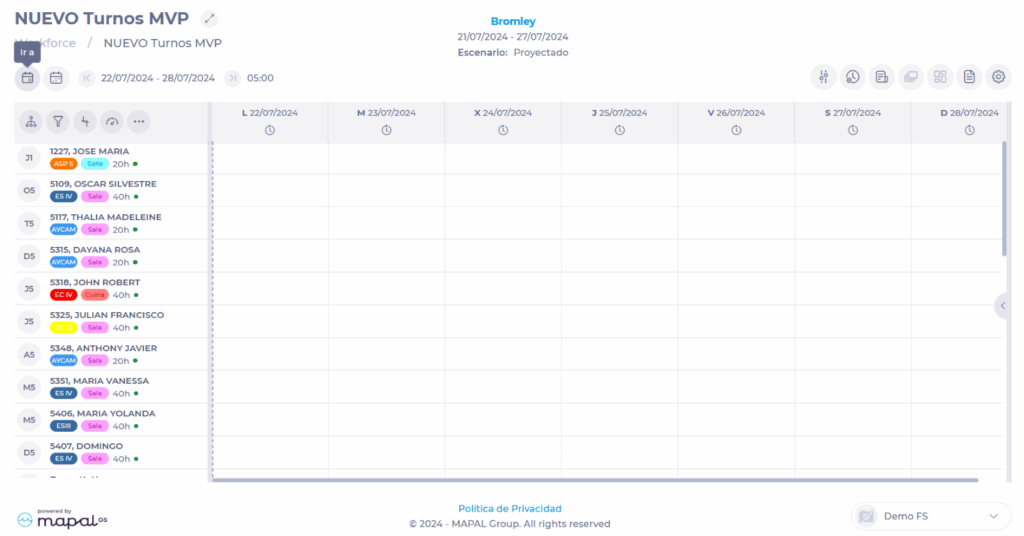
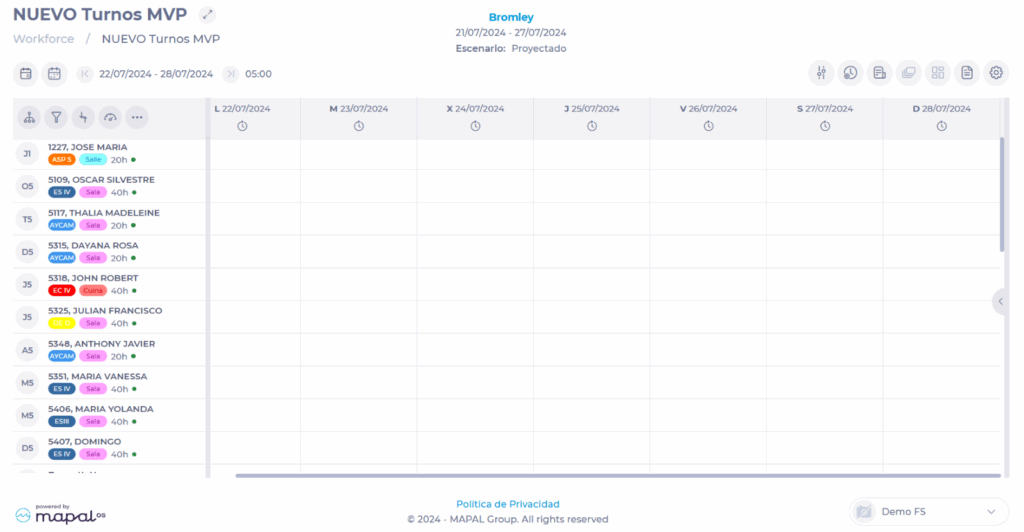
On the grid, you can see the date range currently being viewed.

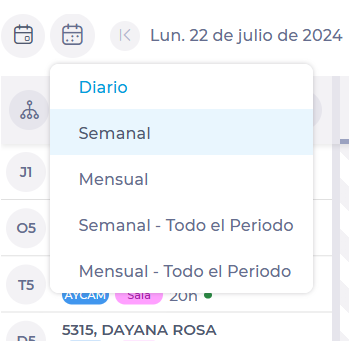
To change the range or specific date:

View by specific time range

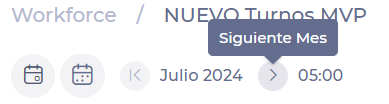
Once the time range for the view is set, you can use the arrows on the sides of the date to navigate between the days, weeks, or months of the period.

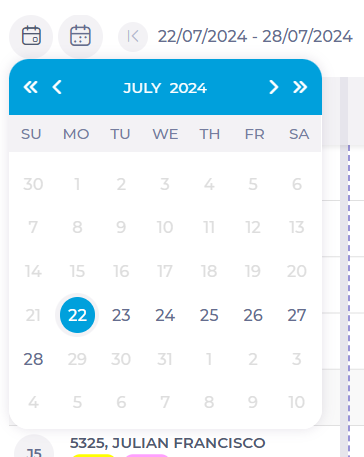
View by specific date

Now you will see in the grid the specific date you have set with the preferred view; in this case, weekly:

Generate a schedule with optimization

Start from: The Workforce dashboard.

Conditions to use the optimization feature

To ensure compatibility with the GIR2 shift planner, optimization in the new scheduler follows specific conditions:

Key configurations for best optimization results

To achieve the best possible outcomes, the following elements must be properly configured:

Business Unit Opening Hours

To know more, see Set up working hours.

Employee Contract Restrictions

To know more, see Set work restriction periods for an employeeand Create new contracts.
Work Assignments

How to use optimization

Note: You must select a full week

Note: You must select a single Business Unit

To know more about the Parameterization, see Access the scheduler.

Using the optimization panel

Selecting Optimizer opens a panel where users can configure their optimization settings.
Optimization method

Currently, the system supports Free Optimization, which automatically generates the best possible schedule based on existing data.
Configuration options

Users can customize the optimization process by selecting any combination of the following options:

Note: These settings can be used together without conflicts to refine the final schedule.

Processing and applying the optimized schedule

Once settings are confirmed, the optimization request is sent for processing. During this time:

Once complete, users receive a notification when they return to the same center and week, indicating that the solution is ready to apply.

Applying or discarding the optimized schedule

When optimization is complete, users have two choices:

If the applied schedule is unsatisfactory, users can:

src="src="src="src="src="src="src="src="src="

Add or remove employees from a work center

Start from: The Workforce module.  

  • Select Scheduling > Scheduler 2.0 from the main menu.?? 

Interfaz de usuario gráfica, Aplicación<br><br>Descripción generada automáticamente 

  • Parameterize the planner to be able to access the main grid. 

To make the parameterization, see Access the scheduler

Add employee 

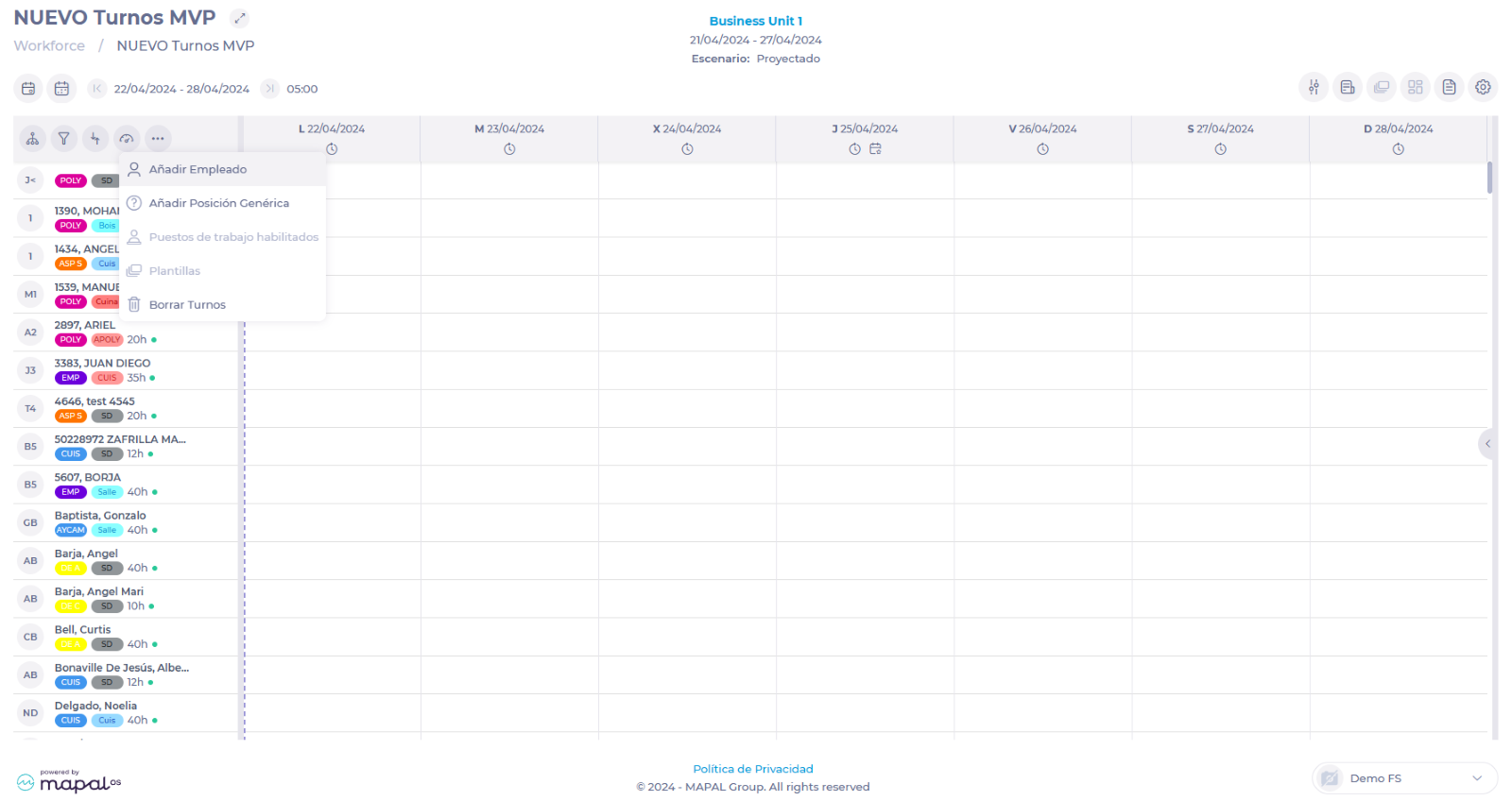
  • Once in the main grid, select the three dots button ••• in the header, above the list of employees.  

  • Select Add Employee from the drop-down menu. 


  • In the Add Employee pop-up window, you can use the various filtering fields to facilitate the employee search OR you can scroll down directly to the Employee box and search the drop-down for the employee you are adding.  

Notes: The fields in the Add Employee window are not mandatory, they are only filtering levels to facilitate the search in the Employee field.  

Remove employee 

Employees added to the work center from other centers will appear in the grid as long as they have scheduled shifts for the period you are viewing. Otherwise, they will be automatically removed from the list.  

For example, imagine that for the week of April 22-26, you need an employee from another business unit, so you add him to your schedule and assign shifts to him. If you later extend the period you are viewing from April 22 to May 15, this new employee will remain on your grid, as he has shifts at the center within the period you are managing. 

But, if you change the period you want to manage to May 1 to May 15, if this employee has no shifts assigned during that period, he will be automatically removed from the grid. 

This way of removing employees could change in the future, where employee deletion could be made a manual action by the user.  

Configure clusters in the scheduler

Start from: The Workforce module.

  • Select Scheduling > Scheduler 2.0 from the main menu.

Imagen que contiene Aplicación<br><br>Descripción generada automáticamente

  • Parameterize the scheduler to access the main grid OR close the parameterization window to access the tools directly.

To make the parameterization, see Access the scheduler.

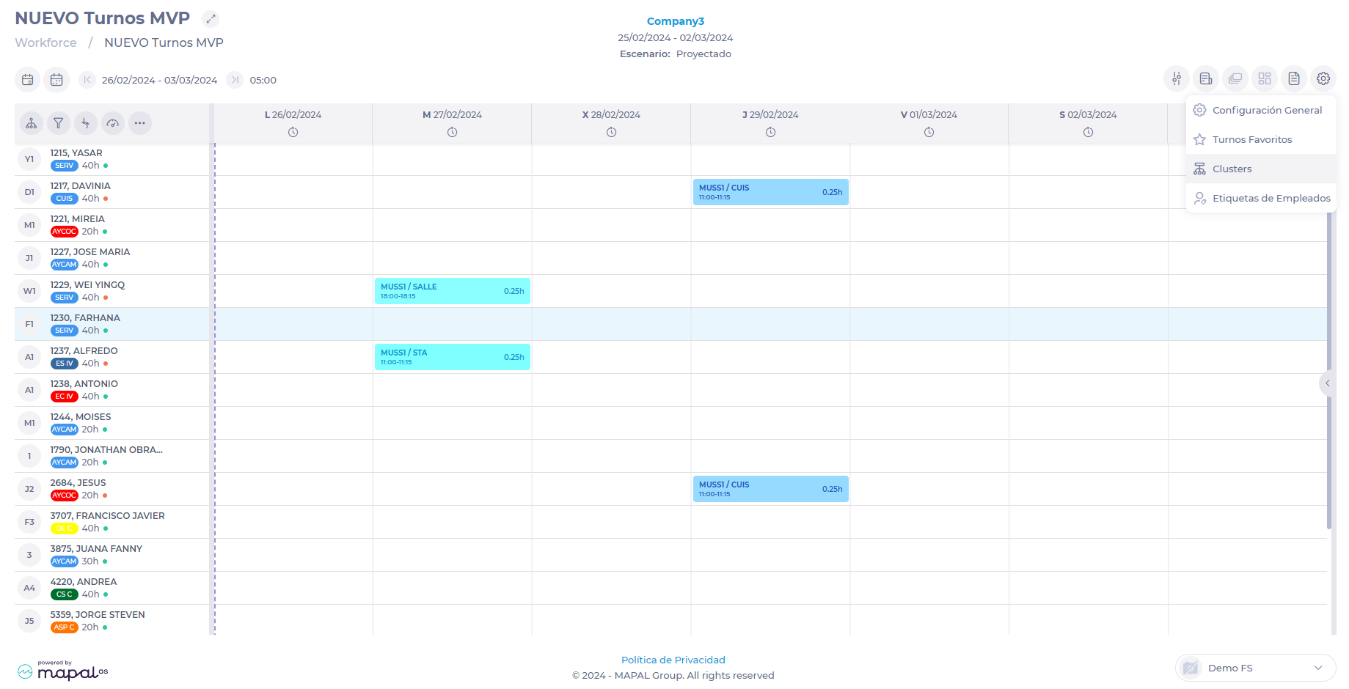
  • Select the Configuration button.
  • Select Clusters from the drop-down menu.

Interfaz de usuario gráfica, Aplicación<br><br>Descripción generada automáticamente

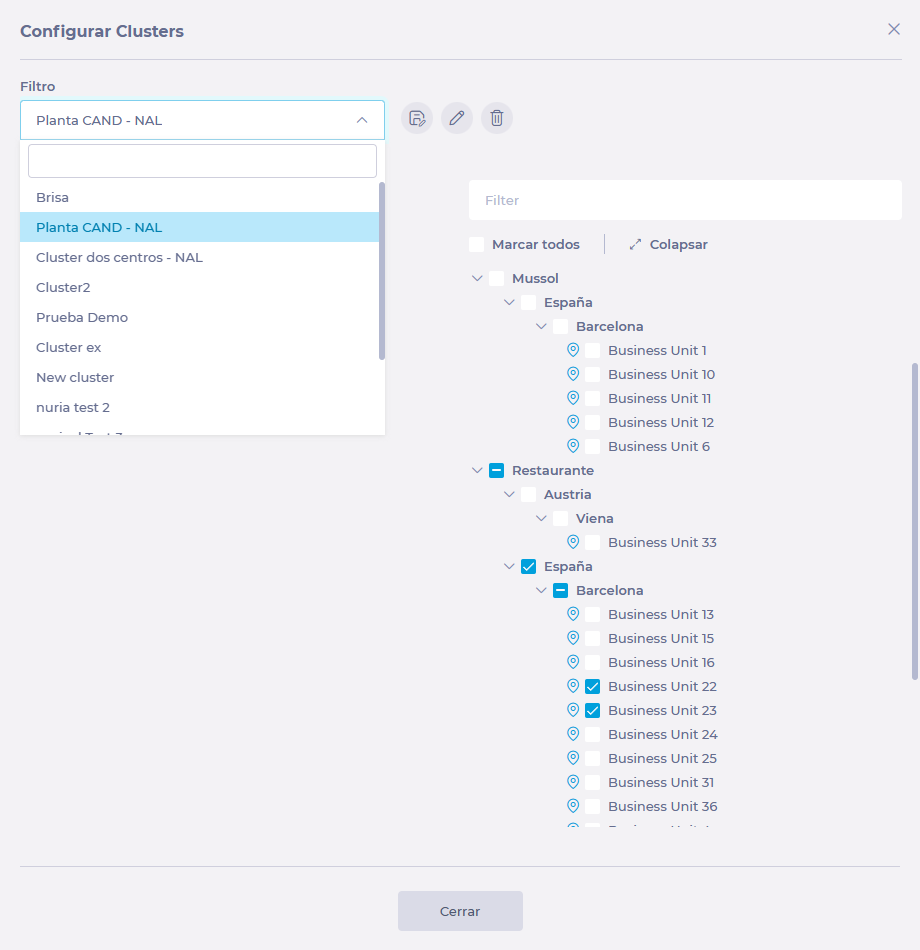
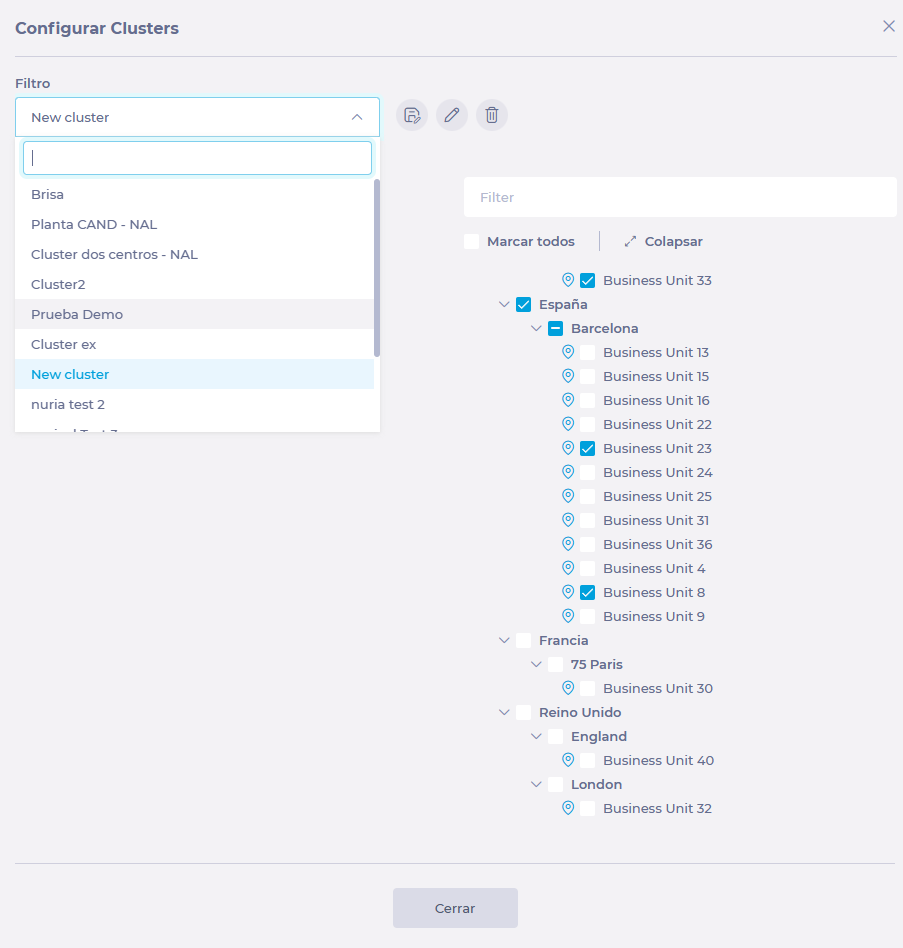
In the Configure Clusters window, you can select filters or clusters already created to facilitate the creation of a new group or edit an existing group.

Create a new Cluster

  • Selects the filtration levels for a new group.
  • There is one default level, but you can select + Add level to further deepen the filtering to the desired detail level.
  • In the results, you can check the box of the specific sites you wish to assign to this group or select Check all to include all sites that meet the filter rules.
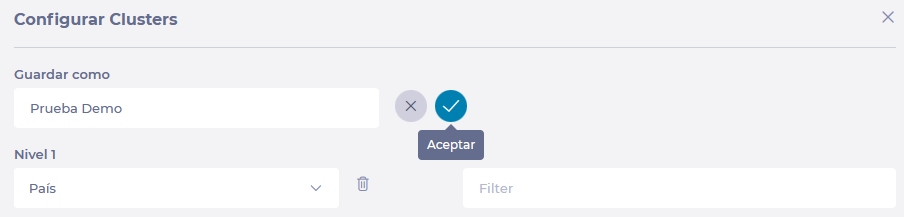
  • Once you have chosen the centers, select theSave As button to assign a name to the cluster and save your selection.

Notes: You can use an existing cluster as a starting point. To do this, select the cluster from the Filter drop-down, select Save As, assign a new name and adjust the levels accordingly.

Interfaz de usuario gráfica, Aplicación<br><br>Descripción generada automáticamente

Once the cluster is created, you will be able to sort shifts according to this parameter. You can locate it by selecting Cluster in Business Unit Group and then selecting the name of the cluster you have created.

Edit a cluster

  • Select the cluster to be modified from the Filter drop-down list.

  • Select the Update button.

Interfaz de usuario gráfica, Aplicación, Teams<br><br>Descripción generada automáticamente

  • Adjust levels or site selection accordingly.
  • Edit the name if necessary.
  • Select the ? button to save the changes OR the ? button to discard them .

Interfaz de usuario gráfica, Aplicación, Teams<br><br>Descripción generada automáticamente

Understand overlapping holidays

Start from: The Workforce module.

A situation in which two or more employee holiday periods coincide or overlap in time is called overlapping holidays. This can occur for a variety of reasons, such as company policies, union agreements, or government regulations that establish certain mandatory rest periods for employees.

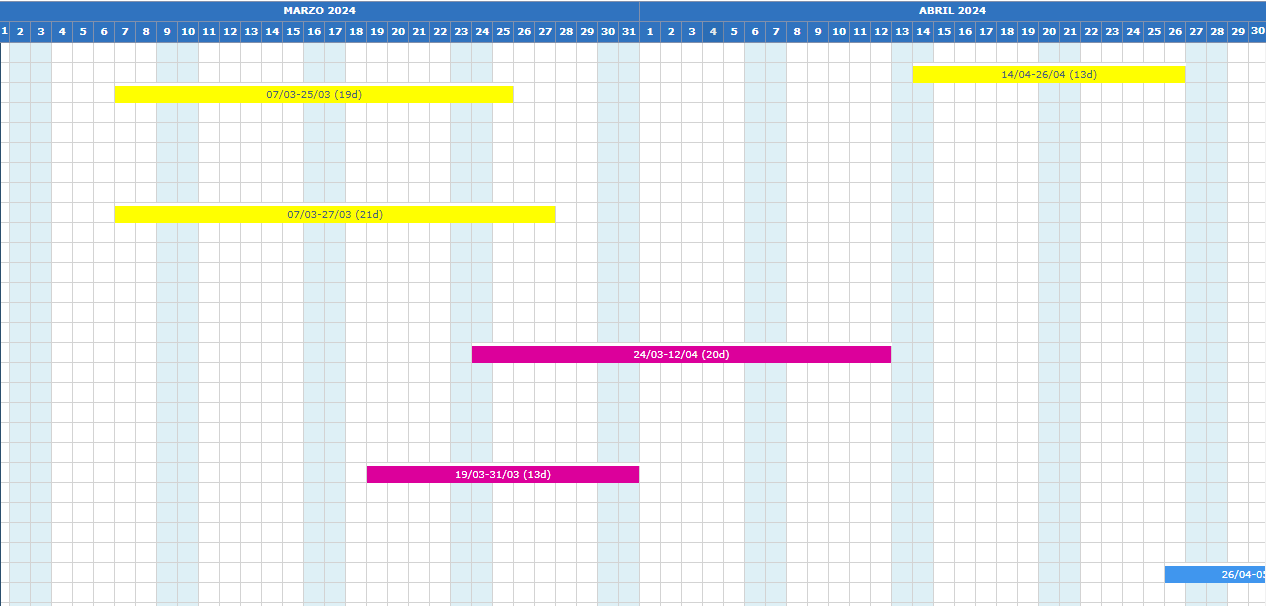
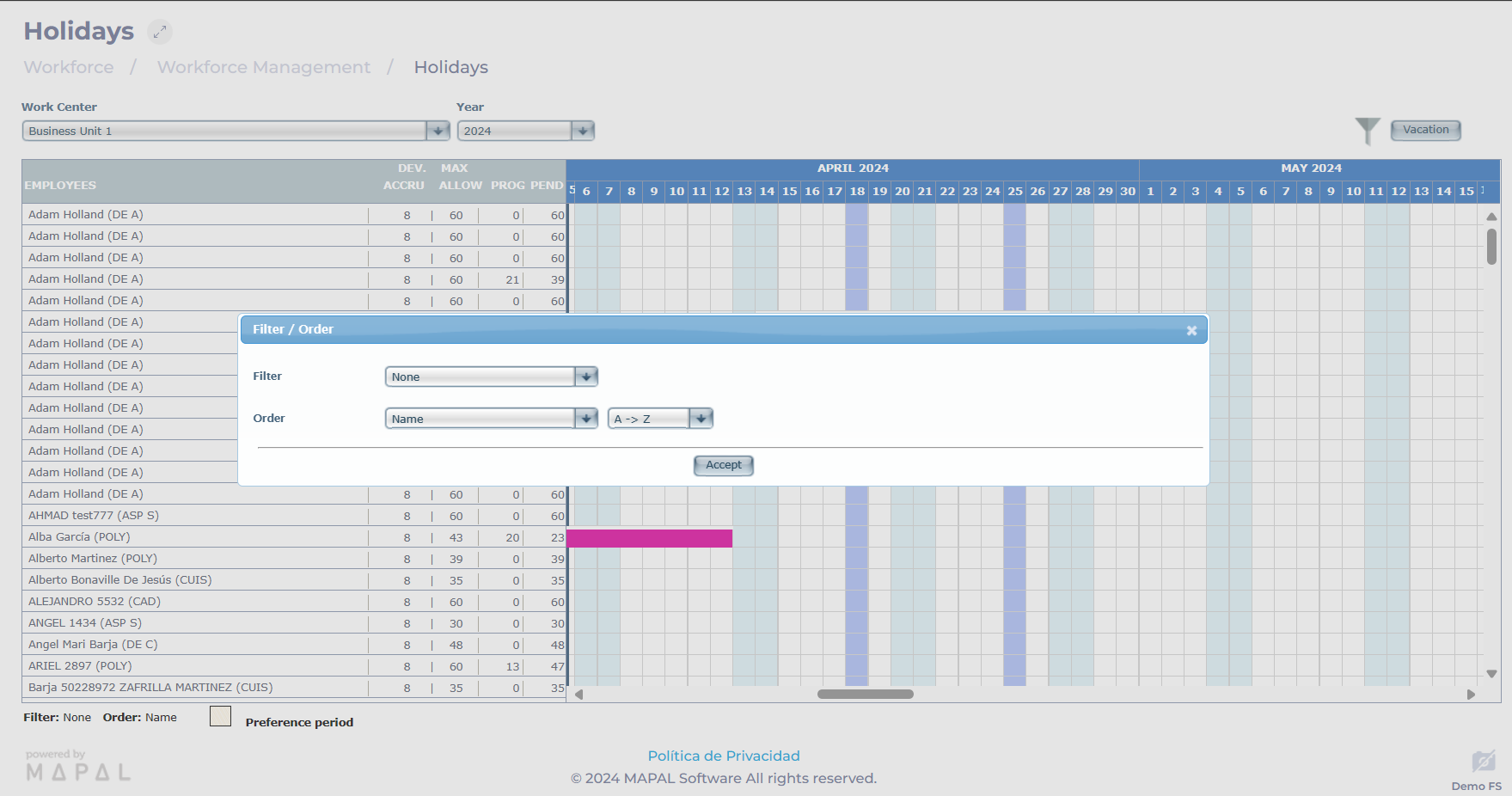
Overlapping holidays can lead to complications in scheduling and assignment of tasks, which directly affects the work center's operability. This is why Workforce, through the Holidays tool, allows users to take a quick look at the arrangement of vacation periods in the workplace.

Through the Holidays screen (Workforce Management > Holidays), managers can quickly identify vacation overlays. This screen also has a filtering or sorting function that makes it easier to view holidays by name, contract, or job title.

Using the visuals provided by this screen, managers can take proactive measures to mitigate the impact of overlapping holidays. This may involve adjustments in shift assignments, redistribution of tasks, or requesting additional personnel during these periods.

To learn how to set holidays, see Create holidays.

Schedule a form in the Daily Schedule

Start from: The Compliance overview.

View specific day information on the scheduler

Start from: The Workforce module.

  • Select Scheduling > Scheduler 2.0 from the main menu.  

  • Parameterize the scheduler to be able to access the main grid.

To make the parameterization, see Access the scheduler.
Interfaz de usuario gráfica, Aplicación<br><br>Descripción generada automáticamente

  • Once in the grid, locate the day's header, which provides important information by showing small representative icons.
  • Select the header to open a pop-up window where you can check the following information in three different tabs:
    • General DataHere you can see all the details of the shift, such as its current status, the center's opening hours and operating hours. The tool is also connected to a weather forecast service that informs you about the weather forecast for the location of the business unit in question.

Interfaz de usuario gráfica, Texto, Aplicación, Chat o mensaje de texto<br><br>Descripción generada automáticamente

  • StatusYou will be able to see the status of the shifts for each day and center. If you access the tab, you can even see the history of the different status the shifts have gone through during the day and the work center.

Interfaz de usuario gráfica, Texto, Aplicación<br><br>Descripción generada automáticamente
 

  • CommentsFrom the day's information window, users who can enter and schedule shifts for that center can leave comments for that day. These comments are recorded as if they were a conversation.

Interfaz de usuario gráfica, Texto, Aplicación, Chat o mensaje de texto<br><br>Descripción generada automáticamente

Manage employee details

Start from: The Workforce module.

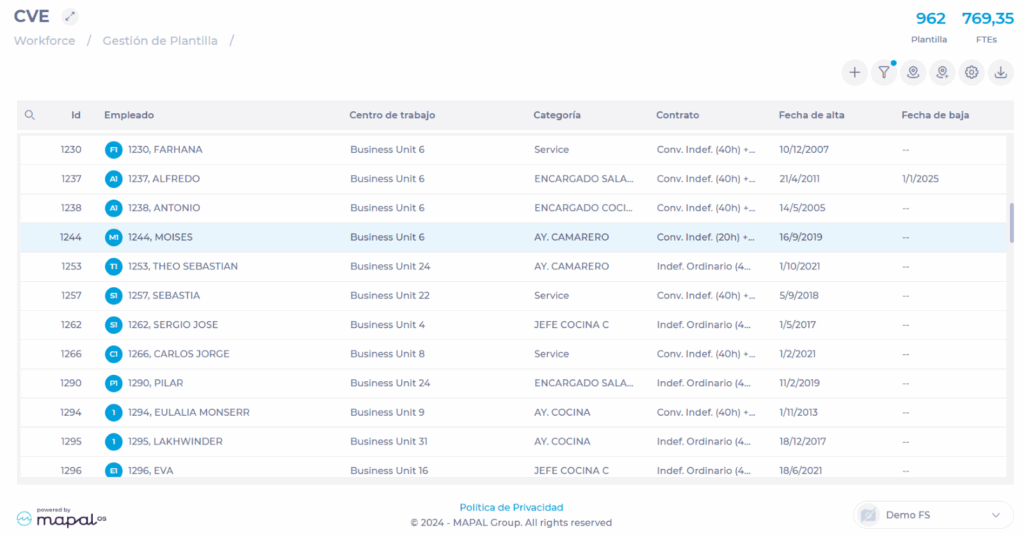
In the Workforce 2.0 (CVE) screen, select from the list the employee whose information you wish to manage.

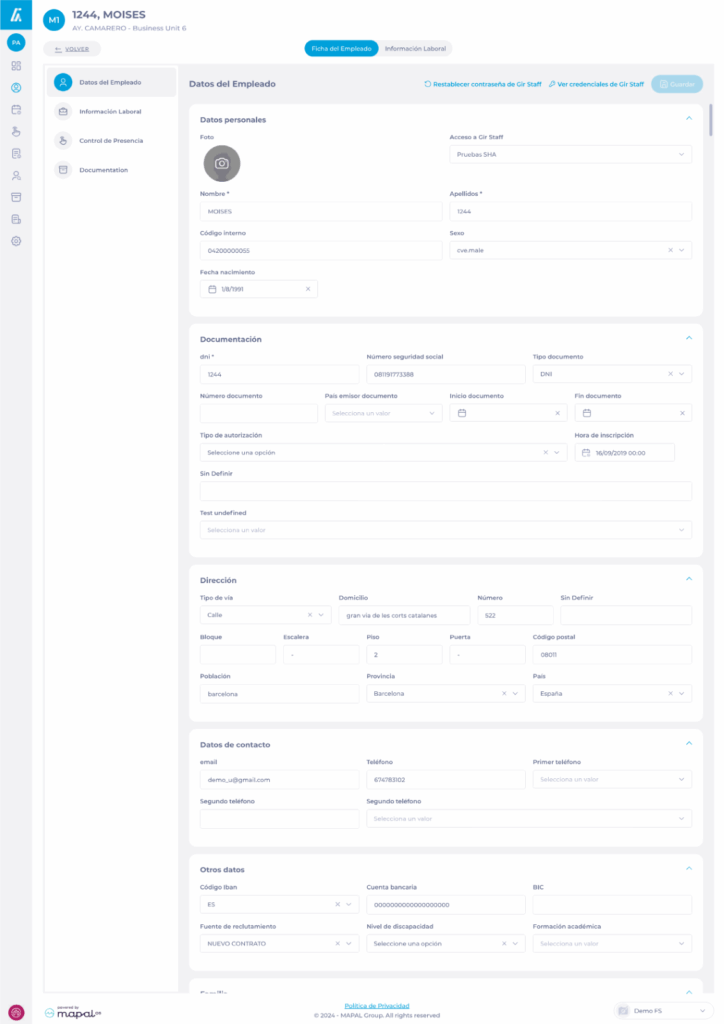
The screen will open in the Employee Record tab. This tab has four sections:

Employee details

In this section, you can change any data related to the employee's record, such as personal data, attach a photo, add emergency contacts, medical checks, among others.

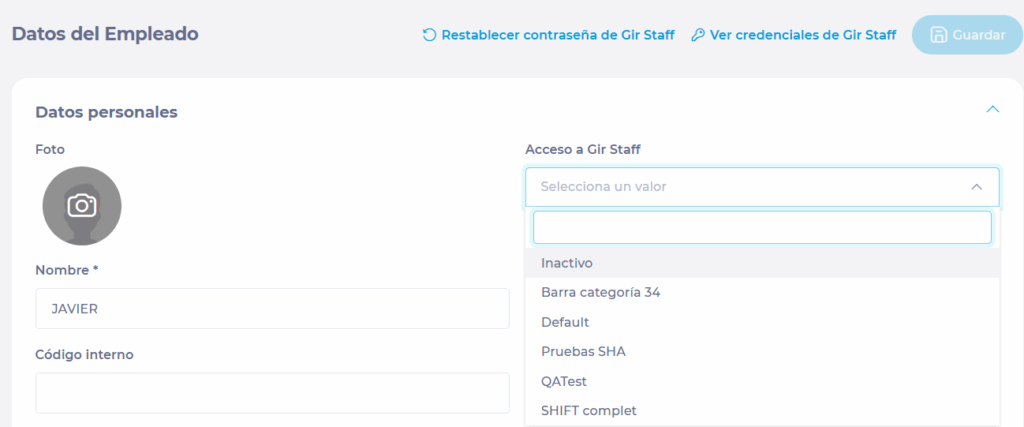
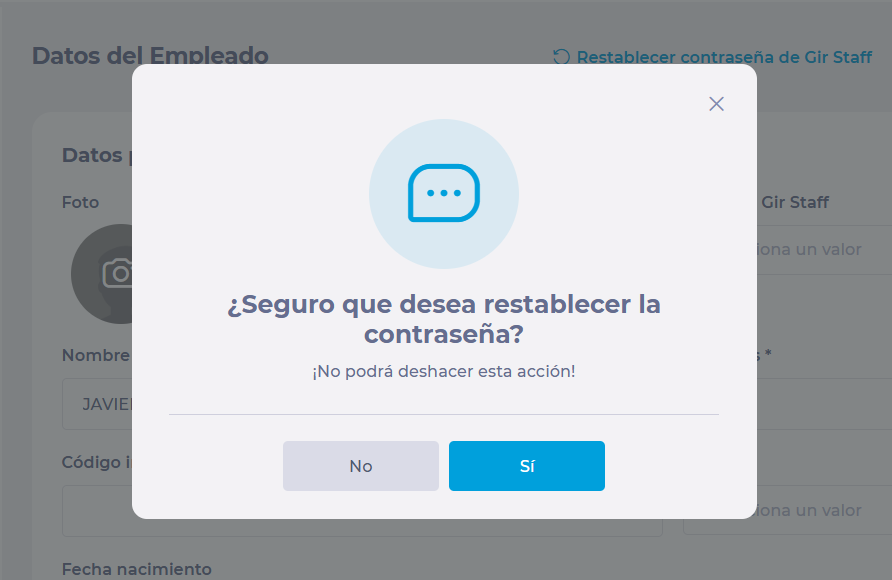
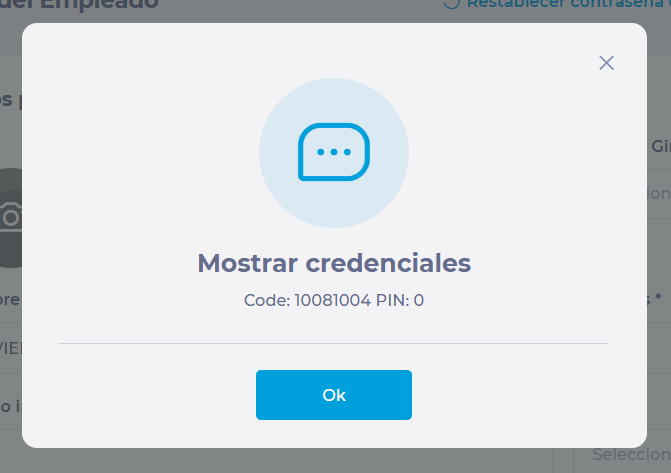
Here you can also activate or deactivate the GIR Staff profile, view their credentials, change their profile, and reset the password.

Employment information

In this section, you can manage the different work periods of the employee and, within them, the work situations. These correspond to changes in the type of contract, different shift restrictions, or transfers to other work centers.

To know more about employee information management, see Manage employee "employment conditions".

Time & Attendance

In this section, you can configure the codes to clock in the T&A applications, either by PIN code or magnetic and NFC cards, and you can also select the business units where the employee is entitled to clock in using the center selector tree.

Learn more about how to manage Time & Attendance codes in Assign or change punch-in code.

Documentation

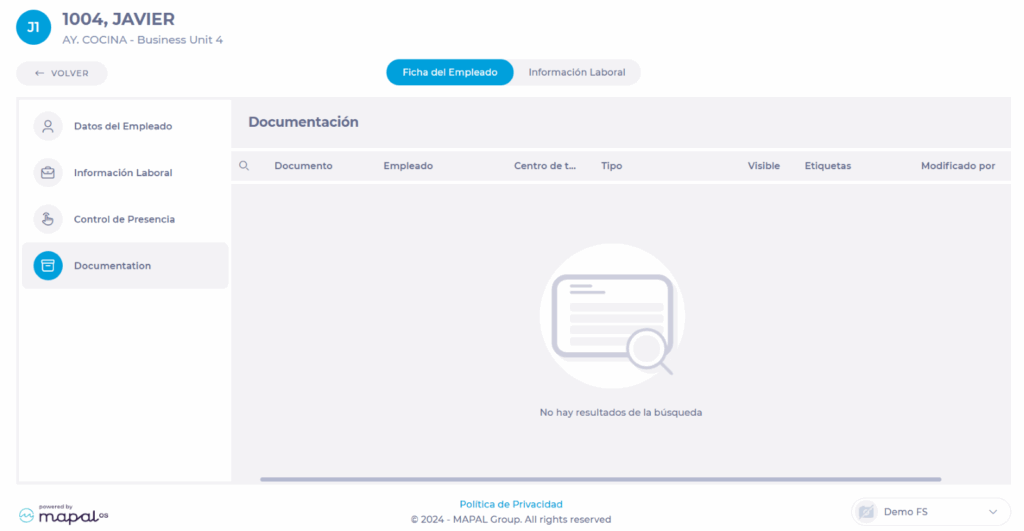
In the documentation section, for now, you can only see the documents assigned to the employee you are consulting, as long as you have the necessary permissions to view them.

If you want to add more documentation and send it, you can only do it from the Documentation section of Workforce.

To learn more about documentation management in Workforce, see the articles in the Documentation category.