Configure validation rules for maintenance requests
Note: Each action that can be performed on the application is subject to user permissions. If you cannot perform the actions recommended in the articles you consult, it may mean that the necessary rights are not activated for your user profile. Contact the Support team, or your administrator, for more information.
Start from: the Easilys menu.
Select your username or avatar from the left-hand menu, then Site parameters.
Select Workflows.
Select + Add a rule.
The window “Add a rule to this workflow” appears:
Select the Equipment feature.
Select the user profile that will be responsible for validation.
Note: By selecting a validator profile, you are telling the application which users will be notified of intervention requests. To ensure that only these users can validate intervention requests, you must configure profiles in the administration area so that only the chosen profiles have the permission “Validate intervention requests (validation workflow)” (See article Manage Easilys user account profiles)
Notification system settings
If you tick “Notify users associated with the validator profile by email”, all users with the validator profile will receive an email each time a non-validator user requests the creation of an intervention on equipment.
If you also want to notify one or more specific email addresses, enter them in the “Other emails to be notified” field and tick the box “Notify users associated with the validator profile by email”.
If you only want to notify one or more specific email addresses, enter them in the “Other emails to notify” field and leave the validator notification box unticked. Tip: Separate each email address with a semicolon.
If you are working across multiple sites and want the rule to apply only to certain site groups, add the desired “Sites” tag(s).
If all sites are concerned with validation by a manager, then no tag is required. All child sites of the site where you created the rule will be impacted by it.
Select Create.
Create premises to use them for PMS tasks
Start from: The Easilys menu.
It is possible to create PMS tasks based on premises criteria. For example, you can create a task for cleaning premises and, when entering the task, specify the premises that was cleaned.
Let's now examine how to create your different premises.
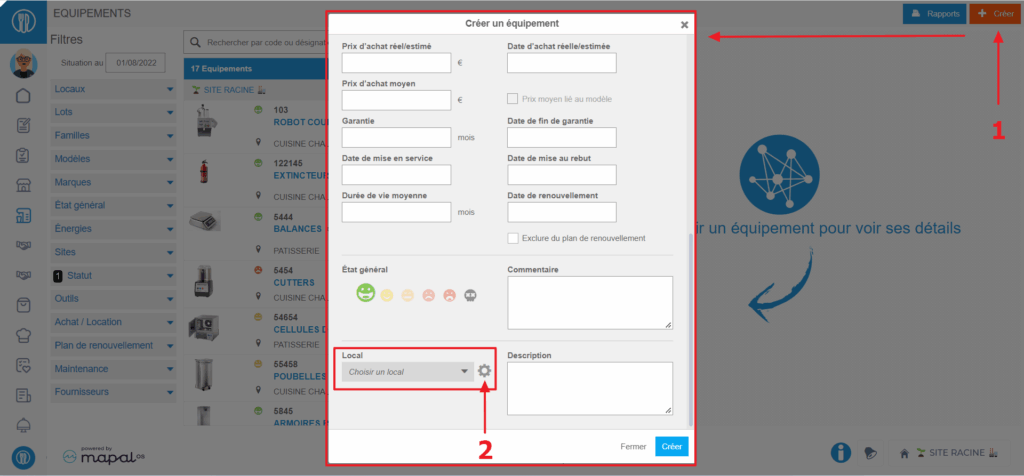
Select the Equipment items > Equipment items tabs.
Select + Create at the top right of the screen.
The "Create equipment" window appears on the screen.
Scroll to the bottom of the window to see the "Premises" field.
Select the gear wheel visible to the right of the "Premises" field.
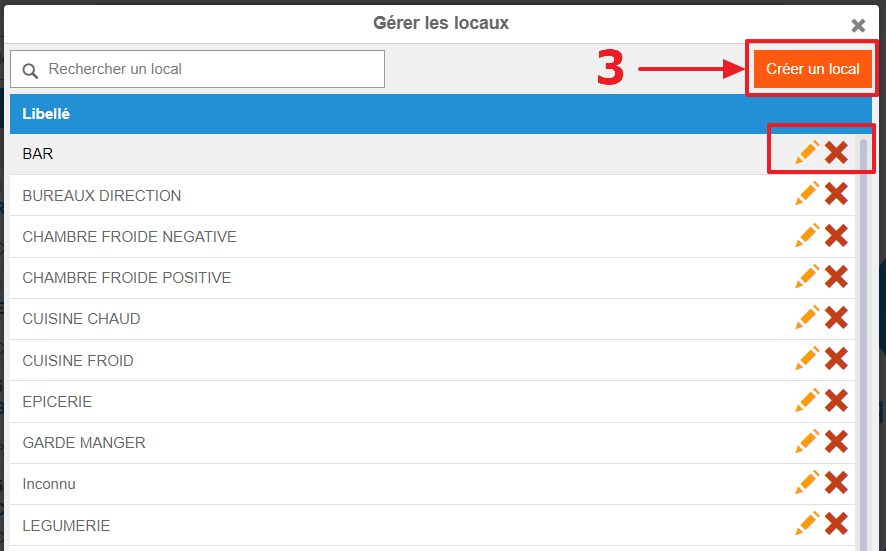
The "Manage premises" window appears on the screen.
Select Create premises.
To modify or delete existing premises, select the pencil or the cross.Once the premises list is ready, you will be able to use it in connection with PMS tasks linked to the "Premises" criteria.
Manually add finished products to stock
Start from: The Easilys menu.
MANAGE ENTRIES VIA RECEPTIONS
By validating a delivery receipt, you enter into stock all the products it contained, in the quantities specified.
A delivery receipt is automatically generated when you send an order from the "Supplier orders" screen, regardless of the sending method chosen. It contains all the products present on the purchase order. To learn more, see the article Validate a delivery receipt.
It is also possible to generate a delivery receipt without an order directly from the "Receptions" screen.
This delivery receipt will not be linked to an order and you will need to manually indicate the products that should be found there.
Finished products planned in the menu or ordered by child sites can be added to stock from the production management screen, as indicated in the article Manage finished product stock entries with Easilys assistance. If you want to add to stock a finished product that is not planned in the menus or that is ordered by a child site, then you can do so from the Stock screen, as indicated below.
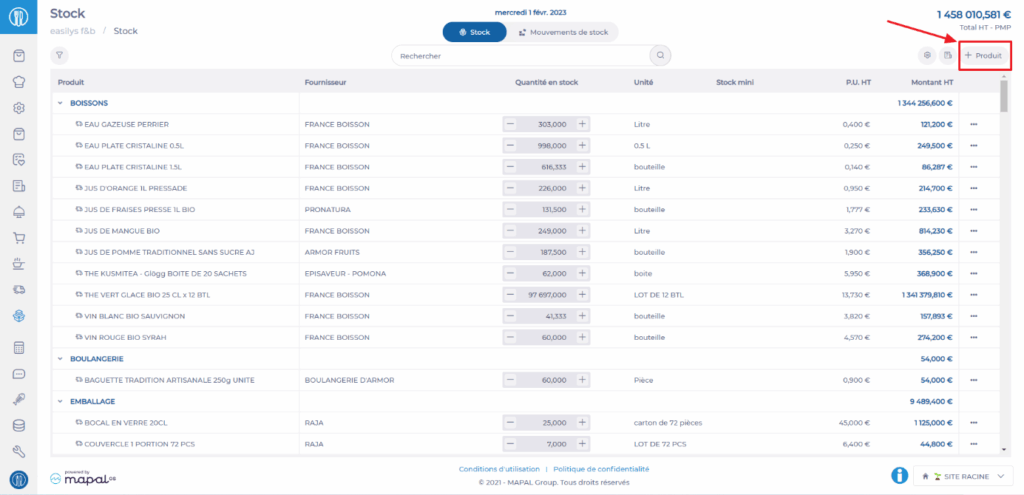
Select the tabs Stock > Stock V2.
Select +Product.
Select Finished product.
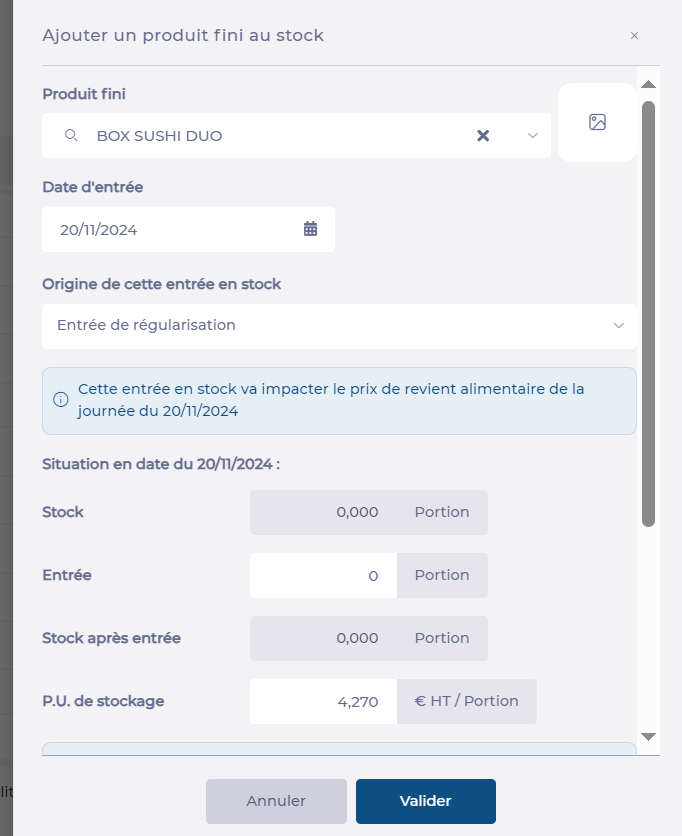
The "Add a finished product" screen appears.
Search for and select the product you want to add to stock.
Enter the stock entry date.
Enter the movement type.
You can optionally modify the unit price (note that this modification will only have an effect for this stock movement, if you want to permanently modify the unit price, go to the price list where the product is located to modify it).
Indicate the quantity to enter.
You can if necessary modify the unit price manually.
You can also ask Easilys to recalculate the price based on other calculation options. In this case:
Click on Calculation options
Select the template and the desired service for the valuation calculation
Click on Calculate. A message indicates that the price has been updated
You can add a comment if needed.
Select Validate.
The product quantity is added to stock on the selected date.
Configure notifications and the authorized validation limit for quote management
Starting from: The Easilys menu.
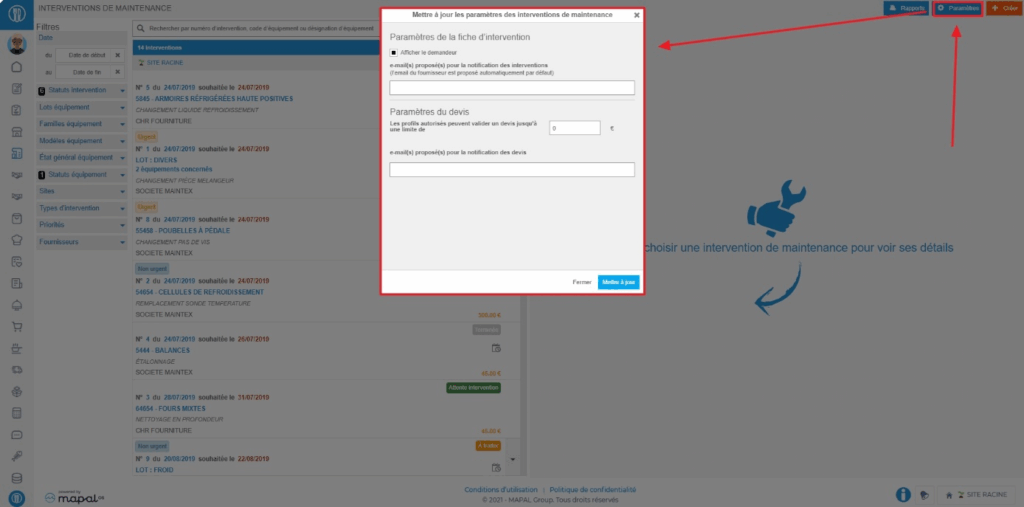
Select the tabs Equipment > Interventions.
Select Settings at the top right of the screen.
To configure email notifications, add the addresses (separated by a semicolon) to notify in the box under "proposed email(s) for intervention notification".
To set a quote limit beyond which it will be impossible for validator profiles, subject to the limit, to accept or reject quotes, enter the amount in the designated box.
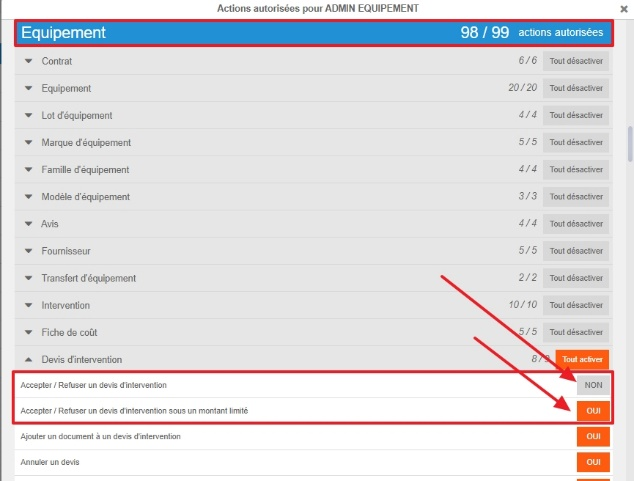
A validator profile subject to the limit is a profile whose right "Accept / Reject an intervention quote under a limited amount" is activated and the right "Accept / Reject an intervention quote" is deactivated.
Reject or accept a quote submitted on a work order
Start from: The Easilys menu.
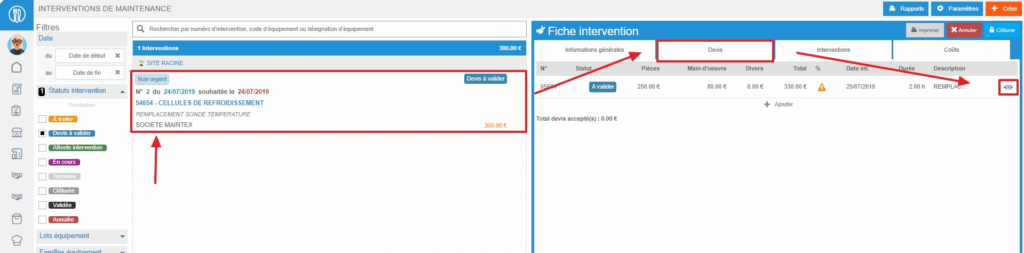
Select the Equipment > Interventions tabs.
Select the work order.
Select the small eye-shaped icon, on the right in the table at the top of the "Quotes" tab, to view the quote sheet.
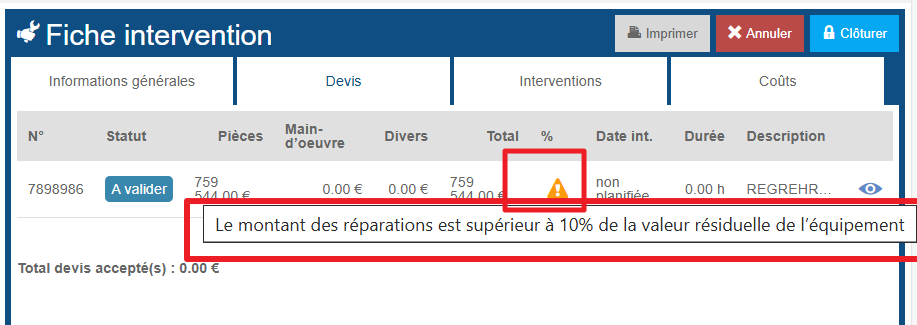
Important to know: If an orange warning triangle is visible on the quote line, it means that the quote amount is higher than the threshold defined on the equipment record. When you hover over the triangle, a message will display the percentage set for this threshold.
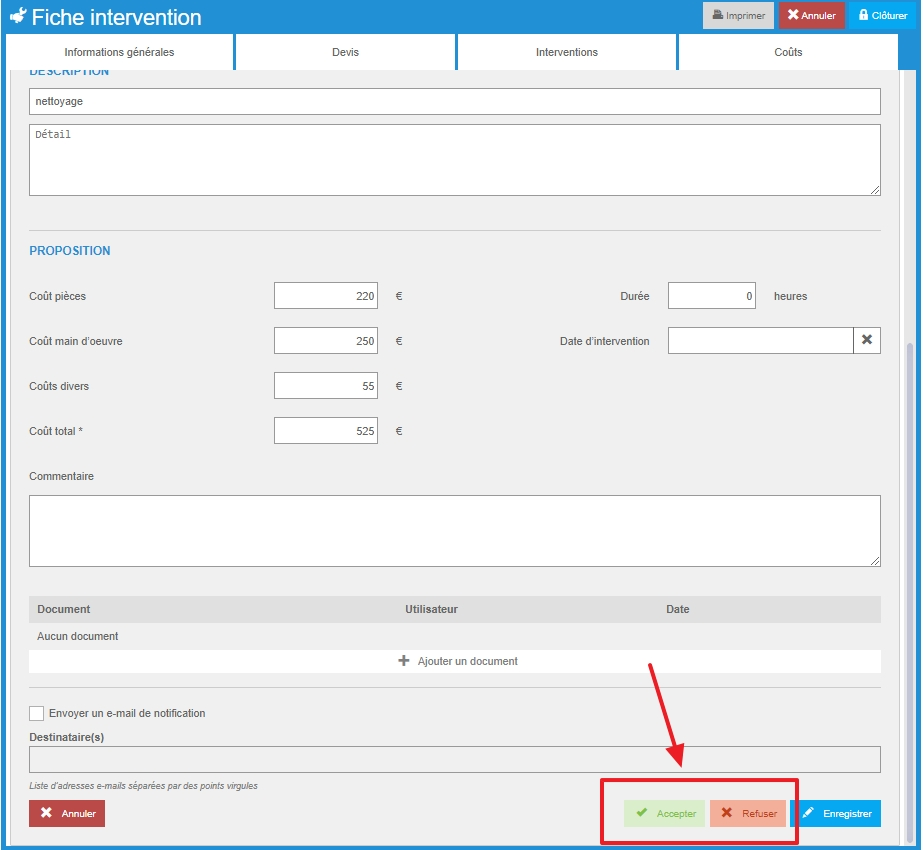
Select Reject or Accept at the bottom right of the quote sheet.
Note that you may not be able to "Accept" or "Reject" a quote if you do not have validation rights or if the amount of the quote exceeds the set limit.
If you reject a quote, you can add a comment to explain the reasons for the rejection. Your maintainer can then propose another quote.
The work order will change to status "Awaiting intervention" as soon as a quote is accepted.
Create a preventive maintenance form
Start from: The Easilys menu.
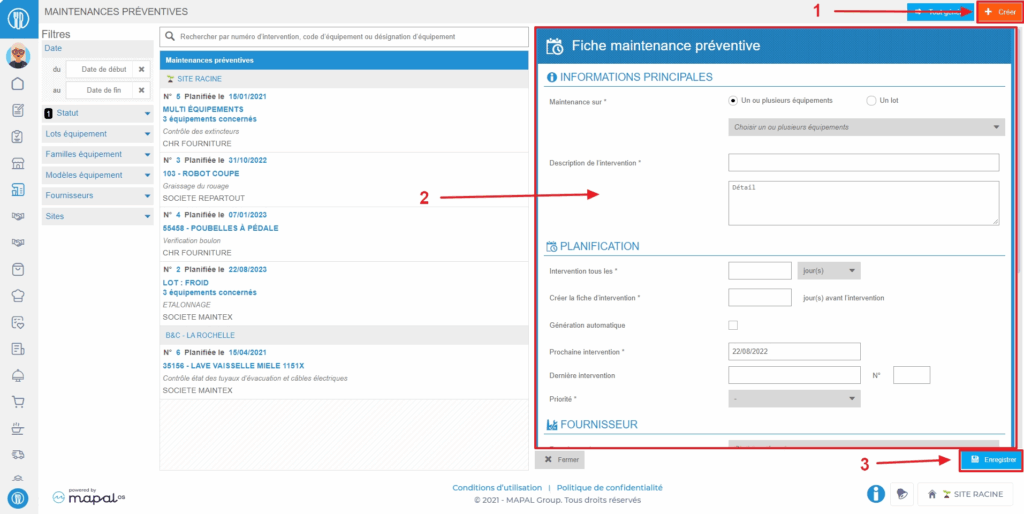
Select the tabs Equipment > Preventive.
Select Create visible at the top right of the screen.
A blank preventive maintenance form appears on the right side of the screen.
Complete the requested information. Those followed by a * are mandatory to create the form.
Select Save at the bottom of the form.
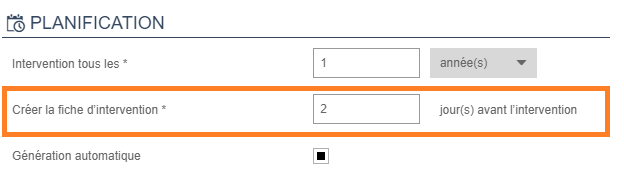
Note: Preventive maintenance forms automatically generate a service request on the date indicated in the form at the line "Create the service form". To generate requests in advance, you can manually generate the requests.
Perform a stock transfer
Note: Each action performed on the application is subject to a fee. If you are unable to carry out the recommended actions in the articles you are viewing, this may mean that the necessary rights have not been activated for your user profile. Contact the Support team, or your administrator, to find out more.
Start from: The Easilys menu.
Select Stock > Stock transfer.
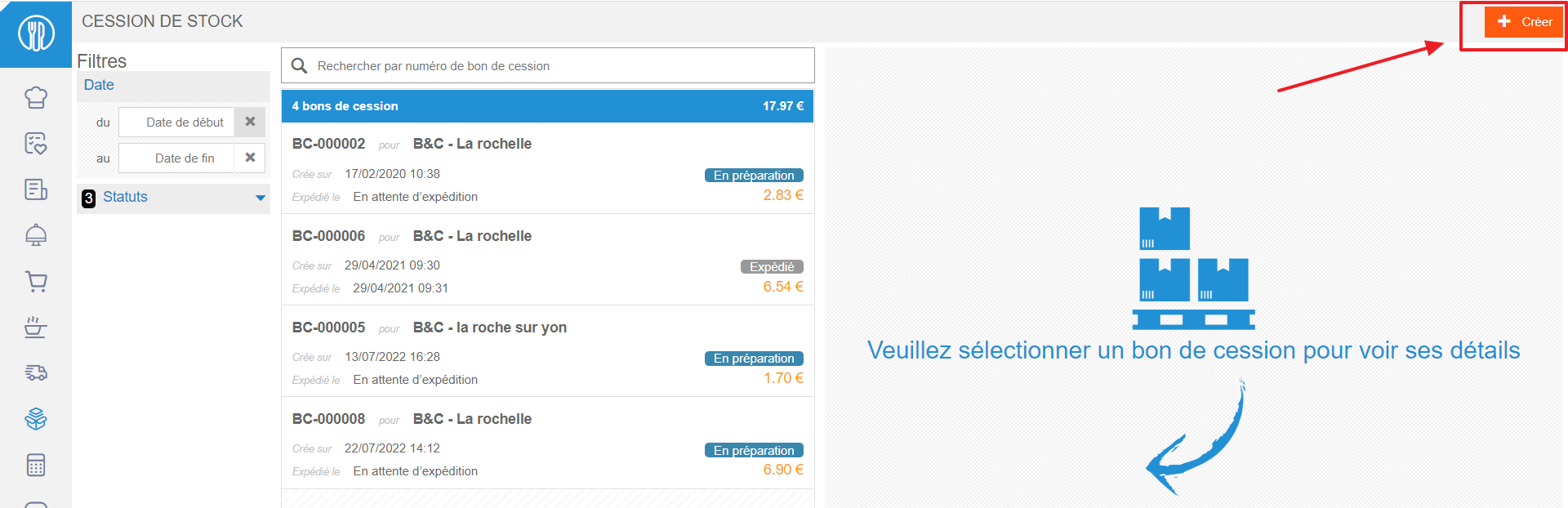
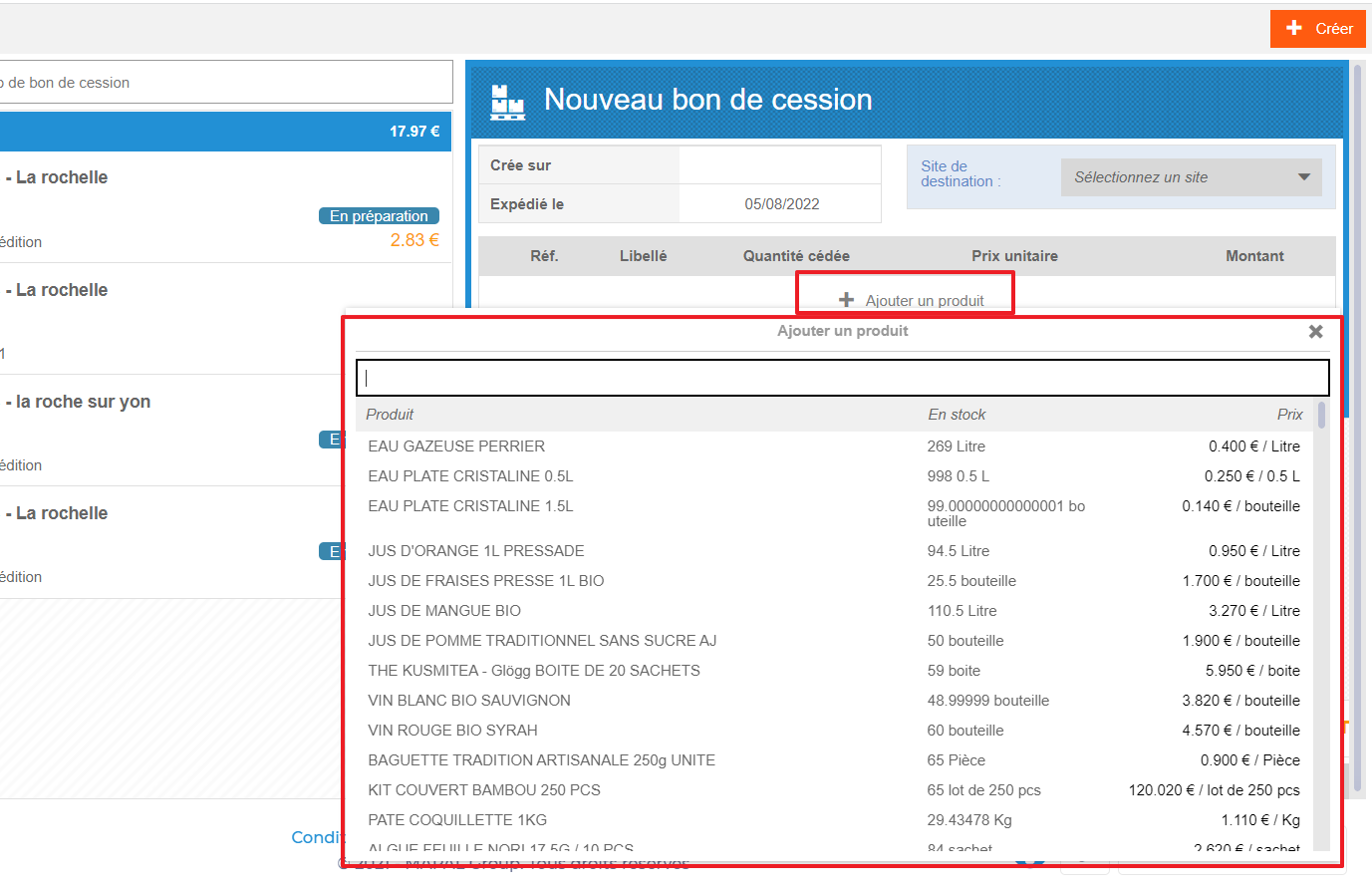
Select +Create at the top right of the screen.
A new stock note appears on the right-hand side of the screen.
Select the destination site for the stock transfer.
Note: To view destination sites, the transfer tag must be present on both the transferring and receiving sites.
Select + Add a product to search for the item you wish to sell.
In this way, only products currently in stock on the site appear in the list.
Indicate the quantity you wish to transfer in the Qty transferred box.
Modify the unit price if necessary.
Add a comment if necessary.
Select Save at the bottom of the stock note.
The transfer note is created. It appears in the list of available transfer notes on the left of the screen.
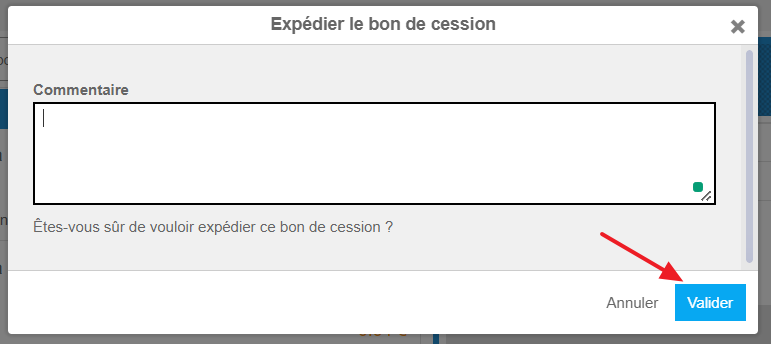
Select Dispatch to finalize the stock transfer.
The Send the transfer order window appears.
Add a comment if necessary.
Select Validate.
The products included in the stock transfer note are then removed from the stock of the site transferring them.
A credit invoice is created on the seller's site. On the destination site, a reception note is created with the status In progress.
Validate the receipt when you actually receive the products.
Products go into stock.
Share information on a site and its child sites
??Notes: actions performed on the Easilys platform are subject to user access permissions. If you are unable to carry out the actions described in the articles, it may be because you do not have the necessary permissions activated on your user profile. Contact the Support team, or your administrator, for help.
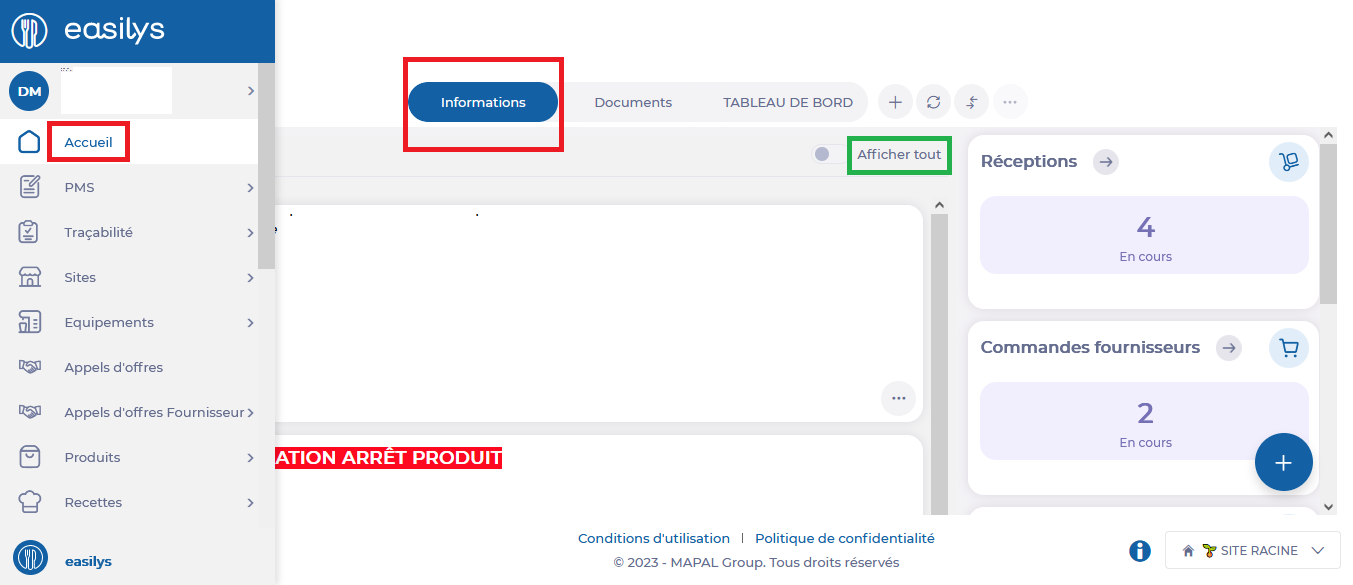
Select Home from the main menu.
You will be redirected to the Information area of the Home page.
If the message you wish to modify is no longer visible because its period has expired, you can, if your rights allow it, make it appear by activating the "Show all" option.
This space lets you share messages with your team.
These messages can be categorized into four types: Danger, Warning, Success, and Information. The type influences the message's positioning in relation to others and its color.
Messages can be programmed for selected periods.
Create a message
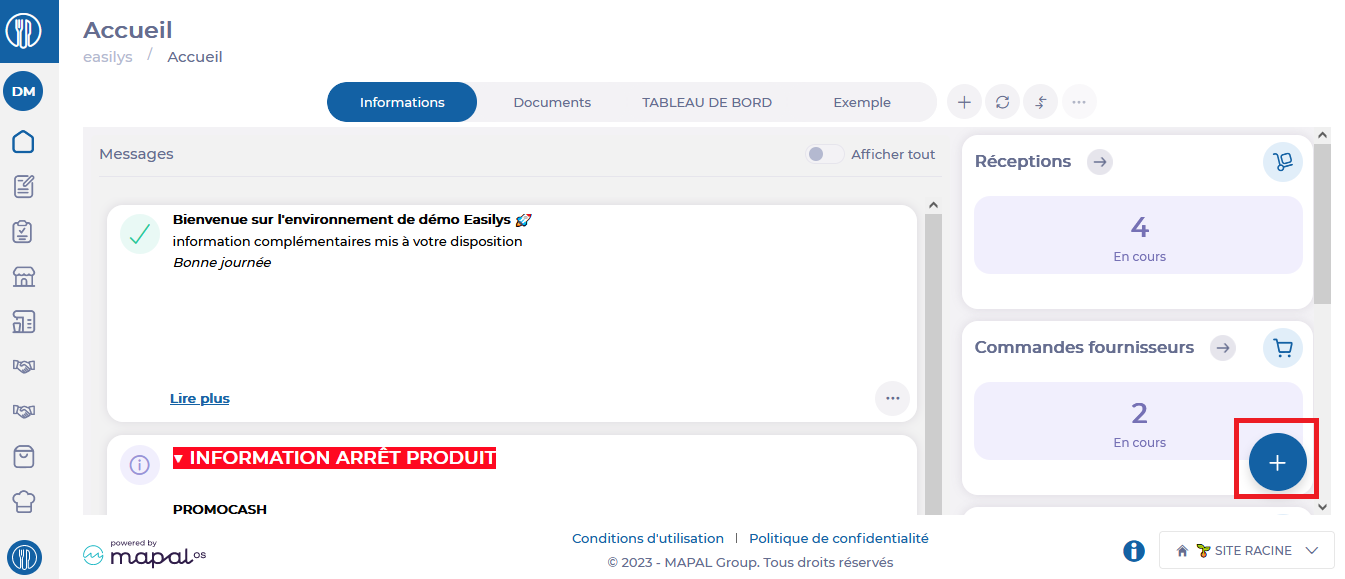
Select +.
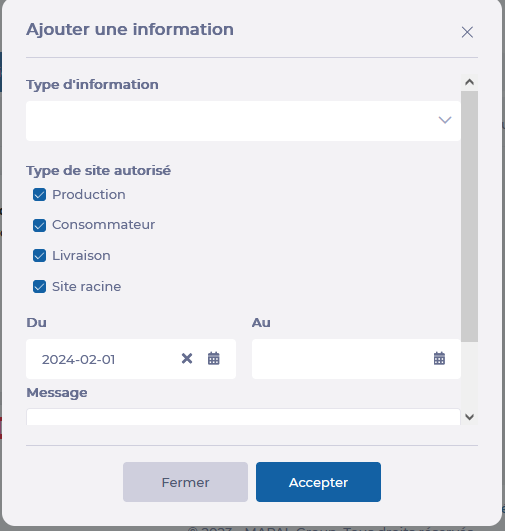
The "Add information" window appears on screen.
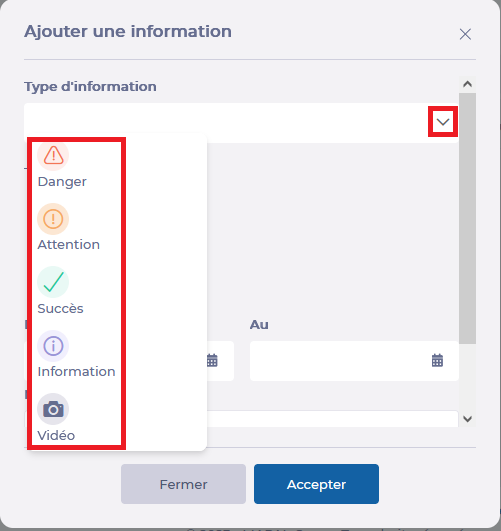
Select the type of information in question by clicking on the small arrow next to the "Type of information" heading: Danger, Warning, Success, Information, and Video.
?
Then select the authorized site type.
Notes: If an information sheet is created on a child site, the information does not go back to the parent site. This information sheet will only be visible on the child site and its own child sites if the corresponding site types are selected.
Add a start date to indicate when the message should be visible.
Add an end of validity to indicate when the message should no longer be visible. (If you don't, the message will be visible indefinitely).
You will be redirected to the Information area of the Home page.
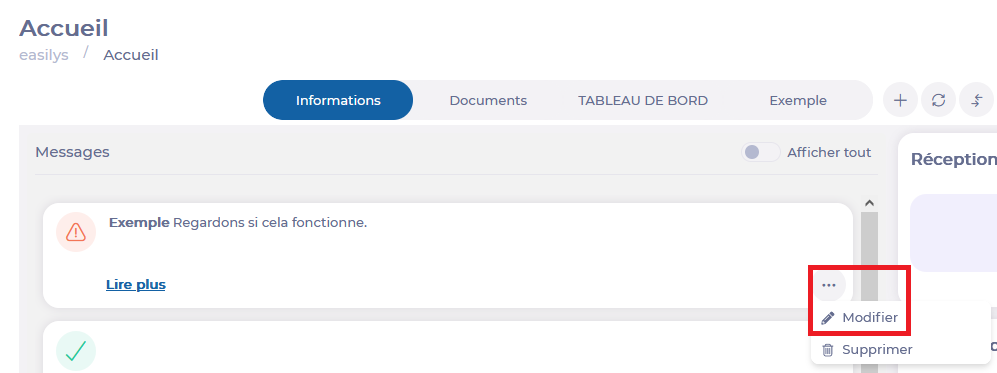
Select the 3 small dots in the message box you wish to modify.
Select Modify.
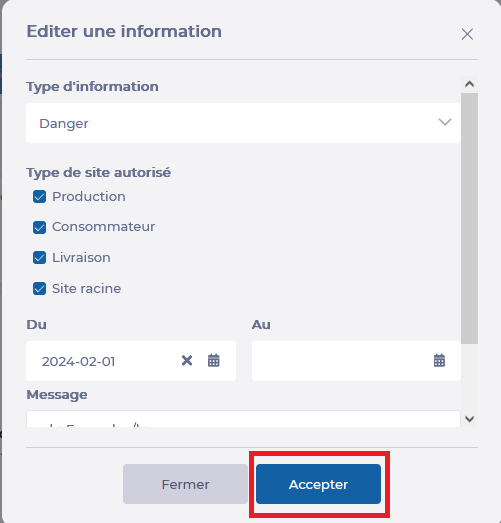
The "Editing information" window appears on screen.
Make the desired changes.
Select Accept to update the modified information.
?
Delete a message
Select Home from the main menu.
You will be redirected to the Information area of the Home page.
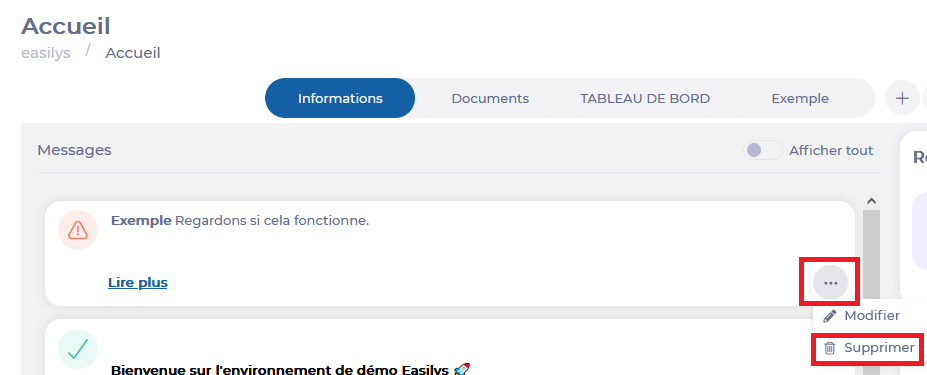
Select the 3 small dots in the message box you wish to modify.
Select Delete.
Notes: choosing Delete will automatically delete the message. So make sure you're sure of your choice before selecting this option.
Using the marketplace
Start from: The Easilys menu.
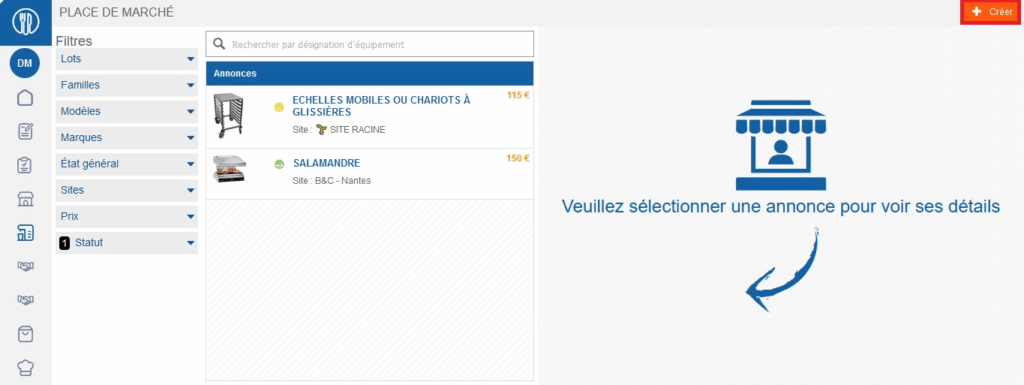
Select the Equipment > Marketplace tabs.
Select Create visible at the top right of the screen.
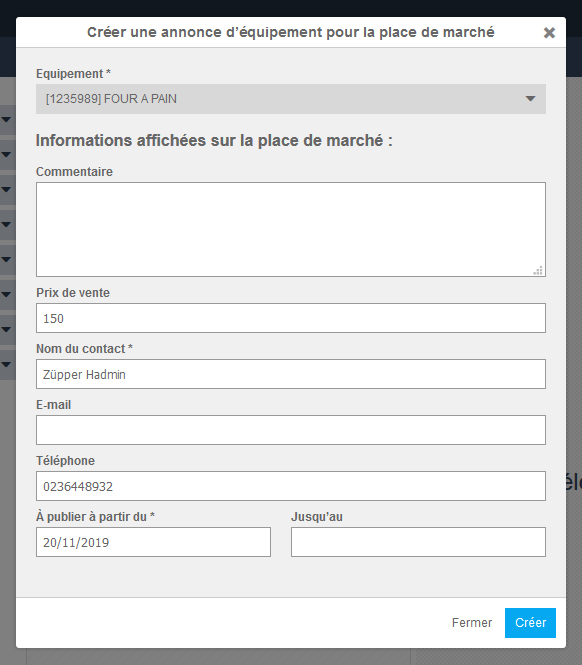
The "Create an equipment listing for the marketplace" window appears on screen.
Complete the information. Those followed by a * are required to create your listing.
Select Create.
The listing record is now visible in the list on the left of the listings.
Once someone has responded to the listing, you can deactivate the listing by selecting it from the list available on the left of the screen and then selecting Deactivate visible at the bottom of the listing that appeared on the right of the screen. It will then be hidden by default, but viewable if needed, by selecting the "Inactive" status in the left filter.