Manually add finished products to stock

Start from: The Easilys menu.

MANAGE ENTRIES VIA RECEPTIONS

By validating a delivery receipt, you enter into stock all the products it contained, in the quantities specified.

A delivery receipt is automatically generated when you send an order from the "Supplier orders" screen, regardless of the sending method chosen. It contains all the products present on the purchase order.
To learn more, see the article Validate a delivery receipt.

It is also possible to generate a delivery receipt without an order directly from the "Receptions" screen.

This delivery receipt will not be linked to an order and you will need to manually indicate the products that should be found there.

To learn more, see the article Generate a delivery receipt without an order.

MANUALLY MANAGE ENTRIES FROM STOCK

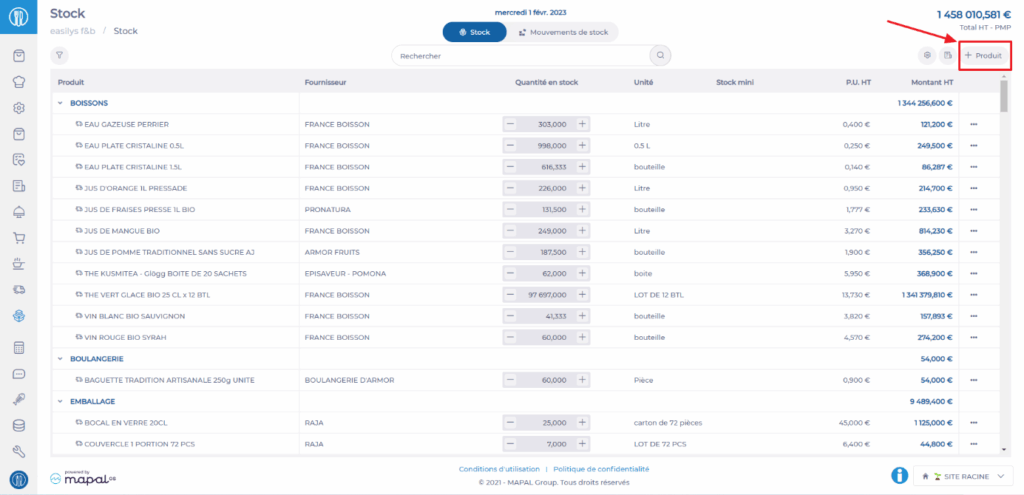
Finished products planned in the menu or ordered by child sites can be added to stock from the production management screen, as indicated in the article Manage finished product stock entries with Easilys assistance. If you want to add to stock a finished product that is not planned in the menus or that is ordered by a child site, then you can do so from the Stock screen, as indicated below.

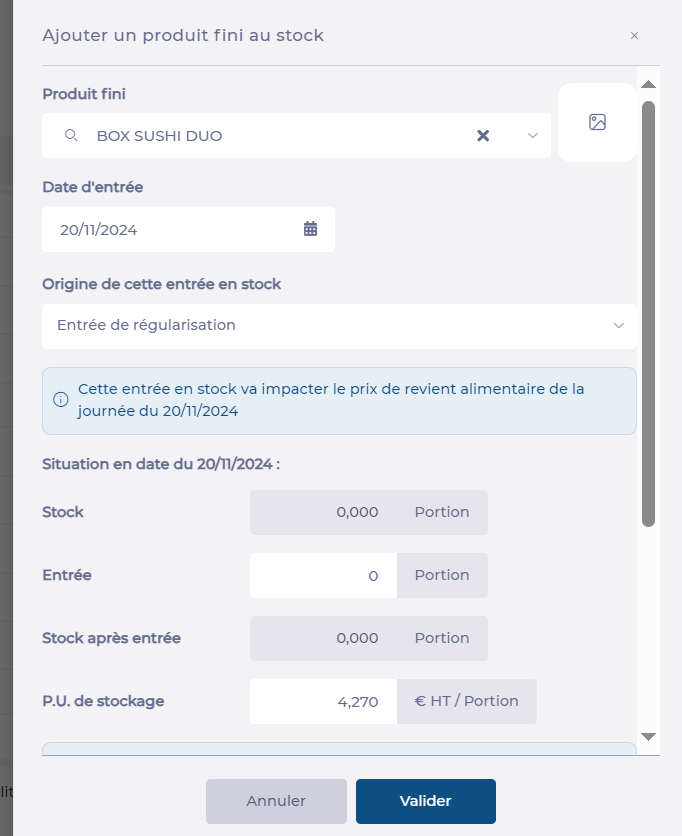
The "Add a finished product" screen appears.

The product quantity is added to stock on the selected date.
Manage stock entries of finished products

Start from: The Easilys menu.

The Production management screen is usable as soon as you manage menus from the Menus screen and incorporate recipes that are considered stockable, which are then called finished products.

This involves managing the stock entries of finished products. It is a feature designed for production establishments like Labo that subsequently deliver their production. It can also be used if you wish to account for the productions you store in your inventory.

Note: This article does not concern the stock entry of goods. If you want information on the stock entry of goods, please refer to the article Manage stock entries of goods.

Prerequisites

Have configured recipes as stockable. The procedure is indicated in the article Manage finished products, or how to manage your recipes as supplier products.

Procedure to follow

Note: If you wish to add finished products to your stock, but they are neither planned in your menus nor ordered by your child sites, you can make this stock entry directly from the "Stock" screen. Refer to the article Manually add finished products to stock.

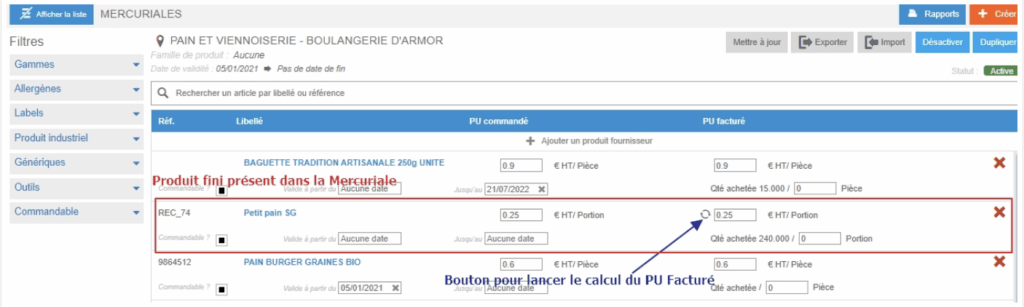
Apply a price to finished products from the price list

Start from: the Easilys menu.

Note: You must first have enabled the storage of finished products. For more information, refer to the article Manage finished products or how to manage your recipes like supplier products.

Case 1: update the price for a specific product

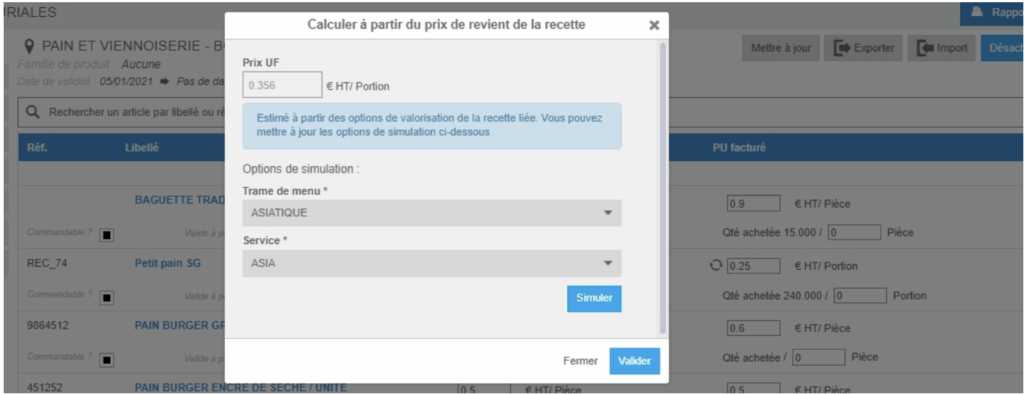
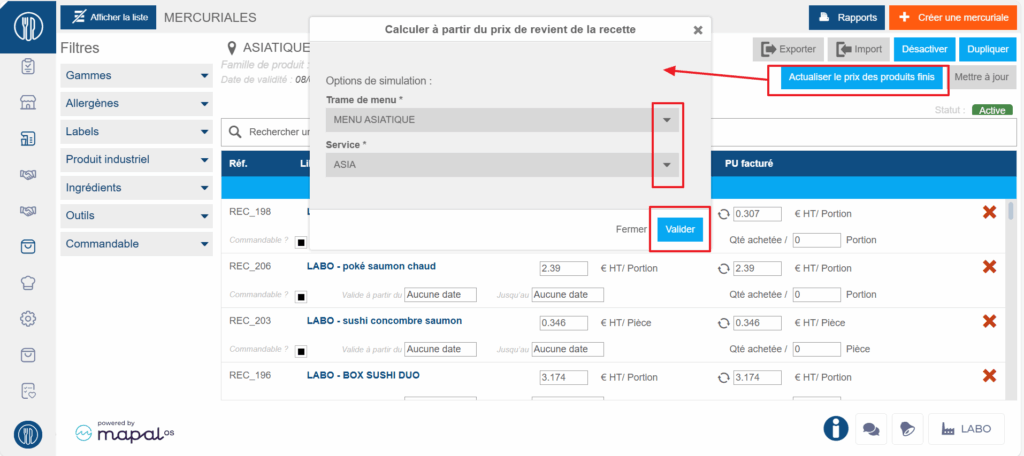
The pop-up window “Calculate from the recipe’s cost price” will appear on screen.

Case 2: update the price of all products in the price list

Use this process if you want all the products in the displayed price list to be recalculated based on the recipe cost price.

Case 3: automate price updates for all products in the price list

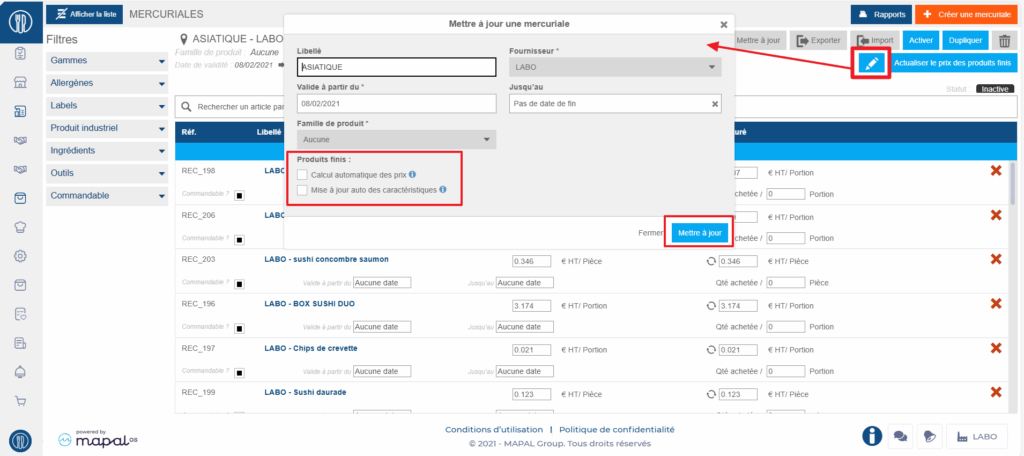
When creating or editing a price list, you can choose to have prices (and/or nutritional data) update automatically. To do this:

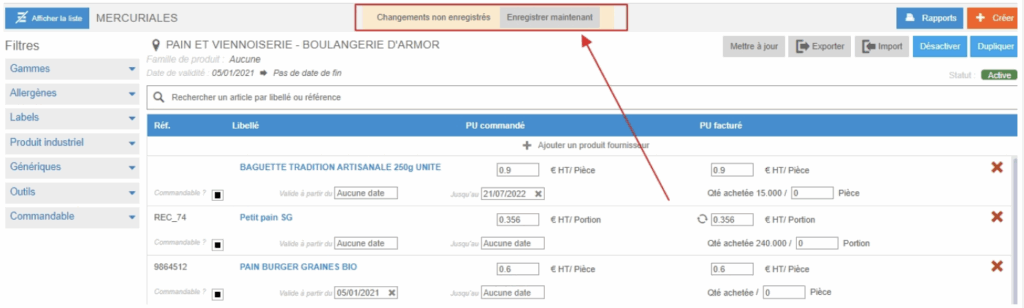
Note: If you enable automatic price updates, prices will no longer be editable manually on the product lines.

Manage recipes as finished products to store them and/or make them orderable and deliverable (lab flow)

Start from: The Easilys menu.

Principle

Finished product management is an option that must be activated in the settings of the site where you wish to manage production, storage, and—if operating in “lab flow” mode—price listing and delivery of your productions to your child sites.

Once this option is activated, you can store recipes that you have defined as storable.
If you are operating in lab flow mode, you can then add these finished products to a price list linked to the supplier record under your site’s name and manage the delivery of your productions to your child sites.

This guide is therefore one of the steps for setting up a lab flow system, in which a parent site sells finished products or resells raw materials to its child sites.

1. ACTIVATE FINISHED PRODUCT MANAGEMENT ON A SITE

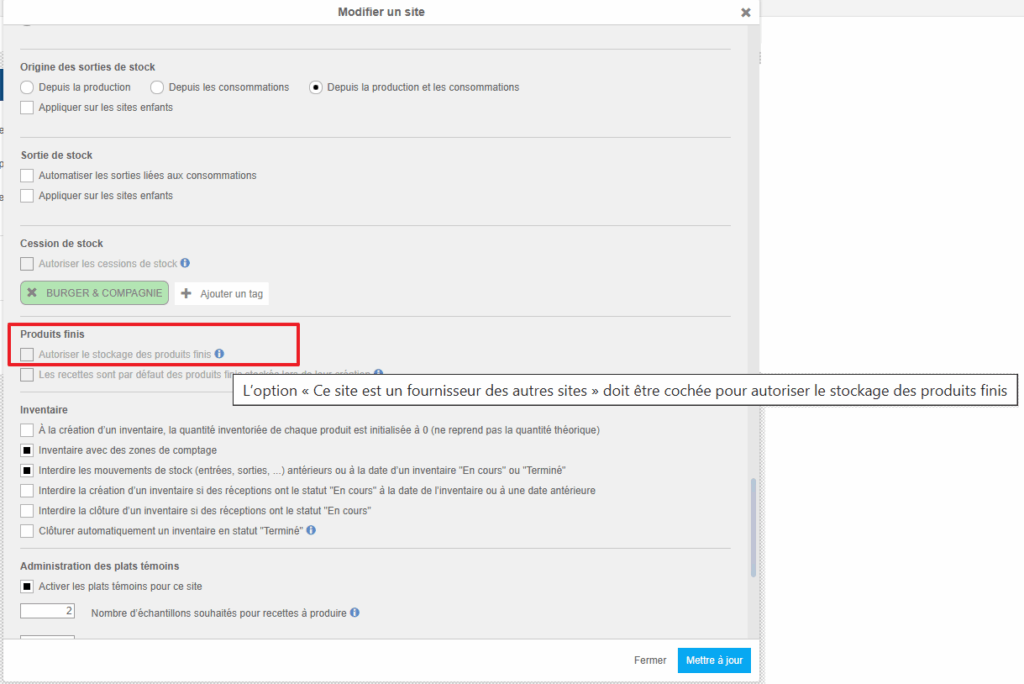
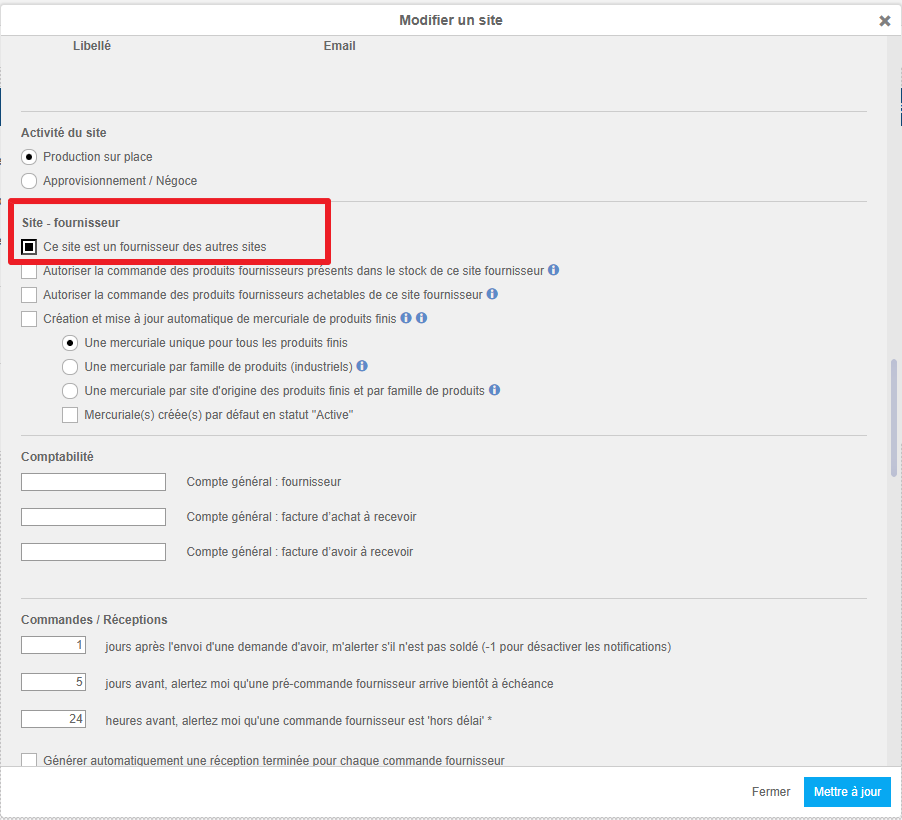
The first step is to configure your site so that it can store finished products and be identified as a supplier for other sites.

As indicated in the information message, this box can only be ticked if the site is identified as a supplier for other sites. Therefore, the option This site is a supplier for other sites (under “Sub Site – Supplier”) must also be ticked as soon as you wish to store finished products, even if you do not intend to manage finished product orders and deliveries.

Note: The other options in the Site- Supplier section may not be suitable for your operations and can have significant impacts. Contact your administrator or the support team before making any changes.

2. DEFINE A RECIPE TO BE USED AS A FINISHED PRODUCT

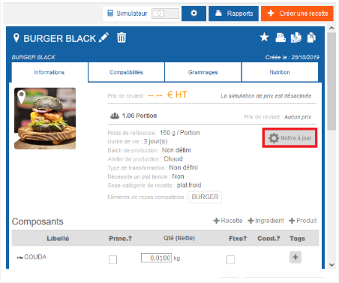
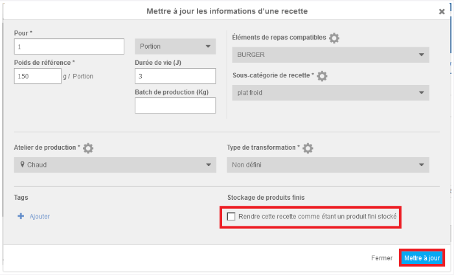
This step is required for any recipe you wish to add as a finished product, either to stock or to a price list.

Note: Remember to disable the simulator in the top-right corner, otherwise you will not be able to update recipe files.

You can now store this recipe as a finished product or add it to your price list so that it can be ordered by your child sites.

When creating new recipes, the box will be ticked or not by default, depending on your site settings.

To learn more about ordering and shipping finished products (“lab flow”), refer to the related articles:

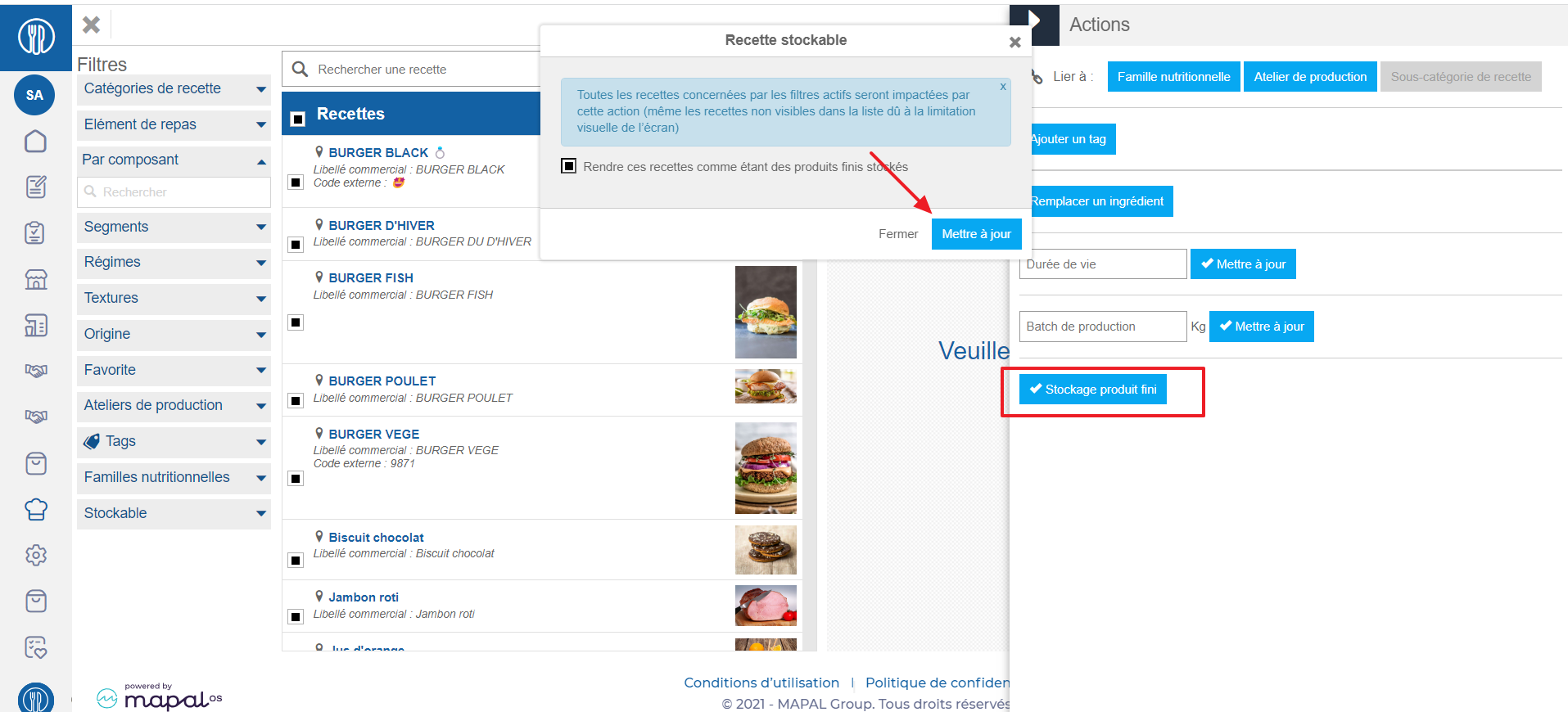
Make recipes mass storable

Note: Each action performed on the application is subject to a fee. If you are unable to carry out the recommended actions in the articles you are viewing, this may mean that the necessary rights have not been activated for your user profile. Contact the Support team, or your administrator, to find out more.

Start from: The Easilys menu.

  • Select Recipes in the main menu > Recipe management.

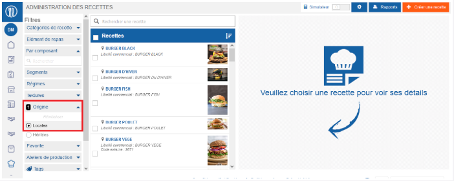
Note: For mass processing, you have the option of filtering to the left, on all recipes available to you.

For example, check Desserts in the meal elements filter, then Cooked fruit desserts in Nutritional families. The corresponding selection is then displayed in the central screen.

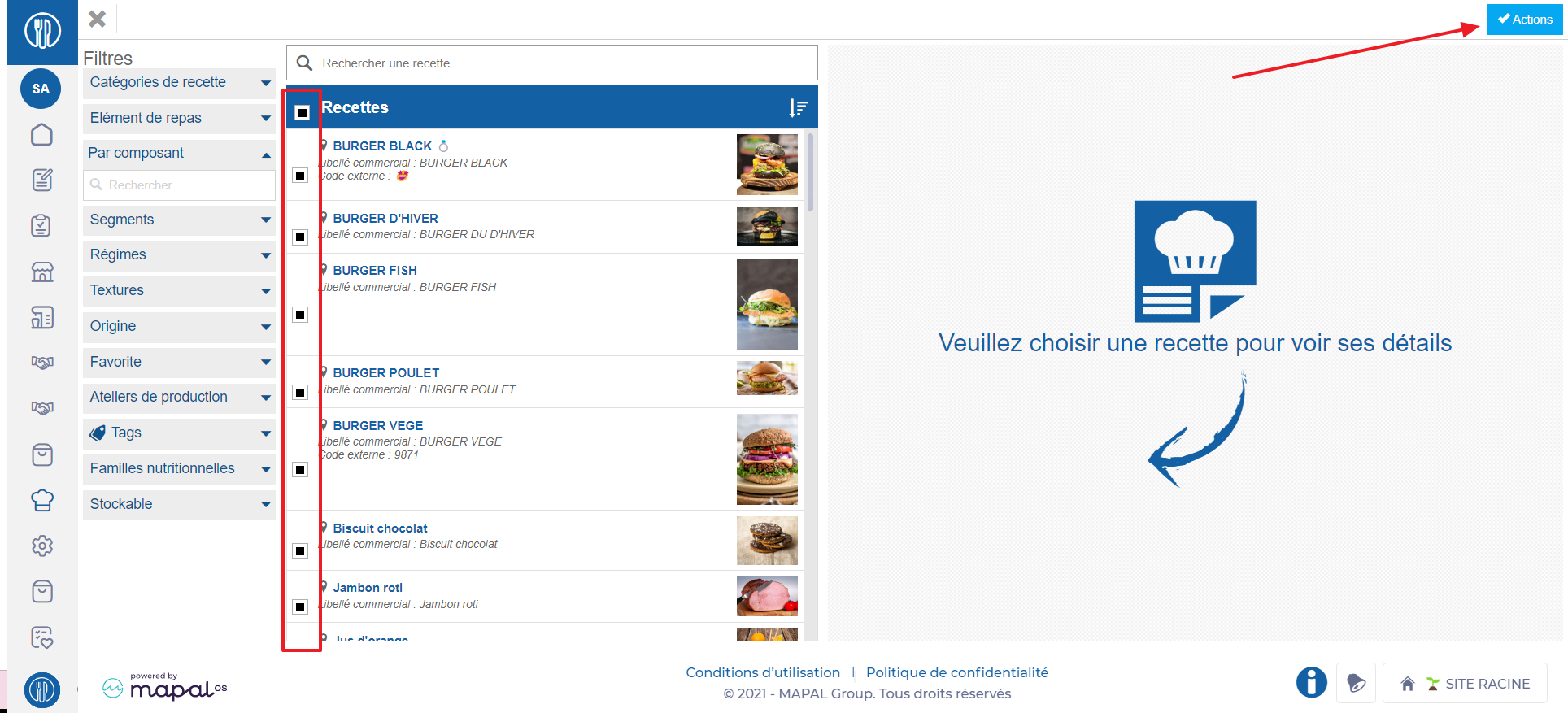
  • Click in the box next to the Recipes title.
  • Select Actions.

 
A new menu appears.

  • Select Storage of finished products.
  • A confirmation window asks you to confirm this operation.

Once the choice has been confirmed, the number of recipes selected and made available for storage is displayed temporarily in the top right-hand corner.
These receipts are now considered as finished products.