Complete the projected and/or actual forecasting of a menu

Note: each action performed in the application is subject to access permissions. If you cannot carry out the recommended actions in the articles you are viewing, this may mean that the necessary rights have not been activated for your user profile. Contact the Support team, or your administrator, to find out more.

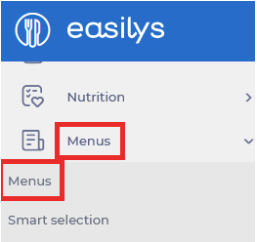
Start from: The Easilys menu.

SET DEFAULT FORECASTED HEADCOUNTS ON A MENU TEMPLATE

It is possible to indicate forecasted headcounts when creating a menu template. This way, the application always pre-fills these forecasted headcounts by default.
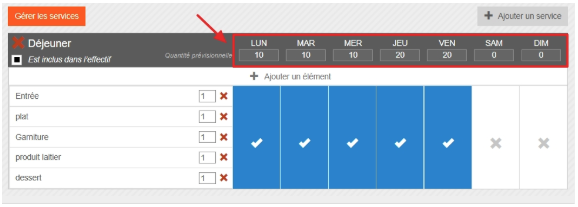
For more information on creating a menu template, see the article Create a menu template from the menu templates screen.

MANUALLY INDICATE FORECASTED AND/OR ACTUAL HEADCOUNTS

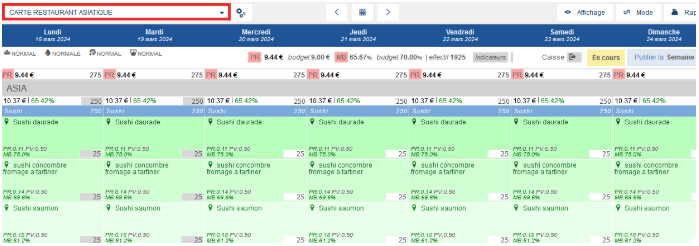
It is possible to modify forecasted and actual headcounts manually directly from the menus by selecting the headcount box at the bottom right of each recipe added in the menu.

Note: the actual headcount is automatically filled in by Easilys whenever a forecasted headcount exists and the date has passed. To ensure this actual headcount is correct, you can modify it.

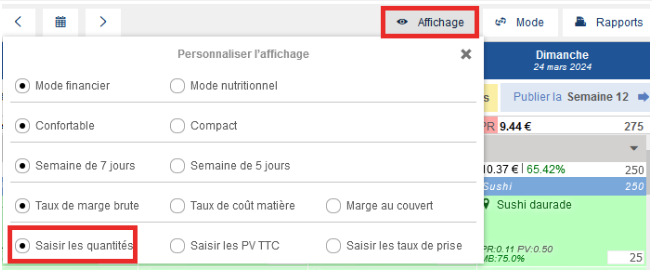
Note: there are several menu display types. You may not be in the view that allows you to enter headcounts. In that case, select Display and choose the option Enter quantities.
Note: you can make several changes before selecting Save now. Just make sure you do so before leaving the menus page, or you will lose your modifications.

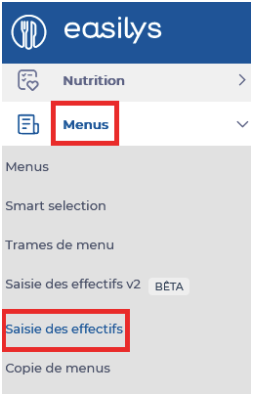
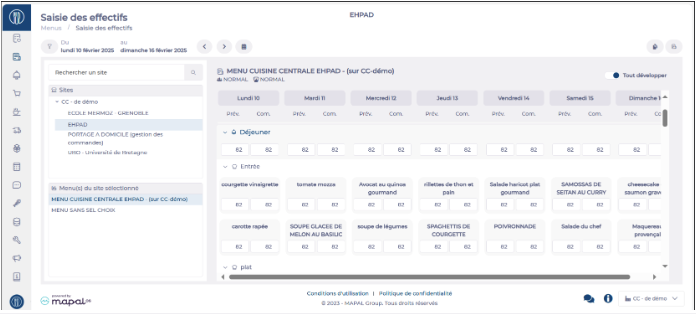
COMPLETE FORECASTED AND/OR ACTUAL HEADCOUNTS USING THE MENU QUATITIES SCREEN

Note: for a past date, the total is greyed out and the R box is highlighted. This is where you must enter the actual headcounts.

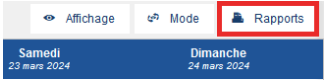
You can also download the Count per meal type report from the Menus screen. This will give you a spreadsheet showing weekly headcounts per dish and service.

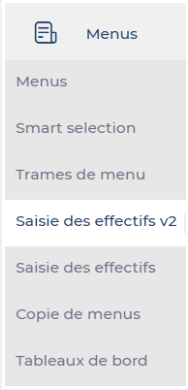
COMPLETE FORECASTED AND/OR ACTUAL HEADCOUNTS USING THE MENU QUANTITIES V2 SCREEN

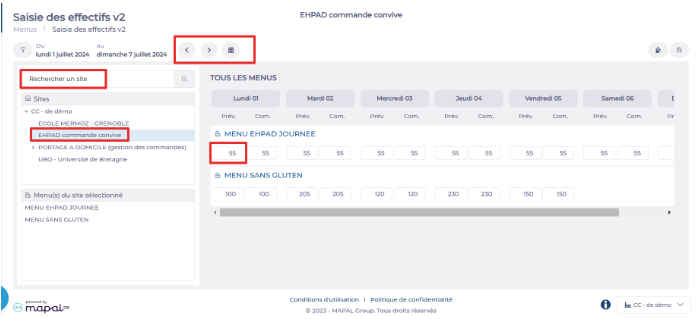
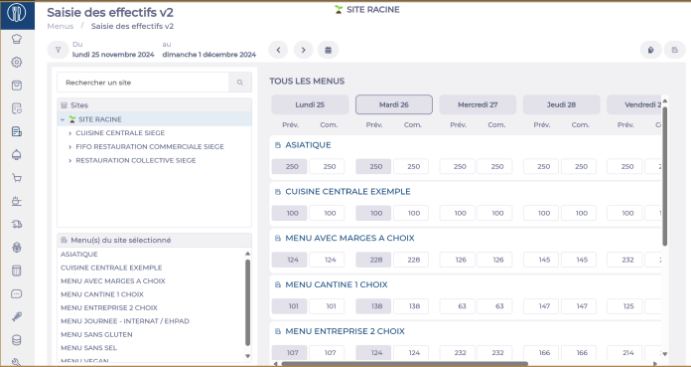
This entry screen is particularly useful if you need to enter headcounts for several child sites. For example, if you manage a central kitchen, it allows you to enter and view headcounts for your delivery points:

You will then see an entry line for each menu template of this site. The headcounts you enter here will be applied identically to all services of the day.
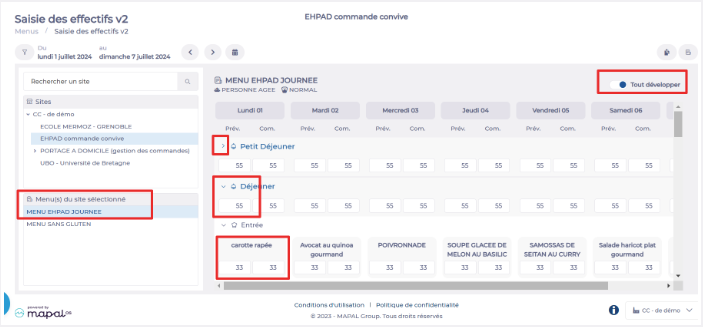
If you want to enter different headcounts depending on the services:

Note: You can hide or display the recipe details either service by service (arrow next to the service) or globally (the Expand all option).
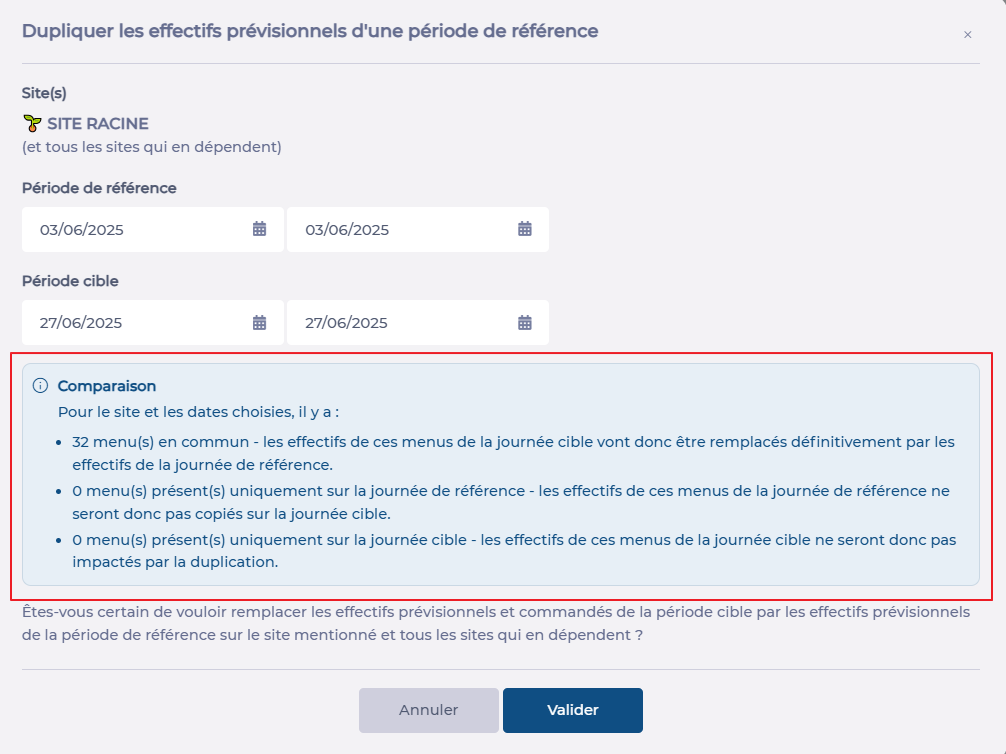
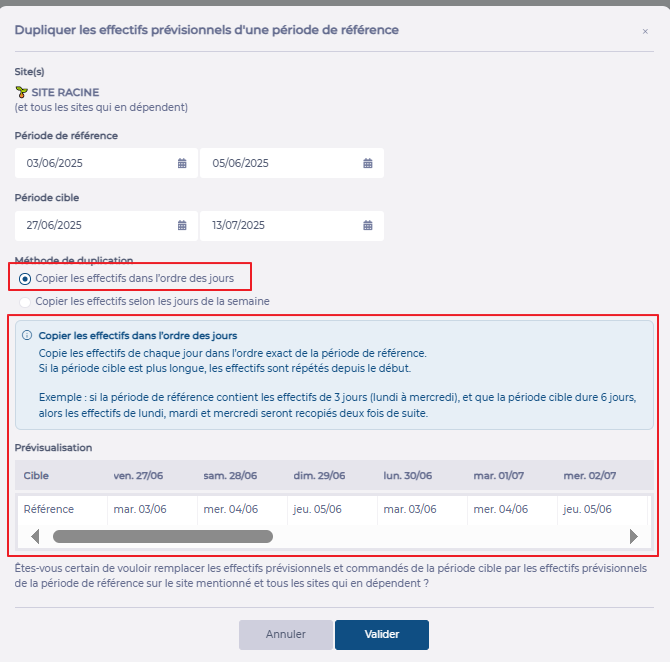
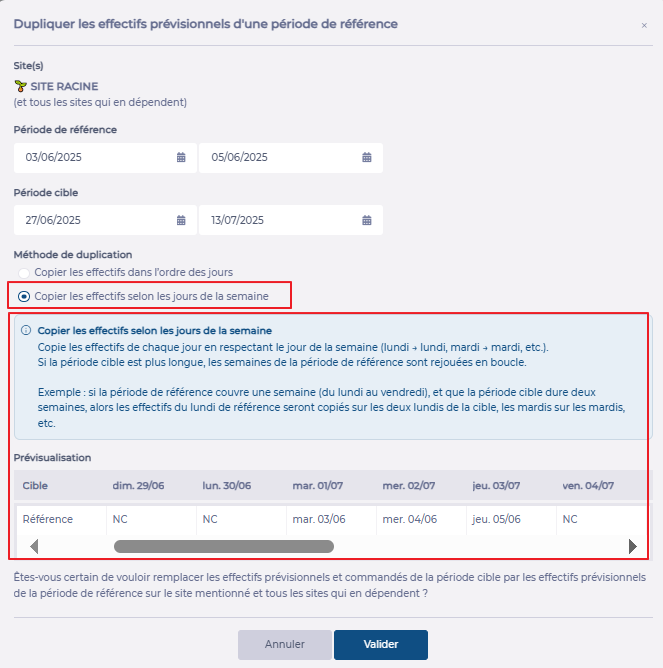
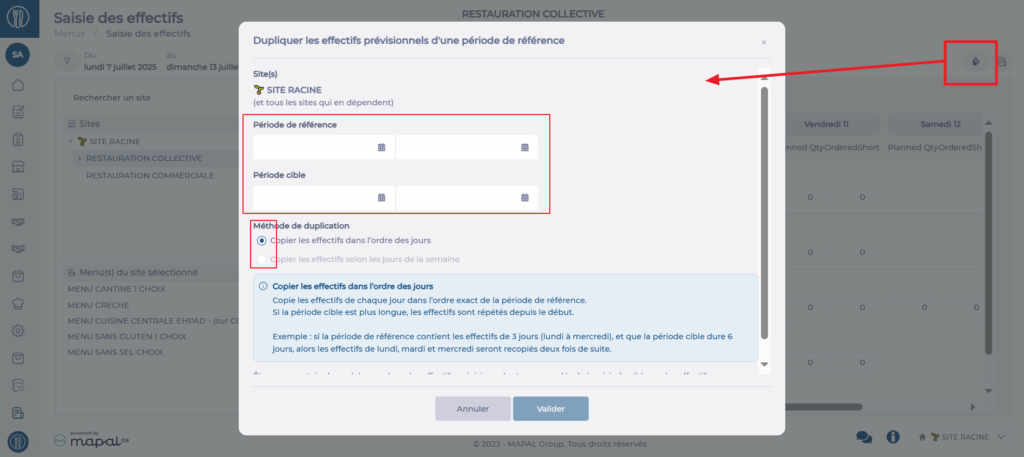
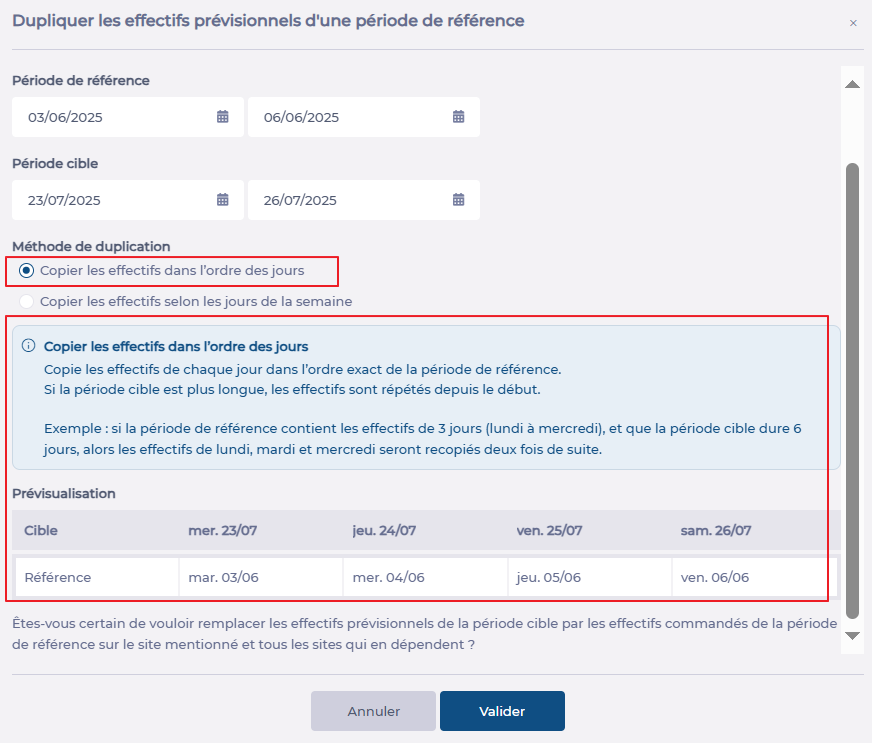
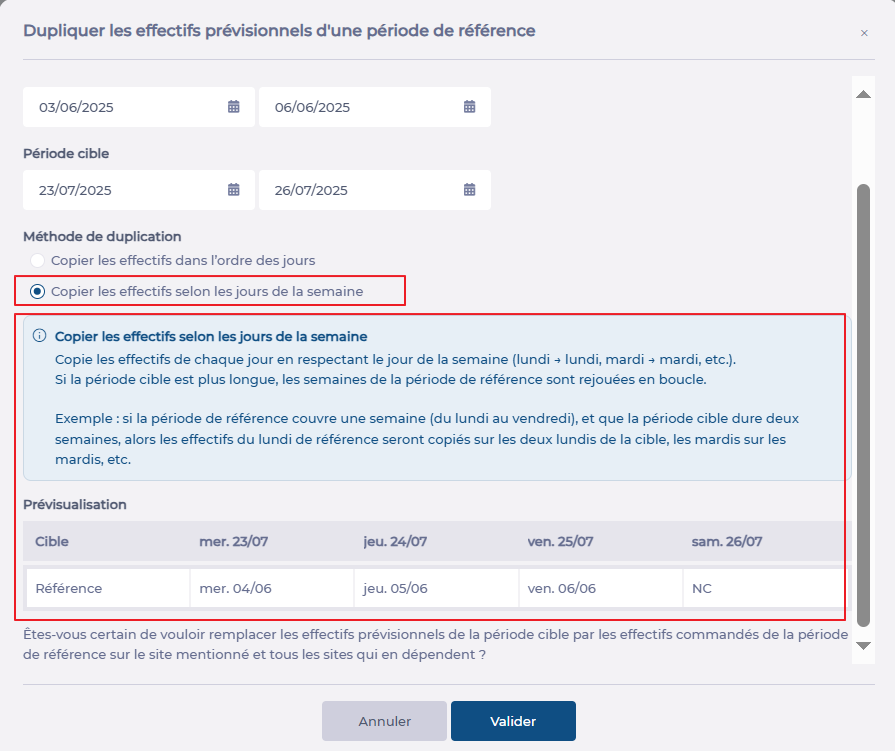
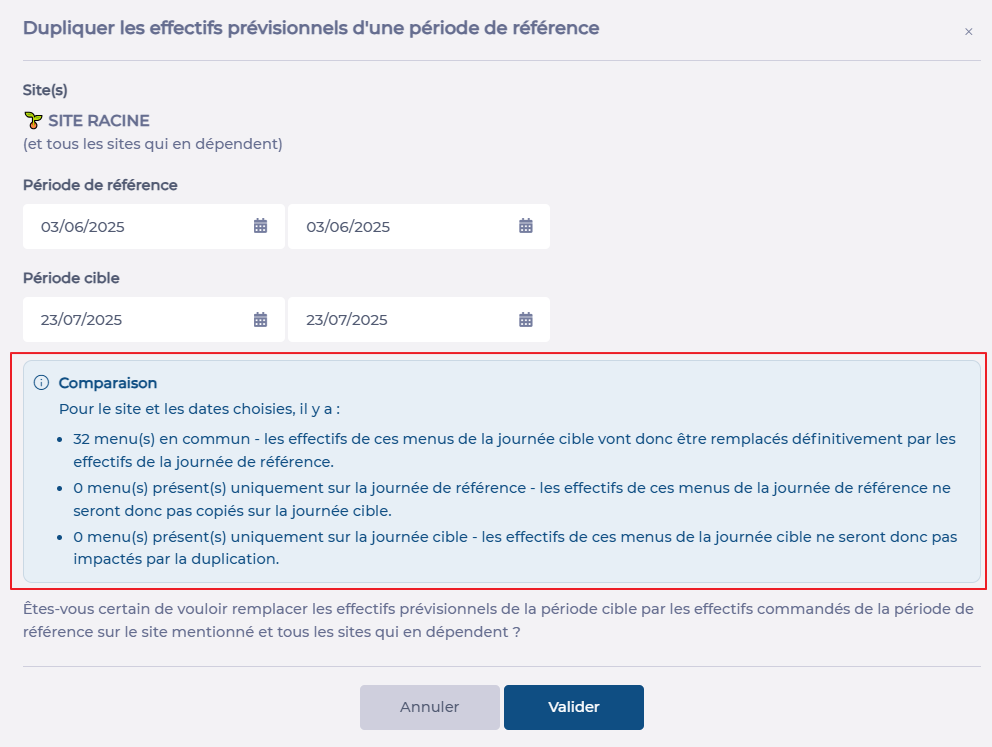
If you want to fill in the forecasted headcounts of a future period with the headcounts from another period (past or future), you can also use the Duplication function:

Note: Depending on the selected period, the available options and the information message will update. Take the time to carefully read this message as well as the summary table that appears when copying a period of more than one day to fully understand the impact of your action.

Manage budgets from the Analytics sales tool

Start from: The Analytics module.  

  • Select Sales from the main menu.

  • Configure the Sales screen to display the data you need OR choose an existing Scenario where you use a Budget as a Comparison Scenario.
To learn more about Sales configuration, see Filter and navigate through Sales data.

  • Select from the dropdown the Budget you want to view and manage.

  • Select Accept to see the configuration result on the Sales screen.

  • Select the Budget button.

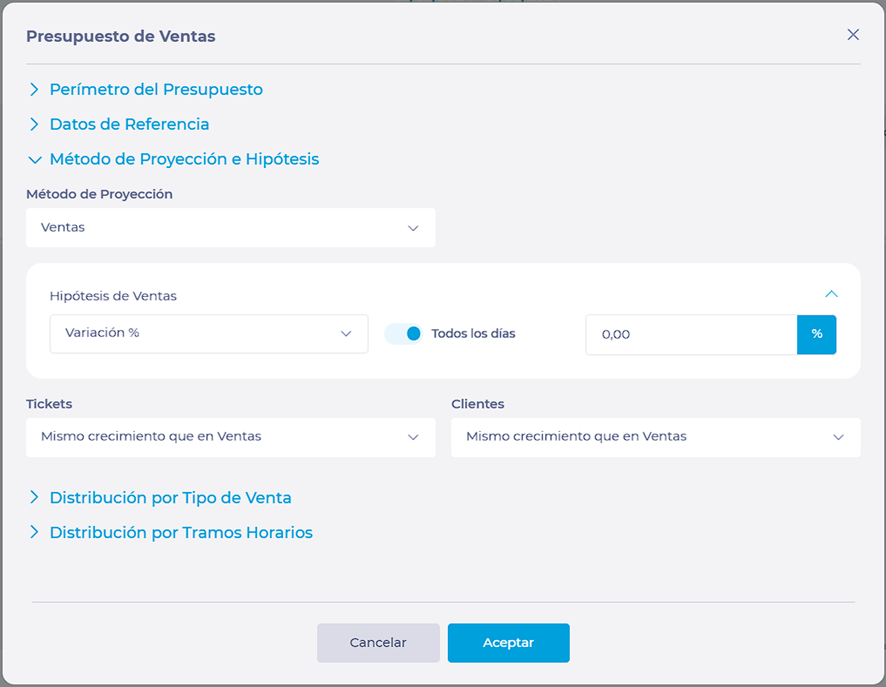
A Sales Budget modal will open where you can manage four blocks:

Budget Scope

In this section, you will set the general budget data.
  • Select the budget to manage from the Budget* dropdown.
  • Select the Data Source for that budget. It can be POS or Cash Sheet.
  • Select the Center* for which you will configure that budget.
  • Set the From* and To* dates that will govern that budget.
  • Select the Sale Types included in that budget. Use the Individual or Group switch to set whether it will be a single group of sale types or several.
  • Select the Sale Periods established for the budget.
Notes: Fields marked with * are mandatory.

Reference Data

In this block, you will set whether the budget will use reference data from another center, date, or source.
  • In Reference Center, select whether you want to use the same center in a previous year or another specific center.
  • Select whether you want to use Historical Data or another Budget as Reference Source.
  • In Reference Date, you can set the specific time range you will use as reference for your budget. It can be the same day of the week in a previous week, same date in a previous year, or a comparable day in a previous year.
  • Depending on the parameter you use in Reference Date, you can select the Previous Year or Previous Week you will use as reference.
  • Select whether you will Use budgeted data as reference for future dates. If you do, then set the Budget for Future Dates.

Projection Method and Assumptions

In this section, you can set how you want to project the budget and whether you want to establish variations to the references you have set.
  • Select the Projection Method to use. It can be Sales, Tickets and Average Ticket, Customers and Average Ticket per Customer, or Trend.
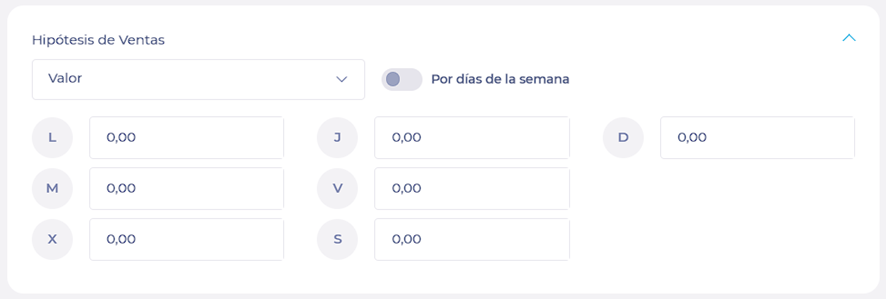
  • In Sales Assumptions, set a Percentage variation, Specific variation or Particular value. You can set a single value for All days or a different one By days of the week.
  • Set a reference parameter for Tickets and Customers. It can be Same growth as in Sales, Same number of Tickets/Customers as in Reference Date, Same growth as Tickets/Customers and Average ticket per customer.

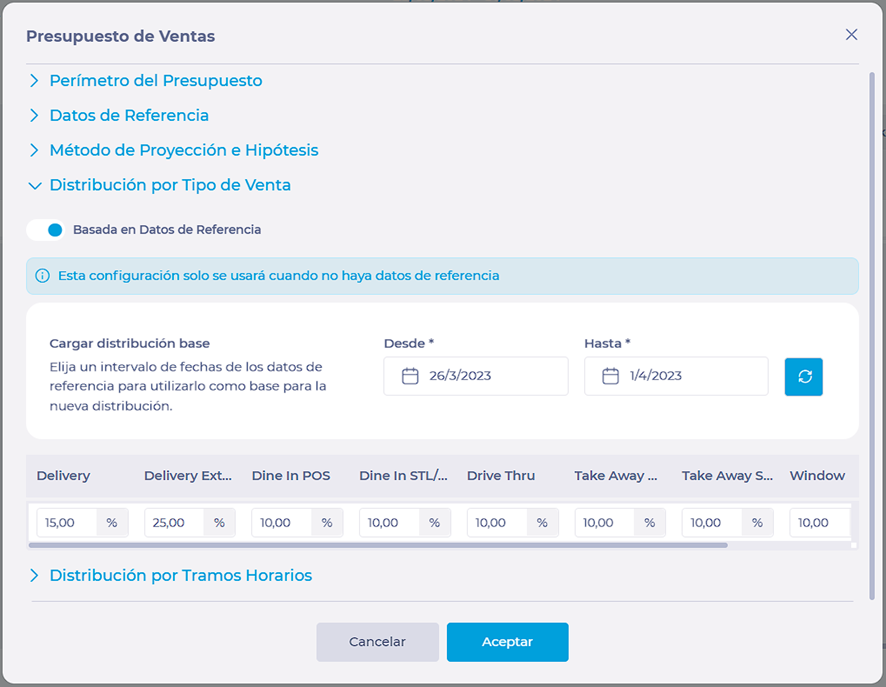
Distribution by Sale Types and Periods

In this block you can set specific budget distributions by periods and sale types.
  • Choose whether you want to make the distribution Based on Reference Data or not.
  • Choose whether you want to Show all Sale Types or not.
  • You can Load a base distribution by choosing a specific date from the reference data.
  • Set the distributions in percentage. In the table, rows correspond to sale types and columns to periods.
  • Keep in mind that the sum of all distributions must equal 100%. You can view this in the Total row.

Once you complete each of the blocks, select Accept to save changes OR Cancel to discard them.

Submit real-time sales via API

Start from: Your server-to-server integration (API client).

Real-time Sales API

The Real-time Sales API is a RESTful service for submitting live sales data securely.

Key Benefits:

Generate a JWT token

POST to: https://login.mapal-os.com/connect/token

Parameters:

Successful response includes: access_token, expires_in, token_type, refresh_token, scope.

Include the token in requests

Submit real-time sales

Parameters / payload fields

Check submitted sales

Notes:

Error handling

Configure outlier dates to improve accuracy

Start from: The Analytics Dashboard.

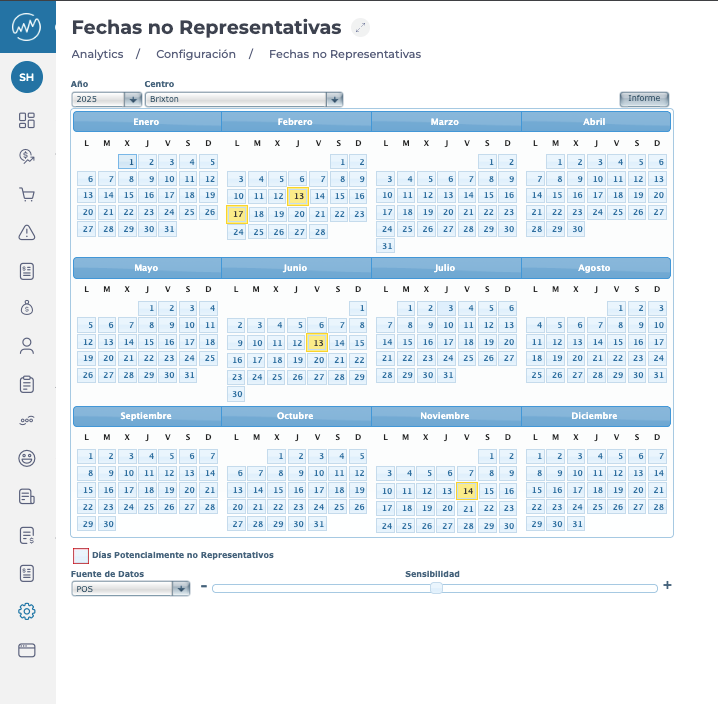
Example: If you mark dates in 2024 as outliers, they will not influence the sales budget calculations when 2024 is used as the historical reference for 2025.

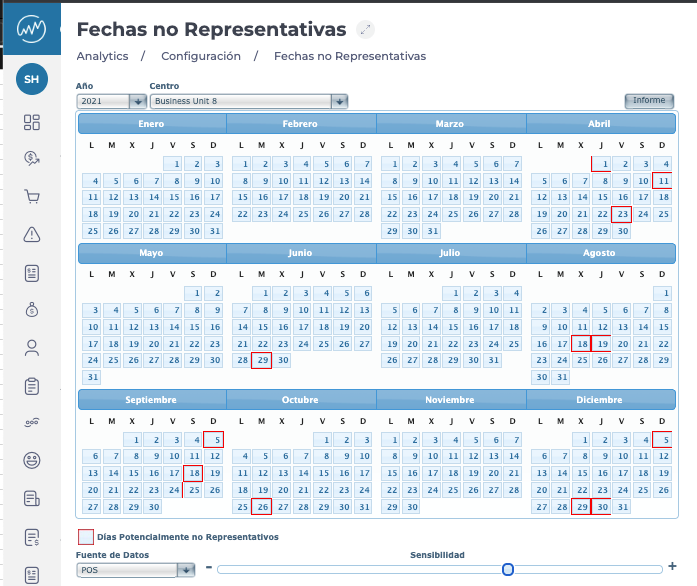
Review system-suggested outliers

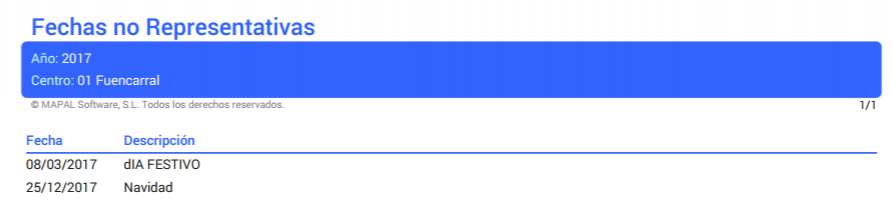
Manually mark non-representative days

Generate a report

To get a global overview of all configured outlier dates for a specific site:

Create and manage sales and financial budgets

Start from: The Analytics module.  

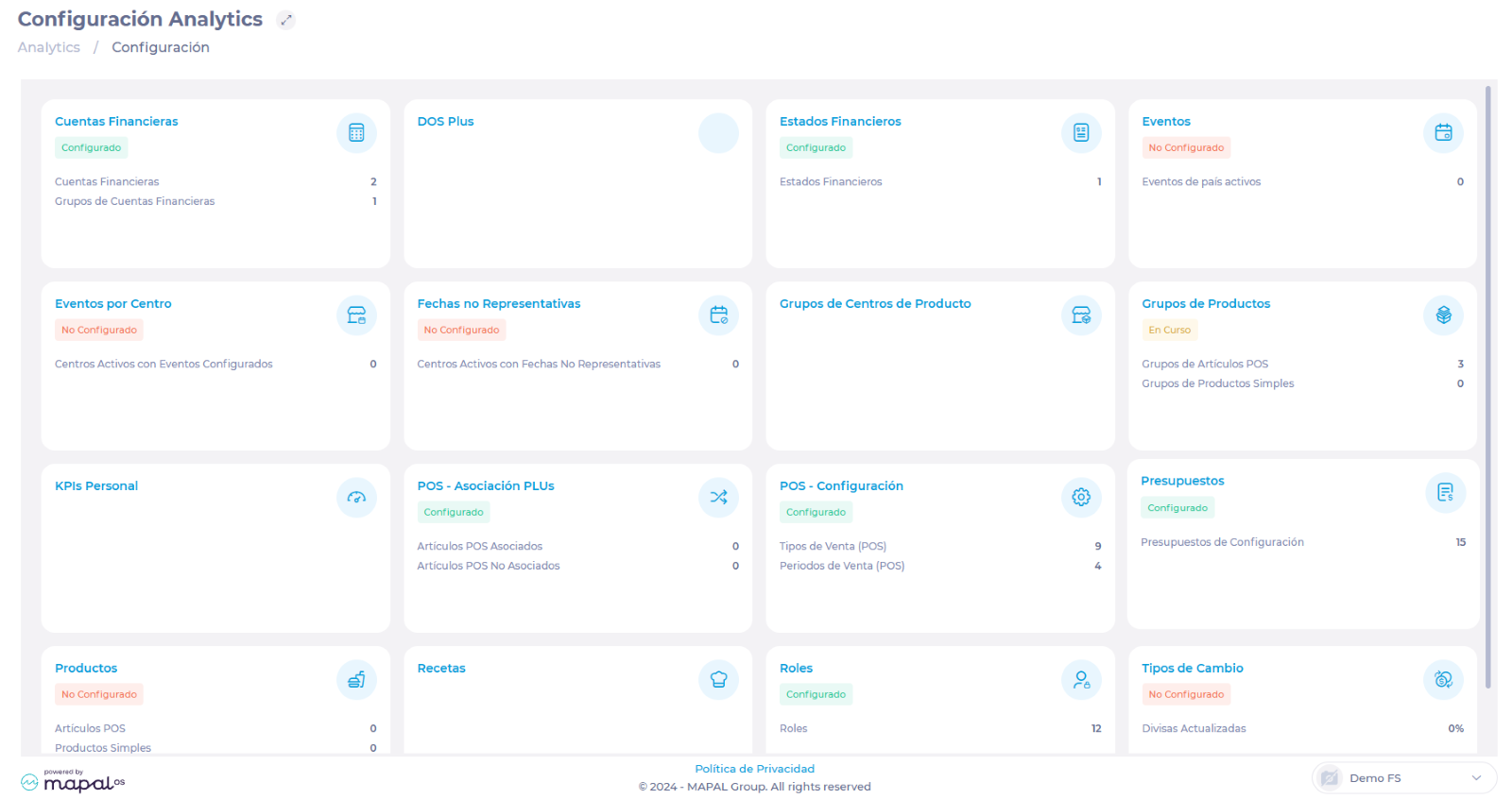
  • Navigate to Configuration > Budgets.


  • Select the Budgets ? button. 

Interfaz de usuario gráfica, Aplicación, Tabla<br><br>Descripción generada automáticamente con confianza media 

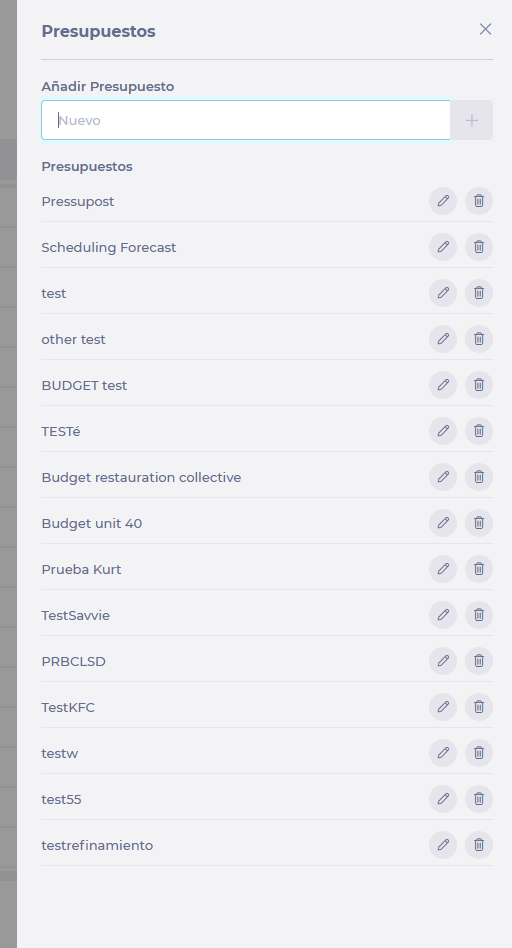
  • Enter the name of the budget.
  • Select the + button to create it.

Interfaz de usuario gráfica, Aplicación<br><br>Descripción generada automáticamente 

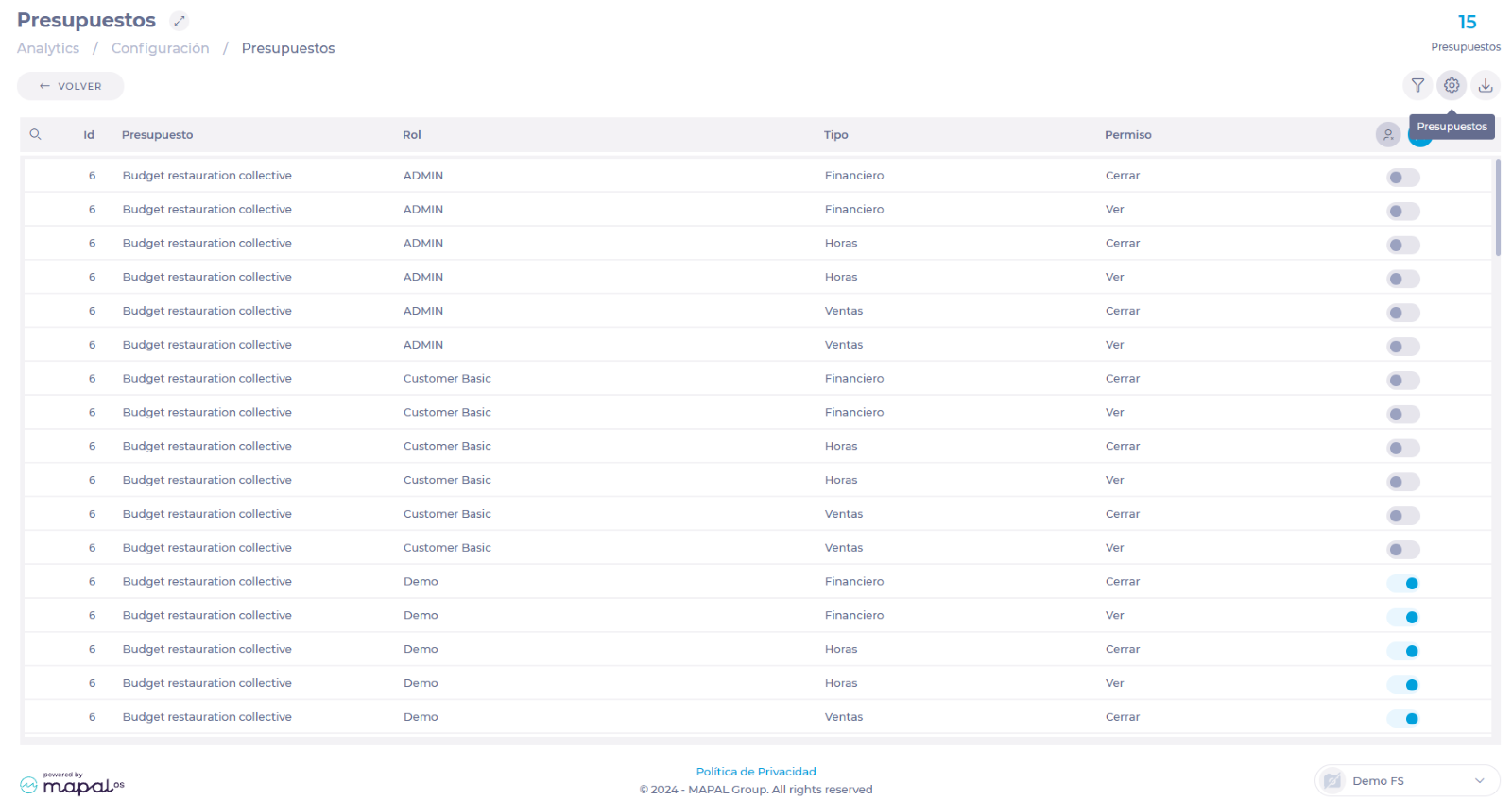
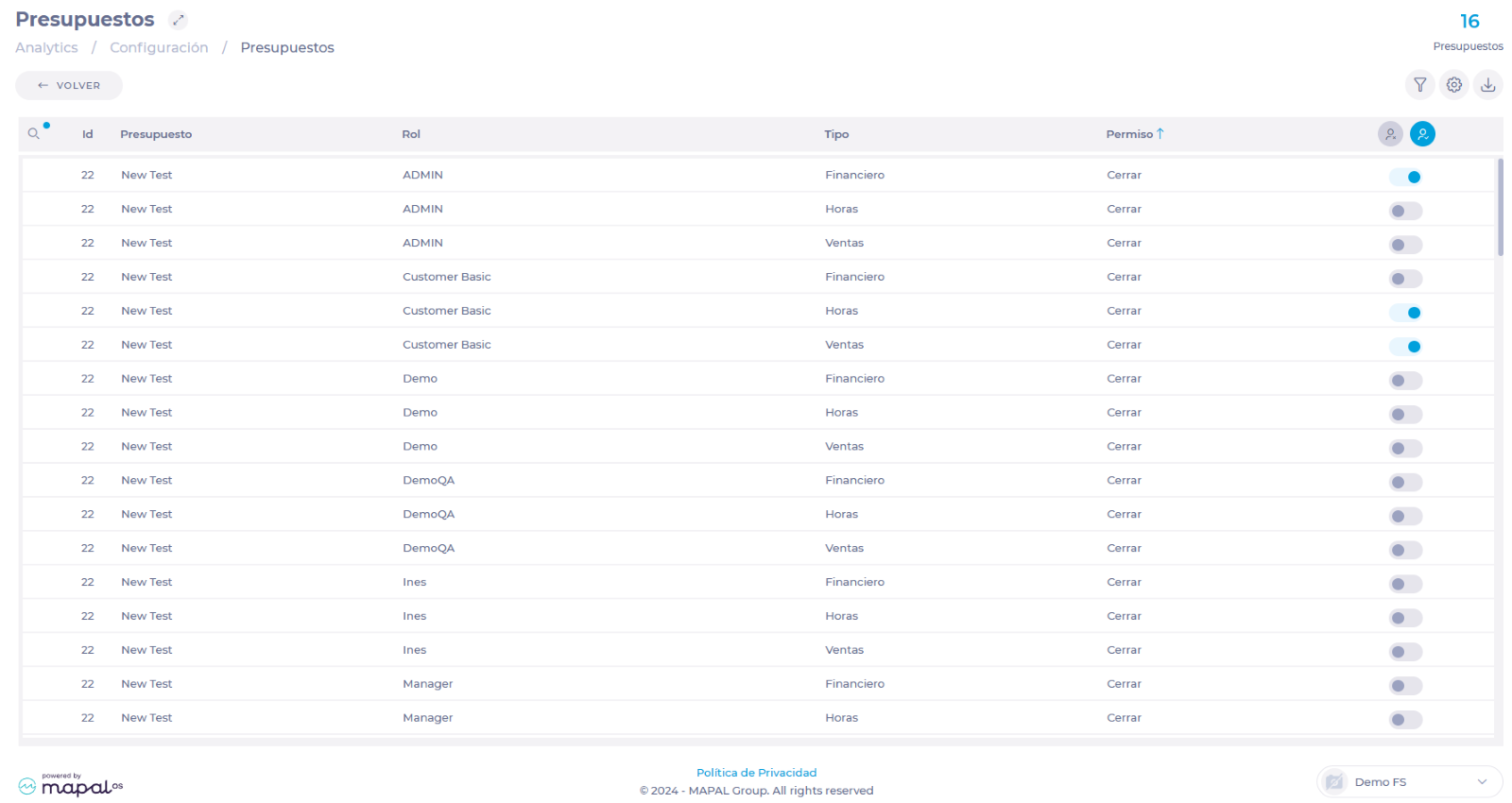
  • Once created, find the new budget in the table and flip the switch in the row of each role to enable the roles that will have access to it. 

  • Permission levels include:

    • View – Users can access budget details but cannot make changes.

    • Close – Users can lock budgets once finalized.

Captura de pantalla de computadora<br><br>Descripción generada automáticamente 

Edit and rename budgets

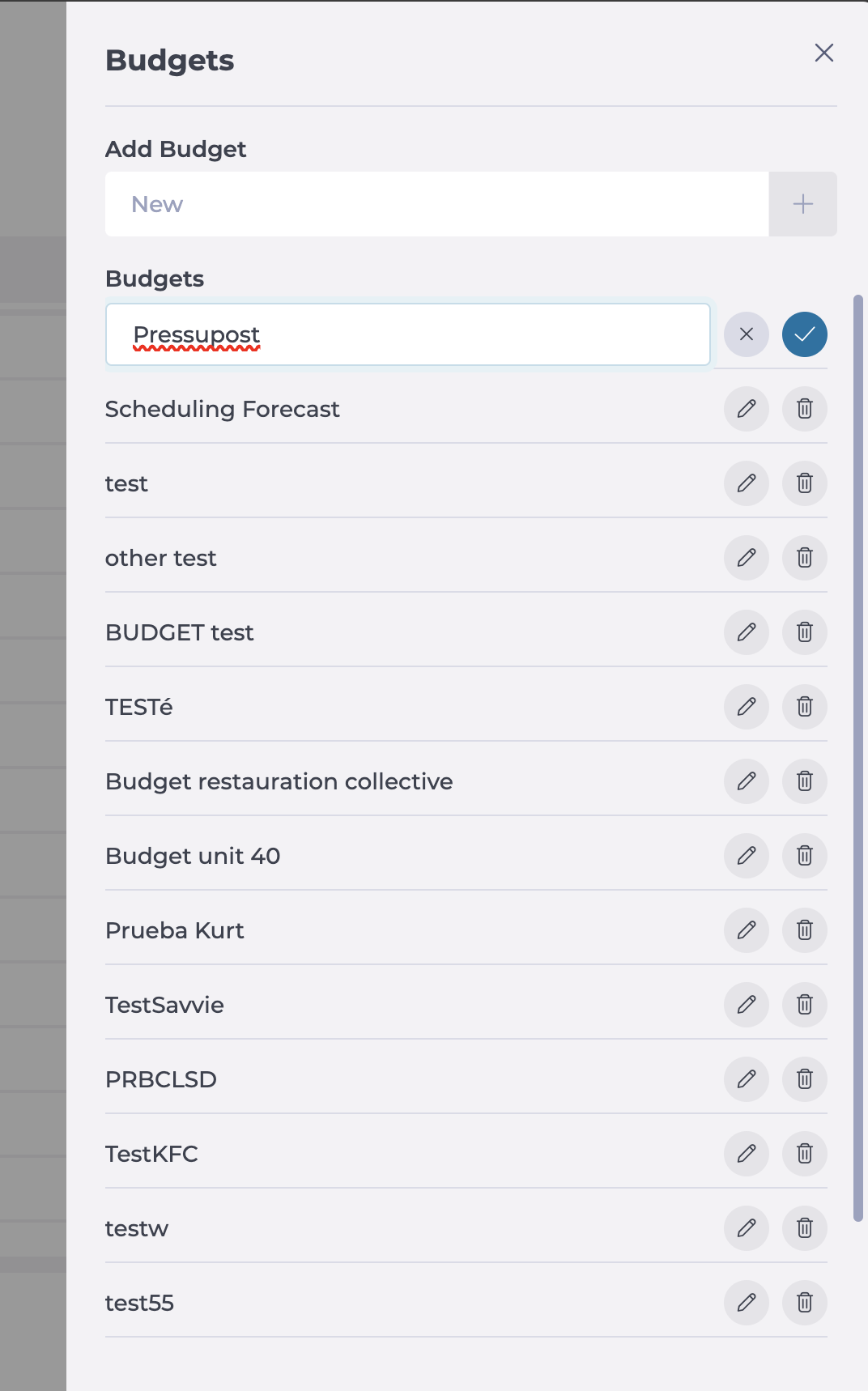
  • Select the Budgets ? button. 
  • Locate the existing budget and select Edit
  • Rename the budget and press Accept.

Delete budgets

  • Select the Budgets ? button. 
  • Locate the existing budget and select Delete
  • Select Delete again in the confirmation window. 

Manage scheduling forecasts

Start from: The Workforce module.  

  • Select Scheduling > Scheduler 2.0 from the main menu.  

  • Parameterize the scheduler to be able to access the main grid. 

To make the parameterization, see Access the scheduler.  

  • Select the Scheduling Forecast button. 

Notes: This access will be controlled by configurable user rights in Analytics > Configuration > Budgets. Here, the View user right must be activated for the Scheduling Forecast budget. 


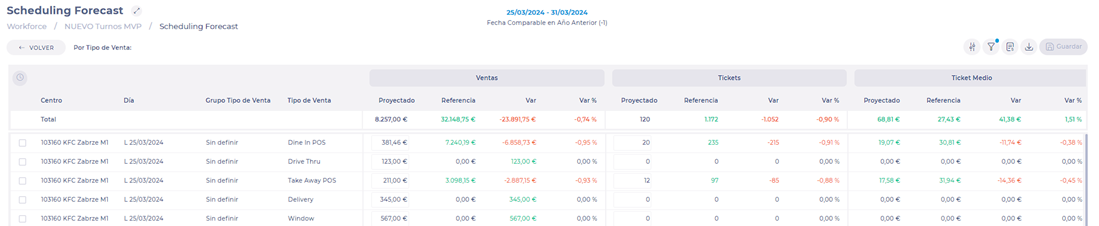
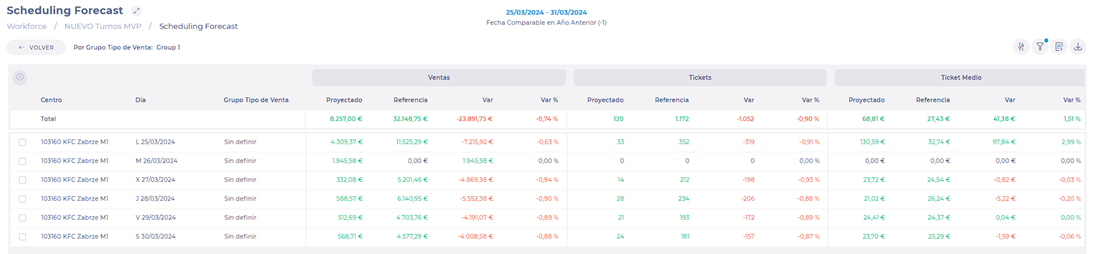
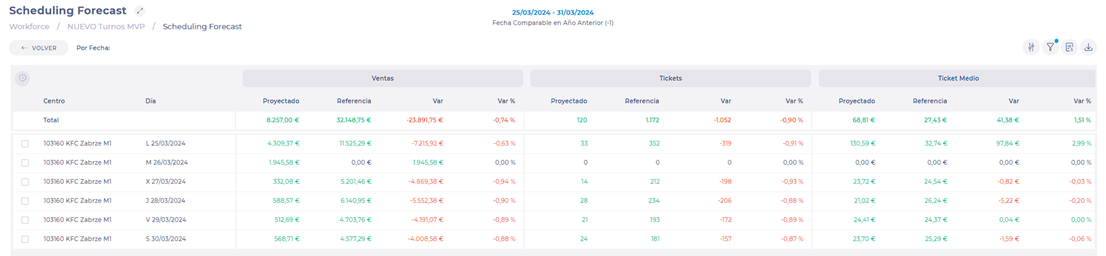
  • Once in the Scheduling Forecast screen, you will find a list with three available views: 

  • By type of sale

Notes: If you select the By type of sale view, you will be able to modify the cell values. 

  • By sales type group


  • By date 


Access to sales budget editing 


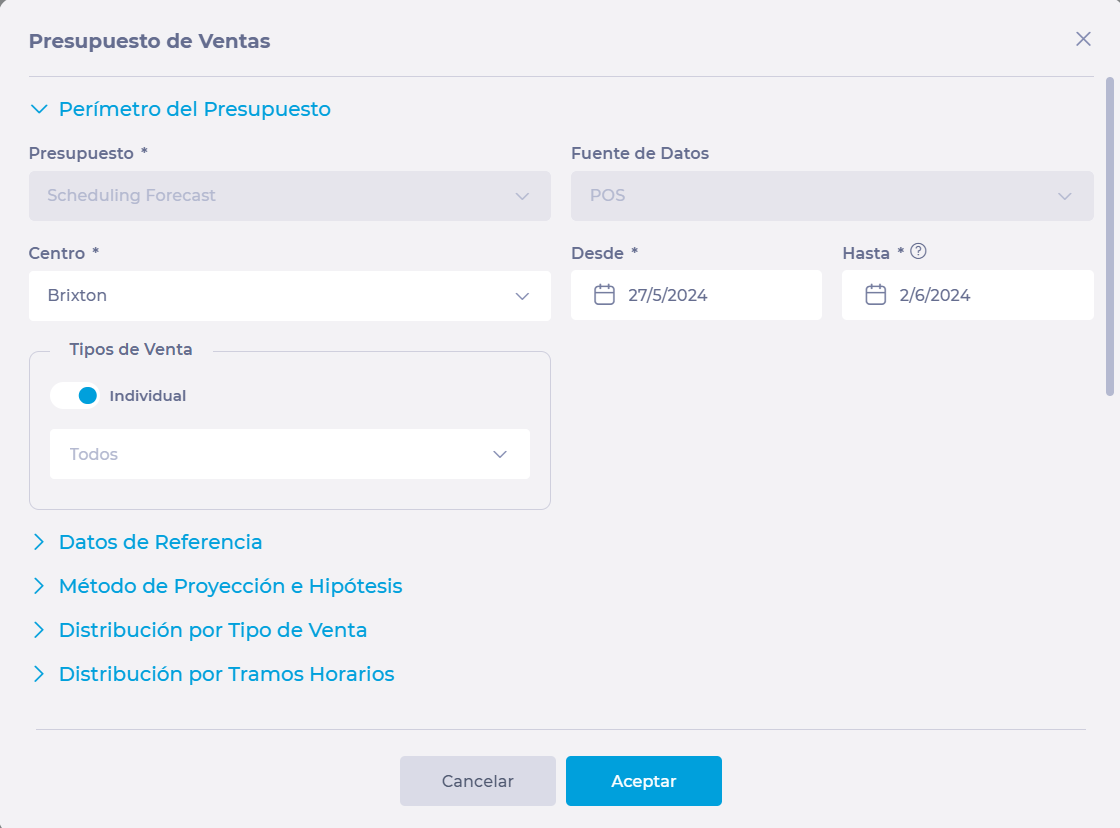
Once inside, you will find access to the Sales Budget modal. In the first tab, the Budget and Data Source fields are locked with the Scheduling Forecast and POS options, respectively. This is because, when accessing the budget modal from the shifts, the tool only affects the Scheduling Forecast budget, and the data source will always be the one obtained through the POS. 

How to modify the values of a budget?  

The budget editing tool is divided into five sections: 

Budget Scope 

In this section, you will choose the business unit for which you want to modify the budget, the date range, and the type(s) of sales you want to modify. 


Reference Data 


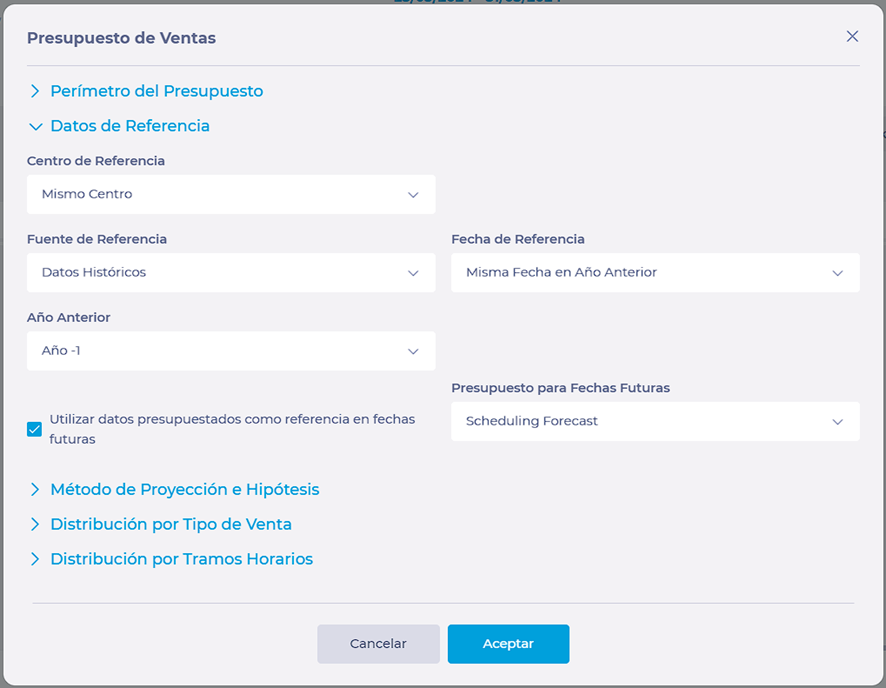
In this section, you can select the data on which you base your budget modification. 

In the Reference Business Unit, you can choose the same center or select another one to which you have access. 


In the Reference Source, choose historical data accompanied by the date or budget. 


Projection Method and Assumptions 


In this section, you can select the modification among several projection methods, such as: 

  • Sales 
  • Checks and average check 
  • Guests and average guest check 
  • Trend 

Here you can modify the records in percentage, add a value to the existing one or define a new one. This modification can be applied in the same way for all days of the week or set up a customized one for each day. 


Distribution by sales type 


In the distribution section, you can base it on reference data or not. In both cases, it will be mandatory to define the grid with values for such distribution. The sum of the different amounts must always be 100%. As long as this percentage is not met, the screen will display an alert and will not allow you to continue with the process. 


If you want to see the distribution values reflected in the grid obtained from the reference source marked in the Reference Data tab; you can modify the dates and click on the Reload button: 


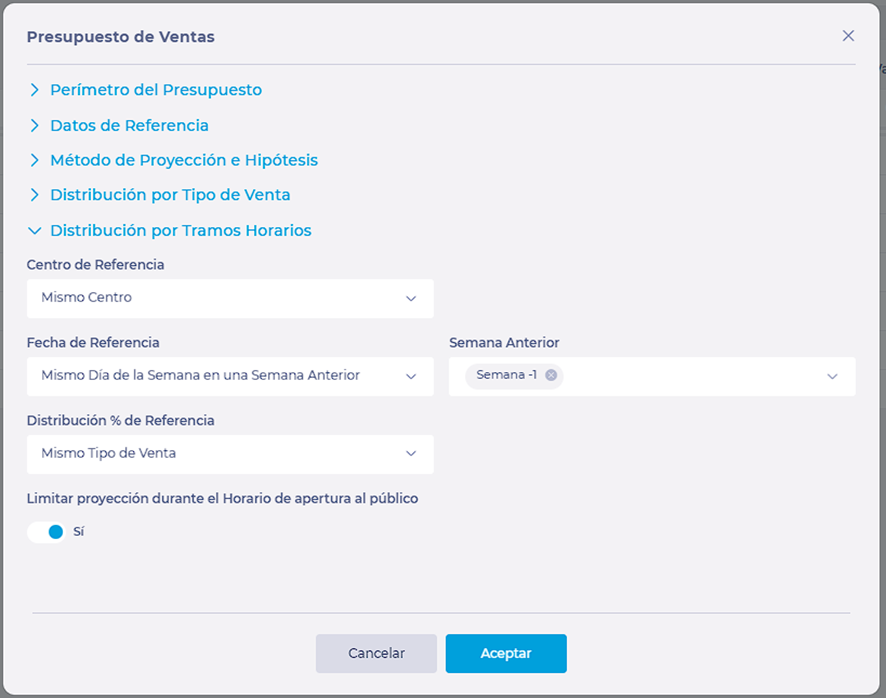
Distribution by Time Slots 


As in the reference data section, here you will find a combo where you can select the reference data of the same or a specific center. In the Reference Date section, you will again find the same options: Same weekday in previous week, Same date in previous year, Comparable day in previous year. 

By selecting Same weekday in previous week in this section, the combo becomes a multiple selection of up to 5 weeks: 


Finally, you will find a drop-down menu Distribution % of Reference where you will select how to distribute the sale in terms of fifteen-minute slots with the following options:  

  • Same type of sale 

  • Same sales group  

  • Total 

Notes: Each center can configure its opening hours to the public, which means that there may be times when some centers may have sales recorded according to their opening hours to the public. In this case, you control it by activating or deactivating the Limiting projection during Public Opening Hours.  


Once the configuration is complete, press Accept to save the settings OR Cancel to discard them.  

You will now be able to see the forecast configured in the Scheduling Forecast screen. 

Manage favourite shifts and sequences

Start from: The Workforce module.

  • Select Scheduling > Scheduler 2.0 from the main menu.
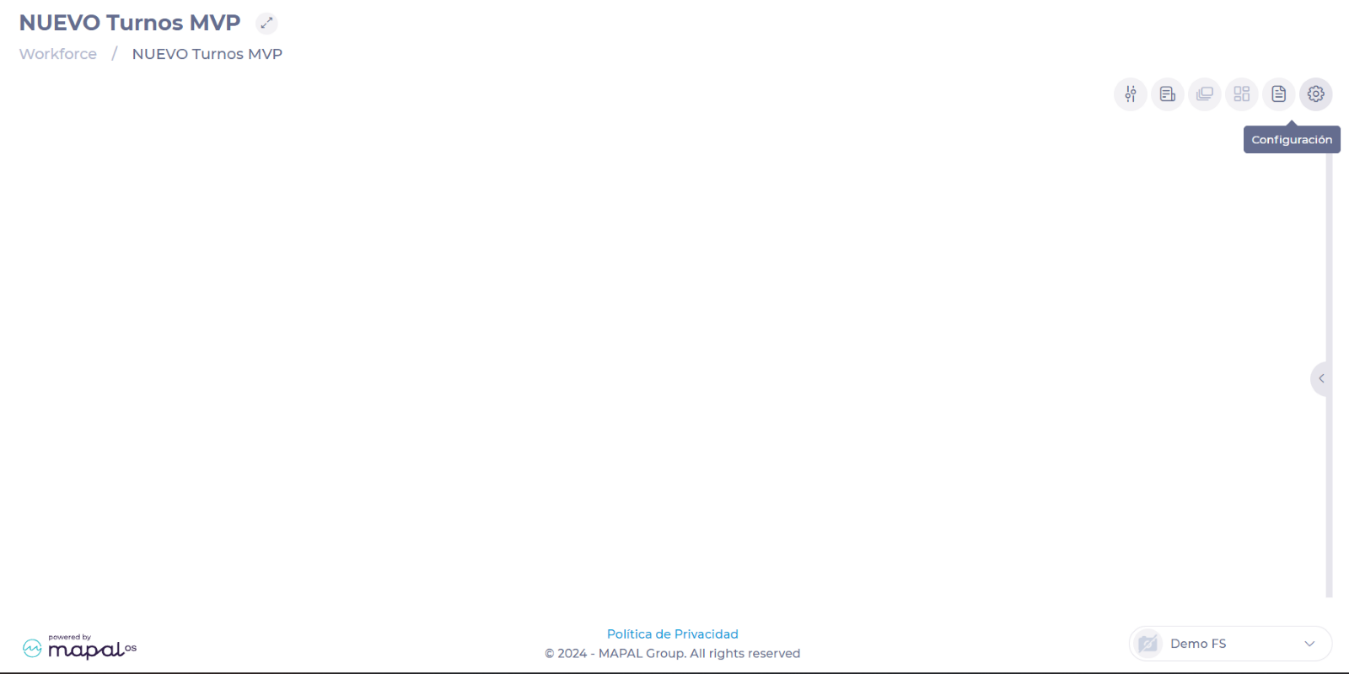
  • Select the Configuration button on the main shift screen.
  • Select Favourite Shifts from the drop-down menu.

To learn how to create new favourite shifts and sequences, see Set up favourite shifts and sequences.

Tools

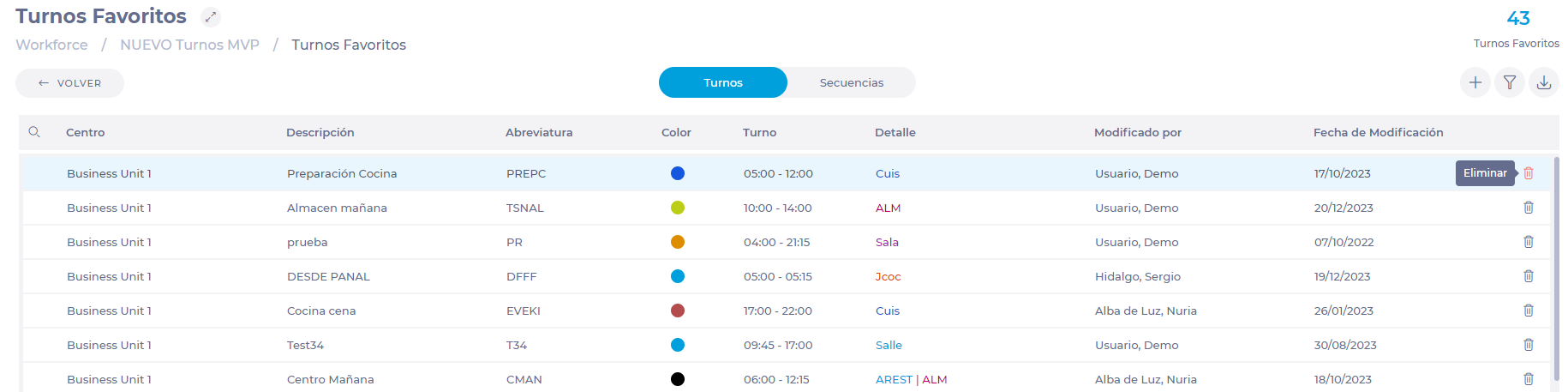
Once in the Favourite Shifts screen, you have two tabs: one for favourite shifts and one for sequences. In each of the tabs you can find three buttons:

  • New - Allows you to create new favourite shifts or sequences.
  • Filter - Facilitates the search for favourite shifts or existing sequences using certain parameters.
  • Export - Allows you to export the list of favourite shifts or sequences.

Icono<br><br>Descripción generada automáticamente

Edit or delete favourite shifts

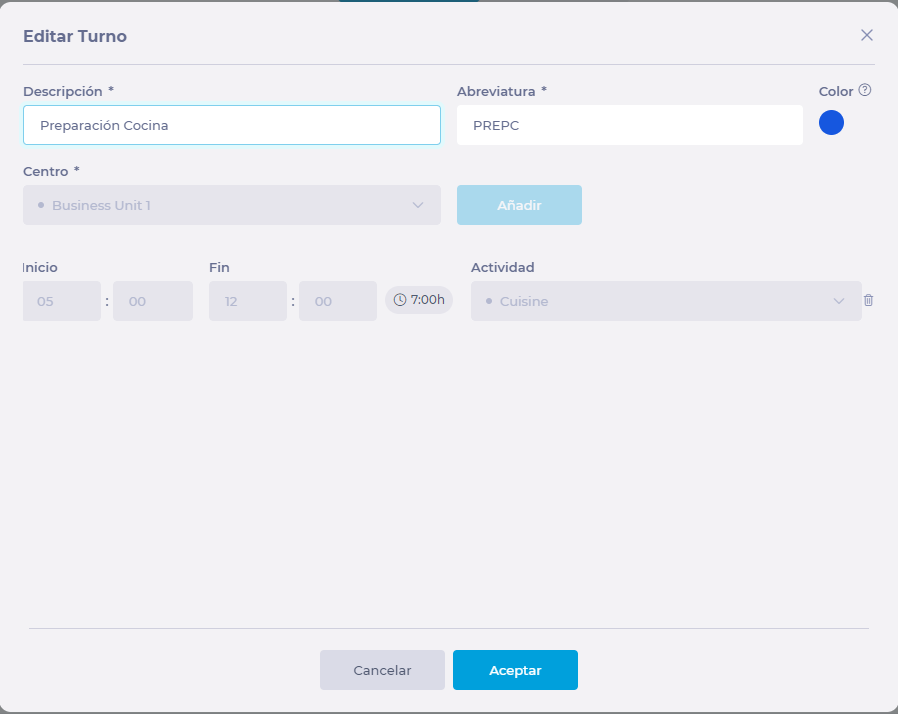
Favourite shifts can be edited. However, for those shifts that have already been assigned, only details such as description, colour, and abbreviation can be edited. Only unassigned shifts can be edited in their entirety. To edit the favourite shift:

  • Select any point in the row of the shift to be edited.
  • In the Edit Shift pop-up window, make the appropriate changes.
  • Select Accept to save the changes OR Cancel to discard them.

If you wish to delete the favourite shift, select the trash can icon in the shift's row and then press Delete in the confirmation pop-up window. Notes: You will only be able to delete a favourite shift that has not been assigned. If the shift is assigned, you must unassign it to delete it.Interfaz de usuario gráfica, Aplicación<br><br>Descripción generada automáticamente
Interfaz de usuario gráfica, Aplicación<br><br>Descripción generada automáticamente

Edit or delete sequences

Unlike favourite shifts, sequences can be edited or deleted even if they have already been assigned to an employee. To edit a sequence:

  • Select any point in the row of the sequence to be edited.
  • In the Edit Sequence pop-up window, make the appropriate changes.
  • Select Accept to save the changes OR Cancel to discard them.

Interfaz de usuario gráfica, Aplicación<br><br>Descripción generada automáticamenteIf you wish to delete the sequence, select the trash can icon in the shift's row and then press Delete in the confirmation pop-up window.Interfaz de usuario gráfica<br><br>Descripción generada automáticamente con confianza baja
Interfaz de usuario gráfica, Aplicación<br><br>Descripción generada automáticamenteTo assign favourite shifts or sequences to an employee, see Assign favourite shifts and sequences.
Configure sales forecast

Start from: The Workforce module.

  • Select Scheduling > Scheduler 2.0 from the main menu.

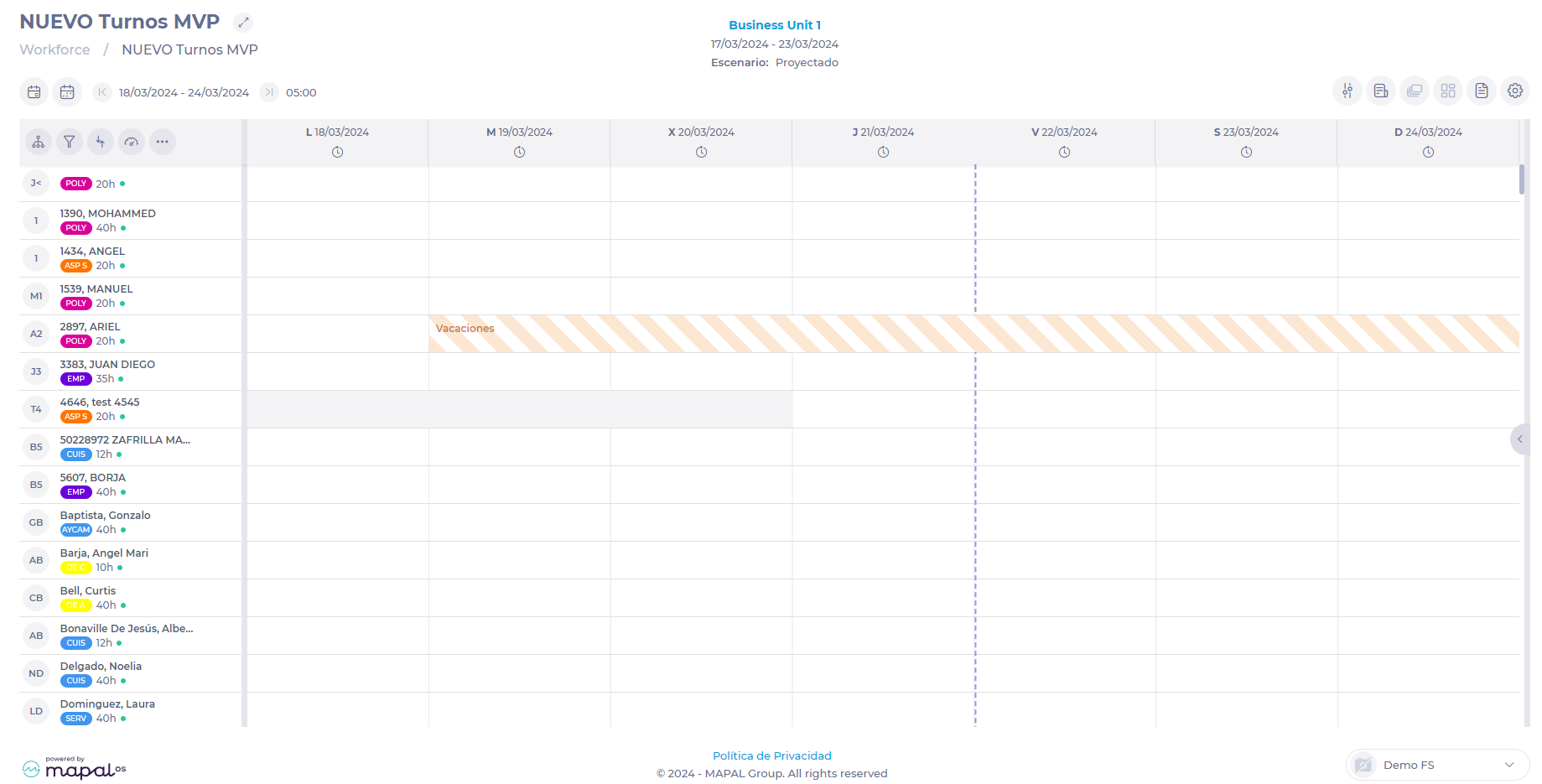
  • Once in the scheduler screen, select the < button to open the favourite shifts catalog and sequences in the side panel.

Escala de tiempo<br><br>Descripción generada automáticamente con confianza baja

  • The catalog is divided into two tabs: one for favourite shifts and the other for sequences. Both tabs work in the same way.
  • Select the appropriate tab.

Interfaz de usuario gráfica, Texto, Aplicación<br><br>Descripción generada automáticamente

  • Enter the name of the shift or sequence in the Search field.
  • Indicate how many times the assignment of the selected shift or sequence is to be repeated.

Notes: This functionality is very useful when you must make the same assignment for an employee repeatedly on consecutive days.

  • Select the shift or sequence from the list (the selection is marked with a blue ball).

Interfaz de usuario gráfica, Aplicación, Teams<br><br>Descripción generada automáticamente

  • Select in the grid the day and employee to whom you will assign the shift or sequence.
Tabla<br><br>Descripción generada automáticamente con confianza mediaNotes: As long as the catalog panel remains open, the shift or sequence will be assigned the indicated number of times starting from the day and for the employee you have selected in the grid. To create new favourite shifts and sequences, see Set up favourite shifts and sequences. To change or delete existing favourite shifts and sequences, see Manage favourite shifts and sequences.
FAQs

I am planning for a week, and I have selected a shift to be assigned for 10 days in a row. When I go to look at the following week the days over the last week are not with the favourite shift assigned, why?

The favourite shifts, when we apply a repetition, are only assigned until it reaches the indicated number of repetitions or the last day of the selected period in parameters, whichever conditions that is met first.
To assign a shift 10 times we must have the 10 days we want to assign loaded in the planning.

I've assigned a sequence with time off and it gives me an error, why?

This is because we don't know the timetable of the time off to apply until we assign it to an employee and it can happen that the employee's time off's center timetable, overlaps with other shifts of the same sequence or other shifts already assigned to the employee for the same day where the time off corresponds.

I have assigned a shift or a sequence, but it gives me an error indicating that it cannot be assigned because the day for that center is not in process, why?

This is because the center that has the associated favourite shift or sequence for the day where we want to assign this favourite shift is in a different status to "On Going" and therefore cannot be edited.

Enter forecast, ordered and invoiced quantities

Note: Each action performed in the application is subject to a permission. If you cannot carry out the recommended actions in the articles you are viewing, it may mean that the required permissions have not been enabled for your user profile. Contact the Support team or your administrator to find out more.

Start from: The Easilys menu.

To know:

Note: Depending on the chosen period, the available options and the information message will update. Take time to read this message carefully, as well as the summary table that appears if you copy a period longer than one day, so you fully understand the impact of your action.

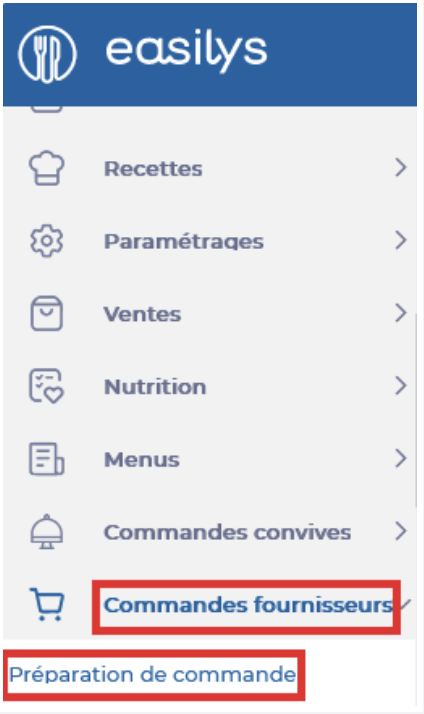
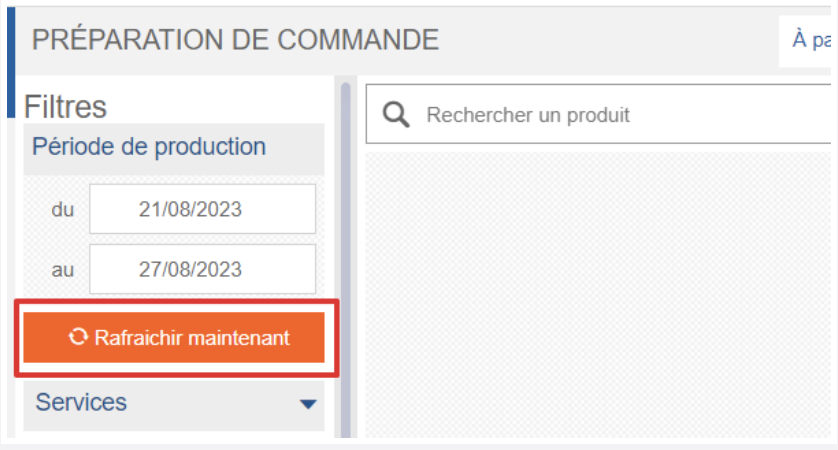
Use the order preparation screen

Start from: The Easilys menu.

Once you have selected the correct mode for your use case, continue as described below.

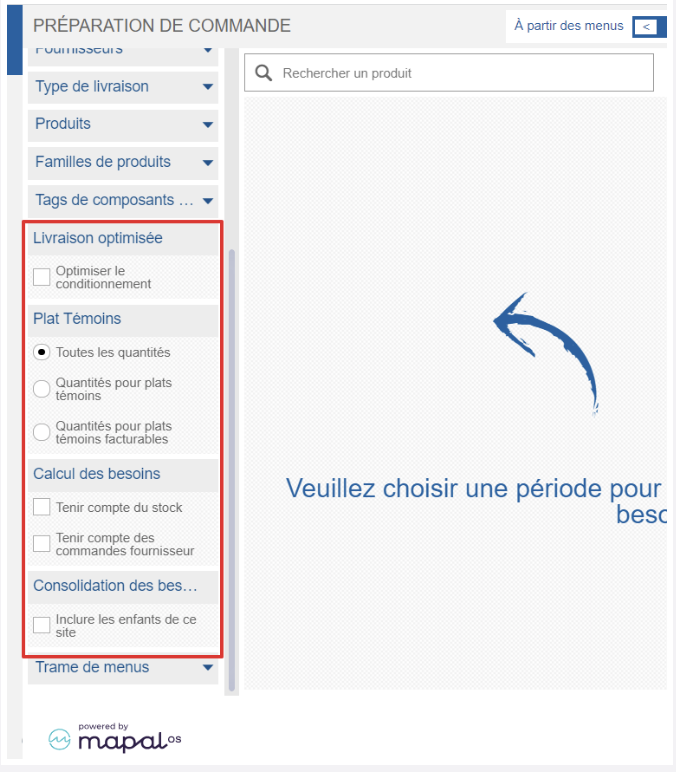
Note: This option is not available if the calculation mode (top toggle) is set to From site orders.

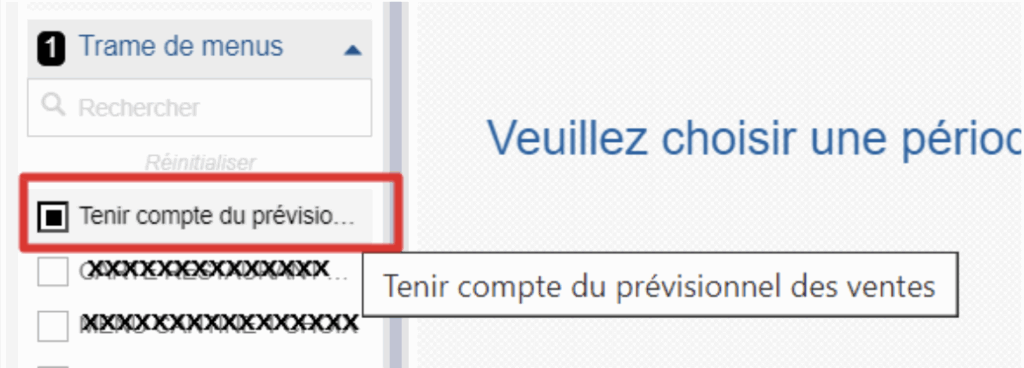
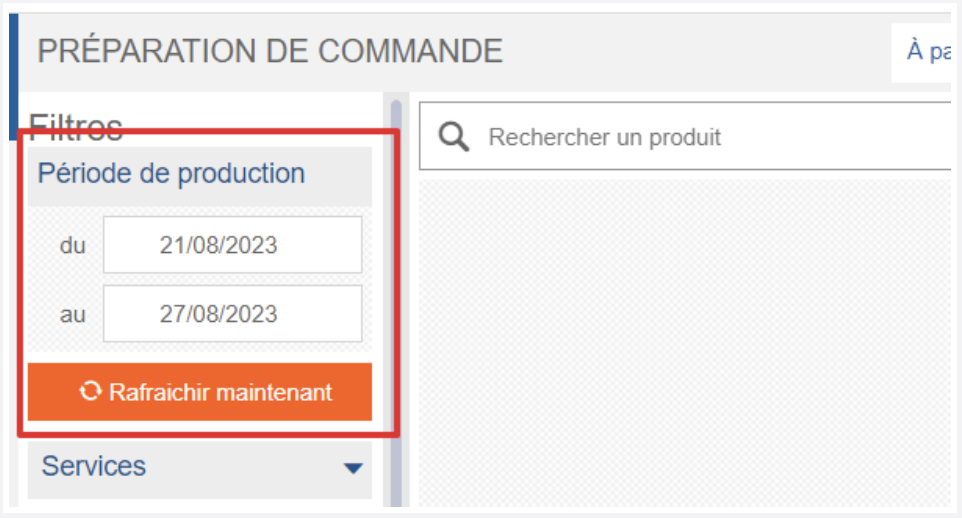
Note: To use the options "Include stock" and "Include supplier orders", you must generate the needs from today’s date, otherwise the calculation will be incorrect.

If there are no headcounts on the recipes in your menus (or, depending on the selected calculation mode, no orders from your child sites or no sales forecast), the application considers the need to be 0, and no items are proposed in the list of products to order.

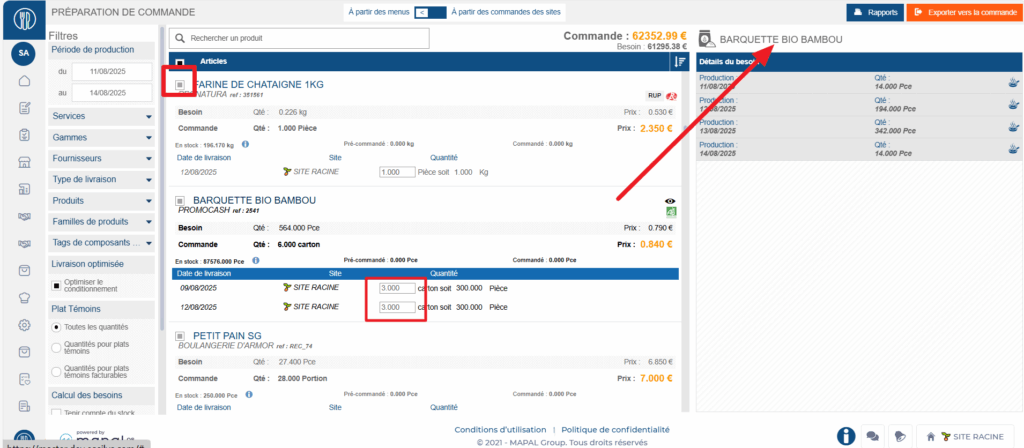
Check the list of needs, adjust if needed

The colour of the product name provides information:

Note: If the message "No compatible delivery date found" is displayed, it means that the order lead time entered on the supplier file does not allow the product to be ordered in time for the need.

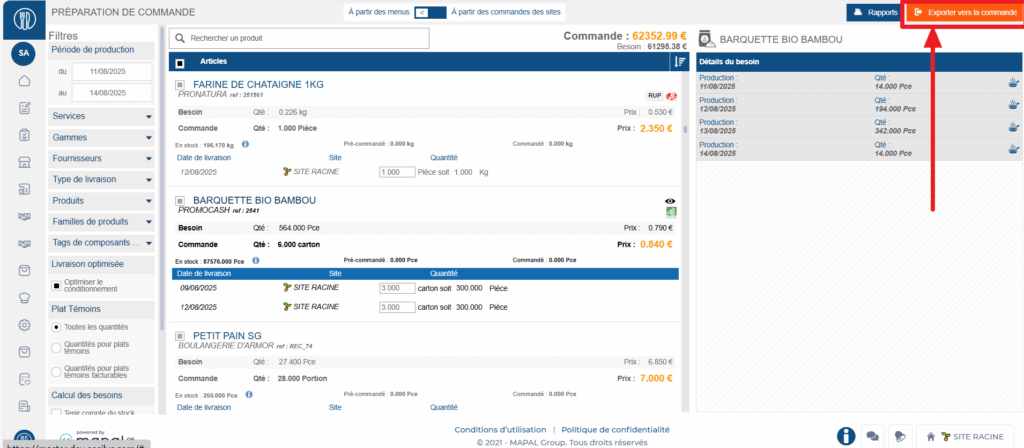
Generate order baskets from this needs list

The application creates the order baskets in the SUPPLIER ORDERS screen where you can send them.