Change workstation during a shift
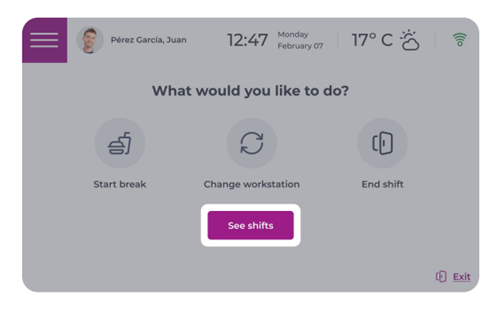
Start from: the Smarthub main screen.
- Log in to Smarthub.
- Clock into start your shift.

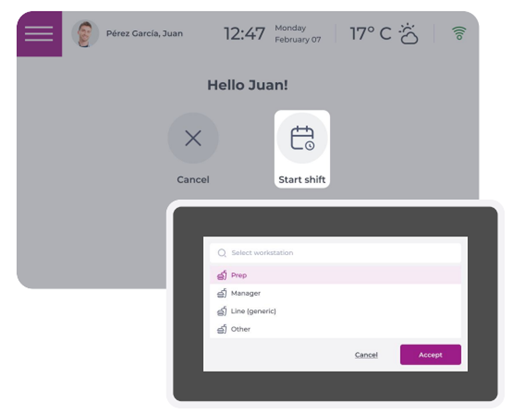
- Select the Change workstation button on the screen.

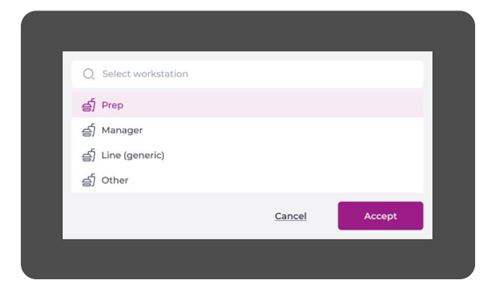
- Select the right workstation for the shift.
- Select Accept.

The tool will then record the time at which the workstation change was made, which will then be visible in the action timeline.
See View the stock timeline in Smarthub to learn more about viewing this timeline.
Add a generic position
Start from: The Workforce module.
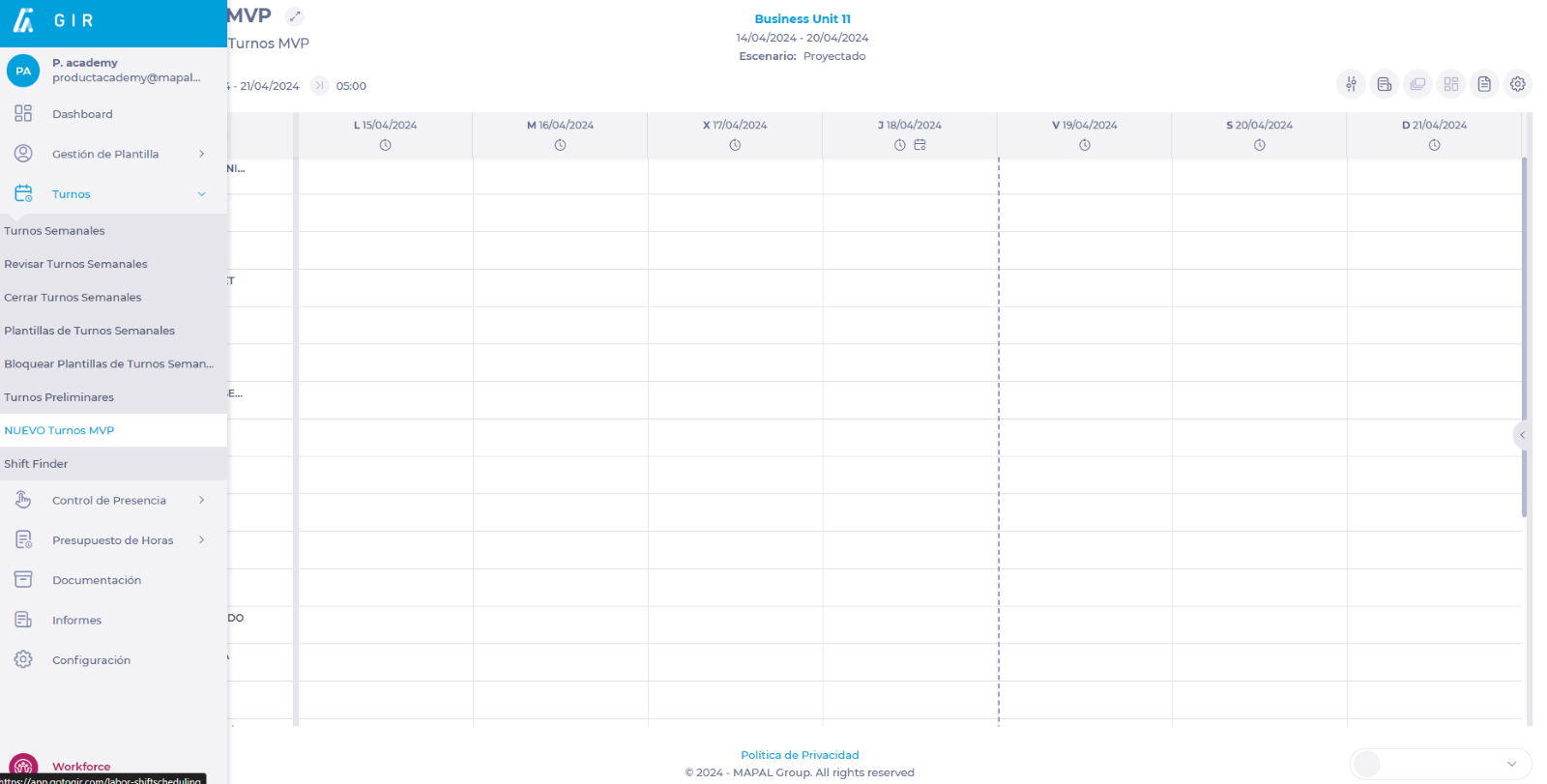
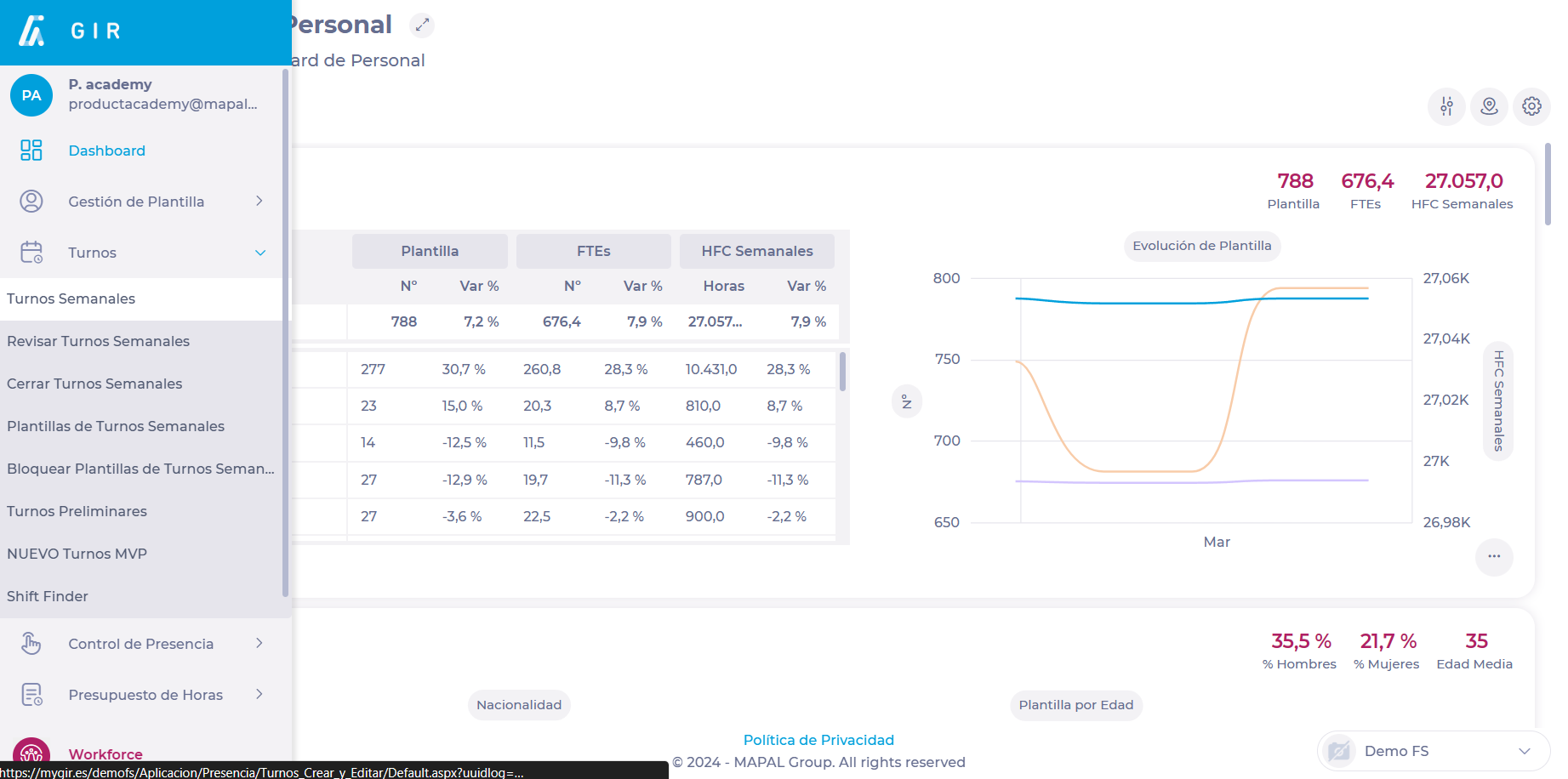
- Select Scheduling > Scheduler 2.0 from the main menu.

- Parameterize the planner to be able to access the main grid.
To make the parameterization, see Access the scheduler.
- Once in the main grid, select the three dots button ••• in the header, above the list of employees.
- Select Add Generic Position from the drop-down menu.

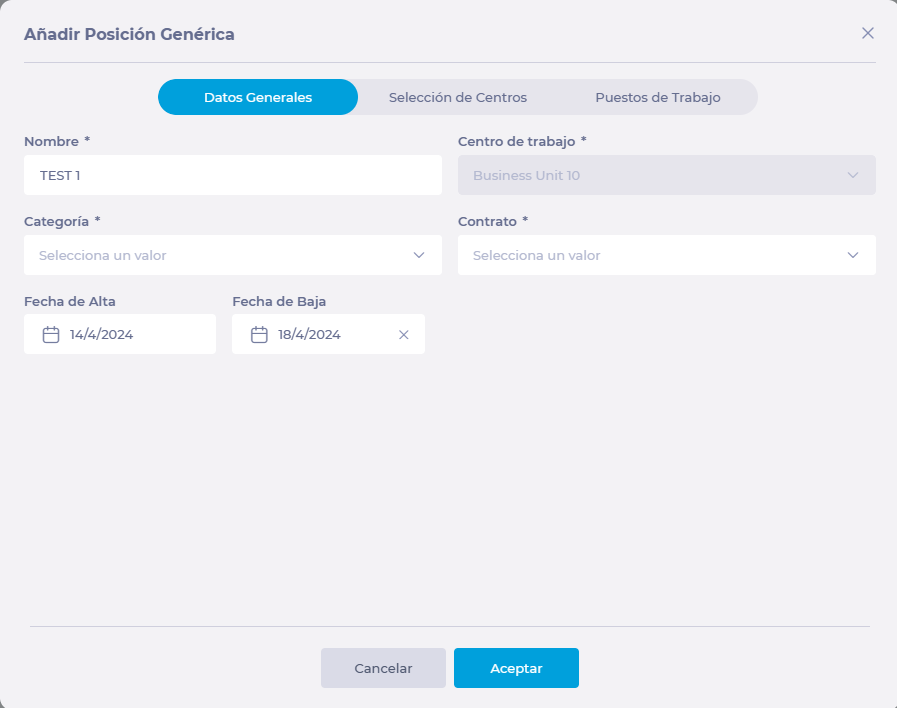
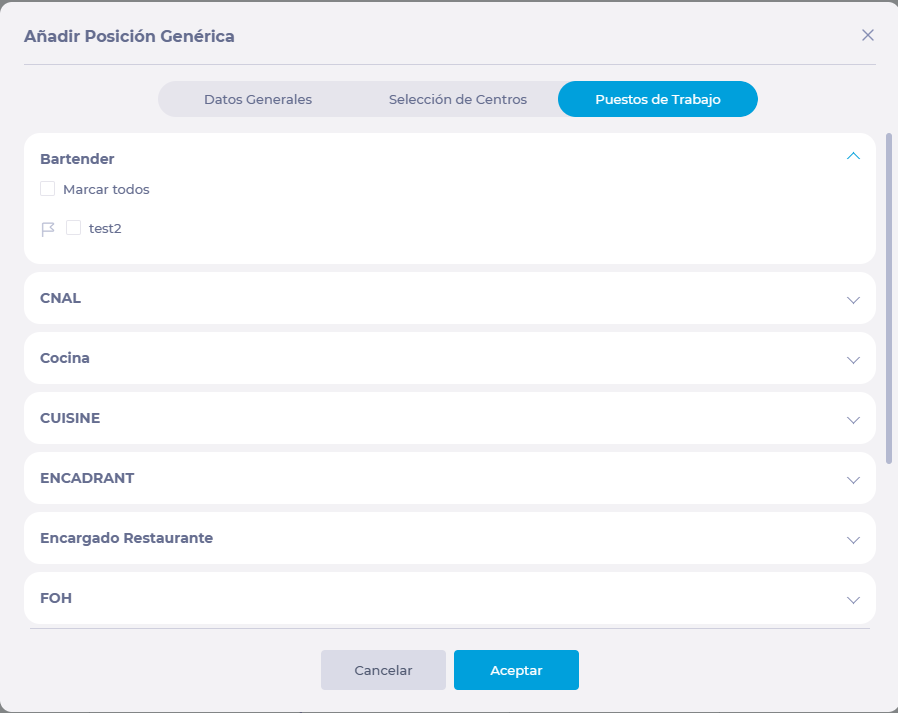
- In the Add Generic Position pop-up window, you will find three tabs in which you must fill in the following data:
- General Data:
- Name: Assign a name to the new generic position to differentiate it from other employees or generic positions. Later, when the generic position is associated with the employee, it will be replaced with the employee's card.
- Work Center: Selects the default work center for the new generic item.
- Category: Select a category from the drop-down menu. All categories previously created for the work center will be available.
- Contract: Select a contract from the drop-down menu. All categories previously created for the work center will be available.
- Start date and End Date: Indicates the employee's date of start and the estimated date of leaving.

- Selection of UnitsSelect at least one work center (usually the same plant as the contract) to which you will assign this generic position. You can make use of several filtering levels to make a more detailed selection.

- WorkstationsEstablishes the workstation(s) for which the employee will be qualified.

- Once all the data has been filled in, select Accept to save the new generic position OR Cancel to discard it.
Manage favourite shifts and sequences
Start from: The Workforce module.
- Select Scheduling > Scheduler 2.0 from the main menu.
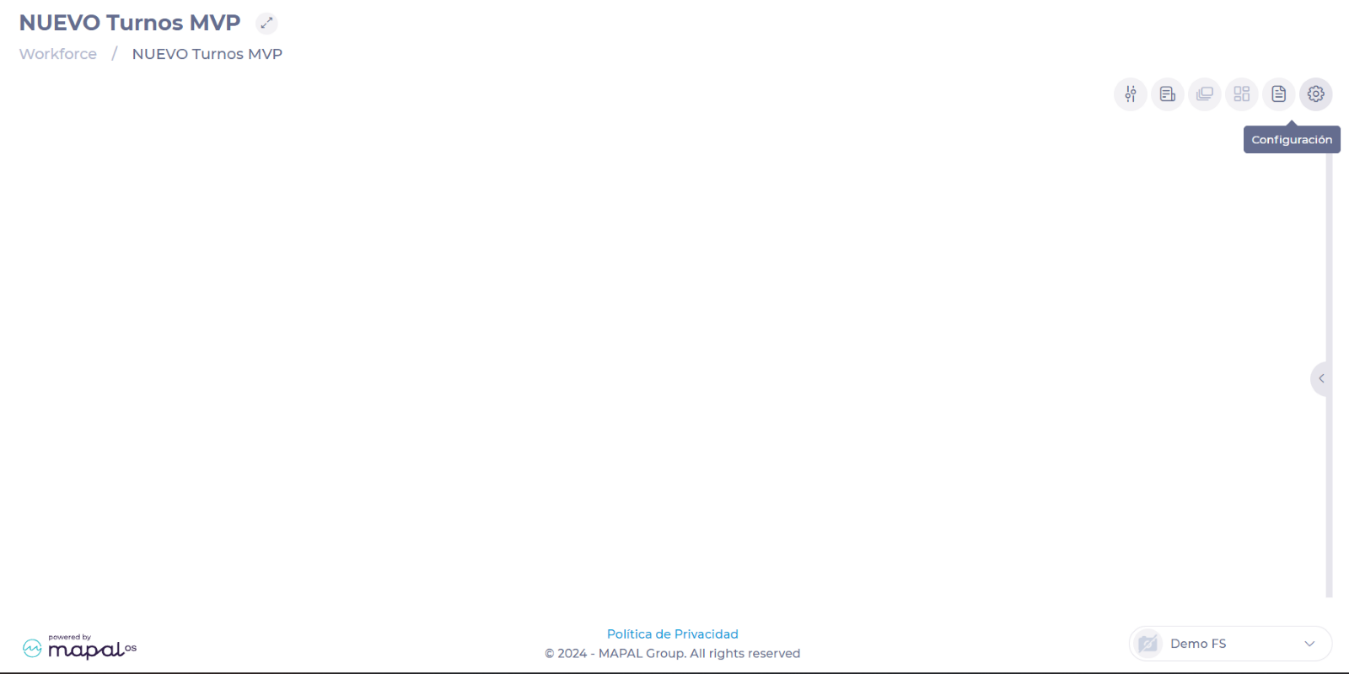
- Select the Configuration button on the main shift screen.
- Select Favourite Shifts from the drop-down menu.
To learn how to create new favourite shifts and sequences, see Set up favourite shifts and sequences.
Tools
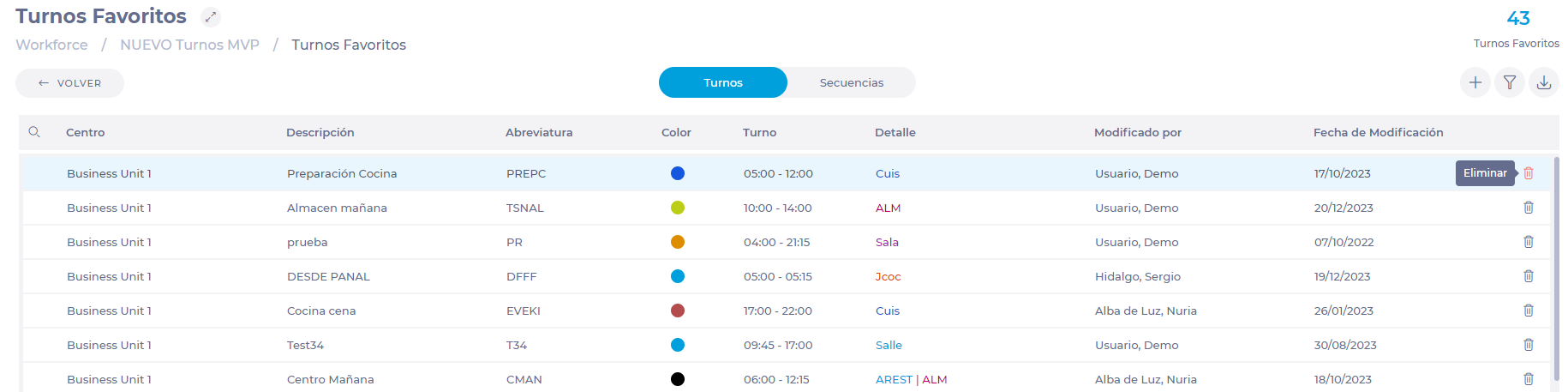
Once in the Favourite Shifts screen, you have two tabs: one for favourite shifts and one for sequences.
In each of the tabs you can find three buttons:
- New - Allows you to create new favourite shifts or sequences.
- Filter - Facilitates the search for favourite shifts or existing sequences using certain parameters.
- Export - Allows you to export the list of favourite shifts or sequences.

Edit or delete favourite shifts
Favourite shifts can be edited. However, for those shifts that have already been assigned, only details such as description, colour, and abbreviation can be edited. Only unassigned shifts can be edited in their entirety.
To edit the favourite shift:
- Select any point in the row of the shift to be edited.
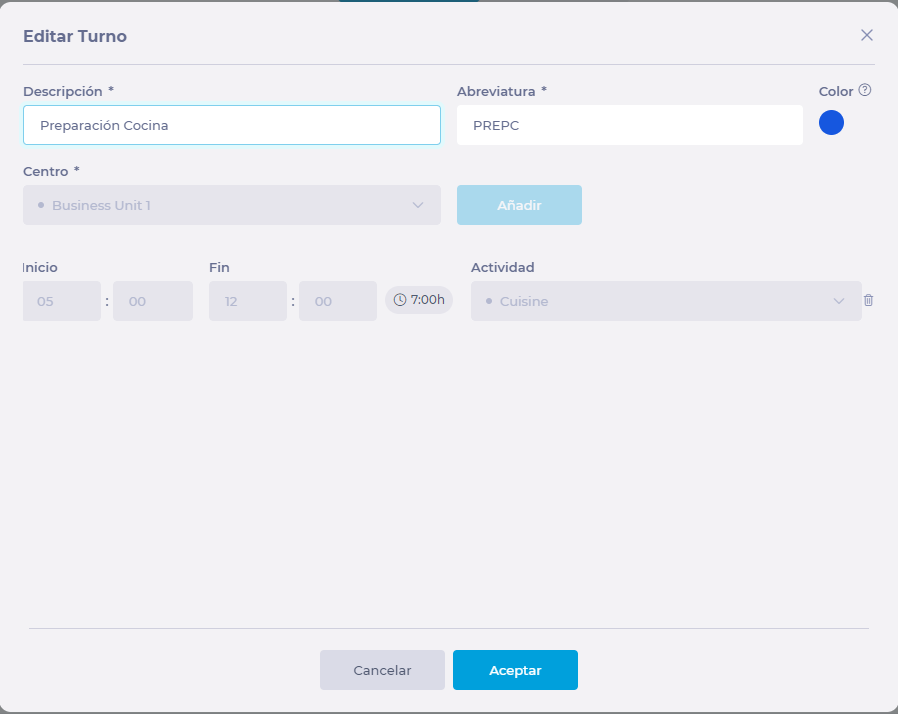
- In the Edit Shift pop-up window, make the appropriate changes.
- Select Accept to save the changes OR Cancel to discard them.
If you wish to delete the favourite shift, select the trash can icon in the shift's row and then press Delete in the confirmation pop-up window.
Notes: You will only be able to delete a favourite shift that has not been assigned. If the shift is assigned, you must unassign it to delete it.


Edit or delete sequences
Unlike favourite shifts, sequences can be edited or deleted even if they have already been assigned to an employee.
To edit a sequence:
- Select any point in the row of the sequence to be edited.
- In the Edit Sequence pop-up window, make the appropriate changes.
- Select Accept to save the changes OR Cancel to discard them.

If you wish to delete the sequence, select the trash can icon in the shift's row and then press Delete in the confirmation pop-up window.


To assign favourite shifts or sequences to an employee, see Assign favourite shifts and sequences.
Create a workstation
Start from: The Workforce module.
-
Navigate to Configuration > Workstations.

-
Select New +.

-
In the New Workstation pop-up window, fill in the following fields:
-
Workstation: Give a name to the job position you are creating.
-
Abbreviation: Assign an abbreviation that identifies the workstation you are creating.
-
Colour: Assign a color to the workstation. This is only a graphical identification tool that facilitates its visualization in shift planning, for example.
-
Workstations Group: Assign a group to the workstation. This grouping facilitates the search and filtering of planned shifts. If no group exists for the workstation, you can create a new one by selecting + Create Group.
-
Brand: Determine whether a workstation belongs to a specific concept, a work center, or to all available work centers.
-
Status: By default, new workstations are created with the status Active. Inactive workstations are no longer available.
-
-
Select Accept to save the new workstation OR Cancel to discard the configuration.

Get all the information needed for a settlement
Start from: The Workforce module.
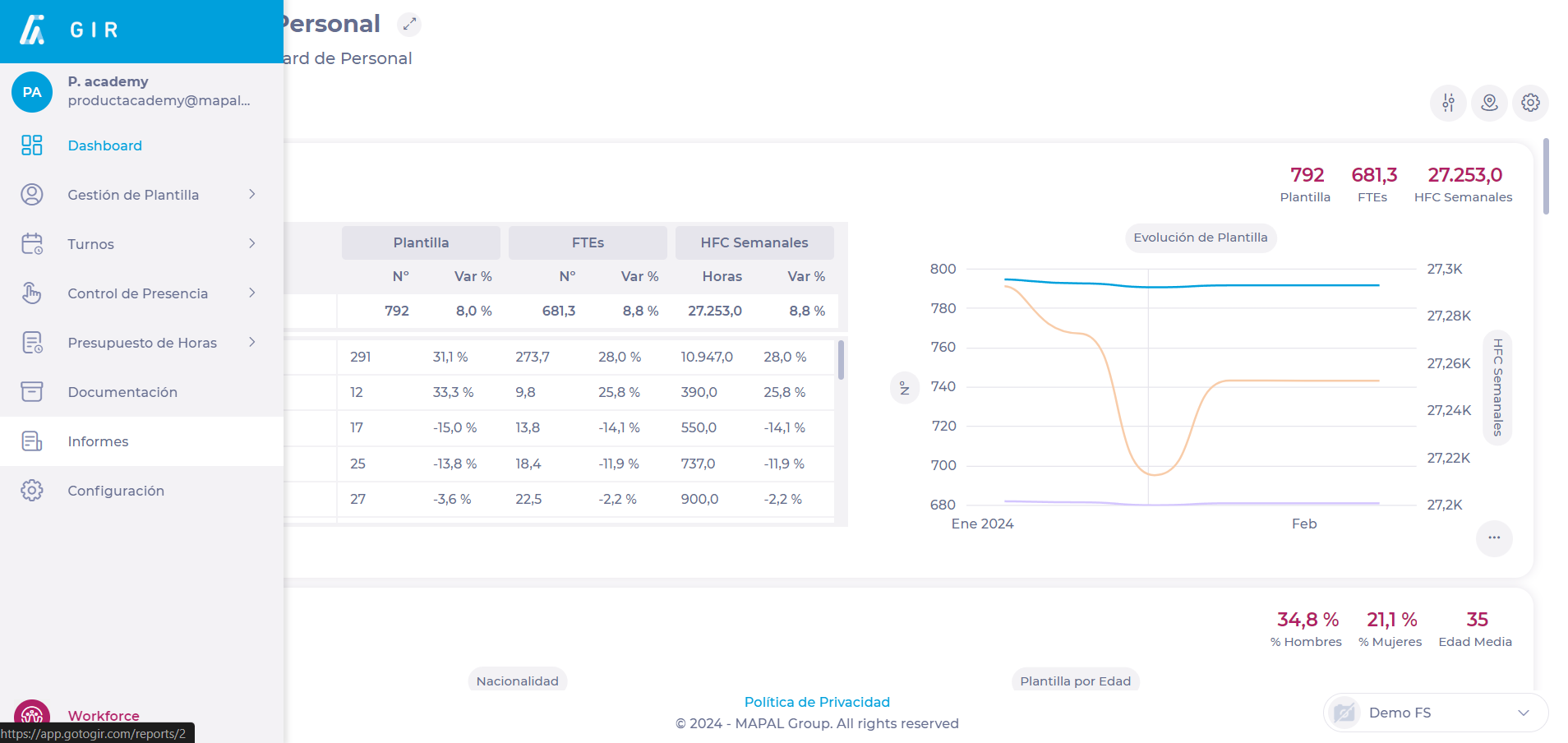
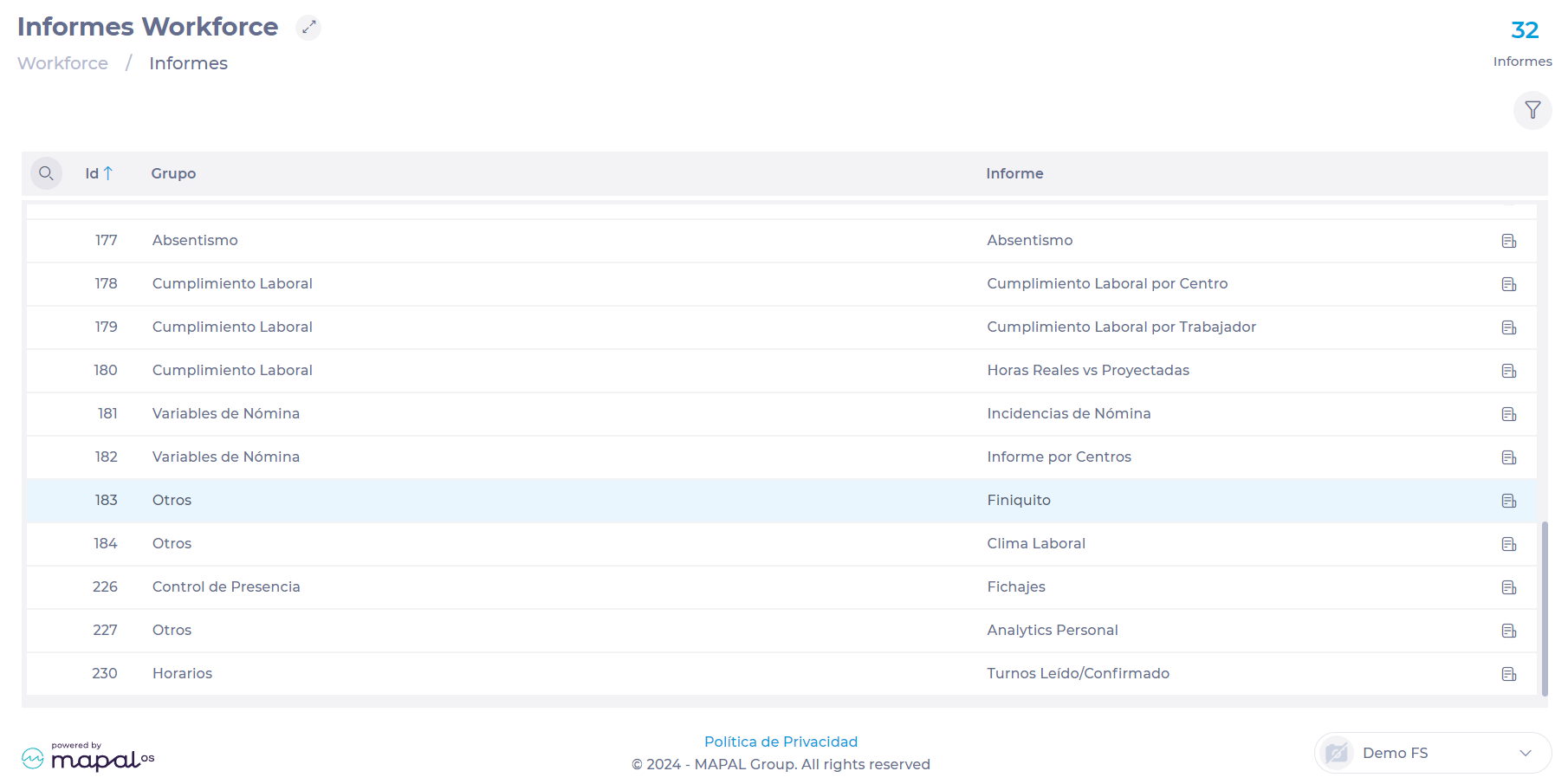
- Select Reports from the main menu.

- Locate in the list or use the Magnifying Glass icon ? to search for report 183 - Other - Leaver Settlement.

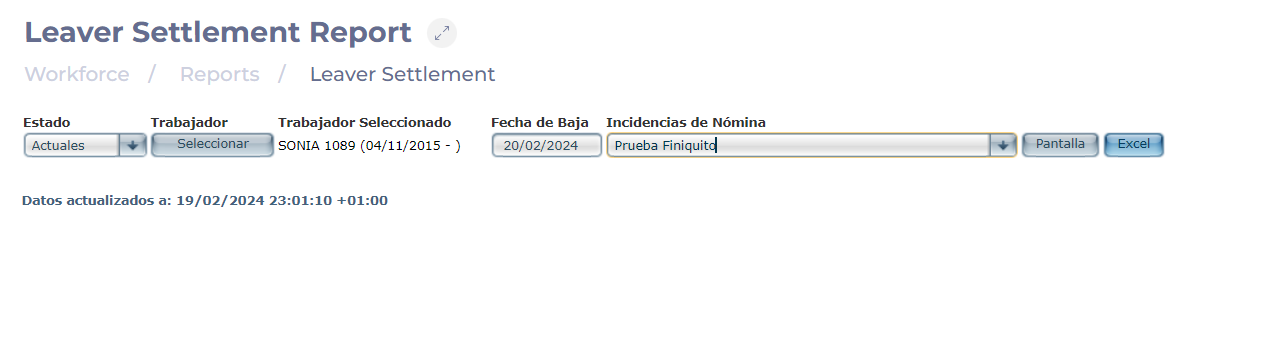
- Choose the Status of the workers, whether current or former.
- Select the specific Employee to whom the Settlement will apply.
- Set the Estimated Termination Date that you want to consult.
- Select a report from the Incidences of Payroll dropdown. It will show you the data contained in the report that you have previously configured in Payroll Incidents.

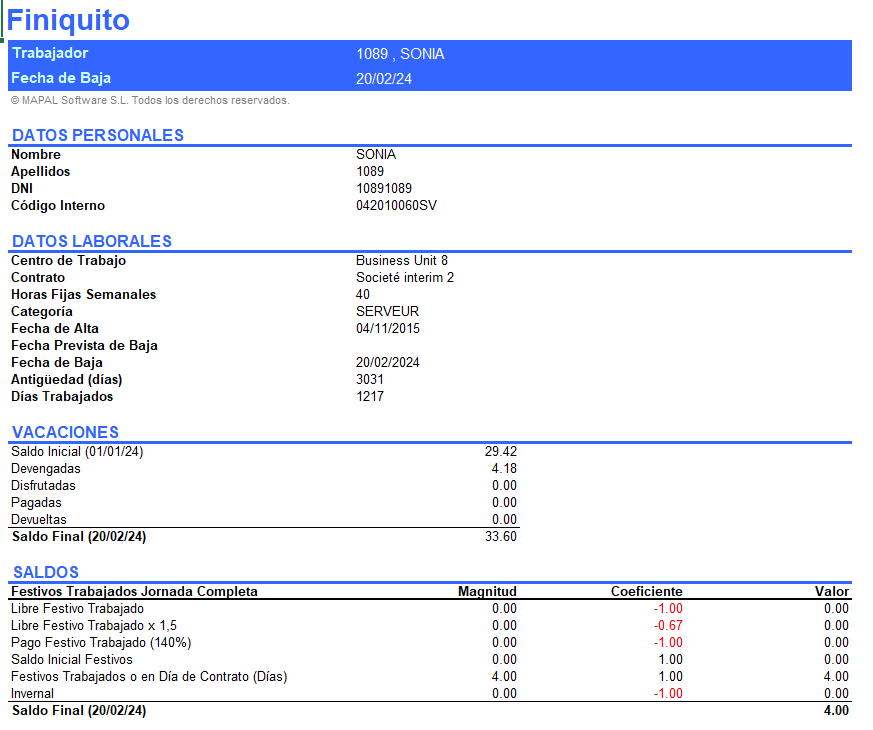
- Once setup is complete, select Excel to download your Leaver Settlement report.

Manage employees in the shift scheduler
Start from: The Workforce module.
- Select Scheduling > Scheduler 2.0 from the main menu.
- Configure the scheduler to access the main grid.
To configure, see Access the shift scheduler.
View employee information
The scheduler displays key employee information to facilitate decision-making. The following display options can be viewed on each employee card:
- Name: Full name of the employee for quick identification.
- Category: Role or classification within the company.
- Default workstation: The main workstation assigned to the employee.
- Fixed contracted hours: Total fixed hours according to the employee's contract.
- Employee shift requests: Shift preferences requested by the employee.
- Employee alerts: Notifications about schedule restrictions, conflicts, or non-compliance.
- Employee counters/KPIs: Key performance indicators related to working hours and productivity.
Employee actions
To efficiently manage schedules and shift assignments, Workforce allows managers to perform various actions on employees, such as swapping shifts, assigning days off, enabling workstations, and monitoring labor compliance. These functions ensure better staff distribution and proper control of working hours.
Configure shifts and days off
Workforce allows managers to assign and remove shifts or days off to specific employees without affecting the rest of the staff. They can be inserted on any date without assigned shifts or only on mandatory days off according to the employee's contract, ensuring compliance with labor agreements.
For more information, see Create a shift manually in the shift scheduler.
Swap shifts and days off
Managers can swap shifts and days off between employees to balance the workload, ensure regulatory compliance, and adjust operational planning when necessary. Swaps are subject to permission restrictions and schedule status, ensuring they are only performed during active periods and within assigned business units.
Add or remove employees from a business unit
Managers can manage the assignment of employees in a business unit, allowing them to add new employees or remove those who are no longer part of the operation. This ensures the team accurately reflects the active staff in each business unit.
For more details on this process, see Add or remove employees from a business unit.
Assign favorite shifts or sequences to an employee
To optimize schedule assignment, managers can assign favorite shifts or predefined sequences to employees. This allows standardization of the most used shifts and ensures efficient and equitable scheduling.
See more information at Assign favorite shifts or sequences to an employee.
Enabled workstations
Each employee has a default workstation but can perform other functions according to their skill level. Workforce allows assigning additional workstations and classifying them according to the employee's experience, helping to prioritize the most qualified for critical tasks.
Learn more about this feature at Manage workstations.
Employee labor compliance
Managers can review key metrics on each employee's labor compliance, such as paid time, differences between assigned and worked hours, and possible excesses or deficiencies in working hours. This helps ensure that shift planning complies with labor regulations.
See more details at View your team's labor compliance.
Manage workstations
Start from: The Workforce module.
- Select Scheduling > Scheduler 2.0 from the main menu.
- Parameterize the planner to be able to access the main grid.
To make the parameterization, see Access the scheduler.
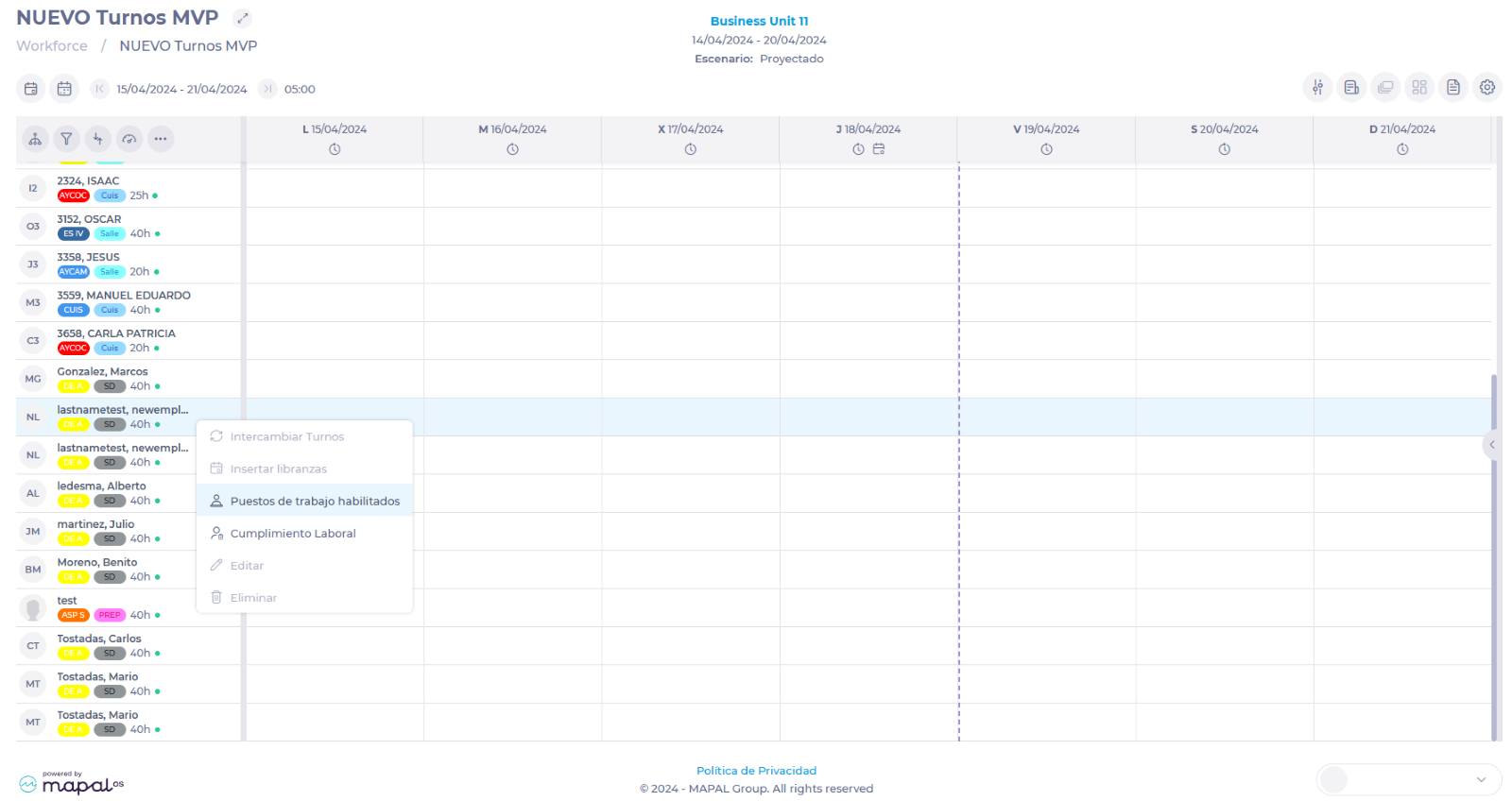
- In the employee list, locate the employee for whom you want to enable a workstation and right-click to display a menu.
- Select Enabled Workstations from the drop-down menu.
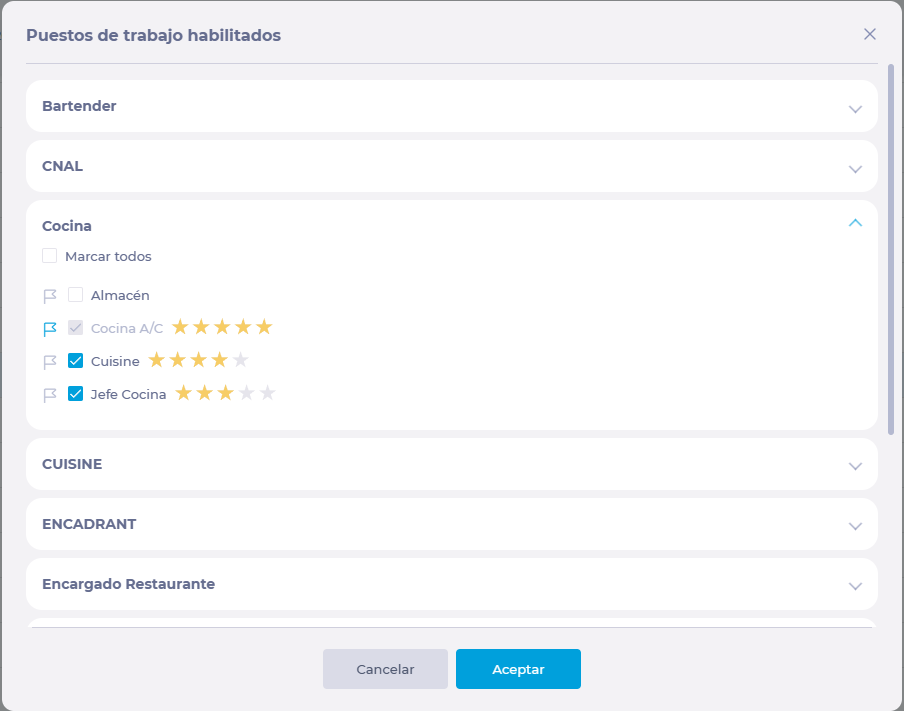
- In the Enabled Workstations window, find the drop-down with the category and select the specific workstations to be enabled.
- Once the workstations have been selected, assign a rating to the employee's performance in each position. The rating is assigned in the form of stars, on a scale from 0.5 (lowest rating) to 5 (highest rating).
- Even if multiple positions are selected, the worker must always have a single Default Workstation. This is determined by selecting the gray flag icon next to the workstation's name. The selected default workstations will be displayed then with a blue flag.
- Select Accept to save the workstation configuration OR Cancel to discard it.
Assign an employee to a shift in a different center
Start from: The Workforce module.
- Select Scheduling > Weekly ROTAs from the main menu.

- Select the Work Center in which you want to create or modify the shift.
- Select the Arrow icon to edit an existing shift OR select New to create a new shift.

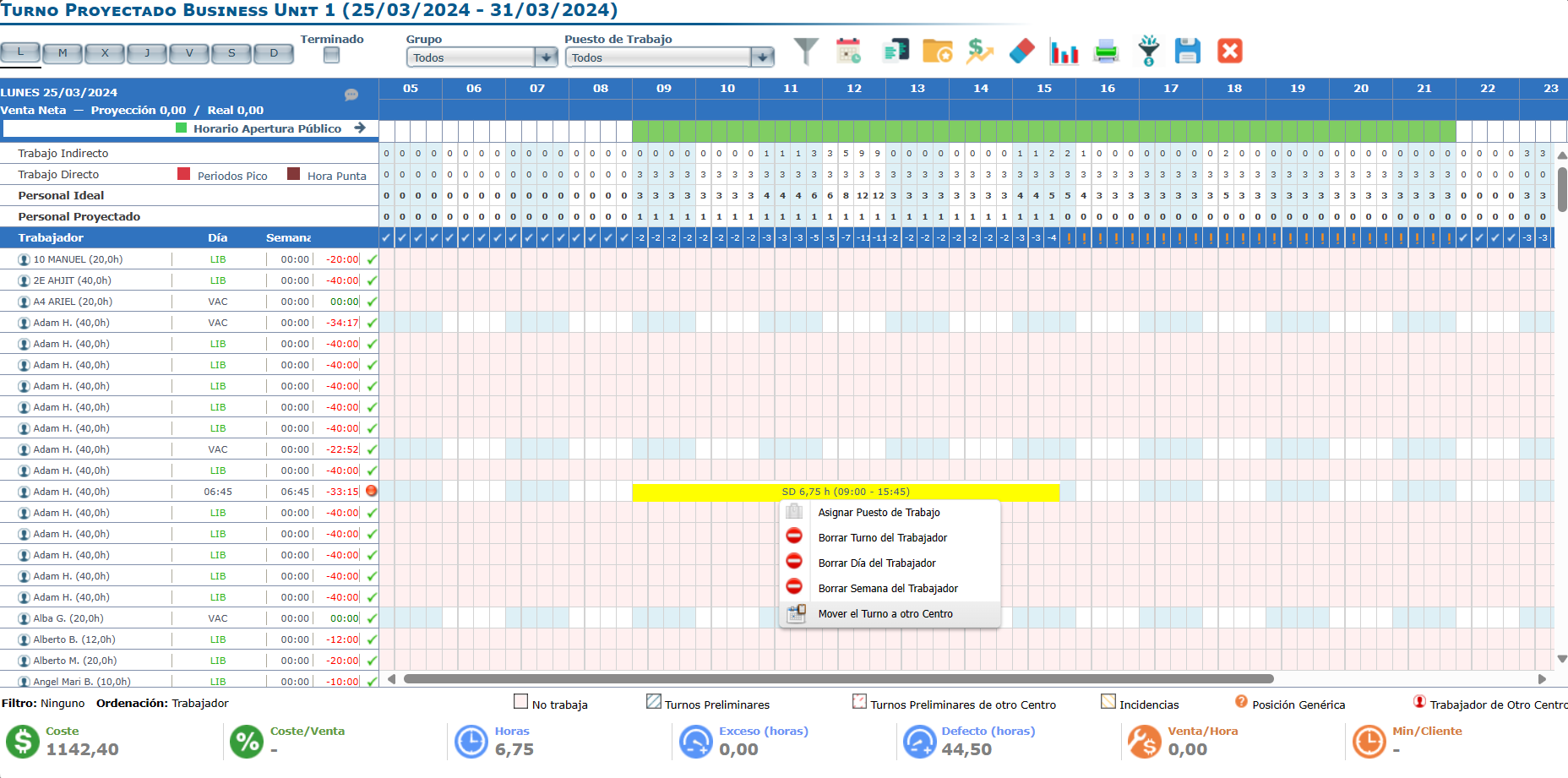
- Once in the Projected Shift screen, select the shift you wish to move with a right-click to display a menu of options.
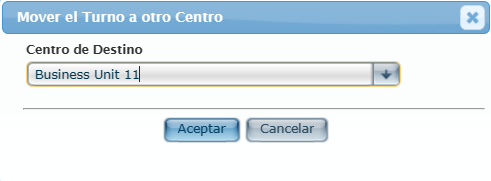
- Select Transfer Shift.

- Select the Destination Center of the shift from the drop-down menu.
- Select Accept to send the shift to the Center.

Once this has been done, the shift will have been sent to the destination Center, so it can only be managed from the new Center.
Notes: To move the shift from one center to another, the employee must be enabled to clock in at both centers using Time and Attendance Control
Understand default and enabled workstations
The enabled and default positions are configured in the Projected Shift screen, at the time of shift configuration.
Enabled workstations
Enabled workstations are all positions that an employee is qualified to perform. Depending on their capabilities and performance, one or several positions may be assigned to the same employee.
Enabled workstations can be assigned on an employee-by-employee basis or using a general listing of the entire unit.
Default workstation
When shifts are created, employees will be automatically assigned to their assigned Default workstation. The default workstation will be one of the positions enabled for the employee.
Normally, when no default workstation is defined for an employee, his default workstation will be "Undefined".
For example, if an employee is new and has not been assigned a job yet, his default workstation will be "Undefined". However, if there is an employee who has already been qualified to fill kitchen, cashier, room, and service positions, but his default position is Kitchen, their shift will always be created for Kitchen by default.
It is always possible to change the assigned workstation in the shift manually through the Projected Shift screen.
To learn how to configure default and enabled positions, see Configure enabled and default workstations.
Create new category
Start from: The Workforce module.
- Navigate to Configuration > Categories.

- Select the New + button on the category screen.

- Choose a name for the new Category.
- Sets an Abbreviation for the new category. It will be the one you see later when planning a shift or vacation.
- Set a Productivity percentage for the labor category you are creating. We understand 100% productivity when the work performance is 100% related to sales. When this performance involves indirect labor, we will mark a lower percentage.
- Set a Coverage percentage to determine the level of demand coverage in the shift for each category to achieve better cost control and guarantee the minimum coverage of operational needs.
- Select a Colour that represents the job category. You will see this color when planning shifts and vacations.
- Select a Category Group where you will include the new category. If the group does not exist yet, see Group categories.
- Select the Country of the work center for which you want the category to apply.
- Select the Brand for which you want to create the category.
- Define the Status of the category, indicating whether it is active or not.
- Select Accept to create the category OR Cancel to discard the changes.