


Note: Every action that can be performed in the application is subject to access permissions. If you are unable to perform the recommended actions in the articles you are viewing, it may mean that the necessary permissions are not enabled for your user profile. Contact the Support team or your administrator to learn more.
Start from: The Easilys menu.
Is a new year approaching? Or are you about to change the prices of your services?
If you modify your services directly in the tracking table, the changes will also be reflected in the past. The solution is to set an end date for the tracking lines that do not already have one and to create a new one. Let's see how to do this together.
- Select Management > Service counts.

Select an unvalidated day in the calendar.
- Select the orange pencil for the service whose “PR”, “PV” or even the theoretical daily count needs to be modified.
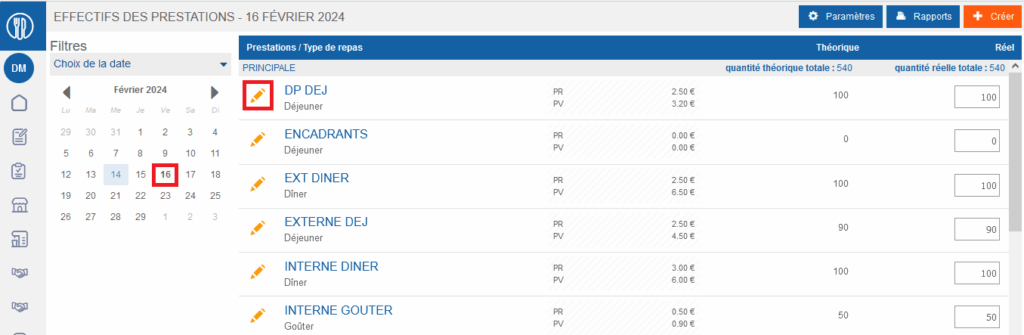
The “Update a service” window appears on the screen.
- Enter an end date if there isn't one already, or modify the end date if it does not correspond to the day before the “PR” or “PV” is to be changed.
- Select Update.

- In the calendar, select the date on which the new “PR” and/or “PV” will be implemented.
- Select +Create.

The “Create a service” window appears on the screen.
- Recreate the same service as the one previously modified:
- Enter the new “PR”, “PV” and/or theoretical daily count.
- Enter a start date corresponding to the start of the implementation of this new “PR”, “PV” and/or theoretical daily count.
- Optionally, enter an end date.
Note: Refer to the article Create the service counts tracking table for more information on creating a service.
- Select Create.

By following this method, you will have, from the chosen start date until the possible end date, your new service counts tracking line with the new “PR”, “PV” and/or theoretical daily count, while keeping a history of the previous one.
