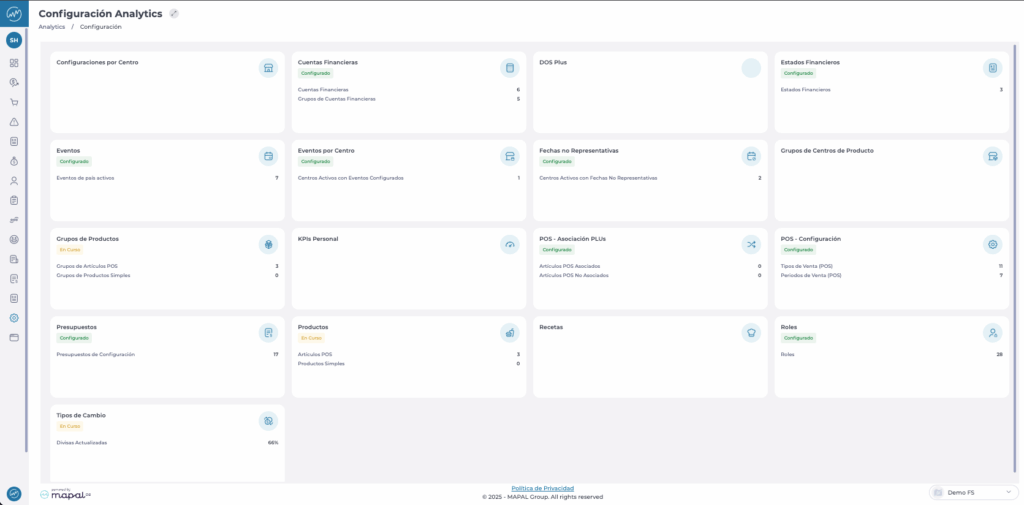
Start from: The Analytics Dashboard.
- Navigate to Configuration > Outlier Dates.
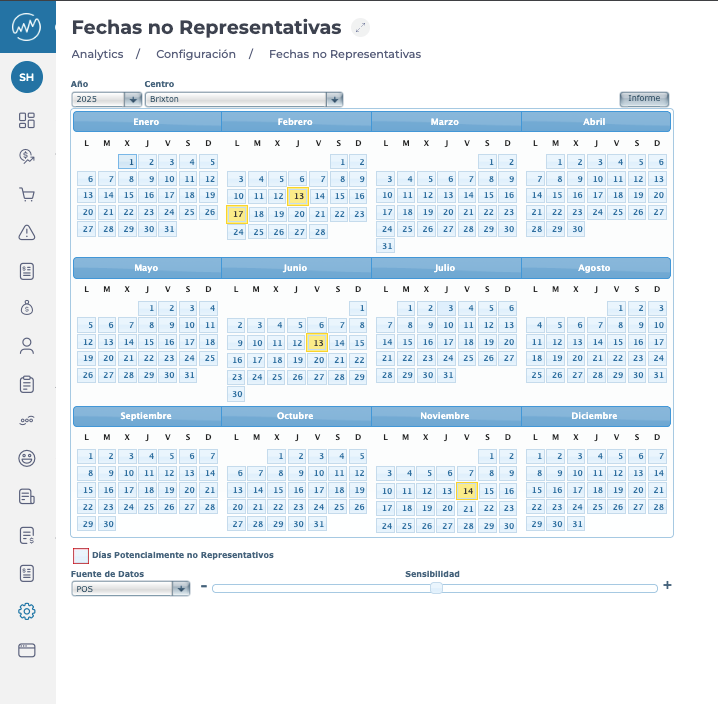
- Select the Year and the Site for which you want to configure non-representative dates. These dates are set on the current year's calendar but are used to adjust the sales budget for the following year.
Example: If you mark dates in 2024 as outliers, they will not influence the sales budget calculations when 2024 is used as the historical reference for 2025.
Review system-suggested outliers
- Days outlined in red are Potentially Non-Representative Days. These are flagged automatically based on the sensitivity setting and variations detected in the data source (POS or cash sheet).
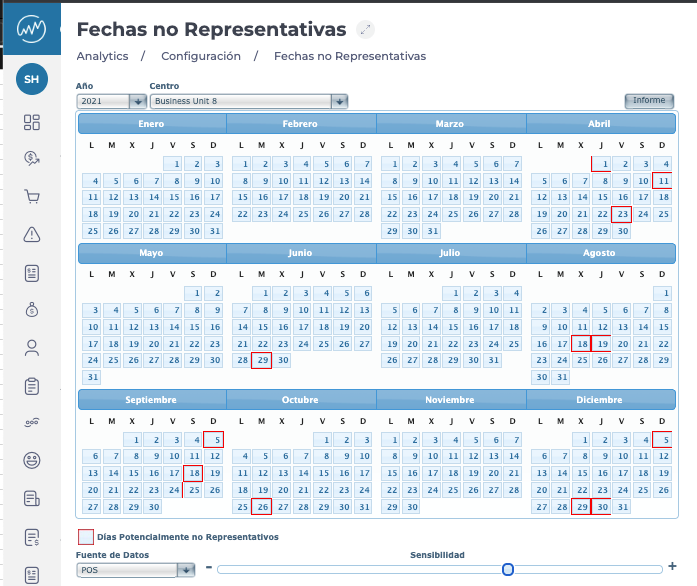
- Adjust the sensitivity using the slider control to detect fewer or more outliers.
Manually mark non-representative days
- Click on any date to mark it as Non-Representative.
- The selected day will appear in yellow.
- Add a comment to justify the selection (e.g., “Bank holiday” or “Local event”).
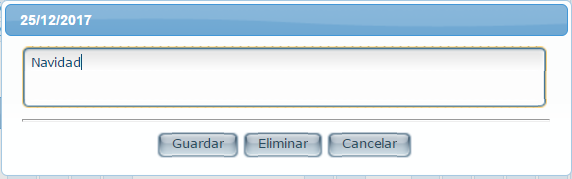
- Select Accept to confirm or Cancel to discard.
Generate a report
To get a global overview of all configured outlier dates for a specific site:
- Select Report at the top of the grid.
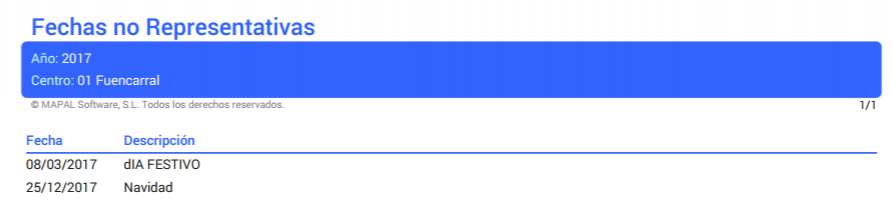
- A PDF summary will be generated listing all the dates marked as Non-Representative for the selected site and year. This report helps provide visibility and traceability for forecasting decisions across your organisation.