


Start from: The Analytics dashboard.
Financial Budgets
The Budget sub-module within Financial Statements enables detailed financial control, allowing you to break down budgets by specific work centers and compare them with actual performance data.
Key benefits of this module
-
Detailed Financial Control: Provides a clear view of annual and monthly budgets, helping with strategic planning and resource optimization.
-
Analysis by Work Center: Enables customized budget analysis for each business unit, ensuring decisions are tailored to specific operational needs.
-
Identification of Deviations: By comparing budgeted versus actual results, managers can quickly detect anomalies and take corrective action when necessary.
Analyze Financial Budgets
Set up the grid
-
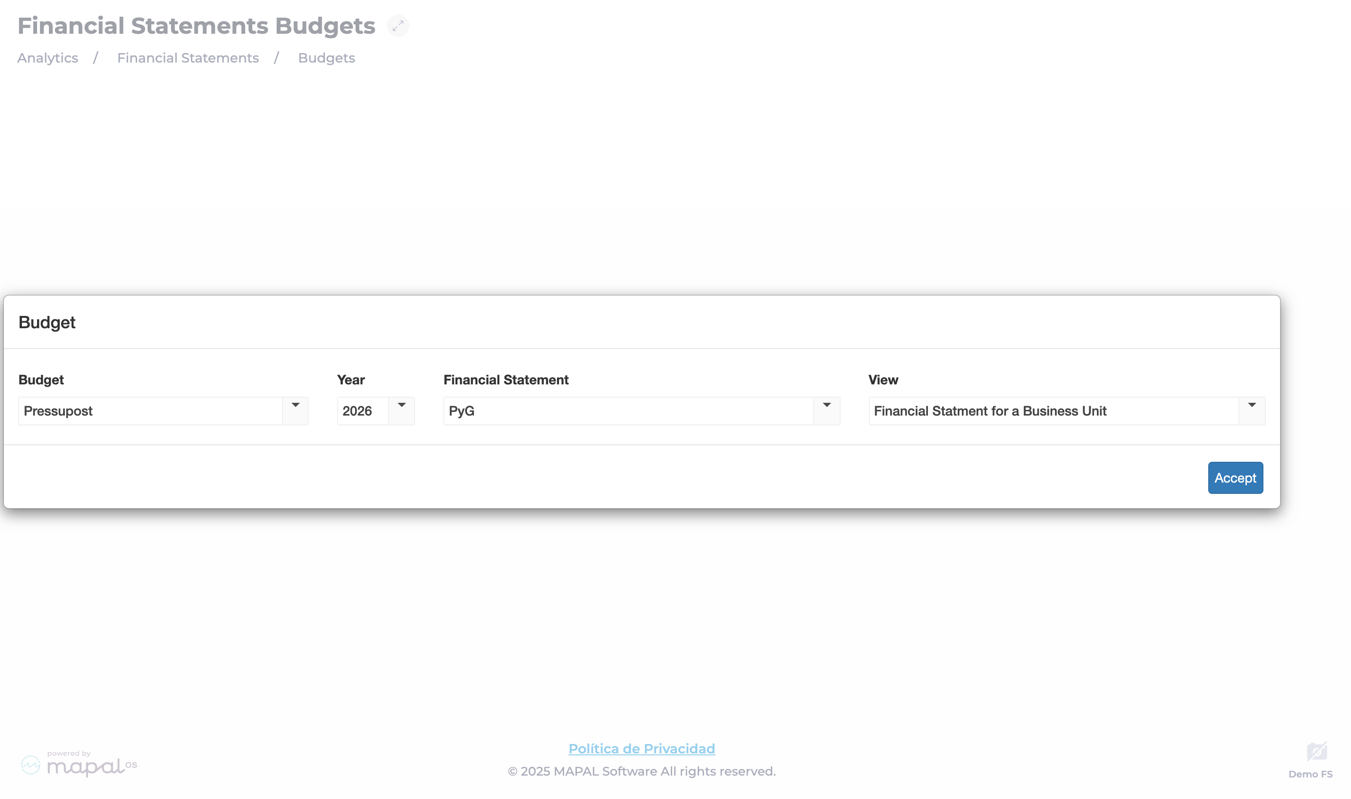
Navigate to Financial Statements > Budgets.
-
Select the Budget you want to see.
-
Choose the Year for analysis (e.g., 2025).
-
Define the Financial statement to view.
-
Select the View
-
Financial Statement for a Business Unit
-
Account by Business Unit
-
-
Press Accept.
-
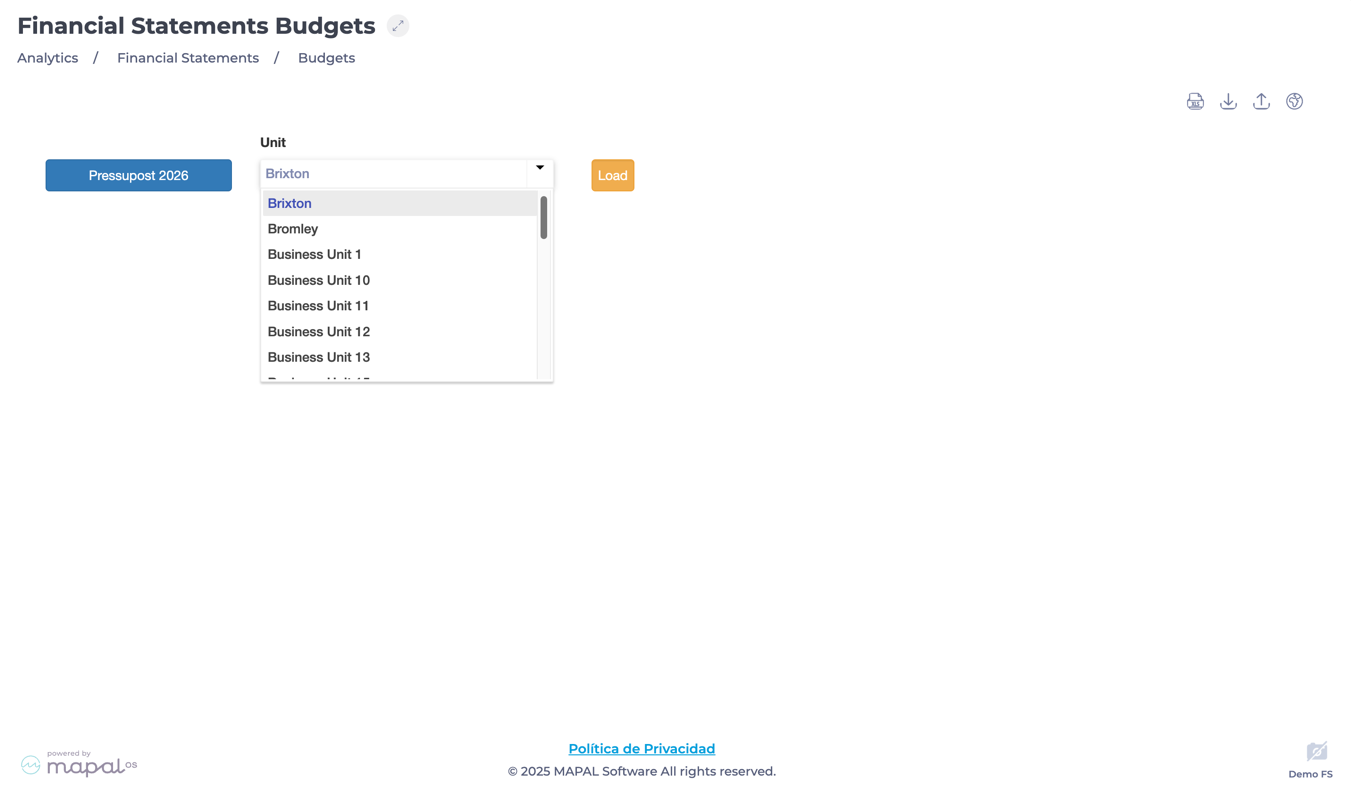
Next, specify the Business Unit to analyze from the dropdown menu.
View the grid
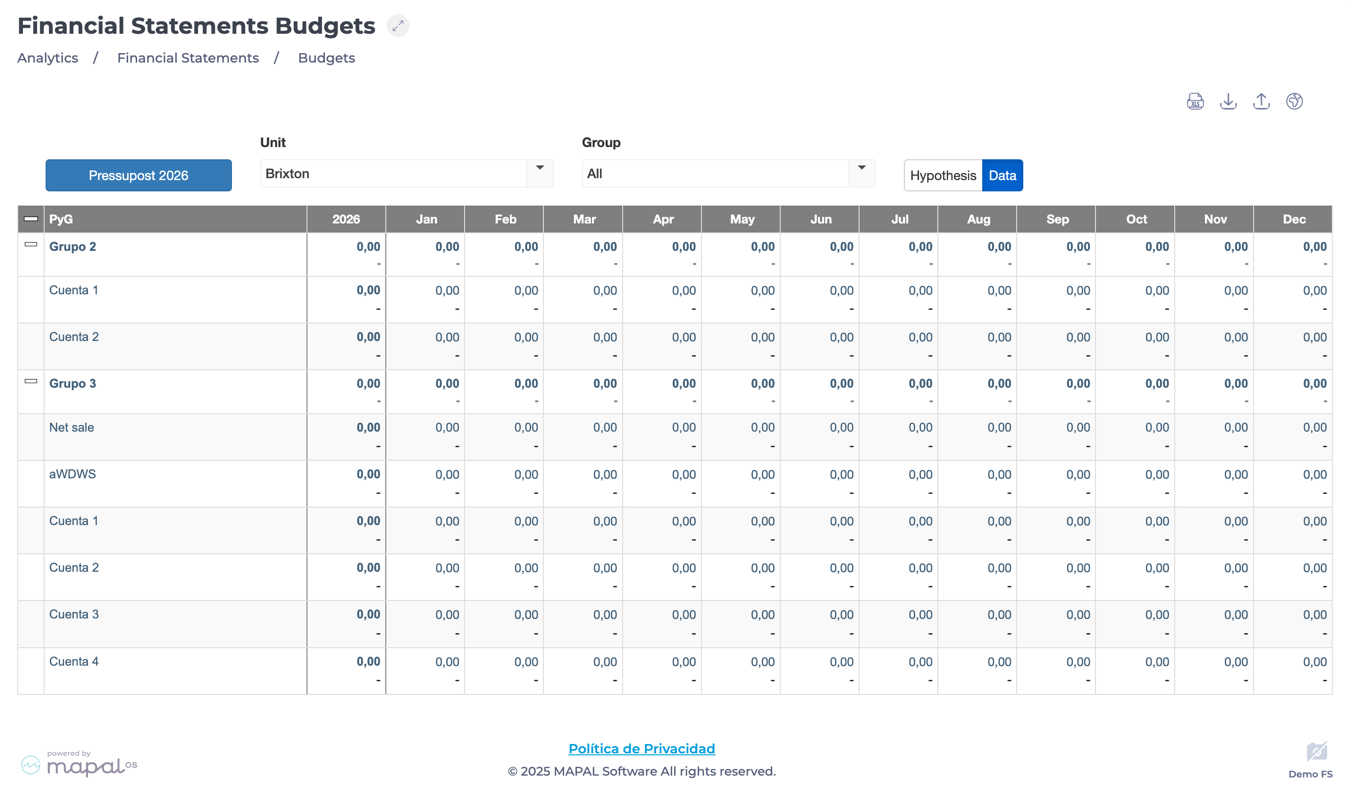
Once the parameters are set, the system presents a structured financial grid with:
-
First Column: Financial Categories
-
Includes Net Sales, Raw Materials Consumption, Personnel Costs, and more.
-
Some categories are collapsible, revealing subcategories (e.g., Food Purchases, Wages, Temporary Employment).
-
-
Second Column: Annual Totals
-
Displays total budgeted values for the entire year.
-
-
Third+ Columns: Monthly Breakdown (January - December)
-
Provides a month-by-month breakdown of budgeted values.
-
Helps track financial performance trends over time.
-
Grid actions
In the Financial Statements Budgets grid, users can perform various actions to refine their analysis:
-
Modify Parameters:
-
Click on the Budget Name to reset initial parameters.
-
Select a different Business Unit from the Unit dropdown.
-
Filter by specific Groups for a more granular analysis.
-
-
Switch Between Data Modes:
-
View either actual data or hypothetical projections.
-
In Hypothesis mode, users can add and edit values to test different financial scenarios.
-
-
Additional Options (Top Menu):
-
Download XLS templatesto import budgets.
-
Import Budgets from external sources.
-
Export Budgets for external reporting.
-
View Global Projections for high-level financial forecasting.
-
src="src="src="src="src="src="
