


Start from: The home screen in Mapal Manager.
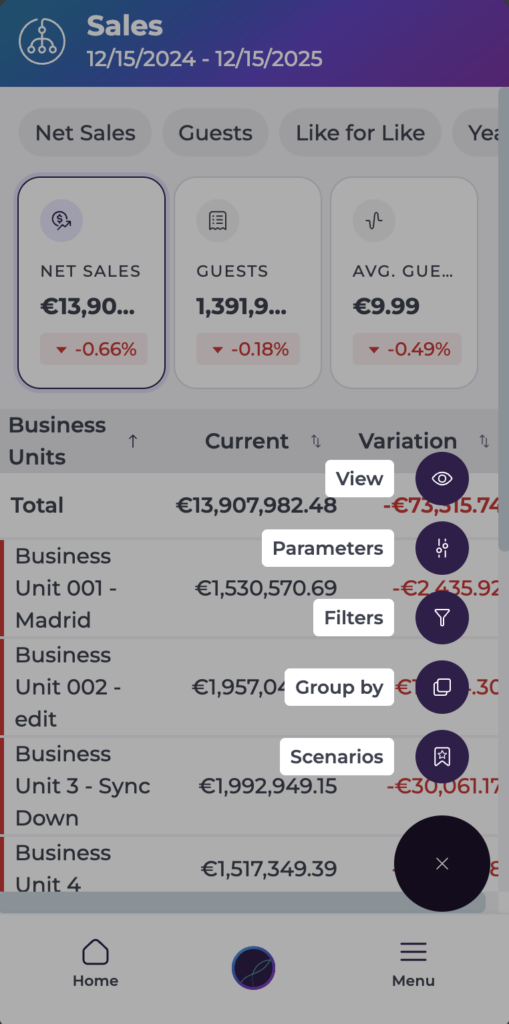
- On the Sales screen, tap the More Options (...) button.
- Select Parameters from the menu.
- The Parameters panel opens. Under the Analysis section, select the Comparison Scenario dropdown. Select the scenario you want to use, for example:
- Like for like
- Actual vs previous year
- Actual vs budget
- Actual vs previous day/week/month
- Custom comparison period (if available)
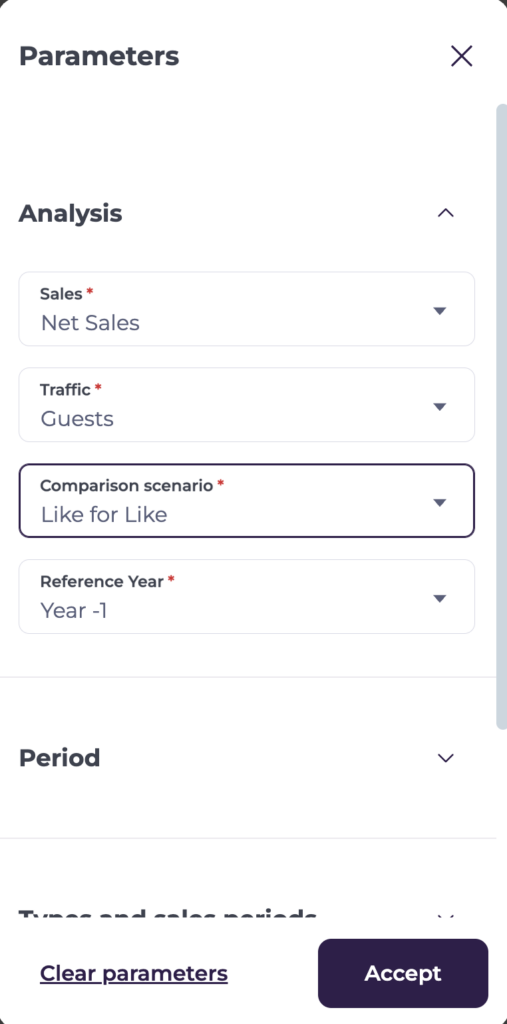
Note: Some scenarios update automatically (for example, Actual vs previous year selects the same date last year). For scenarios such as Custom, choose the specific comparison date or period if additional fields appear. Confirm any required values.
- When you have chosen your scenario and completed any extra fields, tap Accept. The Parameters panel closes.
- On the Sales screen, the percentage change shown under each metric card (Net Sales, Checks, Average Check) updates to use the new scenario.
- Any arrows or colours indicating performance direction also update.
- The breakdown list under the cards (for example, by site, brand or region) refreshes with the new comparative values.
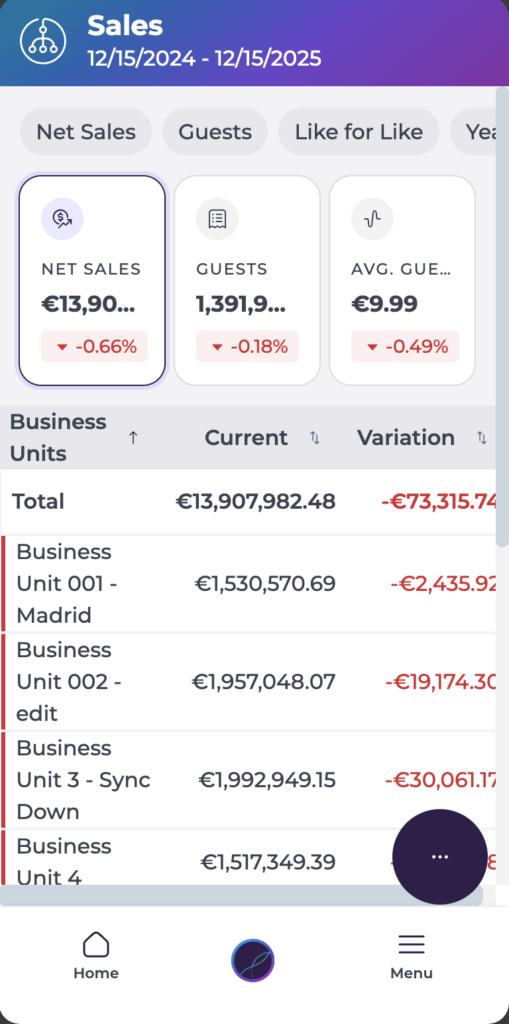
The selected comparison scenario stays active while you remain in the Sales view. Switching business unit does not reset the scenario.
Notes: Loading a saved scenario can override the comparison scenario you set manually. If there is not enough historical data for the chosen scenario, the comparison value may show as 0% or no data.
