


Start from: The Cashrec module.
Access Cashrec Configuration
- Navigate to Cashrec.
- Select Configuration from the main menu.
- Select Cashrec.

- You will see five main tabs:
- Sales
- Means of Payment
- Deposits
- Cash Movements
- VAT
These settings control the options available when you enter daily cash information.

Configure sales (Sales)
Use the Sales tab to define how sales are grouped and reported in cash sheets.
Sale Types
- In Sales, open the Sale Types section.
- Select New.
- Enter the Sale Type name (for example, “Bar”, “Restaurant”, “Takeaway”).
- Copy the name to other languages if required.
- Choose the Traffic type (for example, Tickets or Customers) used later in cash sheets.
- Select Accept to save.
Define a sale type for each revenue stream you want to track separately on the cash sheet.

Periods
- In Sales, open the Periods section.
- Select New.
- Enter the Period name (for example, “All day”, “Morning shift”, “Evening shift”).
- Select a Category.
- Select Accept.
Use periods to allocate sales and traffic to time bands that match your operational shifts.

Note: Keep sale types and periods simple and aligned with how managers think about service (for example, “Lunch” and “Dinner” rather than very granular breakdowns).
Configure Means of Payment
Use the Means of Payment tab to define the card and voucher payment types used in your venue.
- Open Means of Payment.
- Select New.
- Enter the Payment Method name (for example, “Visa”, “Mastercard”, “Amex”, “Meal vouchers”).
- Select Accept.
These payment methods appear later in the Bank Cards and Food Vouchers sections of the cash sheet.

Note: Use clear, recognisable names so managers can easily match the method to POS reports or card statements.
Configure Deposits accounts
Use the Deposits tab to configure the bank accounts used for deposits.
- Open Deposits.
- Select New.
- Enter the Bank Account name (for example, “Main current account”, “Deposit account”).
- Select Accept.
These income accounts are available in the Bank Deposits section of cash sheets so that deposits can be linked to the correct bank account.

Note: Match names to your accounting or finance system where possible to simplify reconciliation.
Configure Cash Movements
Use the Cash Movements tab to define movements of cash that are not direct sales or expenses, such as float changes or internal transfers.
- Open Cash Movements.
- Select New.
- Enter the Cash Movement name (for example, “Float increase”, “Float decrease”, “Safe drop”, “Petty cash top-up”).
- Select Accept.
These movements are used in the Contributions/Withdrawals section of cash sheets.
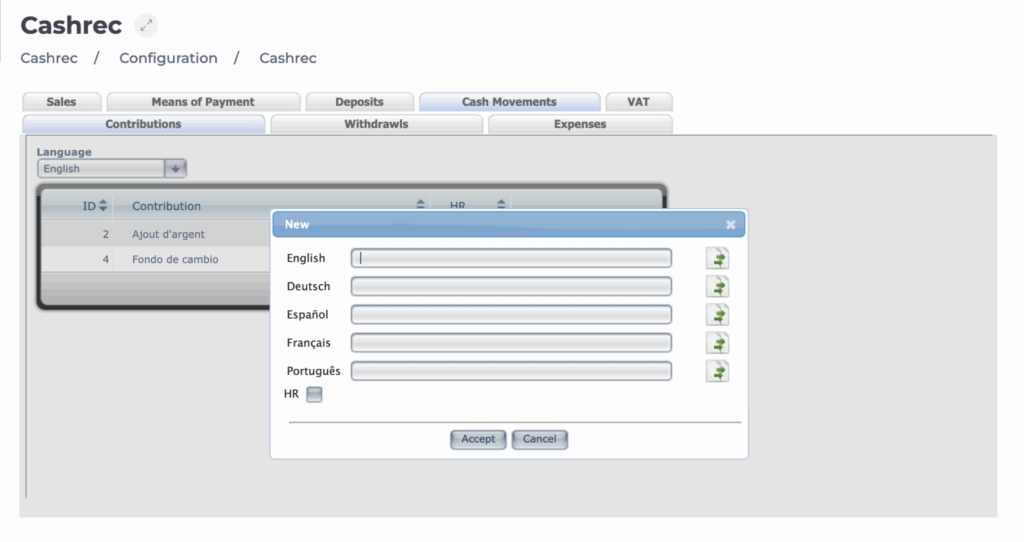
Note: Clear and specific names help managers select the right movement type and reduce reconciliation issues.
Configure VAT rates (VAT)
Use the VAT tab to define the VAT rates applied to your sales and expenses.
Common VAT rates include:
- Standard rate (for example, 21%)
- Reduced rate (for example, 10% for most food in restaurants)
- Super-reduced rate (for example, 4% for essential goods)
To add a VAT rate:
- Open VAT.
- Select New.
- Enter the VAT name (for example, “Standard VAT 21%”, “Reduced VAT 10%”).
- Set the Rate (%) value.
- Select Accept.
These VAT rates are available when you enter expenses and may be used for reporting and analysis.
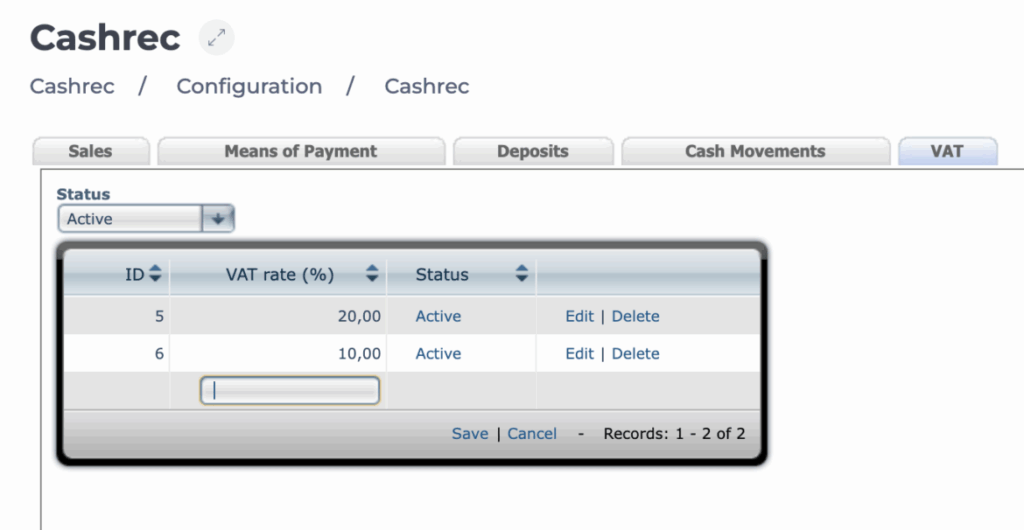
Note: Use names that include the percentage so that managers can quickly choose the correct rate (for example, “Restaurant 10%”).
Notes: Changes in Cashrec Configuration affect how options appear across all cash sheets for the operator. Review changes with your finance or operations team before applying them widely. Existing cash sheets keep their recorded values, but new options will only be available after they are created here.
