Add days off in the scheduler

Start from: The Workforce module.

To learn more about creating manual shifts, see Create shifts manually in the scheduler.

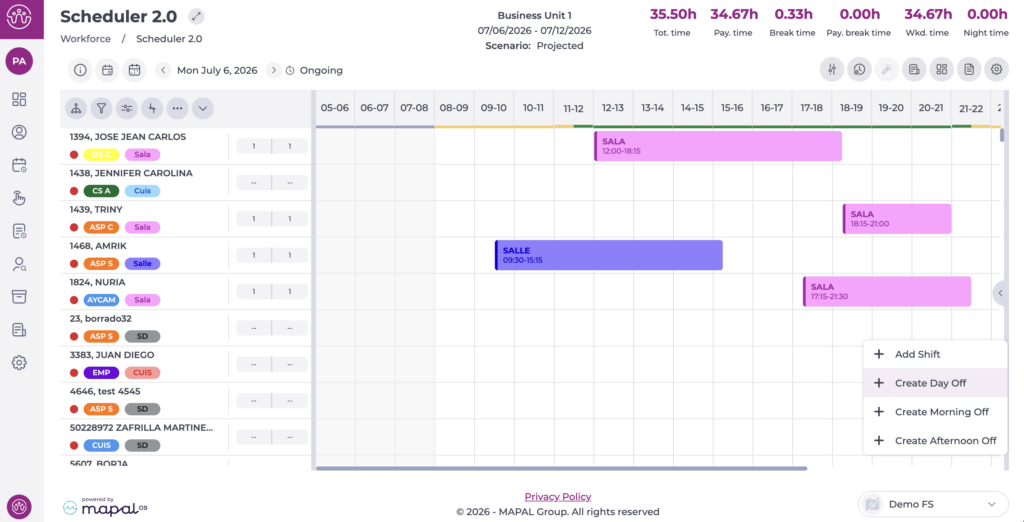
There are two methods for creating days off manually in the scheduler. Both options are available in all views:

Create an individual day off

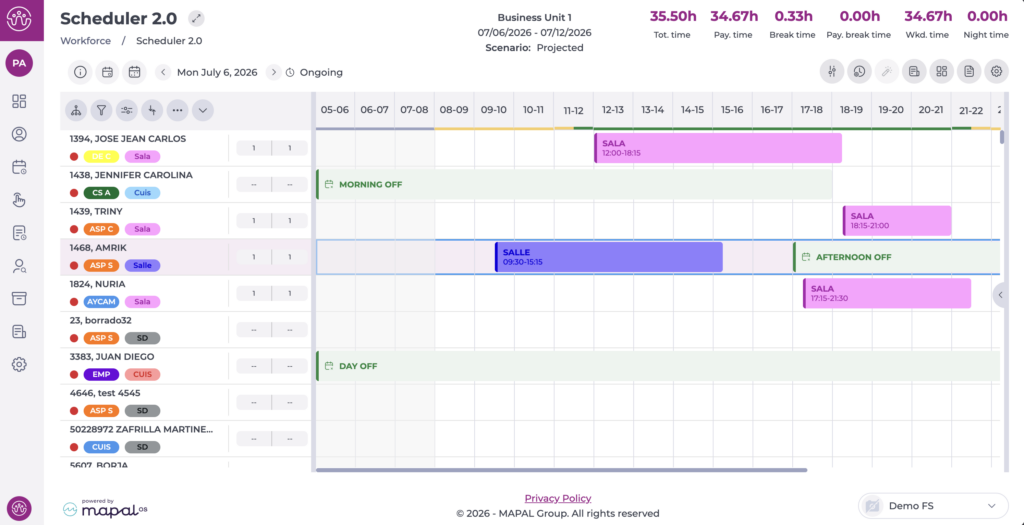
Time off lets you record an employee's planned absence. It can be assigned as a full day or half day, and it is available in all scheduler views.

For half-day absences, the system automatically uses the morning or afternoon hours defined in the opening hours of the employee's default business unit. For more information, see Set opening hours.

To create a day off, follow these steps:

Create bulk days off

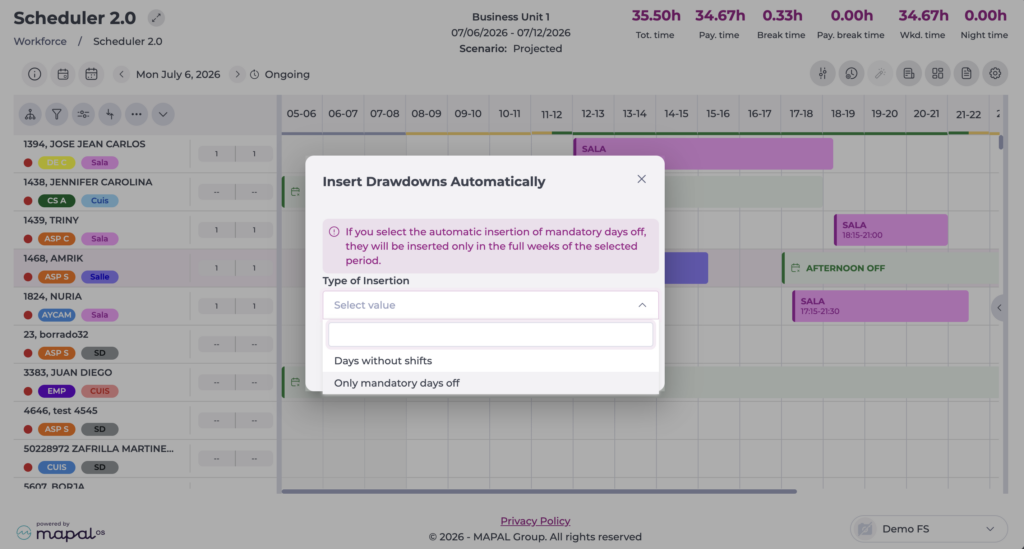
Lets you insert days off for the whole selected workforce across the period chosen beforehand. To do this, select the Insert days off option from the action menu (...).
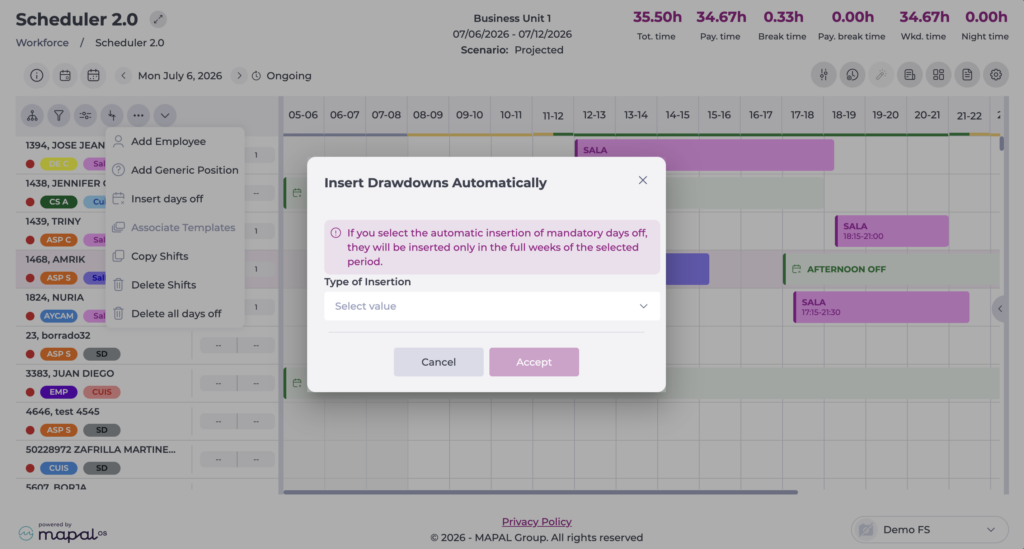
In the tab that opens, select whether you want to:

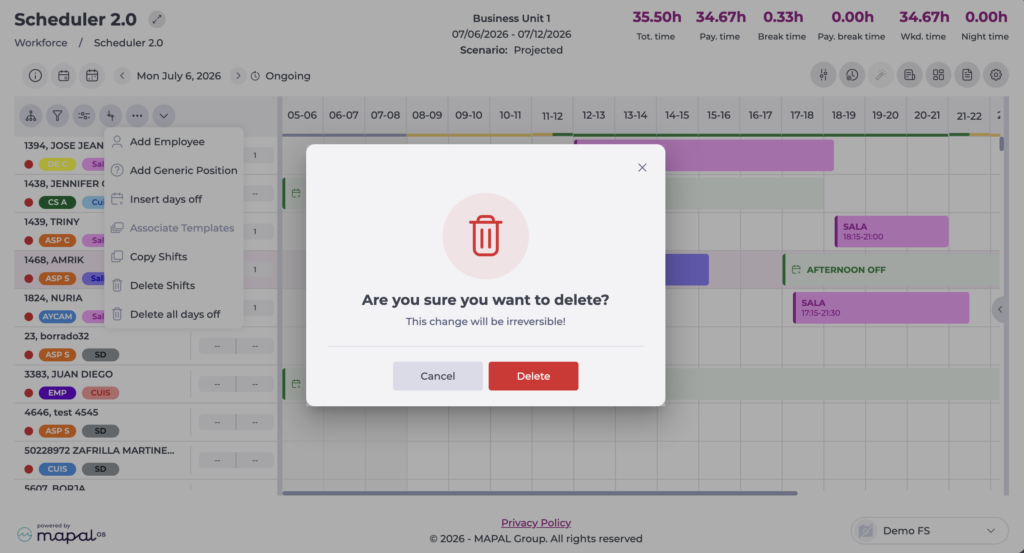
Delete days off

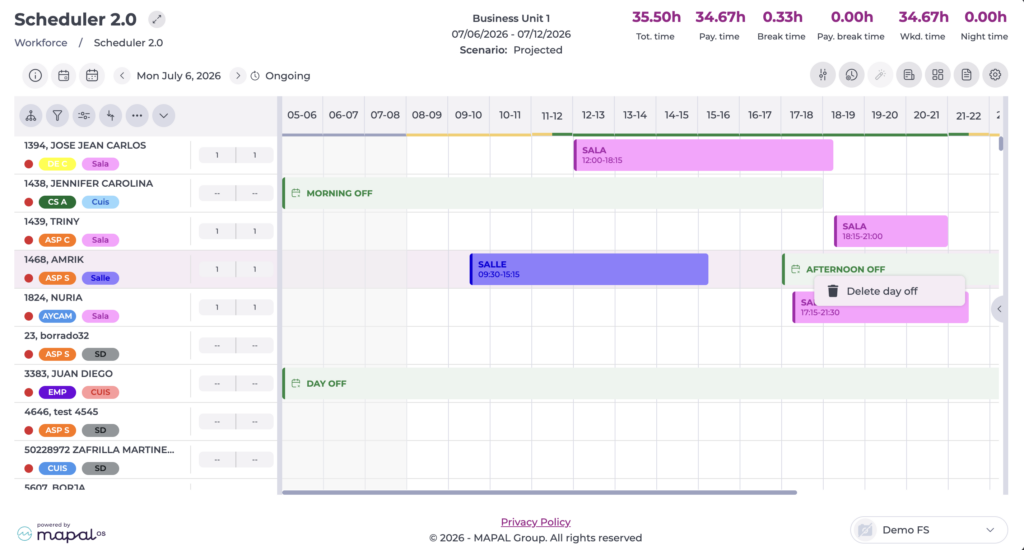
There are two methods for deleting days off, provided the shift status is in progress:

Overview: Scheduler 2.0

Start from: The Workforce module.

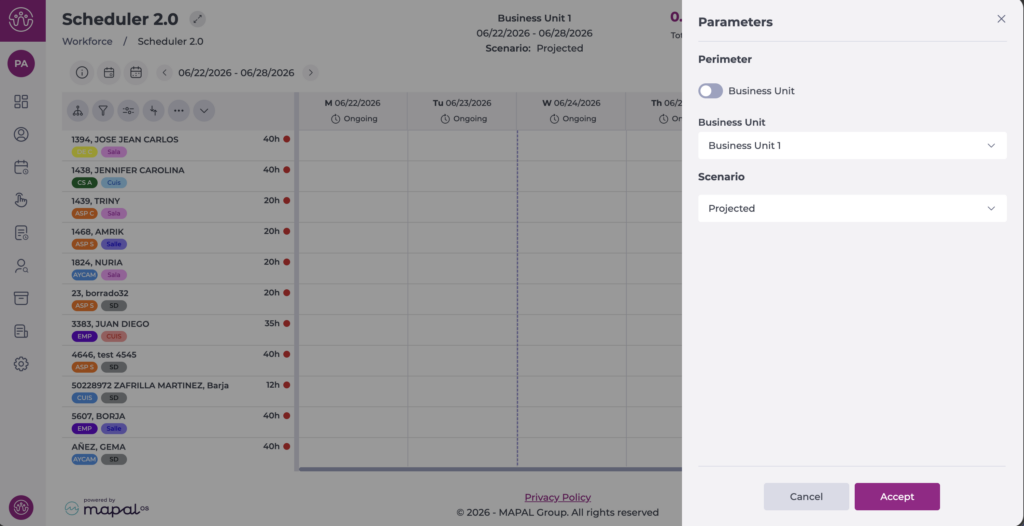
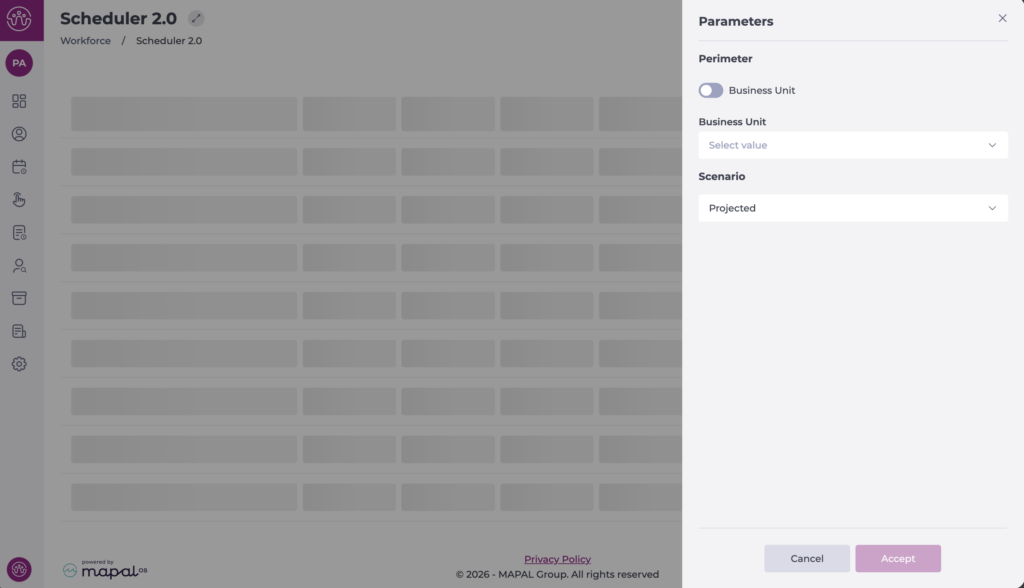
To begin planning employee shifts, you must select at least the following the first time you access the planner, from the Parameters tab.

Note: The first time you access the planner, it will open on the current week. On subsequent visits, it will remember and automatically display the last selected week.

You must select:

Note: To use site groups, you must configure them in advance in Cluster Settings.

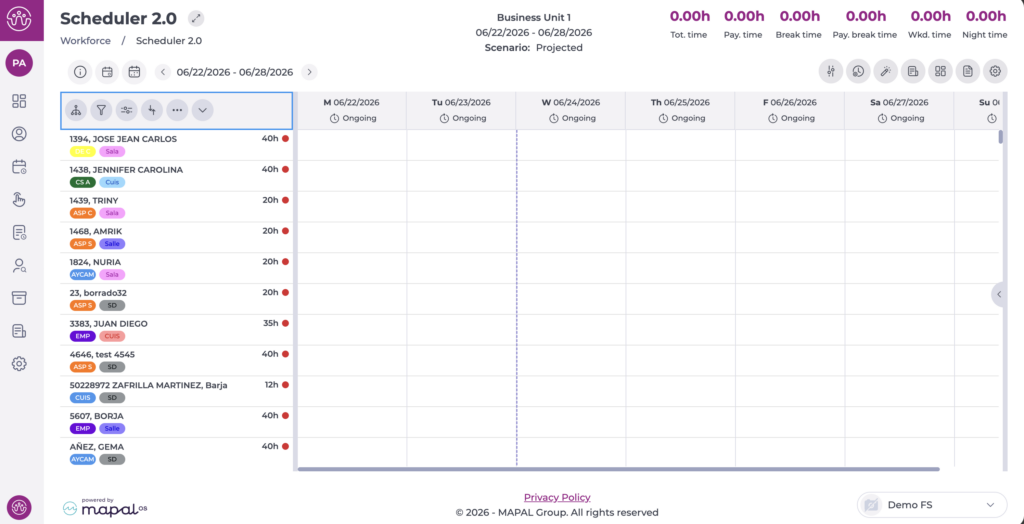
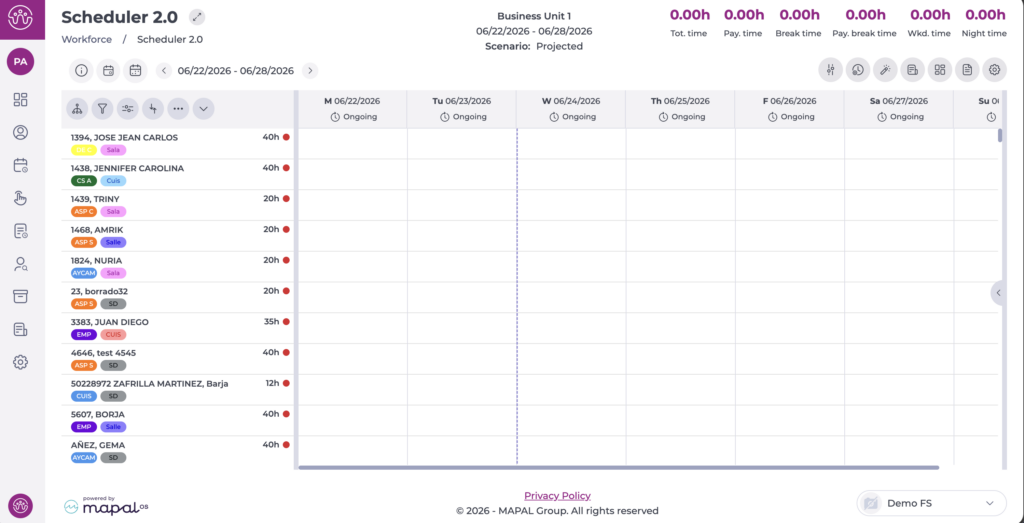
Once configured, the full grid is displayed and you can begin working in the planner.

Below is a summary of the available information and features.

The header displays the selected site or sites, the query date, and the previously chosen scenario.

General screen information

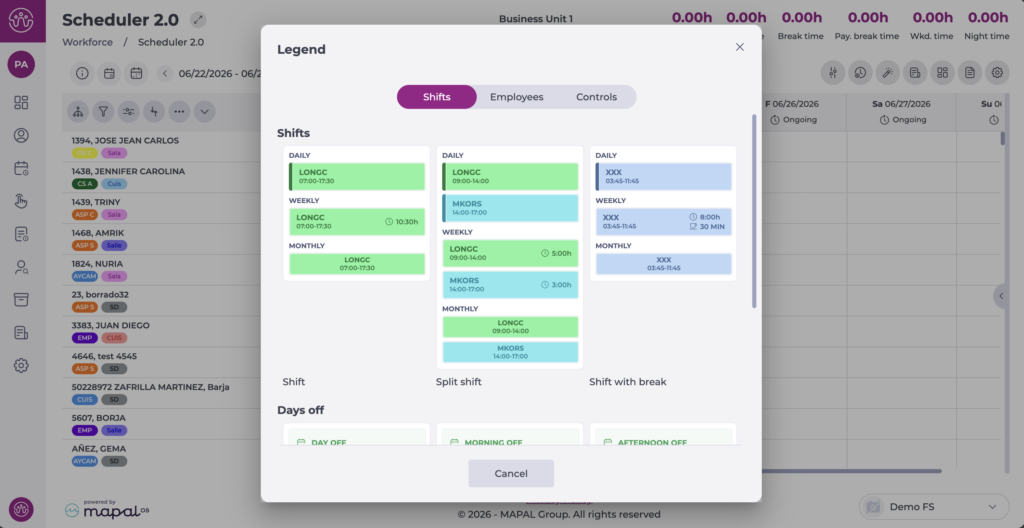
At the top of the screen you will find an information button i. This section contains the references used on the shifts screen. There are three sections: Shifts, Employees, and Controls.

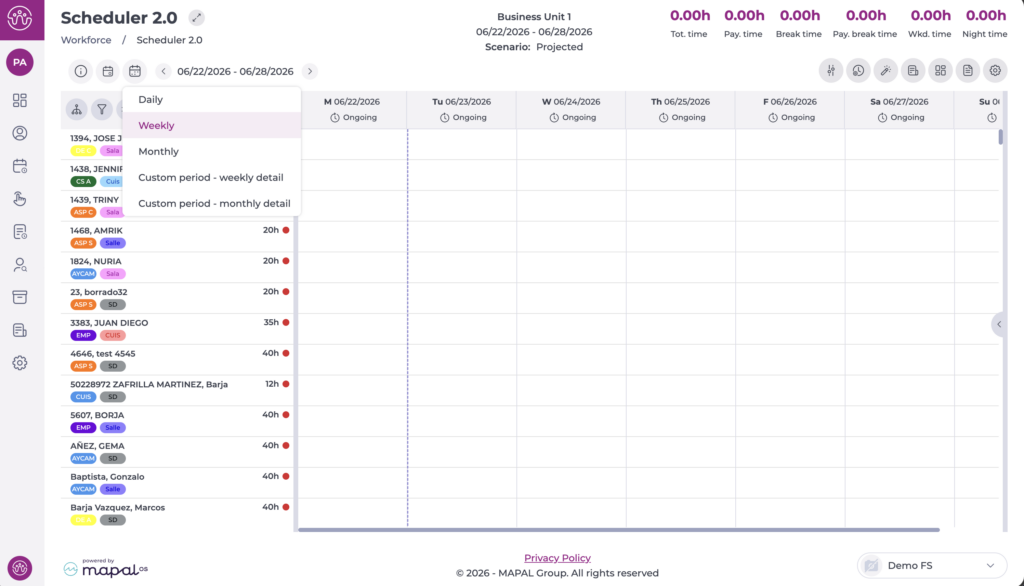
View by date and period

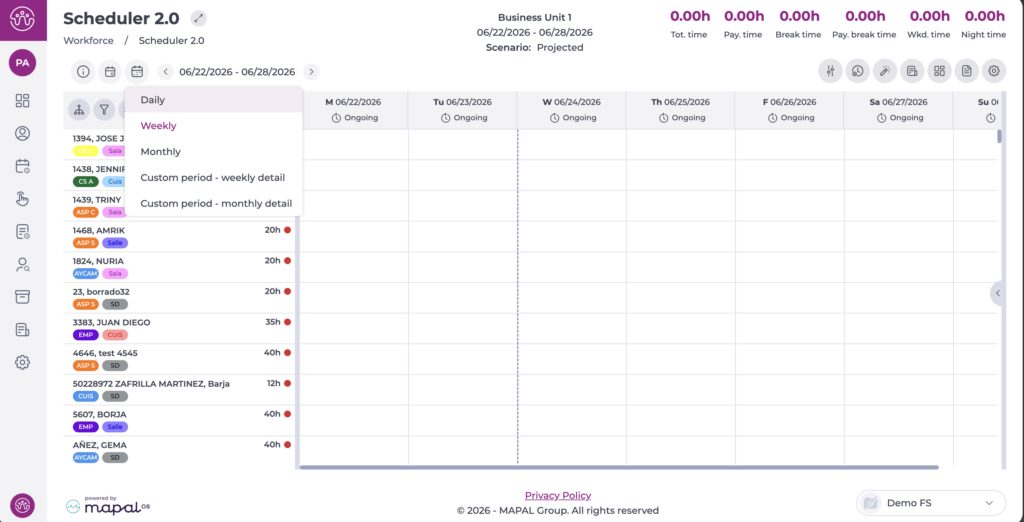
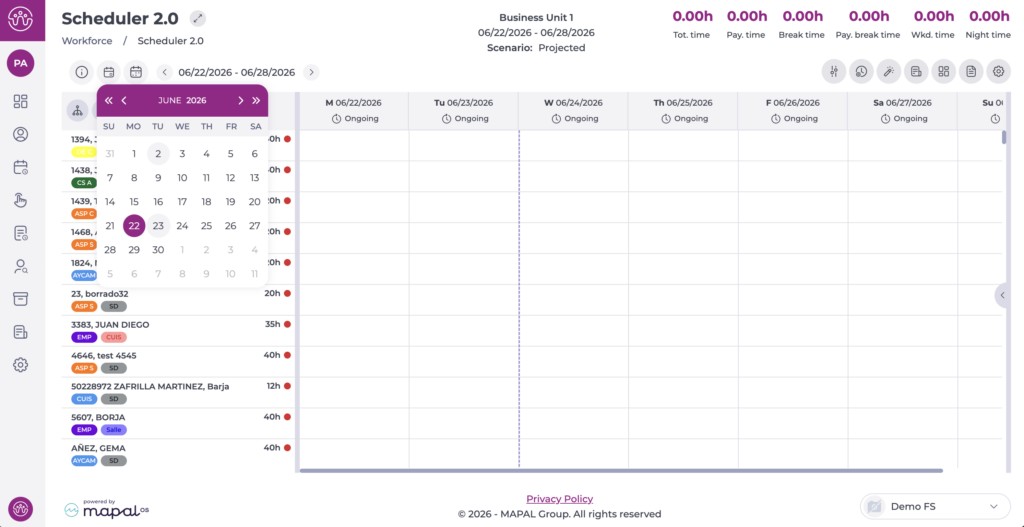
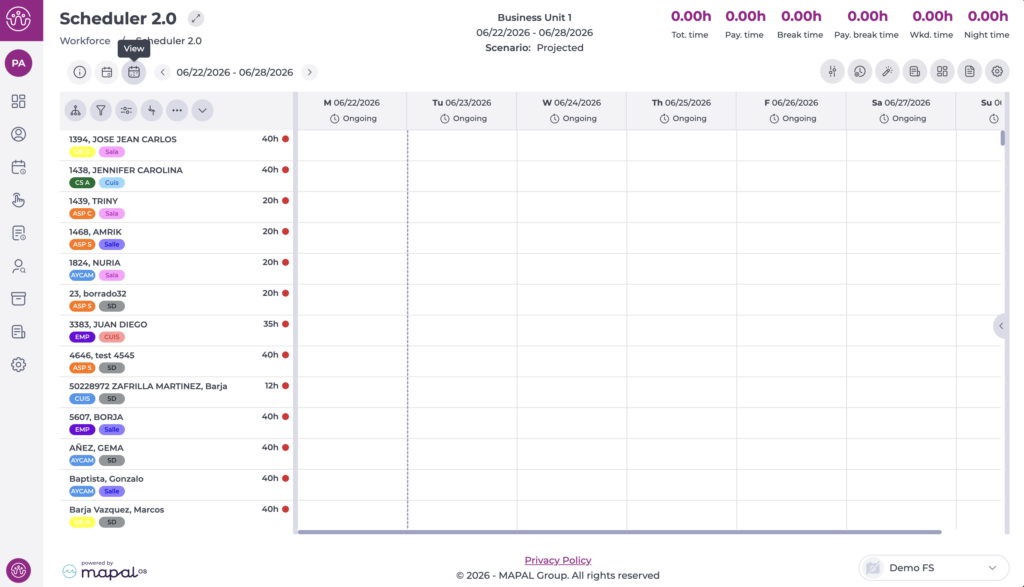
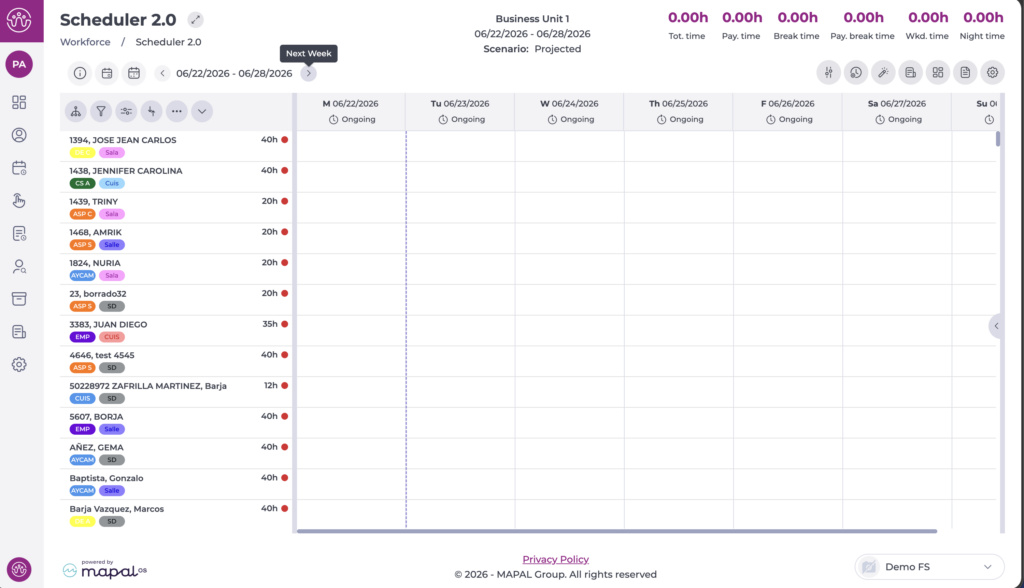
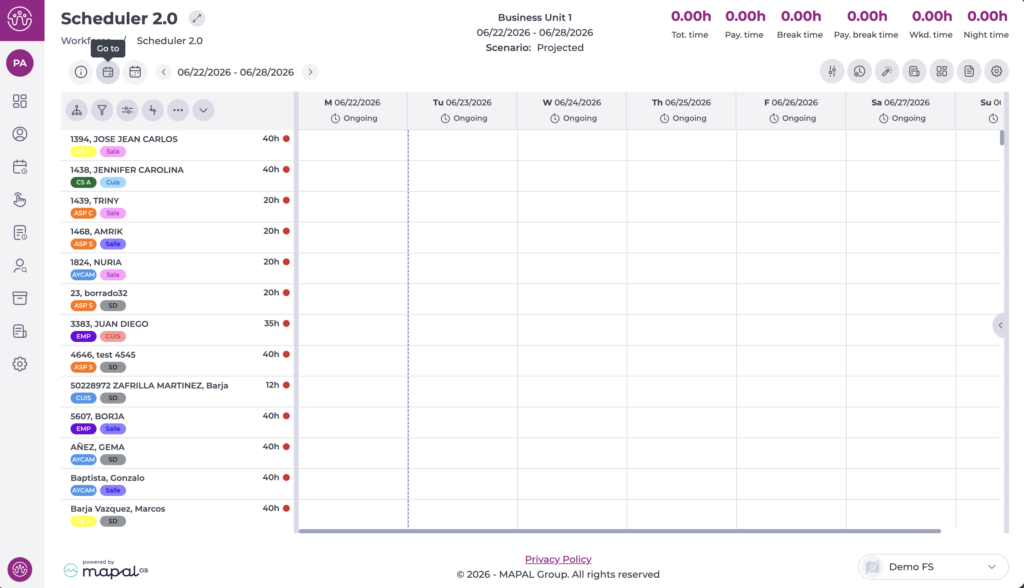
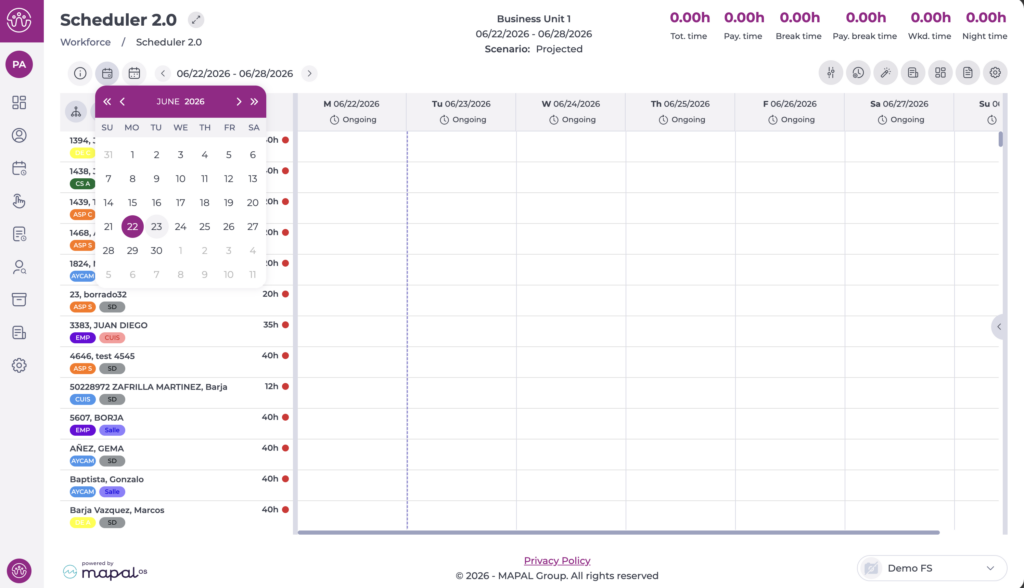
At the top of the screen you will find two buttons and a date indicator. This section allows you to adjust the view by time period or specific date, move between weeks, or use the calendar to select a new date.

For more information, see Customise the shift scheduler view by date.

Employee list and organisation options

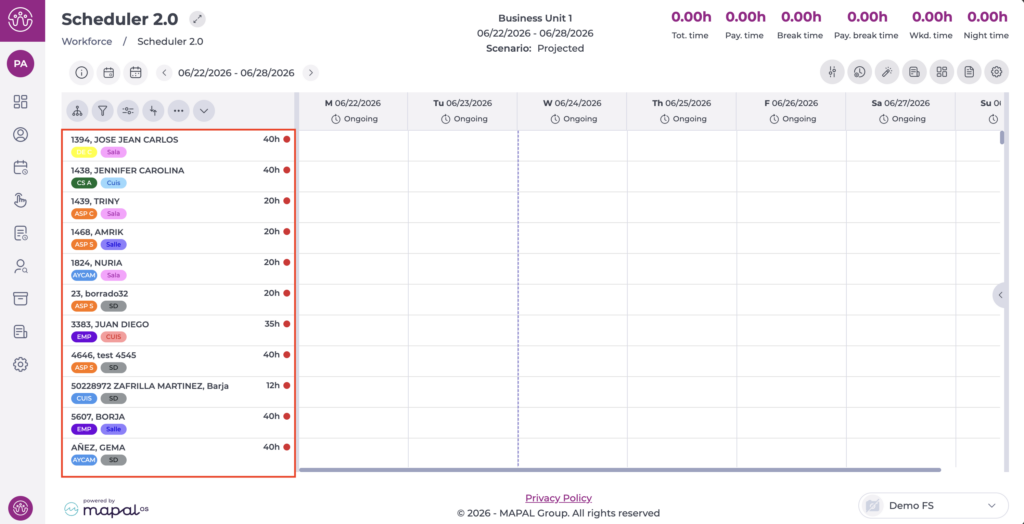
Below the view options, you will find a column with the employee list, showing each employee's name, employee code, job role, and contracted hours.

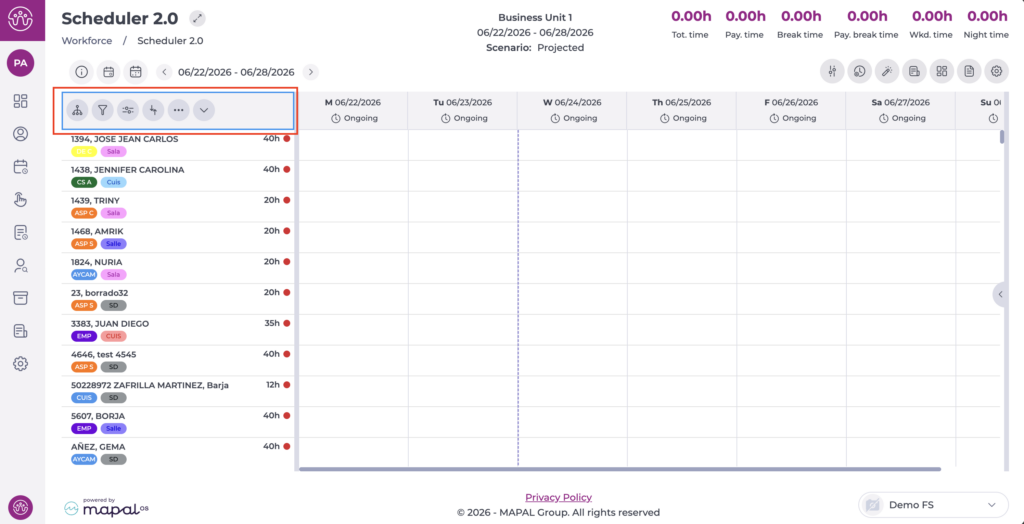
Above the list, you will find a header with five option buttons that allow you to adjust or filter the employee view as needed.

For more information, see Filter and group employees in the scheduler.

Shift grid

To the right of the employee column, you will find the grid where you assign and view shifts.

Other options

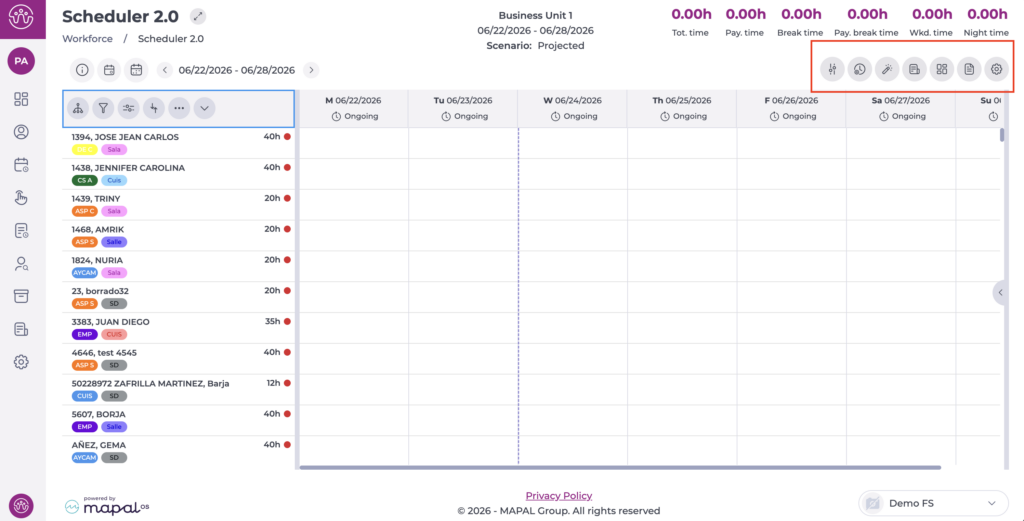
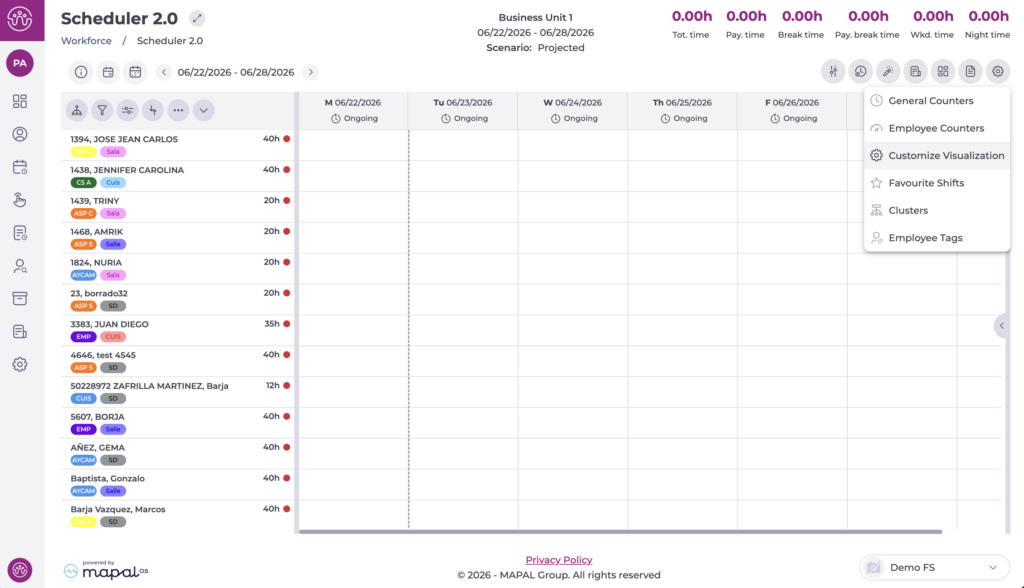
Above the grid you will find a series of buttons with additional options:

General counters

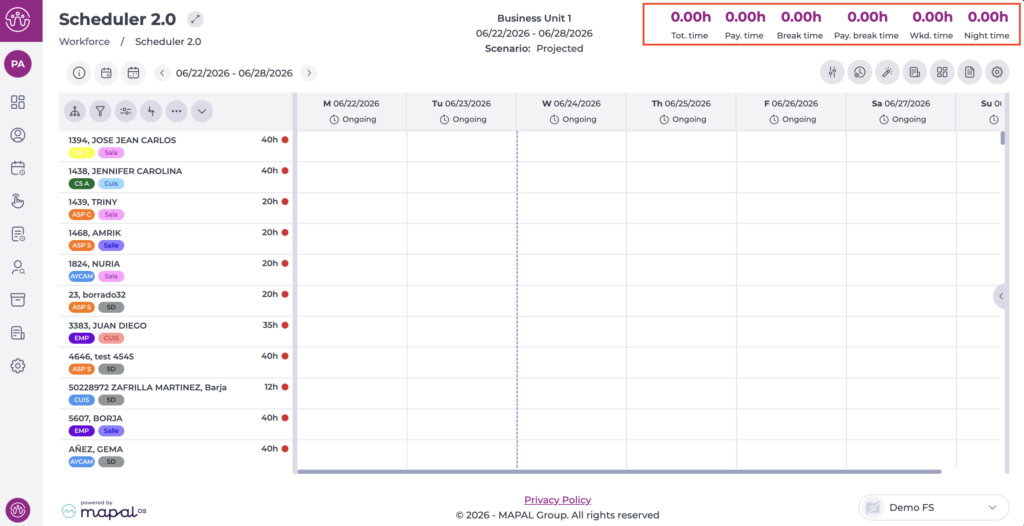
At the top of the screen, the general counters configured in advance in the settings section are displayed.

Customize the shift scheduler view by date

Start from: The Workforce module.

Once configured, the full grid is displayed and you can begin working in the planner. The next time you access it, the planner will remember your last selection.

To change the range or a specific date:

View by specific time range

In the daily, weekly, and monthly views, use the arrows to move backwards or forwards whilst keeping the selected view.

View by specific date

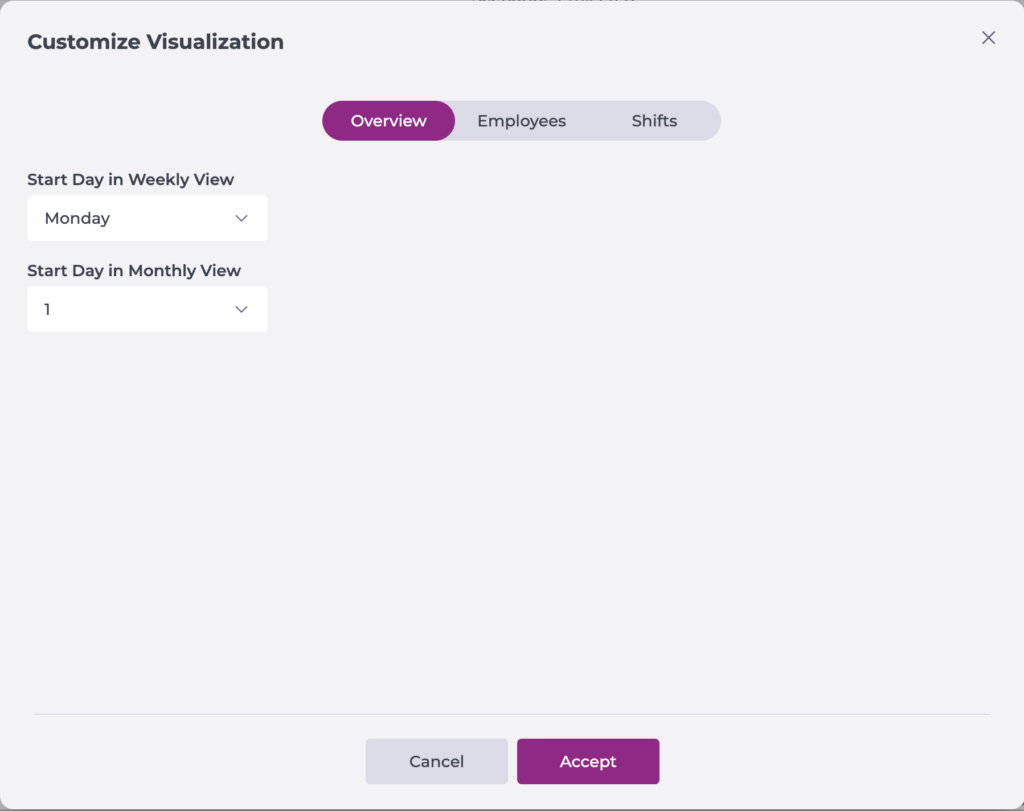
Select your preferred value from Overview, then select Accept to save your changes or Cancel to discard them.

Manage employees in the shift scheduler

Start from: The Workforce module.

Employee list

The planner displays a list of employees and key information to support decision-making. The employees shown in the list may vary. The following employees will always be displayed:

Note: If an employee has an expected leave date recorded in their profile, this may affect whether they appear on this screen.

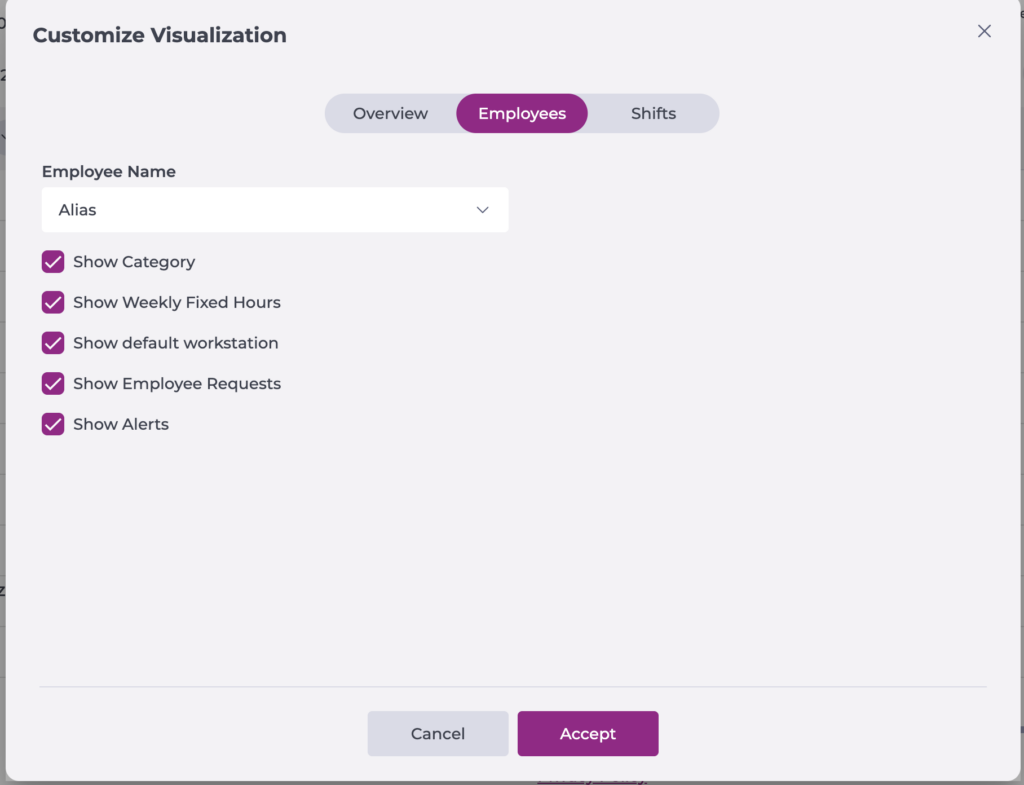
The information shown on each employee card depends on the configuration set in Scheduling > Scheduler 2.0, under Settings > Customise Display.

Available data:

Employee actions

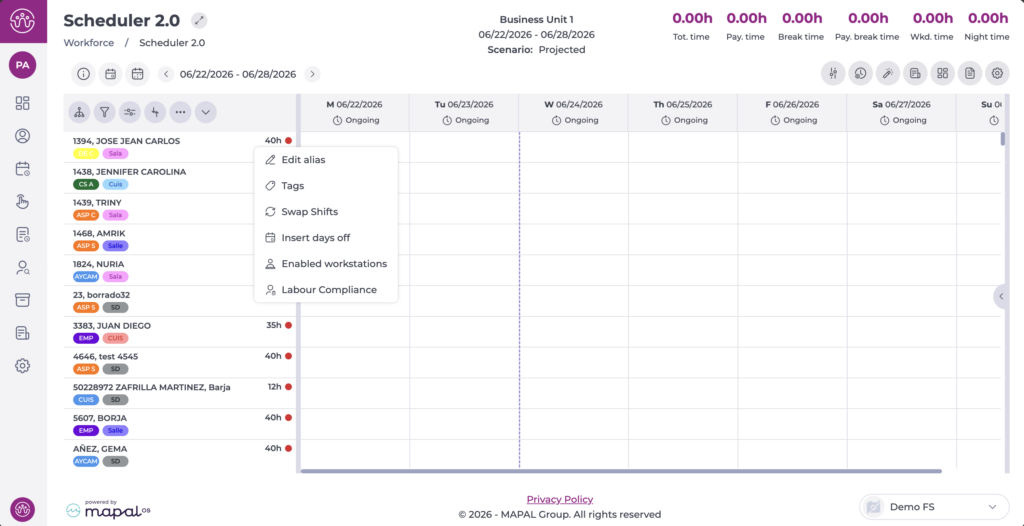
From the employee list, you can carry out various management actions. To do so, right-select the employee you want to manage.

The available actions are:

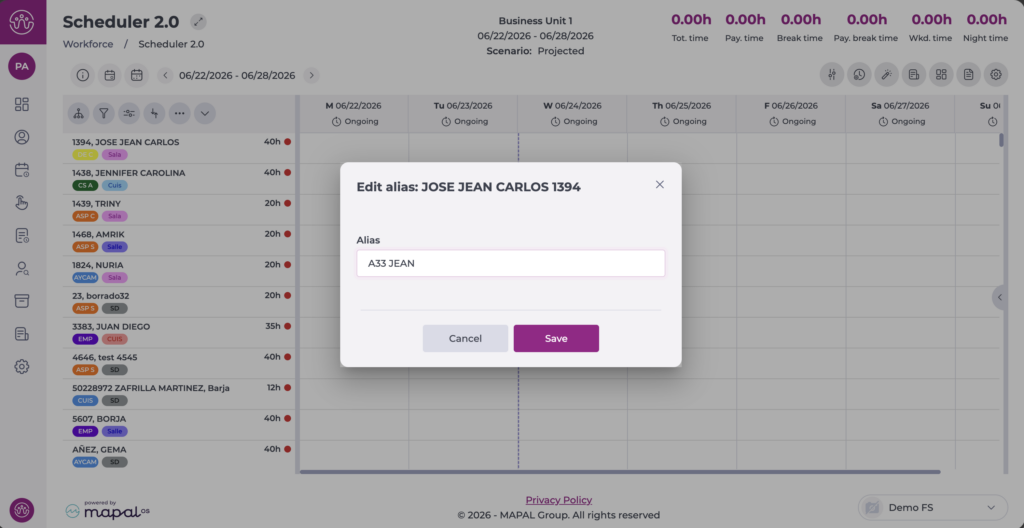
Edit alias

Allows you to assign a nickname to the employee for easier identification in the list. In the window that opens, enter the desired nickname and select Save to apply the changes or Cancel to discard them.

Note: To display employees by nickname, this must be enabled in Settings > Customise Display > Employees.

Tags

Tags allow you to segment and filter employees to create more personalised groupings. You can define the group name, create the tags you need, and assign them to the relevant employees. Once applied, you can use them to group, segment, or filter employees quickly.

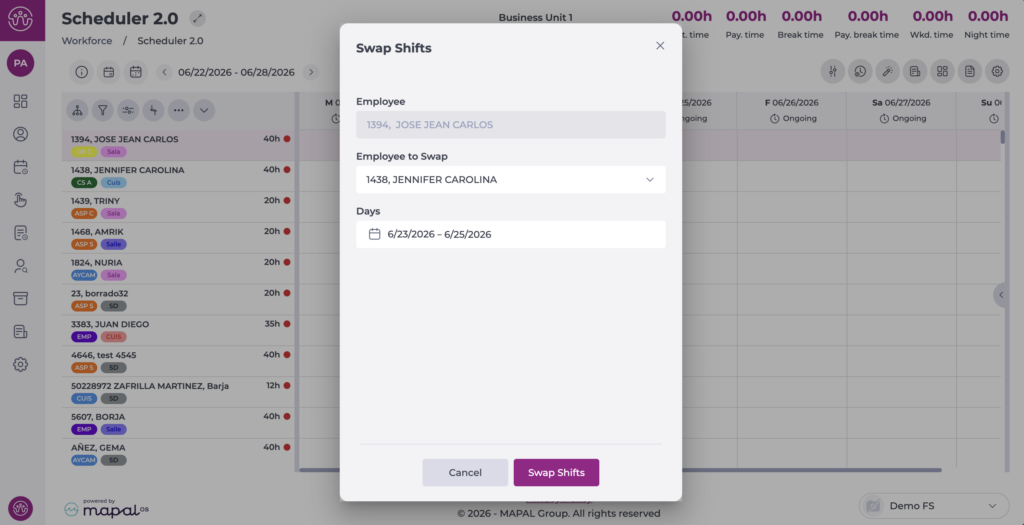
Swap shifts

Managers can swap shifts and days off between employees to balance workloads, ensure regulatory compliance, and adjust operational planning when needed. Swaps are subject to permission restrictions and schedule status, ensuring they only take place during active periods and within assigned sites.

To do so, right-select the employee you want to manage. In the window that opens, select the employee and date you want to swap shifts with. Select Swap to apply the changes or Cancel to discard them.

Insert days off

The insert days off option allows you to manage employee days off more efficiently. The action applies to full weeks within the selected period.

For more information, see Add days off in the scheduler.

Enabled workstations

Each employee has a default workstation but may perform other roles depending on their skill level. Workforce allows you to assign additional workstations and classify them by the employee's level of experience, helping to prioritise the most qualified staff for critical tasks.

Labour compliance

Managers can review key metrics on each employee's labour compliance, such as paid time, differences between assigned and worked hours, and any over- or under-hours. This helps ensure that shift planning aligns with current labour regulations.