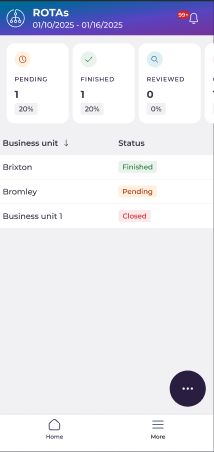
Start from: the Mapal Manager dashboard.
- Select ROTAs from the menu.
The ROTAs screen displays a list of business units with their current ROTA status, such as Finished, Pending, or Closed, along with a summary of reviewed and closed shifts for the current period.
For more information about ROTA status, see View ROTA status across your Business Units.
- Select the Business Unit you want to review.
The ROTA view for that unit opens, defaulting to the current week. A date strip at the top of the screen shows the days of the week.
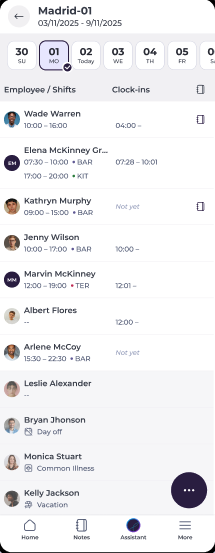
- Select the specific day you want to view from the date strip.
- The ROTA updates to show staffing for the selected date. The daily ROTA displays a list of employees scheduled for that day, including:
- Employee name.
- Scheduled shift start and end time.
- Additional shift indicators such as common illness or day off status.
- Clock-in information where available.
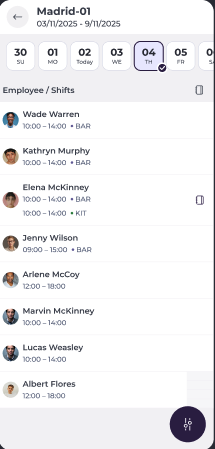
- Select the floating action button (...) inside the business unit view to access:
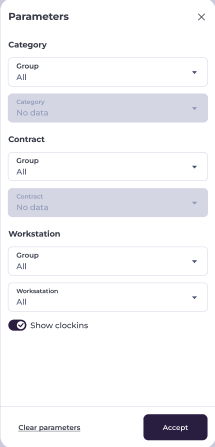
- Parameters:
- Filter the view by Category (group and category), Contract (group and contract), and Workstation (group and workstation).
- Toggle Show clock-ins to include or hide clock-in data.
- Select Accept to apply or Clear parameters to reset.
- Parameters:
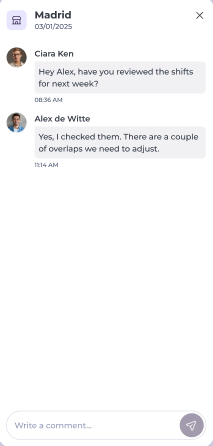
- Comments: view and add comments for the selected business unit and date. Comments are visible to all managers with access to that unit.
Open employee shift details
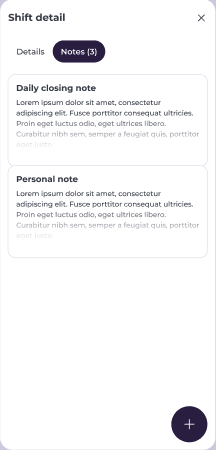
- Select an employee row to open the Shift detail panel.
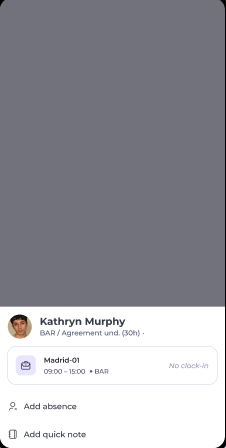
- In the preview, select the Shift tile to open the Shift Details panel. In this preview, you can also Add absences or Add quick notes.
- The Details tab within Shift Details shows:
- Business unit.
- Business day.
- Shift times.
- Clock-in status.
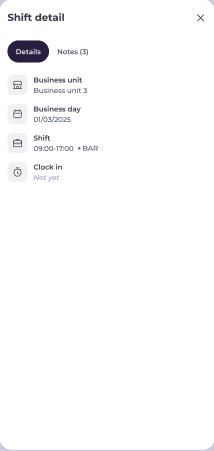
- Select the Notes tab to view all notes associated with that shift.