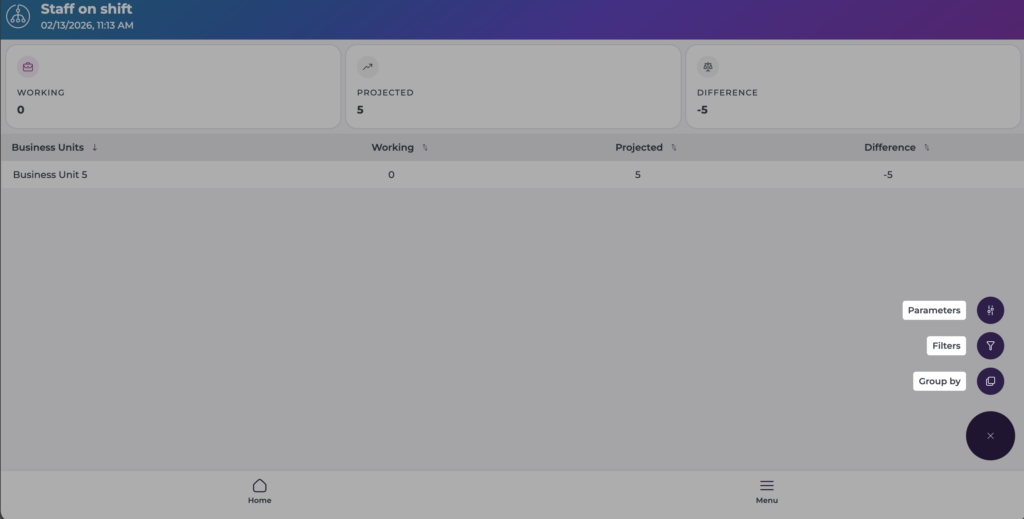
Start from: The Mapal Manager dashboard.
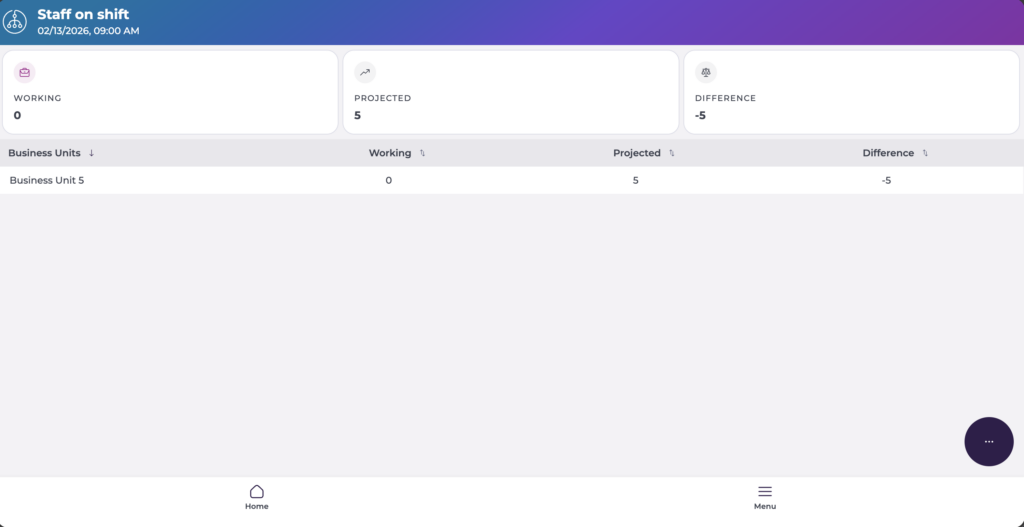
- Navigate to Staff on Shift. On this screen, you can see:
- Employees currently Working, Projected to be working, and the Difference, based on Clock-ins made.
- A list of groups (in this case, Business Units) and their respective metrics.
See shift details
- Once the group (Business Unit) is selected, the Staff on Shift list gives you an at-a-glance view of who is working, including:
- Employee name
- Workstation
- Shift information (scheduled times)
- Clock-in / clock-out status
- Visual status indicators (for example: on time, late, missing)
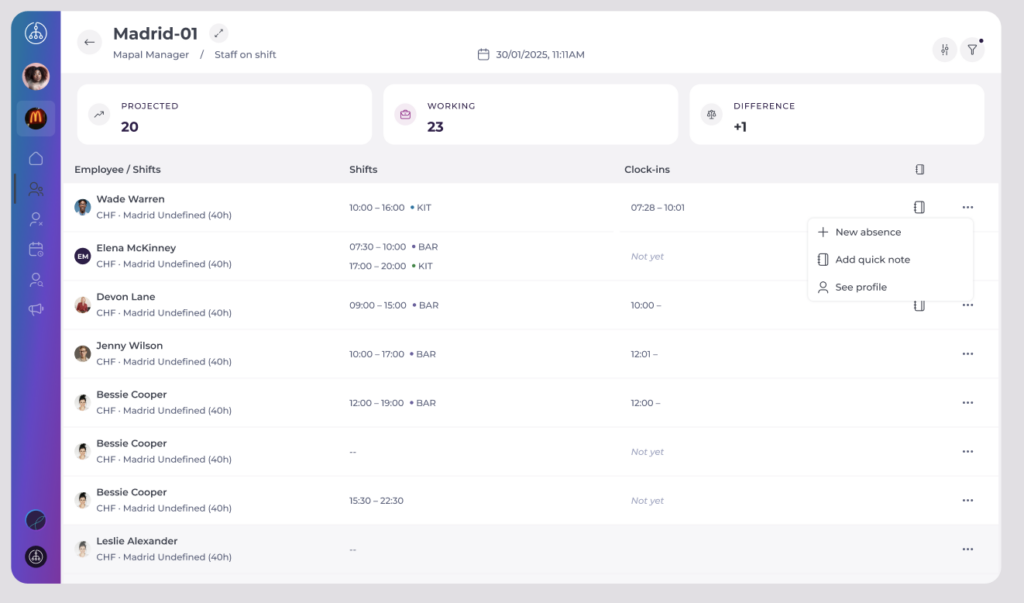
The view updates automatically as employees clock in or out.
Note: The list view is read-only until you select an action. Attendance issues are highlighted visually, but corrections are handled in Modify or correct employee clock-ins.
At the top of the screen, you can always confirm the date, time (defaults to present time) and specific Group you are seeing. If needed, go back to the Staff on Shift screen and change the parameters to review a different date or group.
Note: The Employee and Business Unit lists load in pages of 25 items, with pagination controls always visible at the bottom of the list. The summary metrics at the top continue to reflect the full result set, not just the current page.
Parameterize the view
- In the Staff on Shift screen, select More Options (three-dot menu) to adjust your view. You can:
- Modify Parameters, such as:
- Analysis type
- Moment (date and time)
- Employees per Category, Contract, or Workstation
- Apply Filters by:
- Business Unit
- Concept
- Company
- Country
- Region
- Change the Grouping, such as:
- Business Unit (Default)
- Concept
- Company
- Country
- Region
- Ownership
- Status
- Opening
- Currency
- Postcode
- City
- Type
- or other custom groupings configured.