


Start from: The Mapal Manager dashboard.
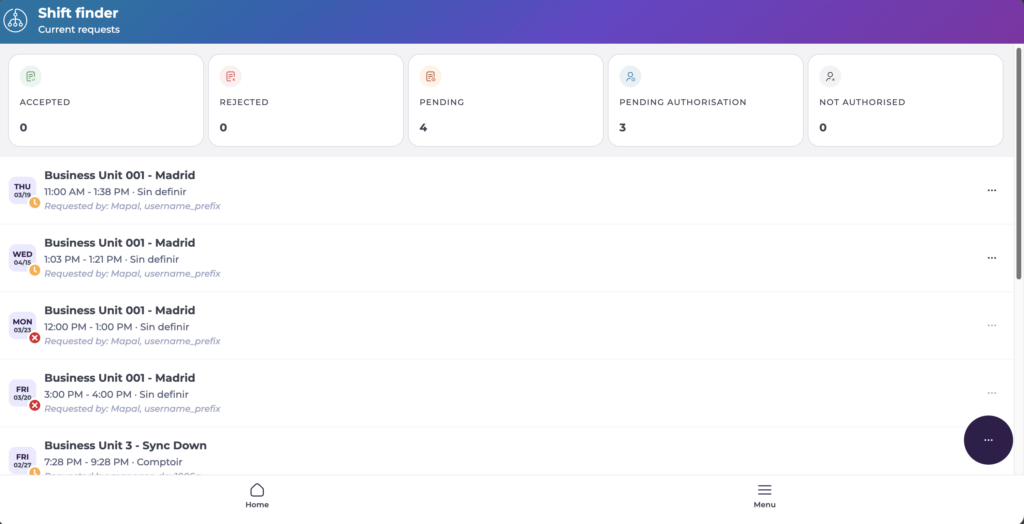
- Navigate to Shift Finder.
- Select the floating action button (...).
- Select New request.
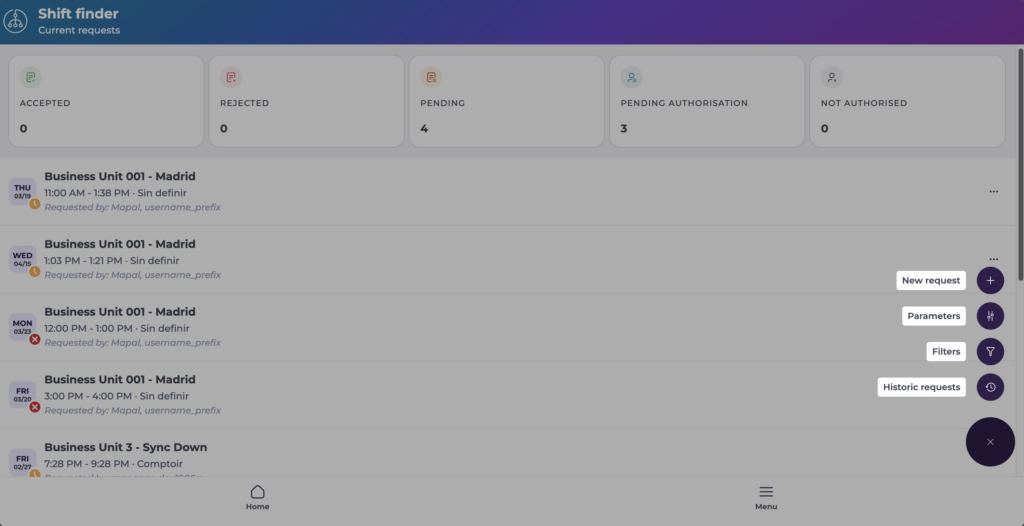
Complete the request form
Fill in the following mandatory fields:
- Business unit
- Business day
- Start time
- End time
- Workstation
- Candidate filter
- Expiration
- Notes or reason (where available)
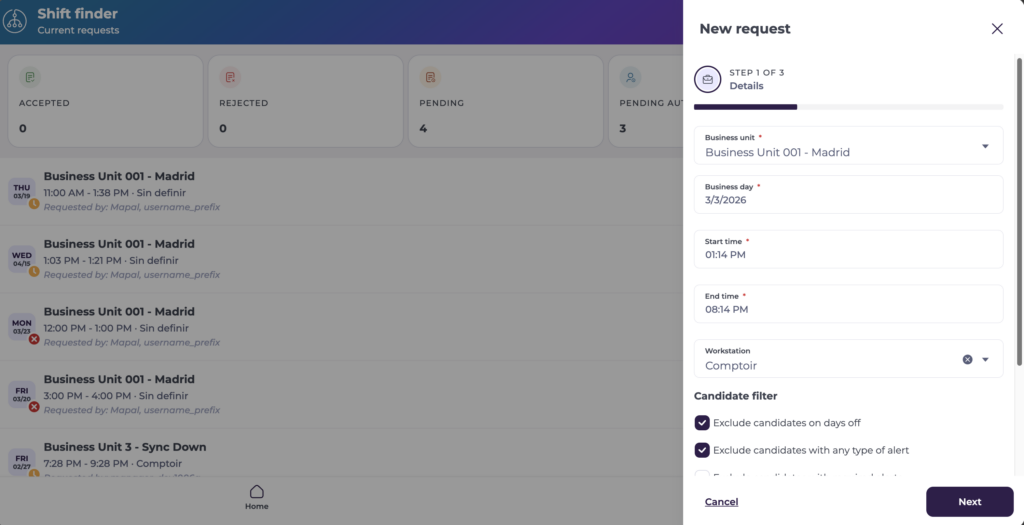
- Select Next to move to the candidates selection.
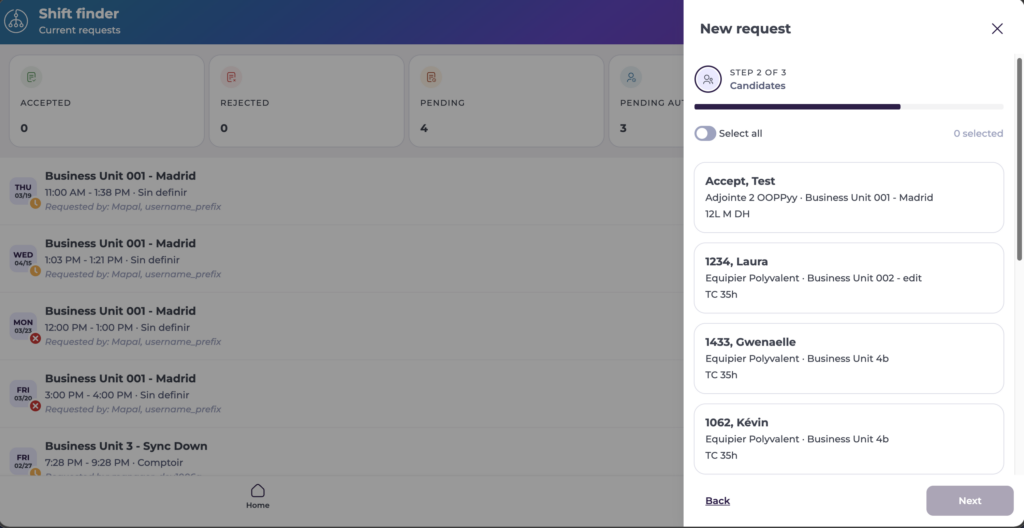
- Select one or more preferred candidates for this request. Toggle Select all to make the request available to everyone. The screen shows the number of candidates selected so far against the total number of candidates available.
- Select Next.
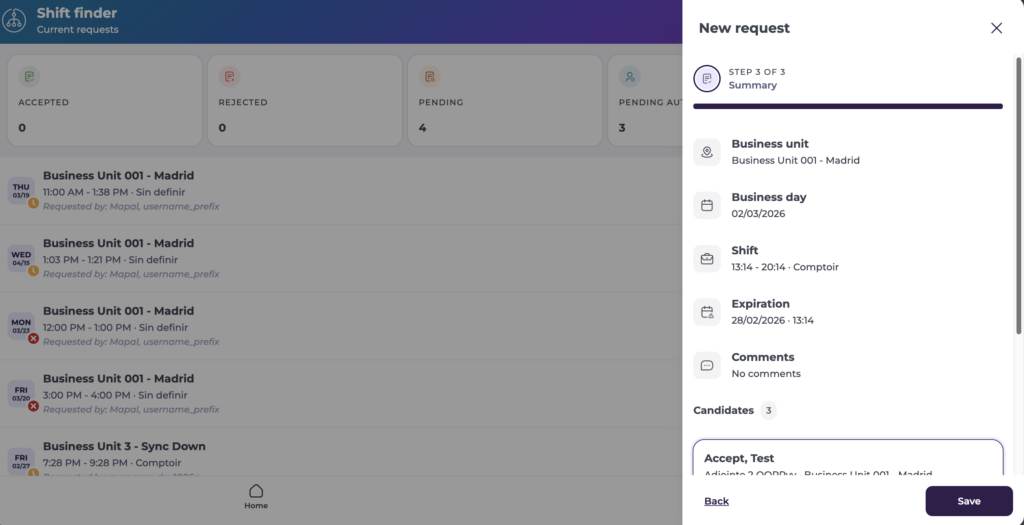
- Review the Summary of the request and verify if it needs changes.
- If the request is correct, select Save to register it.
A confirmation message displays and the new request appears in the Shift Finder list with a status of Pending.
Note: The request does not assign an employee automatically. The status remains Pending until action is taken. Permissions determine who can create requests.
What happens next
- Once submitted, the request appears in the Open / Pending requests list.
- You can view eligible employees under the Candidates section of the request, and approve, reject, or delete the request from the detail view.
- Completed requests may move to a historic view.
