


Start from: Your mobile device’s home screen.
Download the app
- Search for Mapal Manager in the App Store (iOS) or Google Play Store (Android).
- Download and install the app.
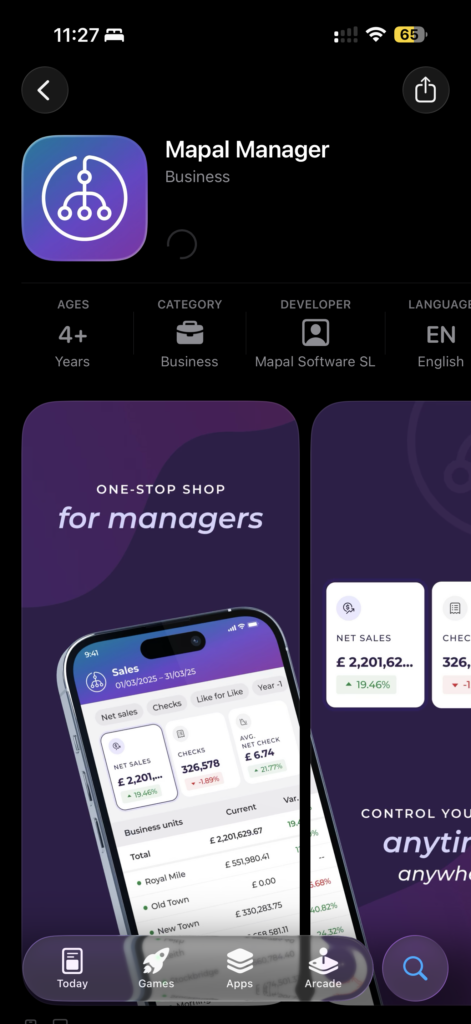
Note: Mapal Manager is a mobile app. If you open it in a desktop web browser, a landing page appears explaining this and providing direct links to download from the App Store and Google Play Store.
Open Mapal Manager
- Tap the Mapal Manager icon on your phone.
- The login screen appears the first time you open the app.

Select your region
Before signing in, select your region: Switch to Latam or Rest of World. Rest of World is selected by default.
Your region determines the correct login and regional environment for your account.
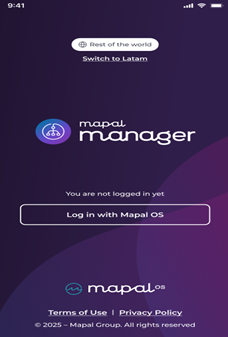
Sign in with your Mapal OS account
- Select Log in with Mapal OS. You will be redirected to the Mapal OS login page in your mobile browser.
- Enter your Mapal OS email address and password.
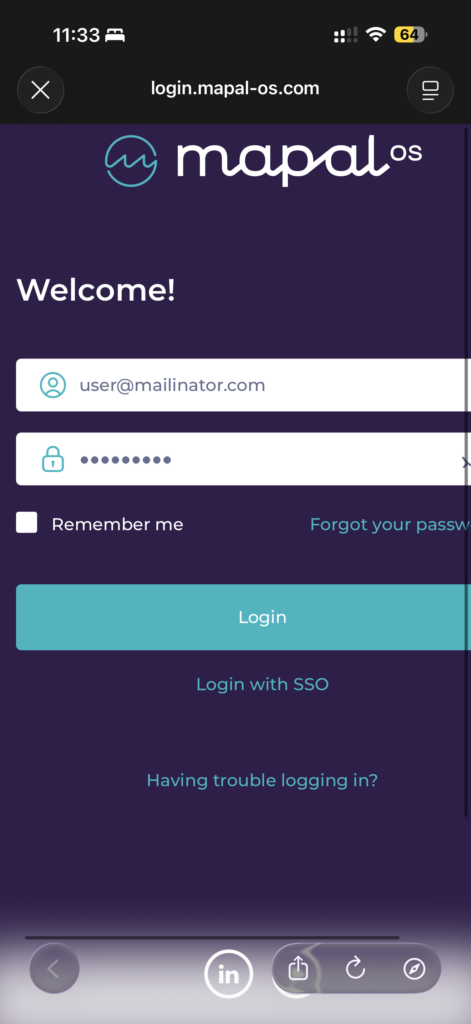
- Tap Login.
Accept legal documents (first-time login)
- Review the Terms & Conditions and Privacy Policy.
- Tap Accept to proceed.
Note: Acceptance of legal terms is required to use the app. If legal terms have changed since your last login, a notification will appear. In that case, review the changes and tap I agree or Accept.
Access the dashboard
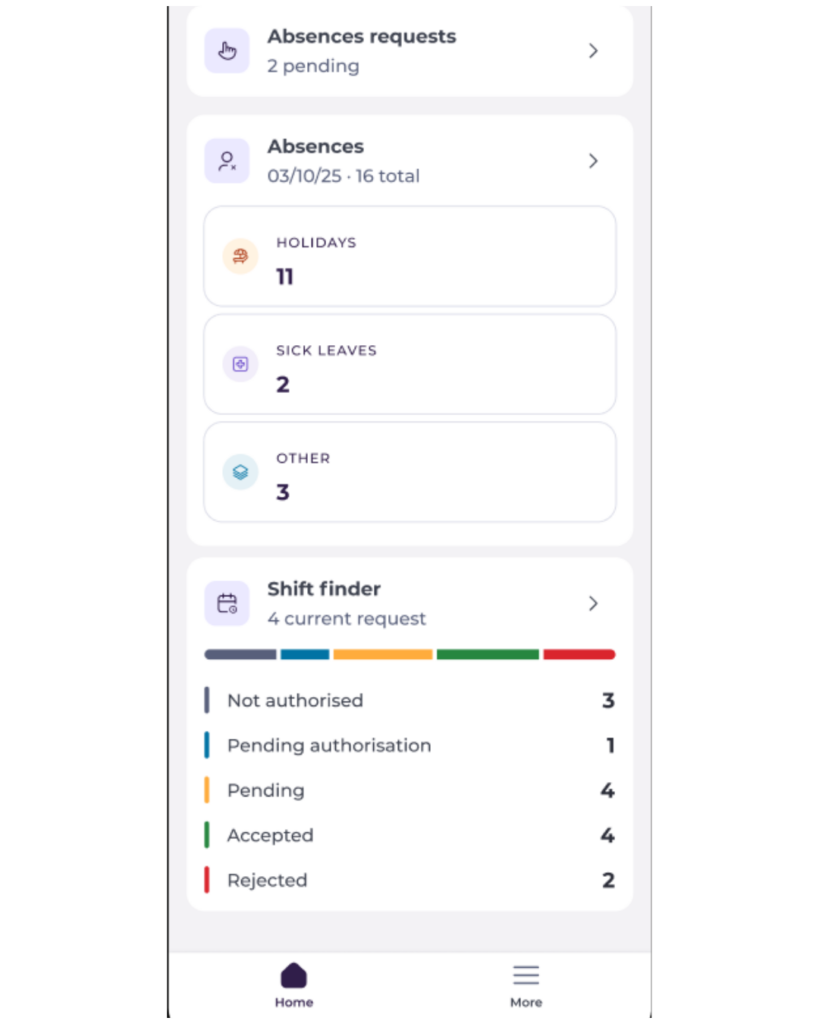
After logging in, you will be directed to the Home Dashboard, where you can begin managing team activities.
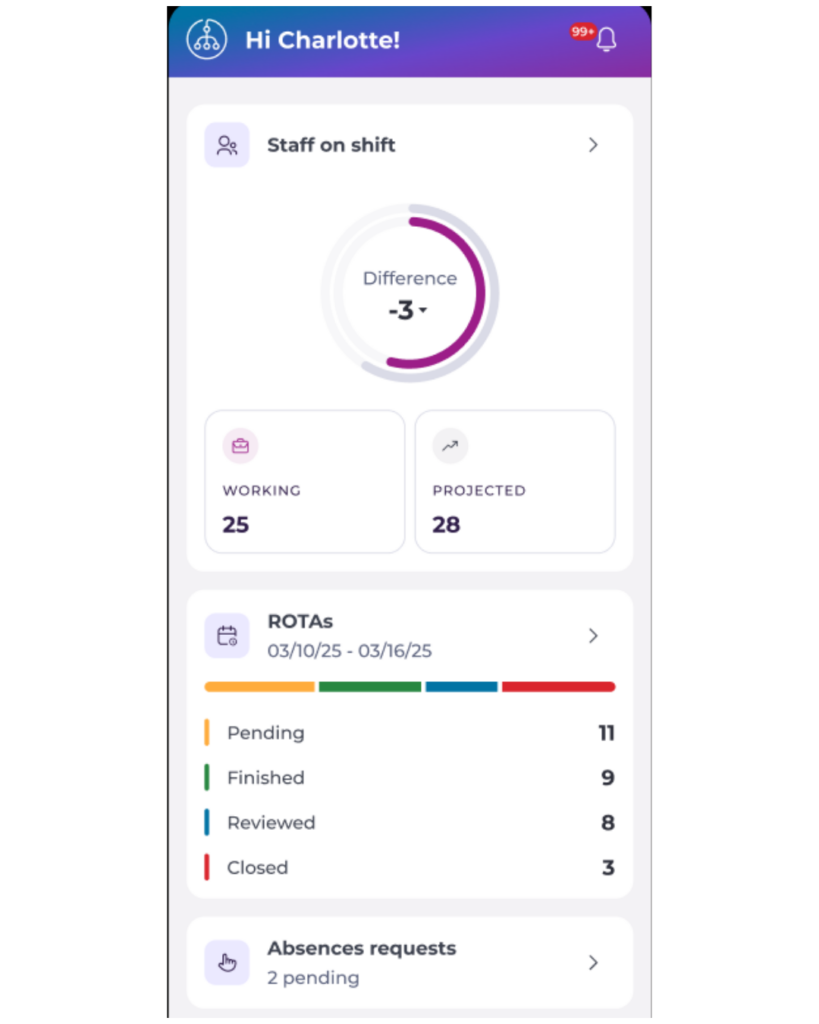 |  |
To know more about how to navigate the dashboard, see Navigate the Mapal Manager home screen.
