


Start from: the Mapal Manager dashboard.
- Select Absences from the menu.
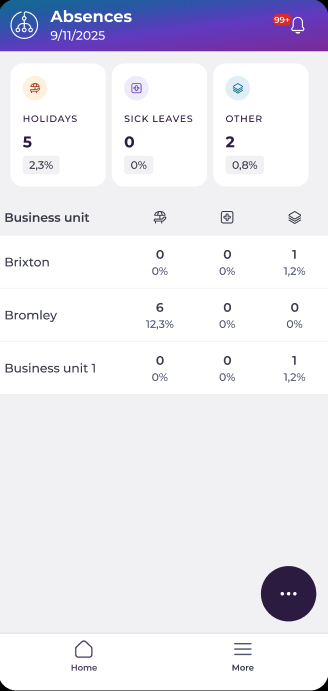
- Select the floating action button (...) to refine your results.
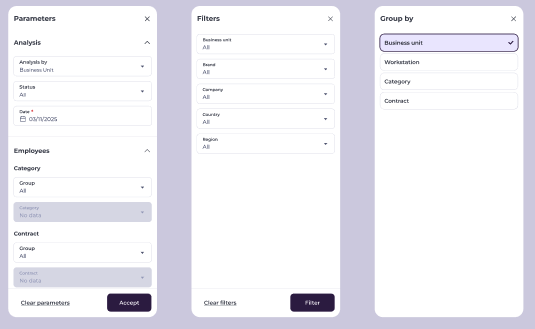
- Use Parameters to narrow results by Analysis type, Status, Date, Employee Category and Category Group, or Employee Contract and Contract Group.
- Use Filter to narrow results by Business Unit, Brand, Company, Country, or Region.
- Use Group results by to organise the list by Business Unit, Workstation, Category, or Contract.
Find pending requests
- Select a specific group, in this case a Business Unit.
- Review the requests for the selected group.
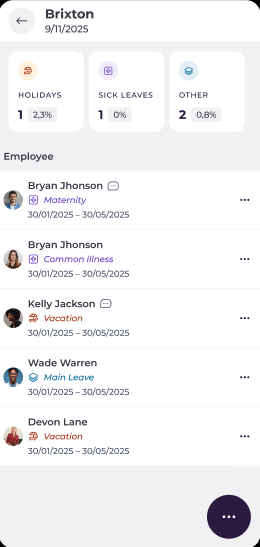
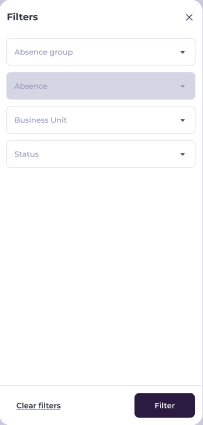
- If needed, select the floating action button (...) within the group to narrow further by Absence group, Absence type, Business Unit, or Status.
- Select Filter to apply your selection, or Clear filters to reset.
Approve or Decline a request
- Select the row for a Pending request.
- In the Absence detail screen, stay in the Data tab.
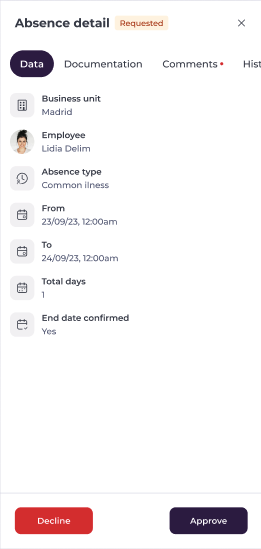
- Select the Approve button to validate the request. The status updates to Approved and the absence is recorded in the system.
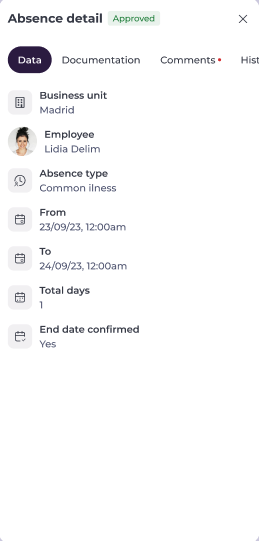
Notes: Approved absences affect workforce planning and availability.
- Select Decline to decline the request. The status updates to Declined and the employee remains scheduled as normal unless adjusted manually.
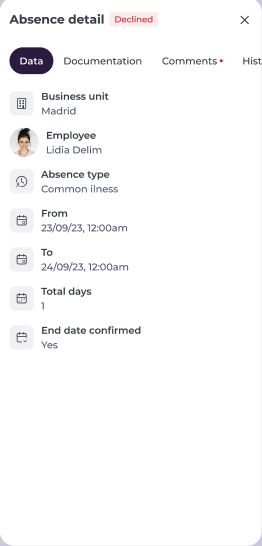
Notes: Rejected absences do not automatically notify replacements.
After approving or declining a request
The updated status is visible in the Absences list and in the employee's absence history.
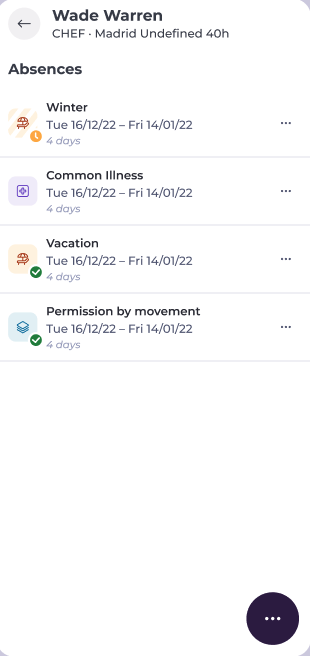
Note: Managers can edit or manually create absences separately if needed. All actions are permission-controlled.
