


Start from: The Mapal Manager dashboard.
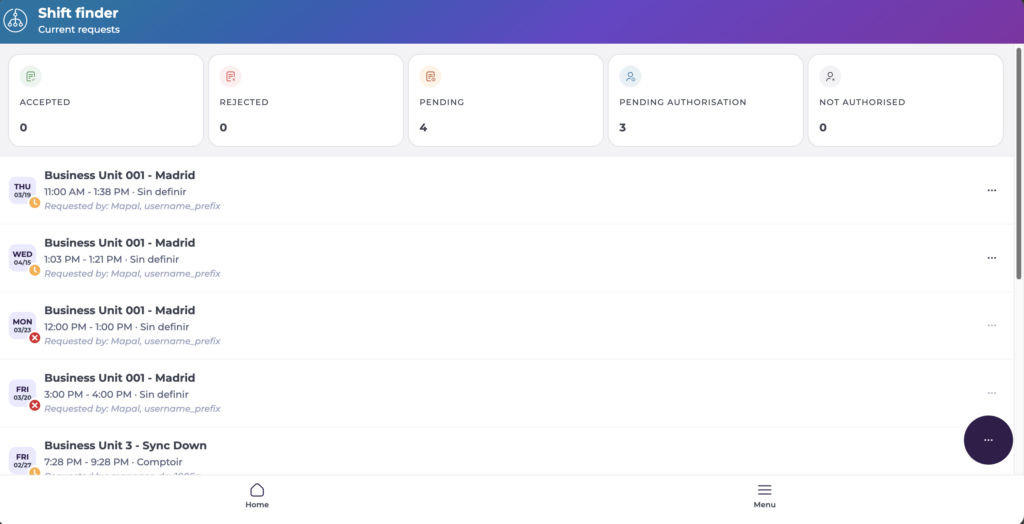
When you open the Requests page, the list defaults to Pending items and is sorted by most recent date first. The default view displays counters for Accepted, Rejected, Pending, Pending Authorisation, and Not Authorised shift requests.
What the list shows
Each request card includes the following information:
- Business unit
- Shift date
- Shift time
- Role and workstation
- Current status (e.g. Pending, Approved, Rejected)
- Candidate selection progress: selected versus total available candidates.
Adjust Parameters
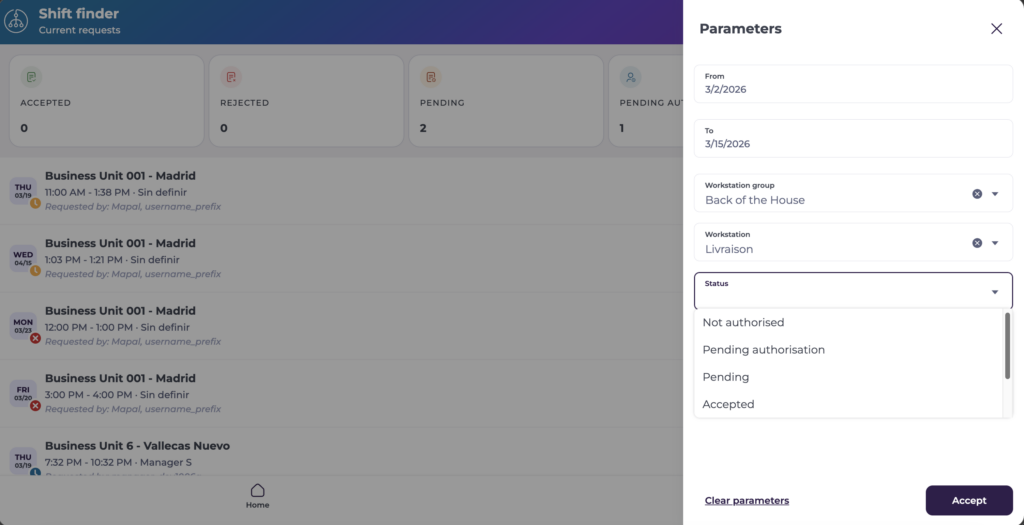
You can Parameterise the view of Shift Requests to only show a specific selection of shift requests.
- Select the floating action button (...) and click Parameters.
- The Parameters panel opens. Here, you can narrow down the selection based on:
- Date ranges (From - To)
- Workstation group
- Status (Not authorised, Pending authorisation, Pending, Accepted)
Filter requests
- Select Filter to narrow the list by one or more of the following:
- Business unit
- Concepts
- Category
- Region
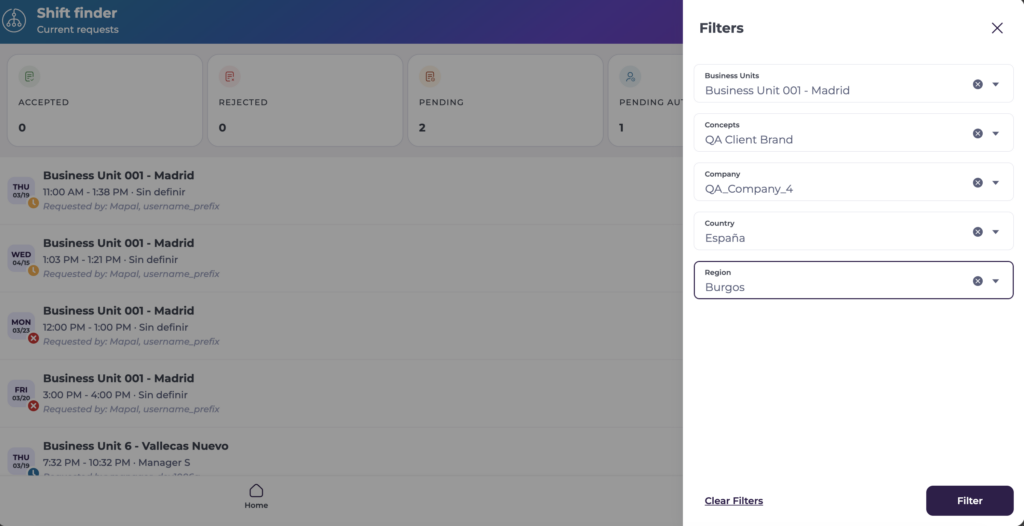
The list updates immediately based on the parameters and filters selected.
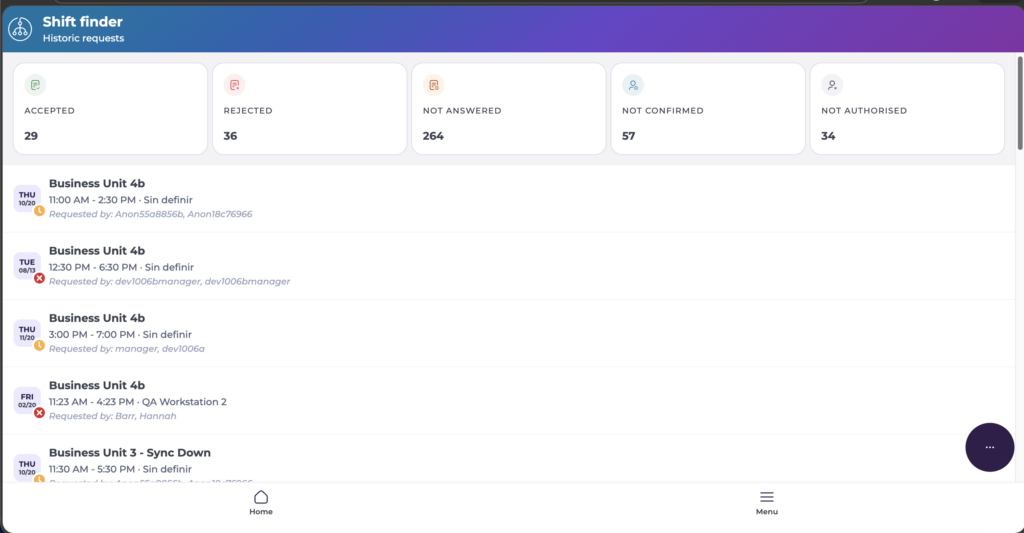
View historic requests
- Select the Historic requests section to review previously approved, rejected, or completed requests.
Note: Historic requests are read-only.
Next steps
Select any request from the list to open the Request Detail view, where you can approve, reject, assign candidates, or delete the request. See View and manage request details.
Note: The list reflects real-time status updates. Permissions determine the visibility of certain requests. Approved or rejected requests may move from the active list to the historic view.
