


Start from: The Mapal Manager dashboard.
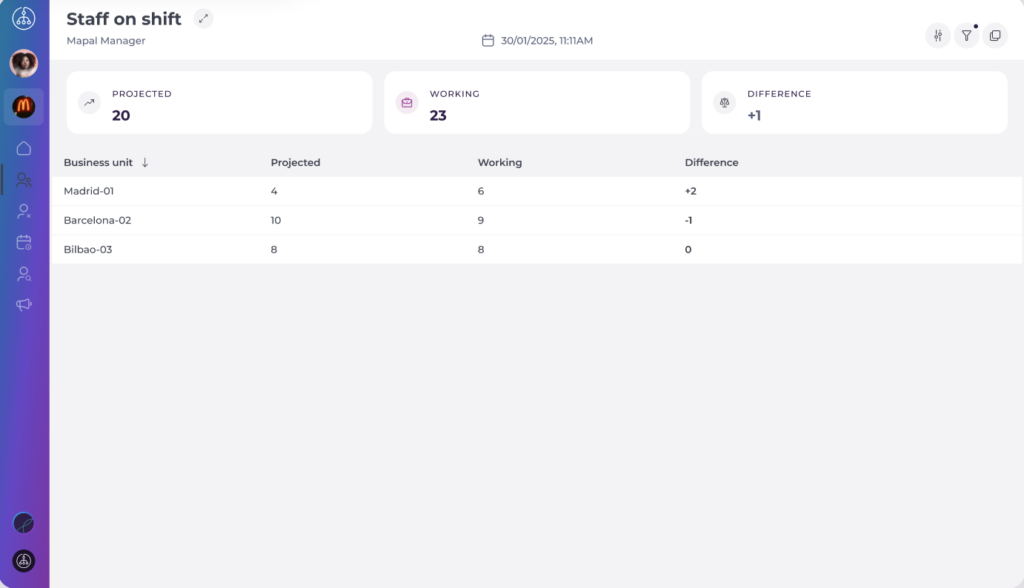
- Navigate to Staff on Shift. On this screen, you can see:
- Employees Working, Projected, and the Difference for all business unit.
- The list of Business Units with their detailed information.
Note: The grouping can be changed to display employee groups by a parameter other than Business Unit. See below for details.
How missing or late clock-ins are shown
- Once you select a grouping (Business Unit, in this case), each employee row displays clock-in status indicators under the Clock In column.
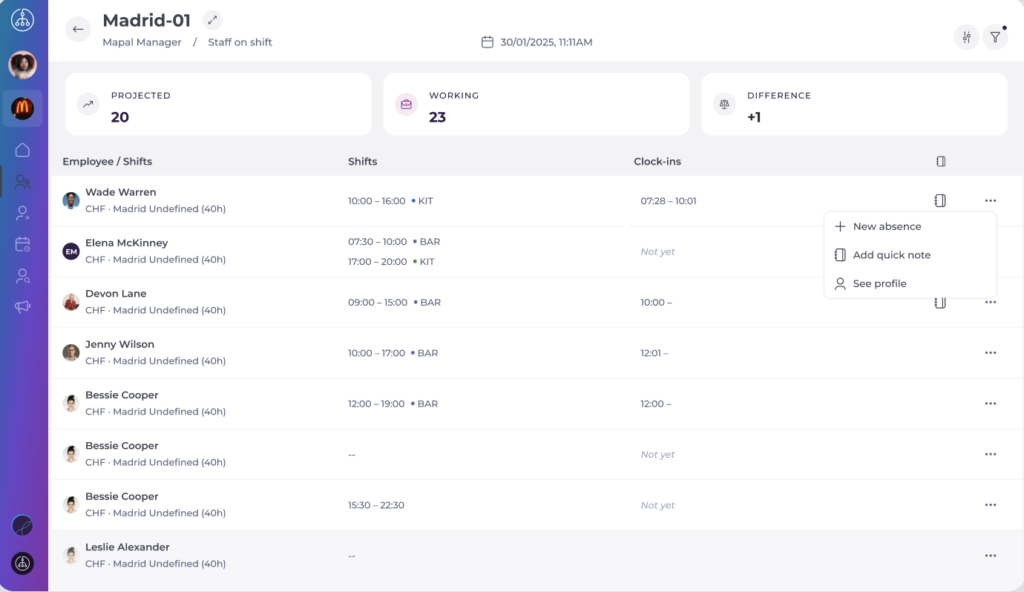
- Each employee row includes a visual attendance status, for example:
- Clocked in on time
- Clocked in late
- No clock in
- Clock-out missing (if applicable)
These indicators appear directly in the list, so you can spot issues without opening individual shifts.
Note: Attendance indicators update in real time as employees clock in/out. Indicators also update automatically after a manager correction.
Identify missing or late clock-ins
- Review the Staff on Shift list.
- At the top right of the screen, you will find three buttons:
- Select Parameters to modify:
- Analysis type
- Moment (date and time)
- Employees per Category, Contract, or Workstation.
- Select Filters to narrow down your view by:
- Business Unit
- Concept
- Company
- Country
- Region
- Select Group by to change the groupings per:
- Company
- Concept
- Country
- Status
- Select Parameters to modify:
- Access the selected grouping (Business Unit, in this example) and scan for employees showing:
- Warning or alert indicators
- Missing clock-in times
- Late clock-in markers
- Missing clock-out times (if relevant)
Note: Make sure you are reviewing the correct group, date, and time. If needed, adjust the Group or Moment before continuing.
Validate an individual case (optional)
- Select an employee row to open the Shift action panel.
- Select the clock in info to open the Shift Detail screen.
- In Shift Detail, review:
- Scheduled shift times
- Actual clock-in/clock-out data
- Attendance status
- Notes/comments (if any)
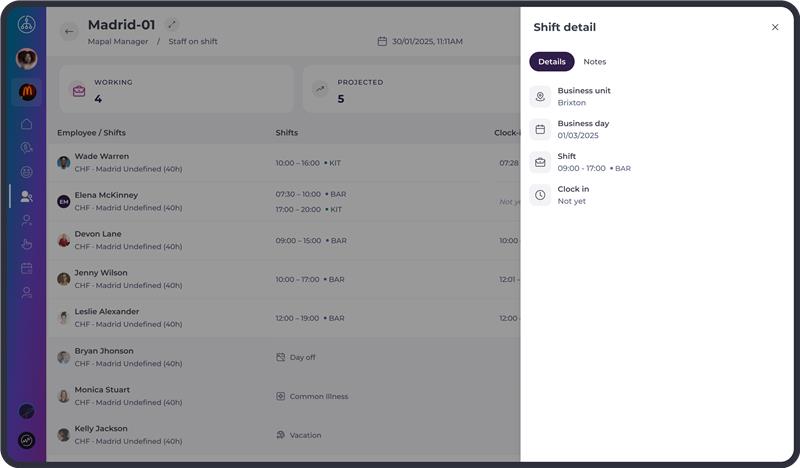
This helps confirm whether the clock-in is genuinely missing/late or simply still in progress.
Note: This workflow is view-only; it does not change data. If a correction is needed, follow the process in Modify or correct employee clock-ins.
