


Note: Mapal OS routes users dynamically based on their user configuration. If your account is set up with SSO, the system will automatically use your corporate login flow by default, giving you a more secure and consistent authentication experience.
- Visit the Mapal OS welcome page at https://login.mapal-os.com/
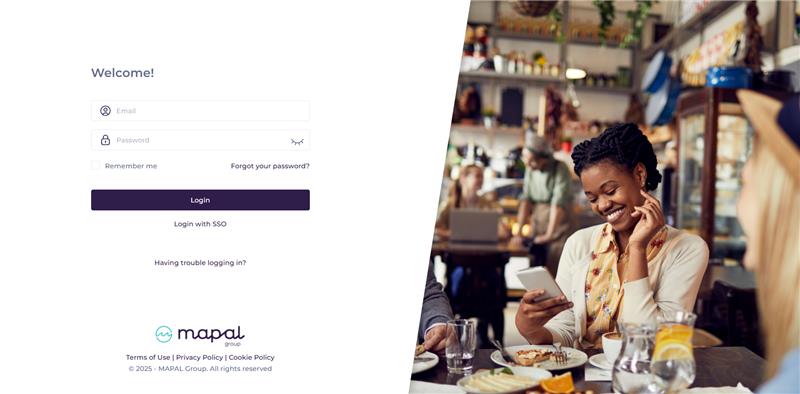
- You have two ways to log in:
- Email & Password
- Enter your email and password in the fields provided.
- Select Log in.
- (Optional) Select Remember me if you'd like the system to remember your login details.
- Login with SSO (if your company has SSO configured)
- Select Login with SSO on the welcome page.
- Enter your email address.
- You will either:
- Be redirected automatically to your organisation’s SSO provider, or
- Be asked to select your SSO provider if more than one is available.
- Complete the authentication process with your company credentials.
- Email & Password
Mapal OS Dashboard
When you've successfully logged in as a manager, you should see the Mapal OS Dashboard (below).
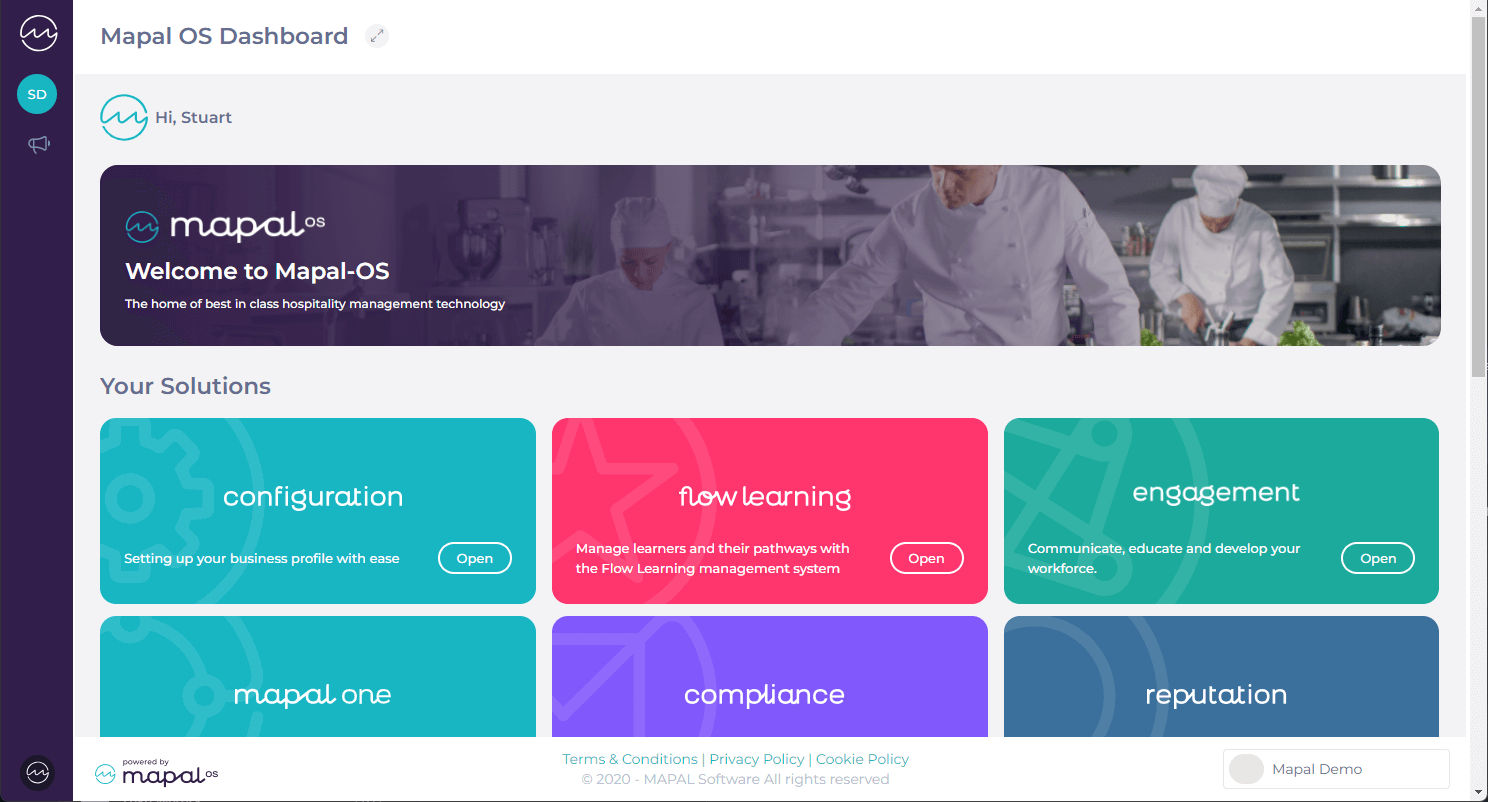
Users that have access as both a manager and an employee (with the same e-mail address) will have a Mapal One tile on the Dashboard. Mapal One will allow you to experience employee-only features such as learning resources.
Otherwise, users with manager access only will have relevant tiles displayed depending on their user setup.
Request a new password
If you need a new password, you can request this using the following steps.
- Select Forgot your password?
- Go to your email inbox.
- Follow the link on the reset password email.
- Set a new password.
Note: If you still have problems logging in, contact your line manager or Mapal support.
