


Start from: The Configuration dashboard.
- Navigate to Employee Management > Employees.
The Employees table displays key details for each employee record, such as:
| Column | Description |
|---|---|
| Name | The employee’s full name as registered in the system. |
| Job Title | The employee’s current role within the organisation. |
| Business Unit | The business unit, branch, or location the employee is assigned to. |
| Department | The department the employee belongs to (e.g., Kitchen, HR, Operations). |
| Start date | The employee’s official start date within the organisation. |
| Status of employment | Displays whether the employee is Employed, Not employed, or Not started yet, based on their employment period. |
| Linked user | Indicates whether the employee is connected to a Mapal OS user profile (Yes / No). A linked user has access to Mapal OS products according to their permissions. |
| Actions (?) | Use the three-dot menu to Edit or Delete the employee record. |
Note: By default, only employees with the status Currently employed are displayed. You can adjust the filter options to include Not employed or Not started employees if needed.
To add new employees, see Add a new employee to an operator in Mapal OS.
Edit employee information
- Find the employee. You can use the Filter to narrow down your search OR the Search button to find specific names.
- Once you find the employee, select the three dots button at the far right of the row and press the Edit option.
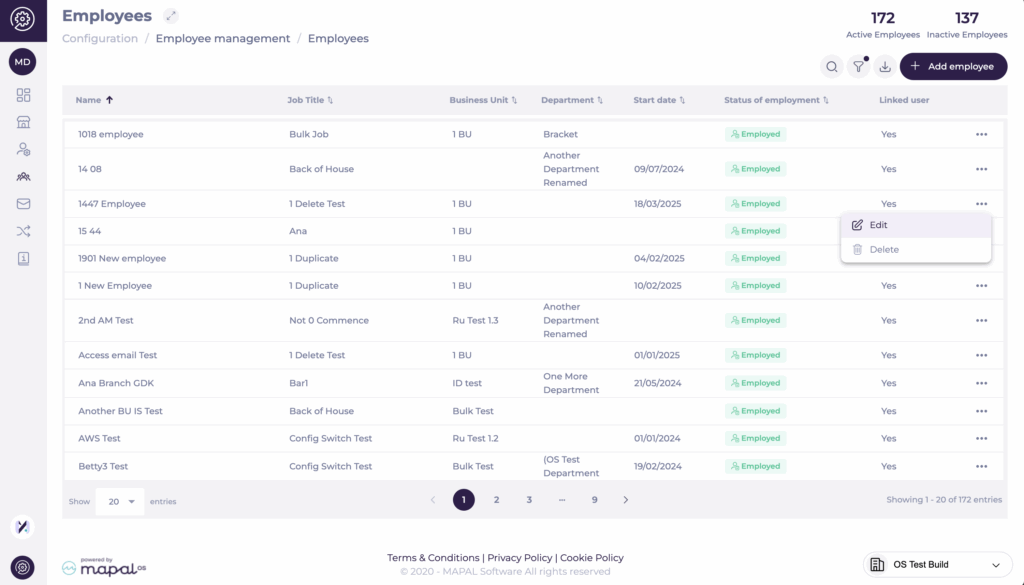
- A sidebar will open with the employee’s information. Here, you can edit the following fields:
| Field | Description |
|---|---|
| First Name (Mandatory) | The employee’s first name. |
| Last Name | The employee’s surname. |
| Email Address | The employee’s work email used for notifications and access. |
| Business Unit (Mandatory) | The business unit or location the employee belongs to. |
| Job Title (Mandatory) | The employee’s role within the organisation. |
| Identity Number | A unique identifier for payroll or administration. |
| Employee Profile | Defines the employee’s access type (e.g. Learner). |
| Department | The department the employee belongs to. |
| Employee OS ID | System-generated identifier; not editable. |
| External ID | Optional identifier for linking with external systems. |
| Status of Employment | Automatically populated based on start/end dates: Currently employed, Not employed, Not started yet. |
| Period of Employment | Defines the start and end dates of employment. |
Notes: Changes made in these fields will sync automatically with all other Mapal OS products, ensuring consistency across the platform. Accurate input in fields such as Business Unit, Job Title, and Status of Employment is critical to maintain seamless operation and reporting in Mapal's ecosystem.
What if I enter a duplicate email address?
If you enter an email address that already exists in the system, Mapal OS will recognise the duplicate and handle it automatically.
- Existing user profiles will not be overwritten.
- The system ensures that each employee record remains linked to its correct user profile.
- User status (active, inactive, or not started) is maintained based on the employee’s current employment status.
This prevents accidental reassignment or merging of profiles and ensures that email-based access remains consistent with each employee’s current status in the organisation.
Note: Always verify whether an email address is already associated with another employee before updating. If unsure, contact your Customer Success Manager for assistance.
Delete employee
Although it is possible to delete employees from Mapal OS, we strongly recommend that you deactivate inactive employees instead. You can find out more in our guide deactivate an employee in Mapal OS.
If you're sure that deleting the employee is appropriate, use these steps:
- Find the employee. You can use the Filter to narrow down your search OR the Search button to find specific names.
- Once you find the employee, select the three dots button at the far right of the row and press the Delete option.
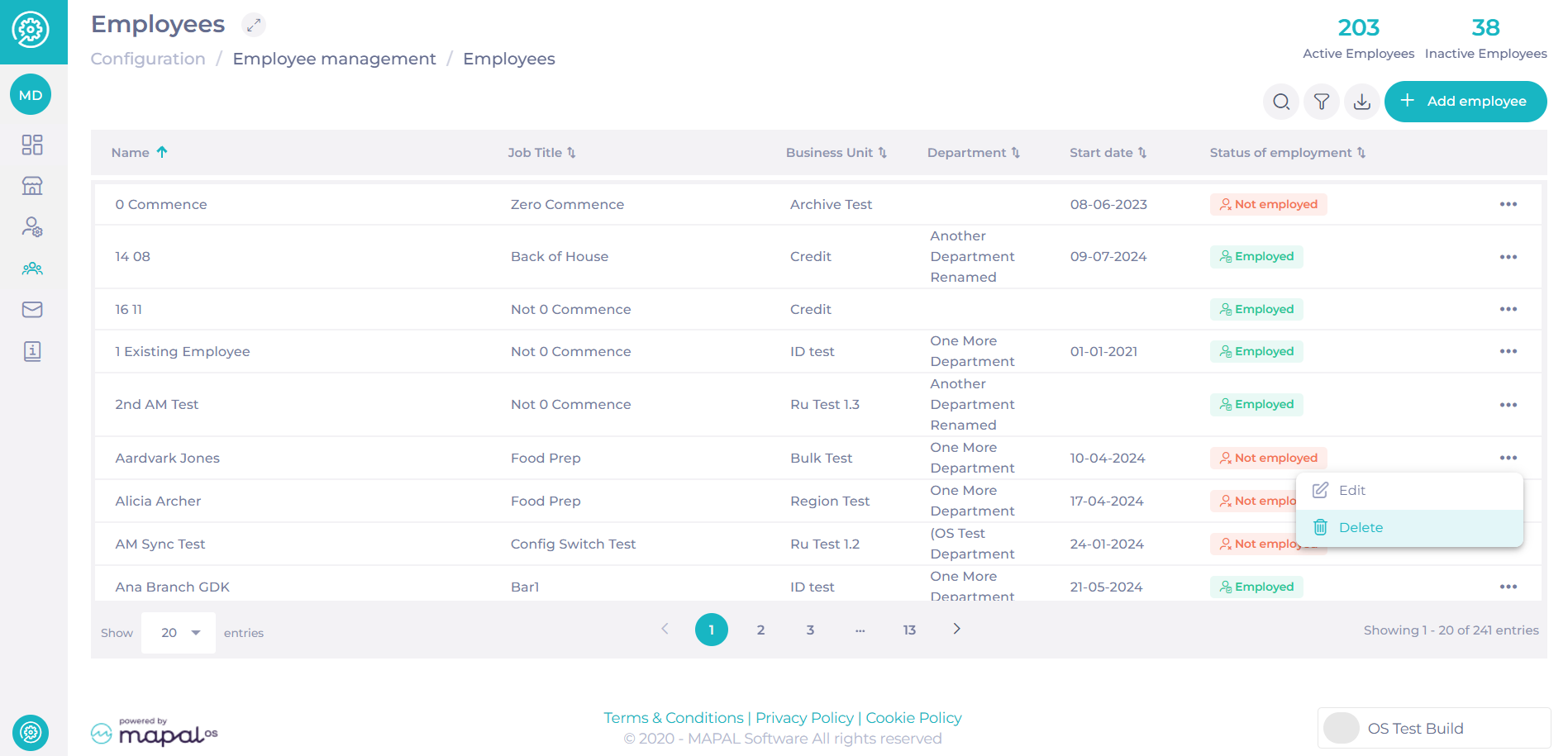
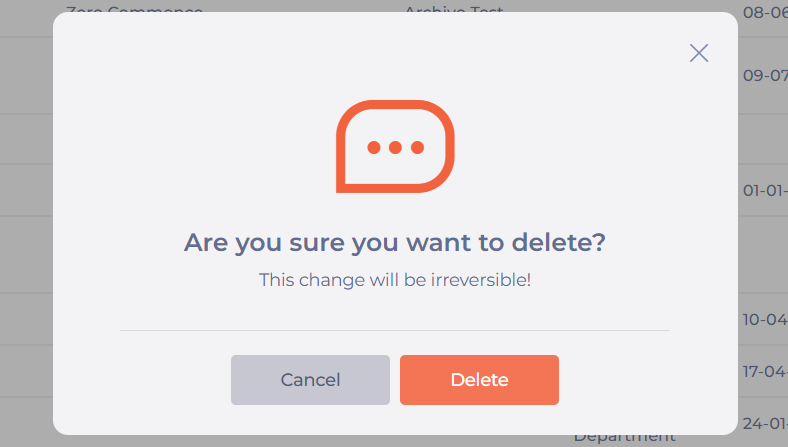
- A confirmation window will appear. Select Delete to complete the removal.
Deactivating users in Mapal OS
Mapal OS differentiates between Employees and Users. If you mark an Employee as active or inactive, you must also update their User status separately.
Find out more in Manage users in Mapal OS.
